MCP Activity History
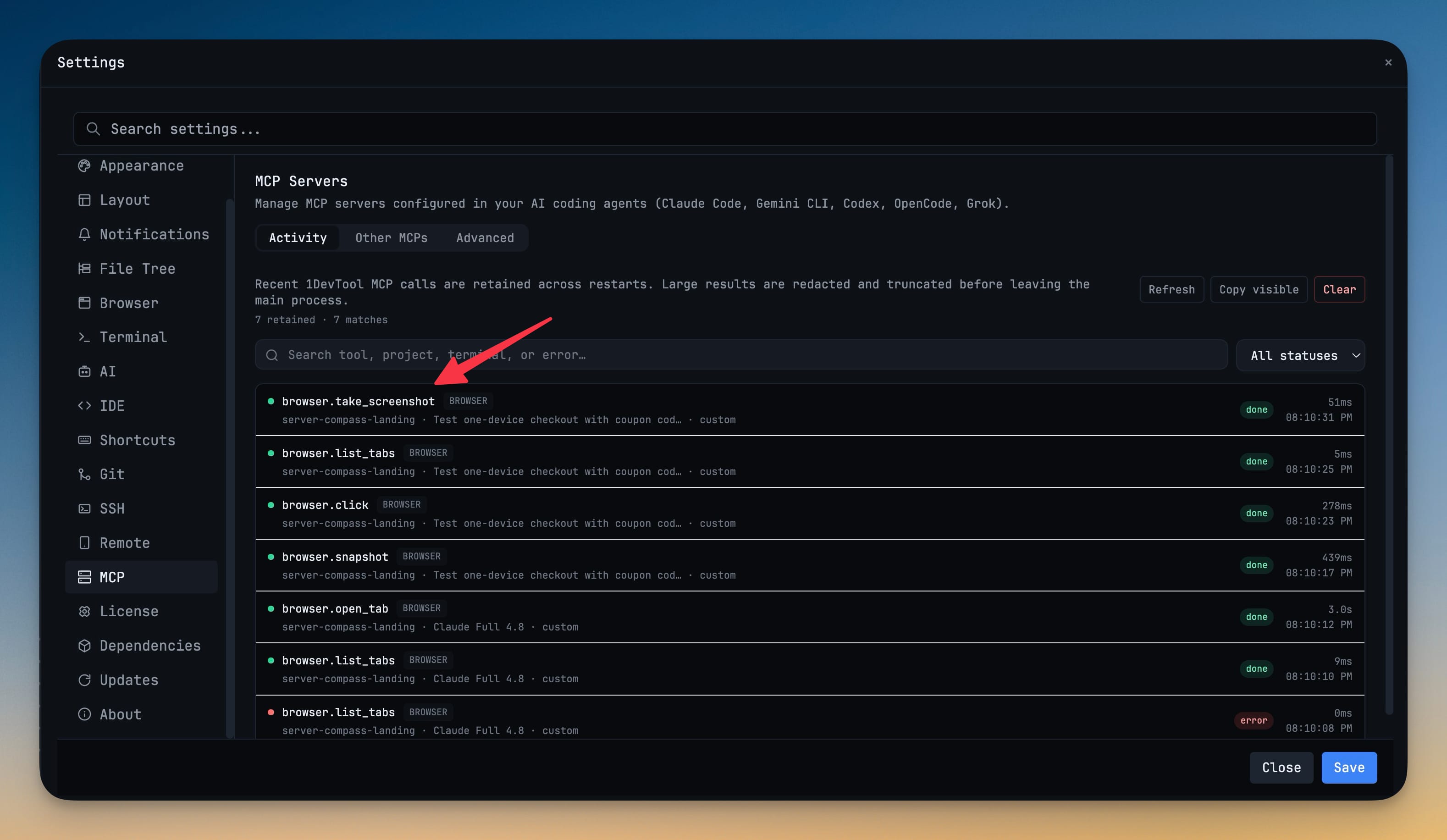
Read back what your agents actually called through 1DevTool MCP after the fact — tool name, status, duration, project, terminal, error, and a safe input/output preview. The history survives app restarts, so a call you missed at 2pm is still there at 6pm.
More Screenshots
Click any image to zoom in
Why You Need This
How this feature boosts your daily productivity
Terminal badges tell you a tool fired, then they vanish — which is useless the moment you want to know why an agent's browser run went sideways ten minutes ago. Settings → MCP → Activity keeps up to 500 recent calls on disk with their status, duration, and the project and terminal they came from. Search by tool, project, terminal, or error text, filter to just the failures, expand a call to read its input and a truncated output preview, then copy the visible history or clear it. Large payloads are shortened and sensitive values redacted before anything reaches the interface, so the log stays readable and safe to share.
How It Works
Get started in 4 simple steps
Open Settings → MCP → Activity
The Activity tab lists recent 1DevTool MCP calls with tool name, status badge, duration, and the project and terminal each call came from.
Search or filter to what you need
Search by tool, project, terminal, or error text, and narrow the list with the status filter when you only want the failures.
Expand a call to see input and output
Each entry opens to show the arguments the agent sent and a truncated output preview, with sensitive values redacted and large payloads shortened.
Copy or clear the history
Copy visible exports what is on screen, Load older pulls further back through the retained entries, and Clear discards the stored activity.
Without 1DevTool
The manual way vs. the 1DevTool way
The Hard Way
The 1DevTool Way
Key Capabilities
Everything included with MCP Activity History
Why It Matters
The productivity impact of having customization built into your workspace
The Badge Is Not Enough
Terminal badges clear within seconds. Activity keeps the call so you can still answer "what did it actually do?" hours later.
Straight To The Failure
Filter by status and the errors surface on their own, with the message attached, instead of scrolling a transcript hunting for the moment it broke.
Survives Restarts
History is retained on disk, so quitting the app does not erase the evidence of the run you wanted to review.
Safe To Read And Share
Sensitive values are redacted and large payloads truncated for display, while the agent still receives the complete result.
More in Customization
Other features in this category you might find useful
Theme Options
Choose between Dark, Light, or System-following themes designed for comfortable all-day coding.
Keyboard Shortcuts
Customize every shortcut to match your muscle memory. Conflict detection prevents accidental duplicates.
Terminal Fonts
Choose from JetBrains Mono, Fira Code, Cascadia Code, or use custom fonts. Adjust size and line height.
MCP Settings
Configure MCP servers for Claude Code, Gemini CLI, and Codex from a unified settings tab — install, enable, and troubleshoot with one click.
Ready to boost your workflow?
Download 1DevTool for free and experience MCP Activity History along with 345 other features — all in one app.