MCP Settings
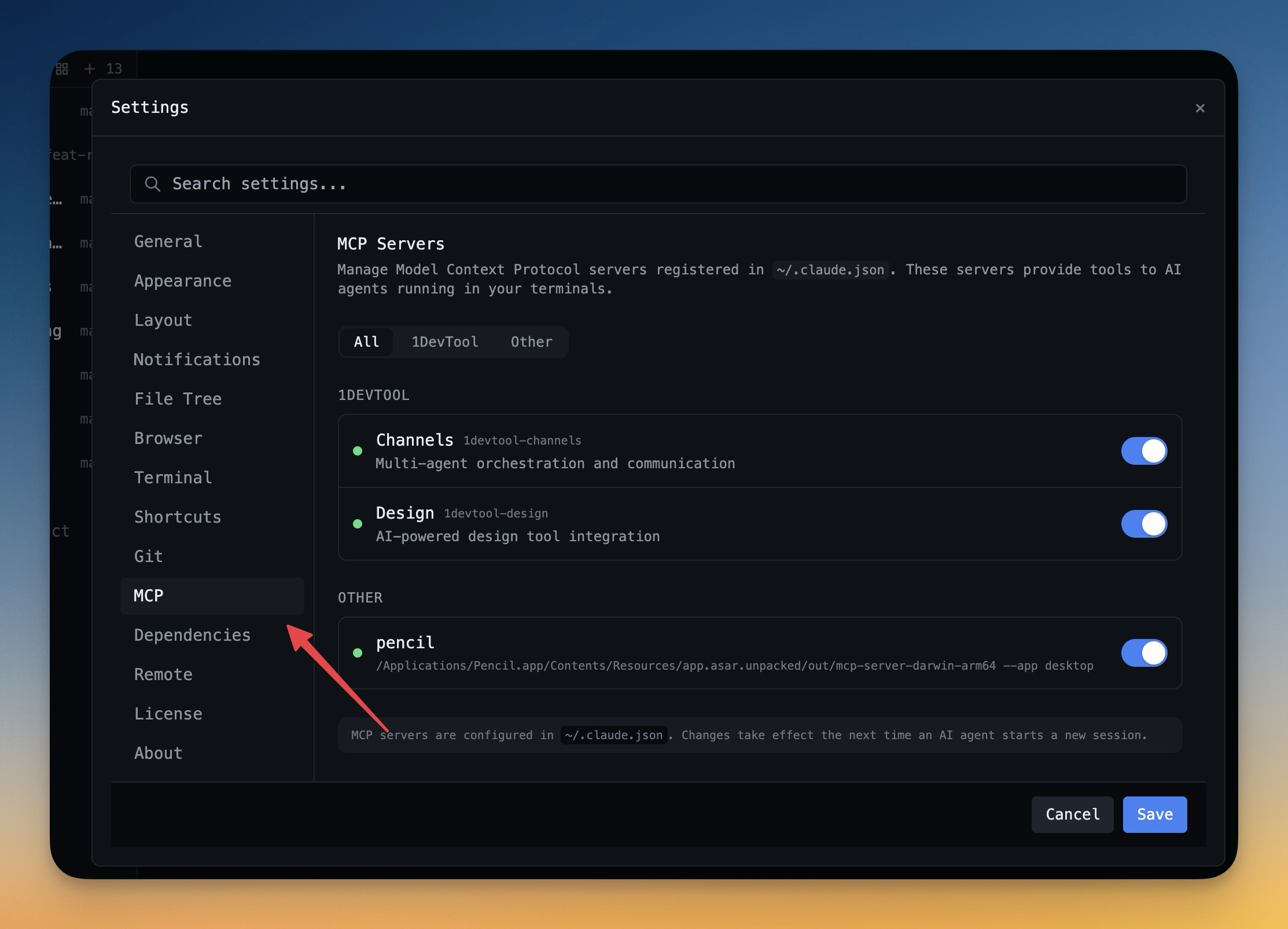
Configure MCP servers for Claude Code, Gemini CLI, and Codex from a unified settings tab — install, enable, and troubleshoot with one click.
Why You Need This
How this feature boosts your daily productivity
MCP (Model Context Protocol) servers extend what your AI agents can do — from orchestrating multi-agent channels to integrating with design tools. But configuring them means editing JSON files scattered across ~/.claude.json, ~/.gemini/settings.json, and ~/.codex/config.toml — one typo and your agent silently loses its capabilities. MCP Settings provides a unified UI to install, enable, and manage all MCP servers across all your AI tools. See which servers are active, view configuration details per tool, and copy diagnostic logs when something isn't working. Configuration that used to involve three config files and a terminal now takes one click.
How It Works
Get started in 4 simple steps
Open Preferences
Press Cmd+, (or Ctrl+,) to open the Preferences panel. All settings are organized in clear categories.
Choose Your Theme
Select Dark, Light, or System-following themes. Each is carefully tuned for readability and comfort.
Configure Shortcuts
Remap any keyboard shortcut to match your muscle memory. Conflict detection prevents overlapping bindings.
Fine-Tune Details
Set terminal fonts, font sizes, line heights, scrollback lines, and default behaviors per project.
Without 1DevTool
The manual way vs. the 1DevTool way
The Hard Way
The 1DevTool Way
Key Capabilities
Everything included with MCP Settings
Why It Matters
The productivity impact of having customization built into your workspace
Your Editor, Your Rules
Every shortcut, font, theme, and layout is configurable. Make 1DevTool feel like home.
Eye Comfort
Dark and light themes tuned for all-day coding. Reduce eye strain with the right contrast for your environment.
Muscle Memory Friendly
Remap shortcuts to match your existing habits. No relearning required when switching from VS Code or Vim.
Per-Project Defaults
Different projects can have different terminal types, default URLs, and behavior settings.
More in Customization
Other features in this category you might find useful
Theme Options
Choose between Dark, Light, or System-following themes designed for comfortable all-day coding.
Keyboard Shortcuts
Customize every shortcut to match your muscle memory. Conflict detection prevents accidental duplicates.
Terminal Fonts
Choose from JetBrains Mono, Fira Code, Cascadia Code, or use custom fonts. Adjust size and line height.
MCP Activity History
Read back what your agents actually called through 1DevTool MCP after the fact — tool name, status, duration, project, terminal, error, and a safe input/output preview. The history survives app restarts, so a call you missed at 2pm is still there at 6pm.
Ready to boost your workflow?
Download 1DevTool for free and experience MCP Settings along with 321 other features — all in one app.