Multi-Command Startup Sequences
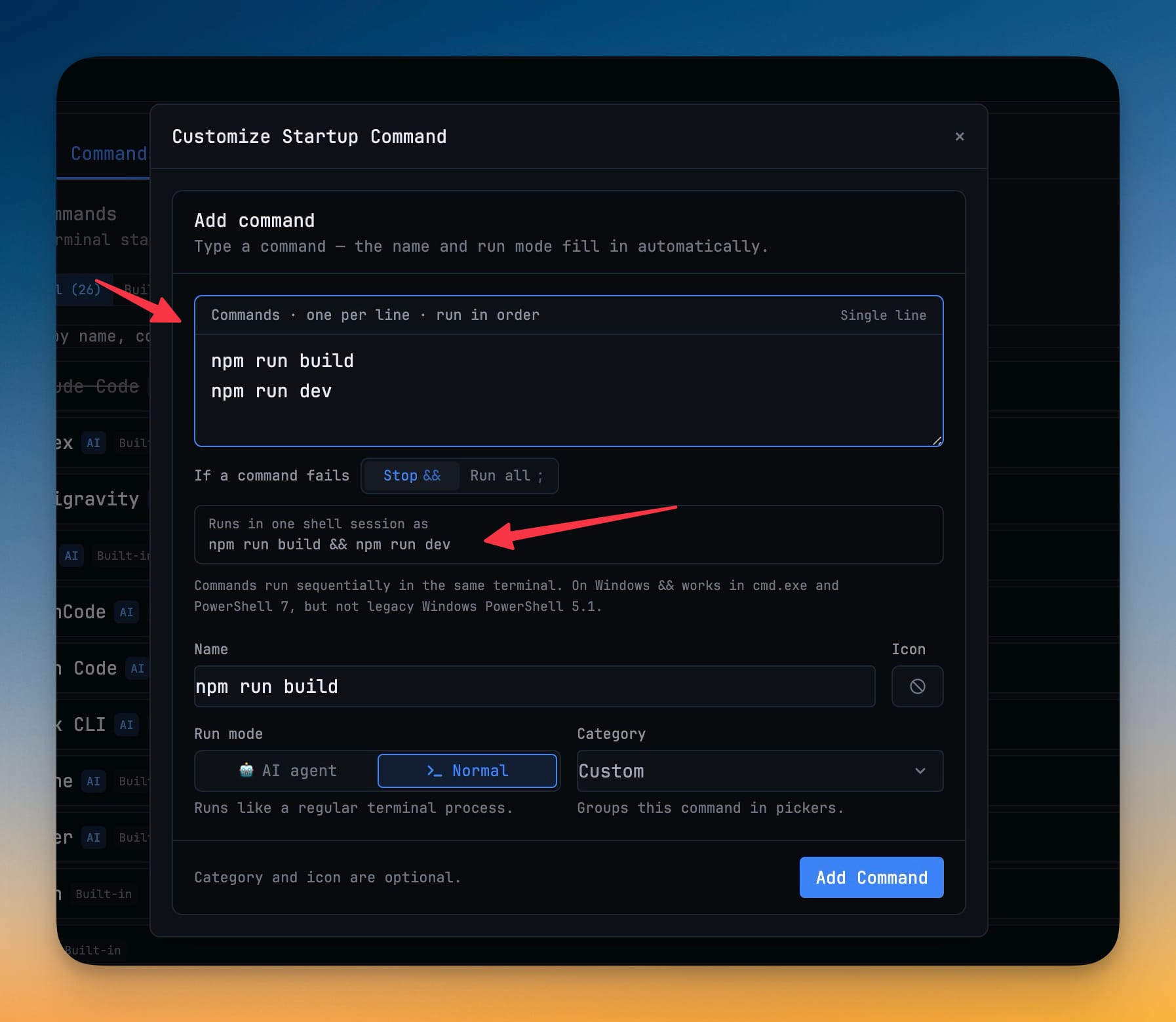
Write several startup commands, one per line, and 1DevTool runs them in order in a single terminal session. You choose whether a failure stops the chain or lets the rest run — no hand-written && incantation required.
Why You Need This
How this feature boosts your daily productivity
Real project startups are rarely one command. You migrate then seed then serve; you build then run dev; you activate an environment before anything else works. Doing that from a startup command used to mean either three separate terminals to babysit or memorizing the exact `&&` chain and its per-shell quirks. Multi-command sequences let you type each step on its own line and pick what should happen if one fails, and 1DevTool assembles the correct single shell line for your platform. The setup you'd otherwise rebuild in every project becomes one named preset you launch with a click.
How It Works
Get started in 4 simple steps
Open Customize Startup Command
From Terminal Settings → Manage Startup Commands, add a new command or edit an existing one.
One command per line
Type or paste each command on its own line in the "Commands · one per line · run in order" box; they run top to bottom in the same session.
Choose the failure behavior
Under "If a command fails", pick "Stop" (&&) to halt on the first error or "Run all" (; or &) to keep going. A live preview shows the exact shell line.
Name and add
Give it a name, optionally set a category and icon, then click "Add Command" — the preset shows up in your terminal launchers ready to run.
Without 1DevTool
The manual way vs. the 1DevTool way
The Hard Way
The 1DevTool Way
Key Capabilities
Everything included with Multi-Command Startup Sequences
Why It Matters
The productivity impact of having terminal & ai agents built into your workspace
Real Startups, One Preset
Migrate, seed, then serve — the whole chain runs from a single named command instead of three babysat terminals.
You Choose the Failure Mode
Stop on the first error when order matters, or run everything regardless when the steps are independent.
No Shell Trivia
The right separator for cmd.exe, PowerShell 7, bash, or zsh is picked for you and previewed before you save.
One Session, Shared State
Commands run in the same shell, so a directory change or exported variable carries into the next step.
More in Terminal & AI Agents
Other features in this category you might find useful
Multi-Agent Terminals
Run Claude Code, Codex, Gemini CLI, Amp, OpenCode, Qwen, and custom AI commands in dedicated terminal tabs with recognizable agent logos, custom colors, and status indicators.
Flexible Terminal Layouts
View terminals in 2×2 grid, side-by-side columns, or single fullscreen mode with resizable panes.
Terminal Dashboard
Kanban-style board view of all terminal statuses — Idle, Running, and Review — with real-time polling.
Session Persistence
Terminal sessions persist across app restarts with full scrollback history via tmux integration.
Ready to boost your workflow?
Download 1DevTool for free and experience Multi-Command Startup Sequences along with 326 other features — all in one app.