Mosaic Tiling Layout
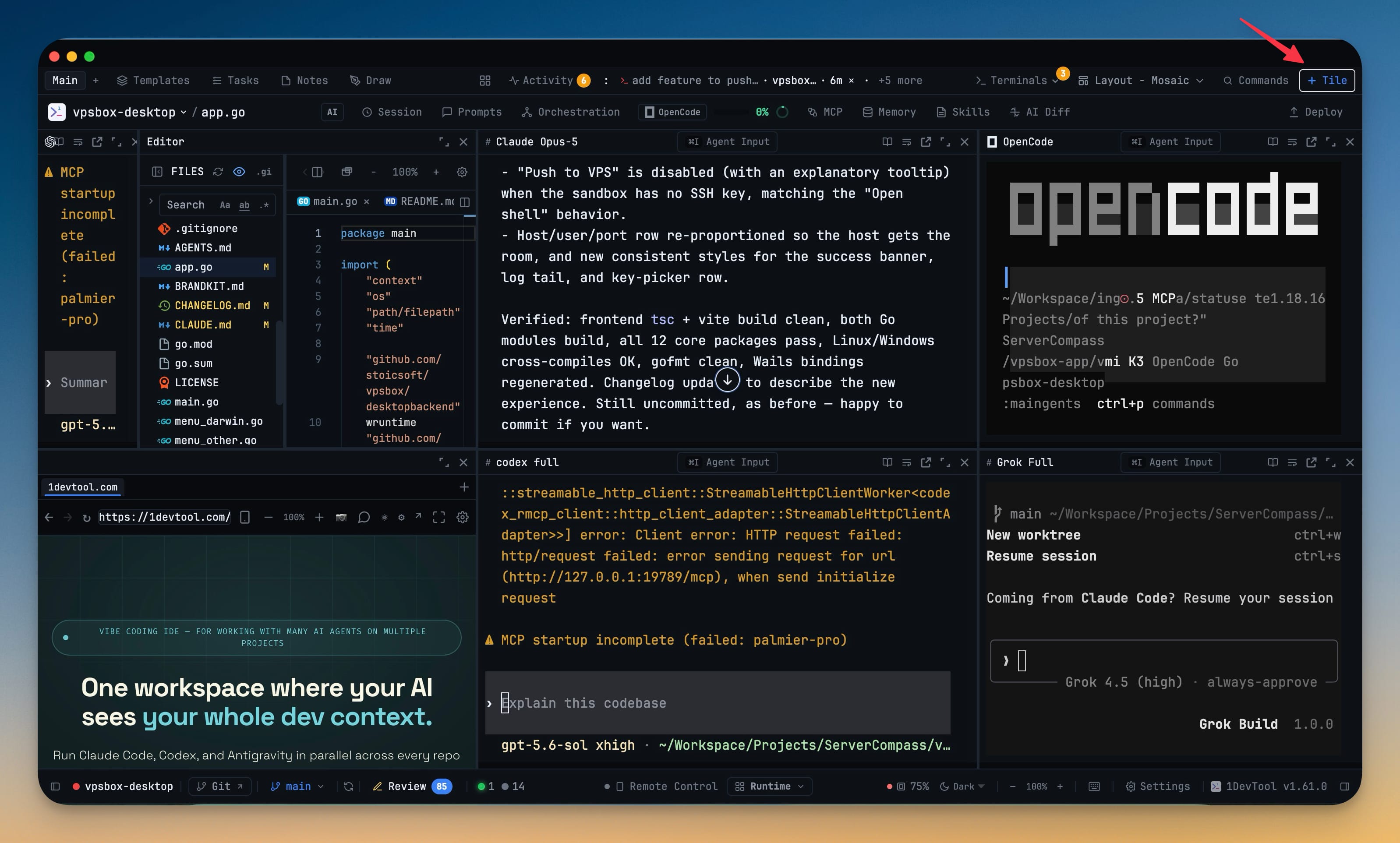
Turn the whole window into tiles you place yourself — no sidebars, every tool and terminal a pane you split, drag, resize and magnify where you want it. Rearranging never restarts anything, and each project can keep several named arrangements.
Why You Need This
How this feature boosts your daily productivity
Every panel layout starts from the same assumption: sidebars on the sides, terminals in the middle, and your job is to pick the preset that lands closest to what you wanted. That holds until the day you want the browser preview beside the agent editing the page, the database shell under the terminal running the migration, and nothing else on screen. Mosaic drops the assumption entirely — the window is a tree of tiles, and you decide the shape. Splitting, moving, resizing and magnifying leave running agents, PTYs and scrollback completely untouched, so you can rearrange around a build that is halfway through. Because one project rarely has one shape, you can name a workspace, add a second, and switch between reviewing-a-PR and debugging-three-terminals without rebuilding either.
How It Works
Get started in 4 simple steps
Pick Mosaic
Choose it in the layout picker — it sits under Tiling, kept separate from the Panel Layouts so it is not mistaken for another sidebar preset. The sidebars disappear and the window becomes a tree of tiles.
Add a tile
"+ Tile" in the toolbar opens one searchable palette holding three things: the tools, the terminals already open in this project that you have not placed yet, and "New terminal…". Enter splits the focused tile right, Shift+Enter splits it down.
Shape it
Split any tile left, right, up or down, drag one tile onto another to stack them as tabs, drag the seams to resize, and magnify the tile you are in. Running agents, PTYs and scrollback are untouched by every one of those moves.
Keep more than one
Workspace tabs at the far left of the toolbar name an arrangement. Add a second, double-click to rename, and switch between reviewing-a-PR and debugging-three-terminals without rebuilding either.
Without 1DevTool
The manual way vs. the 1DevTool way
The Hard Way
The 1DevTool Way
Key Capabilities
Everything included with Mosaic Tiling Layout
Why It Matters
The productivity impact of having project management built into your workspace
Instant Project Switching
Switch between projects in one click with complete state restoration. No more 5-minute setup rituals.
Visual Organization
Color-coded projects, file type icons, and layout presets keep your workspace organized and recognizable.
Smart File Navigation
.gitignore-aware filtering, instant search, and context menus make finding and opening files effortless.
Workspace Memory
Every project remembers its terminals, open files, database connections, and layout. Pick up exactly where you left off.
More in Project Management
Other features in this category you might find useful
Multi-Project Workspace
Work on multiple projects simultaneously with instant switching. Entire workspace state is preserved per project.
Smart File Explorer
Real-time file tree with type icons, .gitignore filtering, search, and right-click context menus.
Per-Project Code Intelligence
Spawn real typescript-language-server, gopls, pyright, rust-analyzer, clangd, solargraph, intelephense, or sourcekit-lsp for the projects you opt into — with project-aware errors and zero false positives.
Color-Coded Projects
Assign accent colors to each project for instant visual identification across your workspace.
Ready to boost your workflow?
Download 1DevTool for free and experience Mosaic Tiling Layout along with 321 other features — all in one app.