Orchestration Tutorials
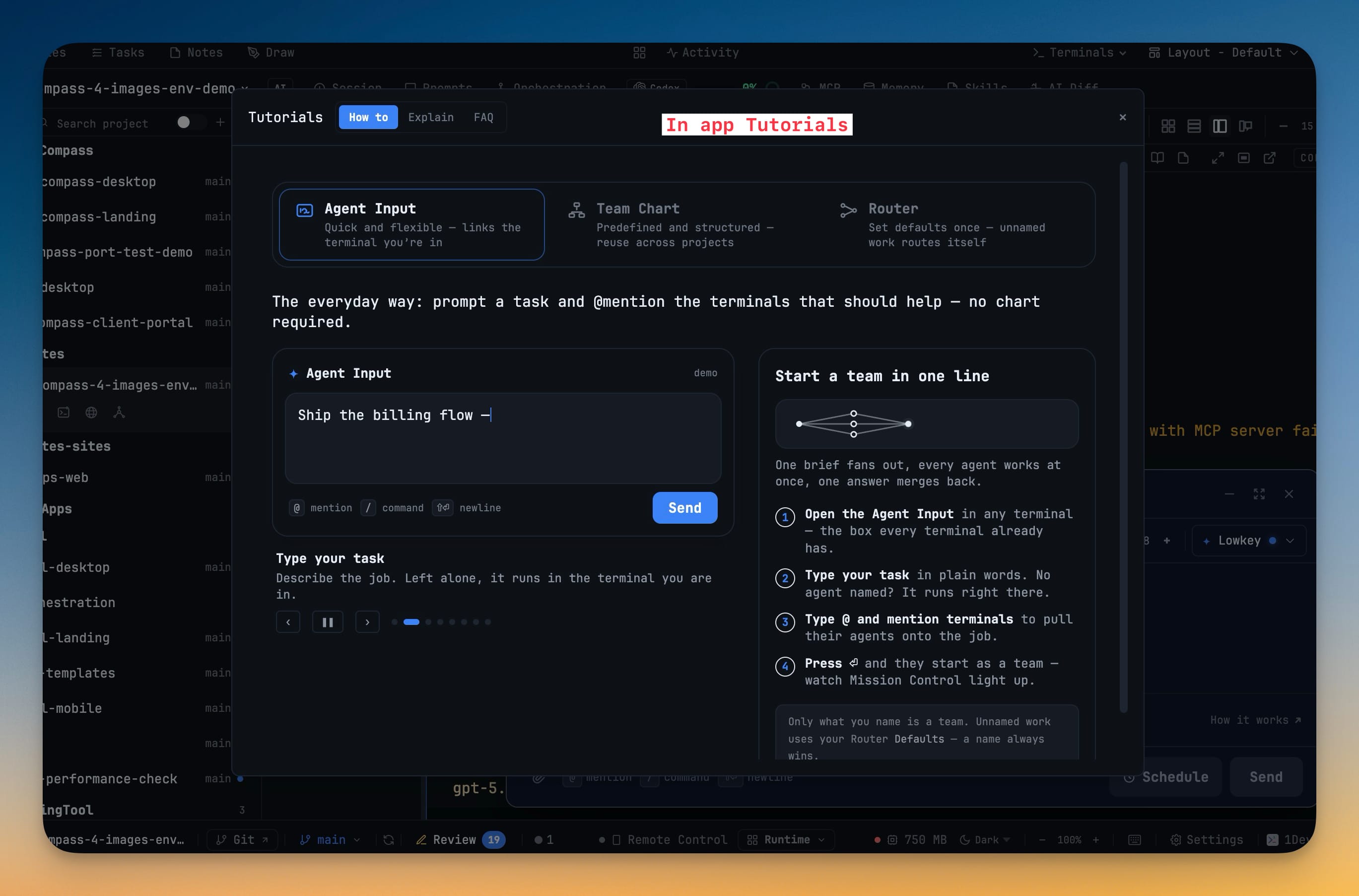
Learn the one flow every new user needs by watching it play, not by reading docs. A play-to-learn Set-up screen in the orchestration dashboard runs the core loop for you — type a task, @-mention the terminals that should help, press Enter, and watch them start as a team while Mission Control lights up.
Why You Need This
How this feature boosts your daily productivity
Orchestration's power — teams, the composer, the Router — is easy to describe and hard to picture until you have seen it move. The play-to-learn Set-up screen in the orchestration dashboard demonstrates the whole core flow end to end, and the Tutorials now also play the Router end to end so you can see unnamed work routed to the agent you configured. If you have reduced motion turned on, the same walkthrough becomes a stepped sequence with every stage still shown, so nothing depends on animation you cannot use.
How It Works
Get started in 4 simple steps
Open Orchestration → Set up
A play-to-learn Set-up screen runs the core flow for you instead of asking you to read about it.
Watch the core flow play
Type a task, @-mention terminals, press Enter — the walkthrough plays each beat and the terminals start as a team while Mission Control lights up.
Reduced motion, same lesson
With Reduced Motion the animation becomes a stepped walkthrough that teaches the identical flow without the movement.
Do it for real
Once the play-through clicks, the same three moves — task, @-mention, Enter — start a real team on your own work.
Without 1DevTool
The manual way vs. the 1DevTool way
The Hard Way
The 1DevTool Way
Key Capabilities
Everything included with Orchestration Tutorials
Why It Matters
The productivity impact of having ai productivity built into your workspace
Show, Don't Tell
Orchestration is easy to describe and hard to picture, so the Set-up screen plays the core flow instead of leaving you to imagine it.
Learn the Real Moves
The walkthrough uses the exact three actions — type a task, @-mention terminals, press Enter — that start a real team, so nothing has to be un-learned afterward.
Mission Control in Context
You watch the terminals start as a team while Mission Control lights up, so the monitoring view makes sense before you ever depend on it.
Accessible by Default
Reduced Motion swaps the animation for a stepped walkthrough that teaches the identical flow, so the lesson does not depend on movement.
More in AI Productivity
Other features in this category you might find useful
Prompt History
Search prompts and sticky notes from Remote Control while away from the desktop. Switch between This project and All projects, filter prompts by agent or notes by source, copy entries, delete with Operator access, and sync local prompt history.
Resume UI
Read any past AI session before you resume it. Resume AI Sessions is a split view with a searchable list of every Claude Code, Codex, Gemini CLI and other agent session on the left and a live preview of the project, branch, tool calls and conversation on the right, with Resume, bypass permissions and an editable command one click away.
Combine Sessions
Merge several past AI sessions into one opening prompt, or hand a single session to a different agent. Tick sessions in Resume AI Sessions, see a token estimate of the context they add, and send the result to a new chat with any agent or preset or to a terminal that is already open.
AI Diff Review Panel
Track every file modification any AI agent makes — Claude Code, Codex, Gemini, Amp, custom — and review, accept, or revert their work per file from a dedicated panel with inline diff overlays in the editor.
Ready to boost your workflow?
Download 1DevTool for free and experience Orchestration Tutorials along with 327 other features — all in one app.