Orchestration Setup Progress
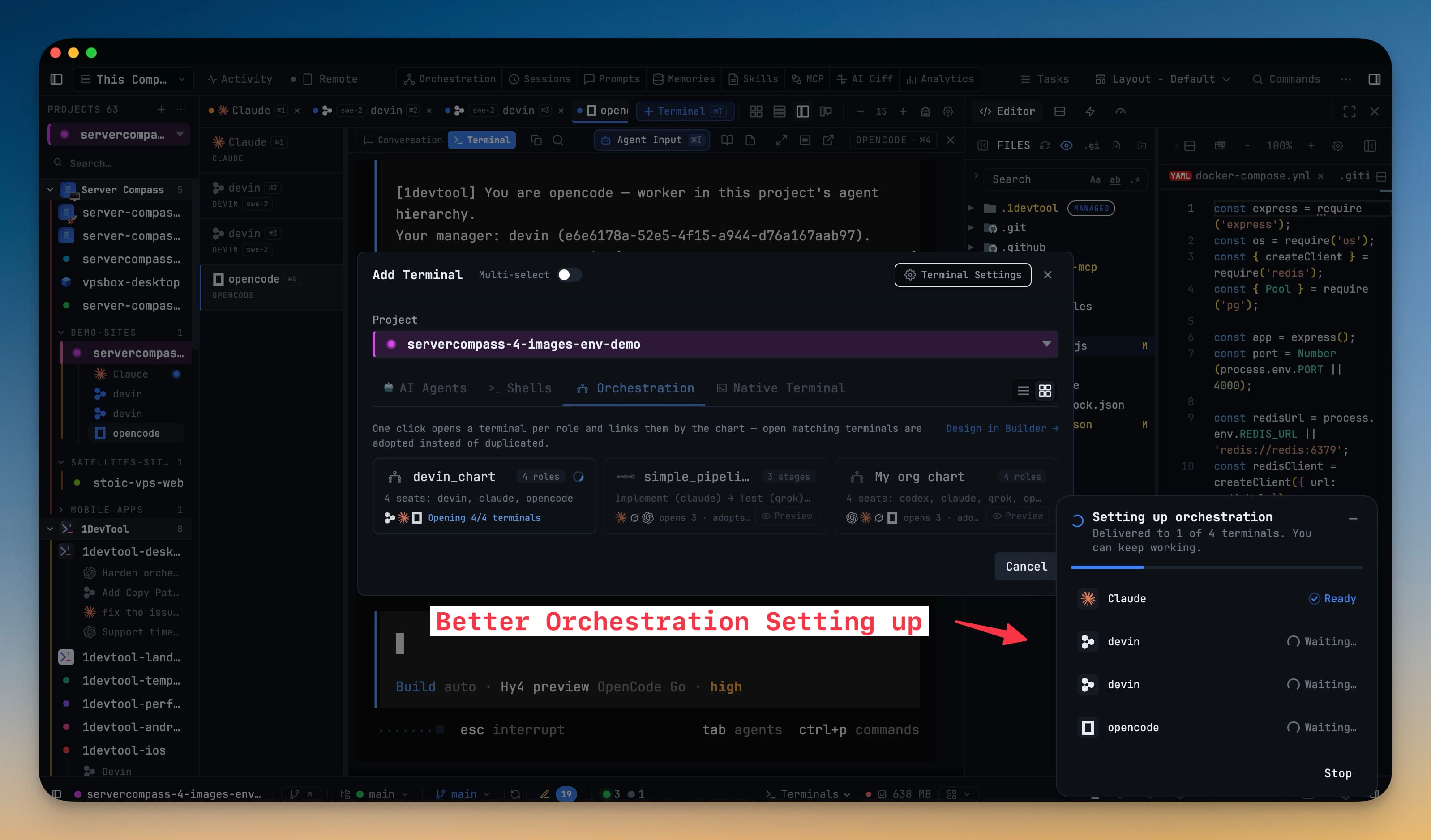
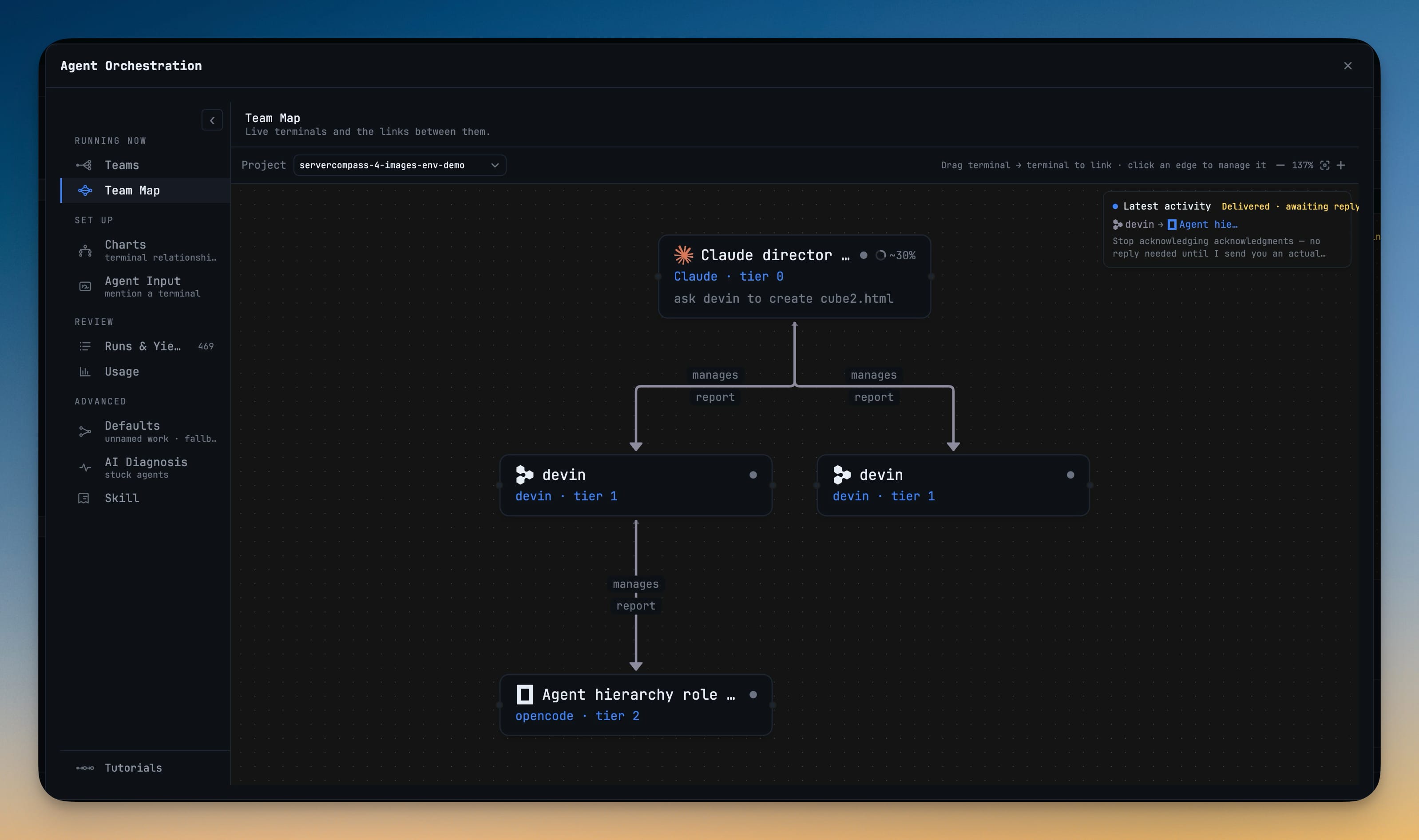
Starting or restoring an agent team now runs as a floating progress card instead of a blocking dialog, counting role-card delivery down terminal by terminal while you keep working. A seat that missed its instructions becomes a manual step you can copy, open, resend with Send to Terminal or mark as submitted — not a team that quietly starts one agent short.
More Screenshots
Click any image to zoom in
Why You Need This
How this feature boosts your daily productivity
An agent team is only as good as its weakest delivery. When one terminal never receives its role card, the team still starts — and one seat sits at an empty prompt, with nothing on screen to say which one or how to fix it. Setup now happens in the open: a Setting up orchestration card reports "Delivered to 1 of 4 terminals. You can keep working." and marks every seat Waiting…, Sent, Ready or Needs you under its agent's logo, and it collapses to a Setting up pill when you want the space back. An agent that accepted its role card but never confirmed it on screen counts as delivered, so a healthy team stops raising false alarms. A seat that genuinely missed out shows View instructions with Copy, Open terminal, Send to Terminal and I submitted it. Stop lets in-flight writes settle before handing control back, so a cancelled setup cannot leave a half-pasted card in a composer, and Mission Control's Restore no longer reports Restored while seats still need their instructions.
How It Works
Get started in 4 simple steps
Start or restore a team
Open a chart’s terminals from New Terminal’s Orchestration tab, or restore a team — setup starts in a floating card instead of a blocking dialog.
Keep working while it counts
Setting up orchestration reports “Delivered to 1 of 4 terminals. You can keep working.” and collapses to a Setting up · 1/4 pill.
Watch every seat
Each terminal is marked Waiting…, Sent, Ready or Needs you under its agent’s logo, so a quiet seat is visible, not silent.
Fix a seat that missed out
Needs you opens View instructions with Copy, Open terminal, Send to Terminal and I submitted it — or press Stop to cancel safely.
Without 1DevTool
The manual way vs. the 1DevTool way
The Hard Way
The 1DevTool Way
Key Capabilities
Everything included with Orchestration Setup Progress
Why It Matters
The productivity impact of having ai productivity built into your workspace
No More Silent Empty Seats
A terminal that never got its role card is flagged Needs you instead of starting the team one agent short.
Your Window Stays Yours
Setup runs in a card you can collapse, so a five-seat team does not lock the app while it delivers.
Recovery Is One Click
Copy, Open terminal and Send to Terminal turn a failed delivery into a step you can finish in seconds.
More in AI Productivity
Other features in this category you might find useful
Prompt History
Search prompts and sticky notes from Remote Control while away from the desktop. Switch between This project and All projects, filter prompts by agent or notes by source, copy entries, delete with Operator access, and sync local prompt history.
Resume UI
Read any past AI session before you resume it. Resume AI Sessions is a split view with a searchable list of every Claude Code, Codex, Gemini CLI and other agent session on the left and a live preview of the project, branch, tool calls and conversation on the right, with replies rendered as Markdown, with Resume, bypass permissions and an editable command one click away.
Combine Sessions
Merge several past AI sessions into one opening prompt, or hand a single session to a different agent. Tick sessions in Resume AI Sessions, see a token estimate of the context they add, and send the result to a new chat with any agent or preset or to a terminal that is already open.
AI Diff Review Panel
Track every file modification any AI agent makes — Claude Code, Codex, Gemini, Amp, custom — and review, accept, or revert their work per file from a dedicated panel with inline diff overlays in the editor.
Ready to boost your workflow?
Download 1DevTool for free and experience Orchestration Setup Progress along with 347 other features — all in one app.