Paired Devices
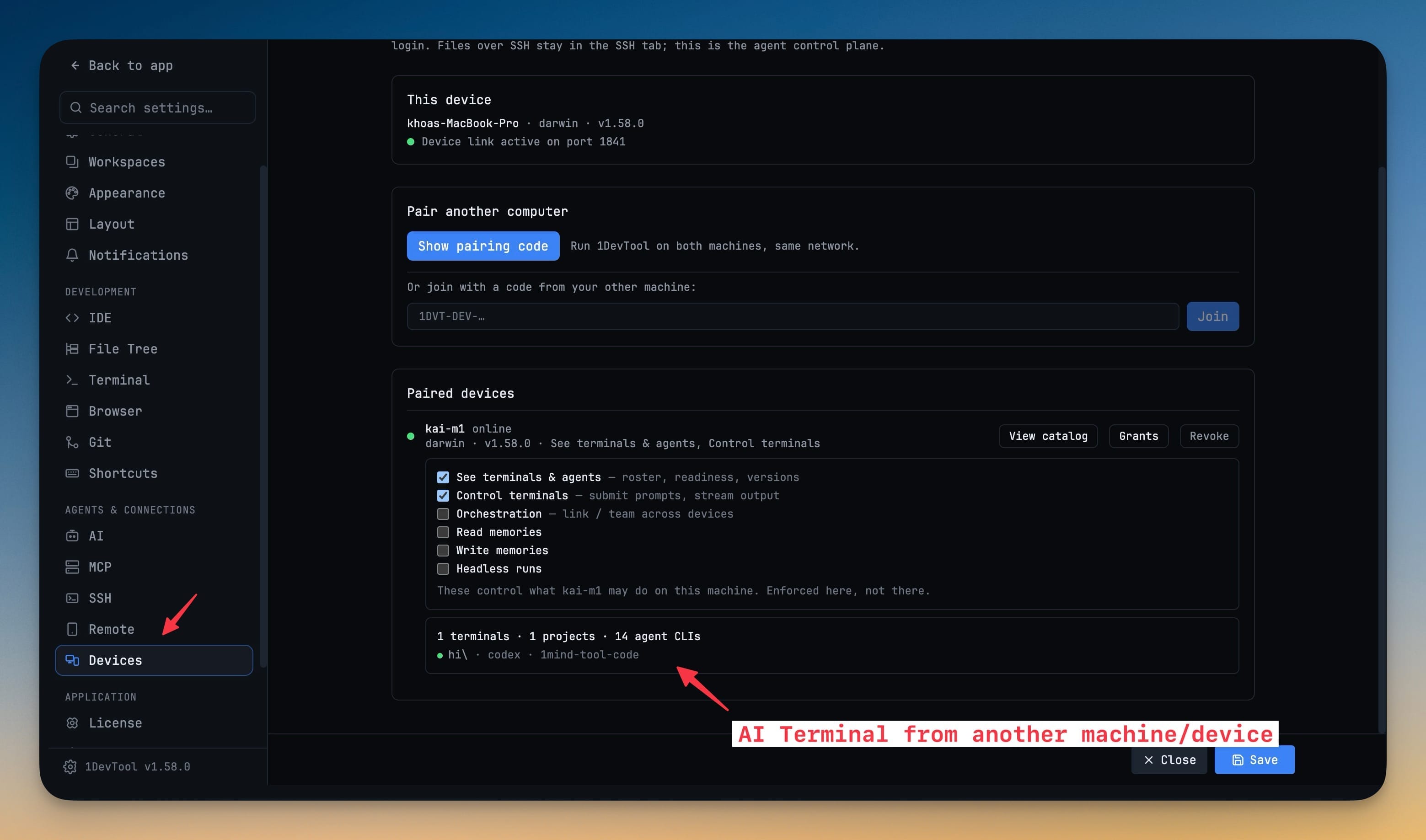
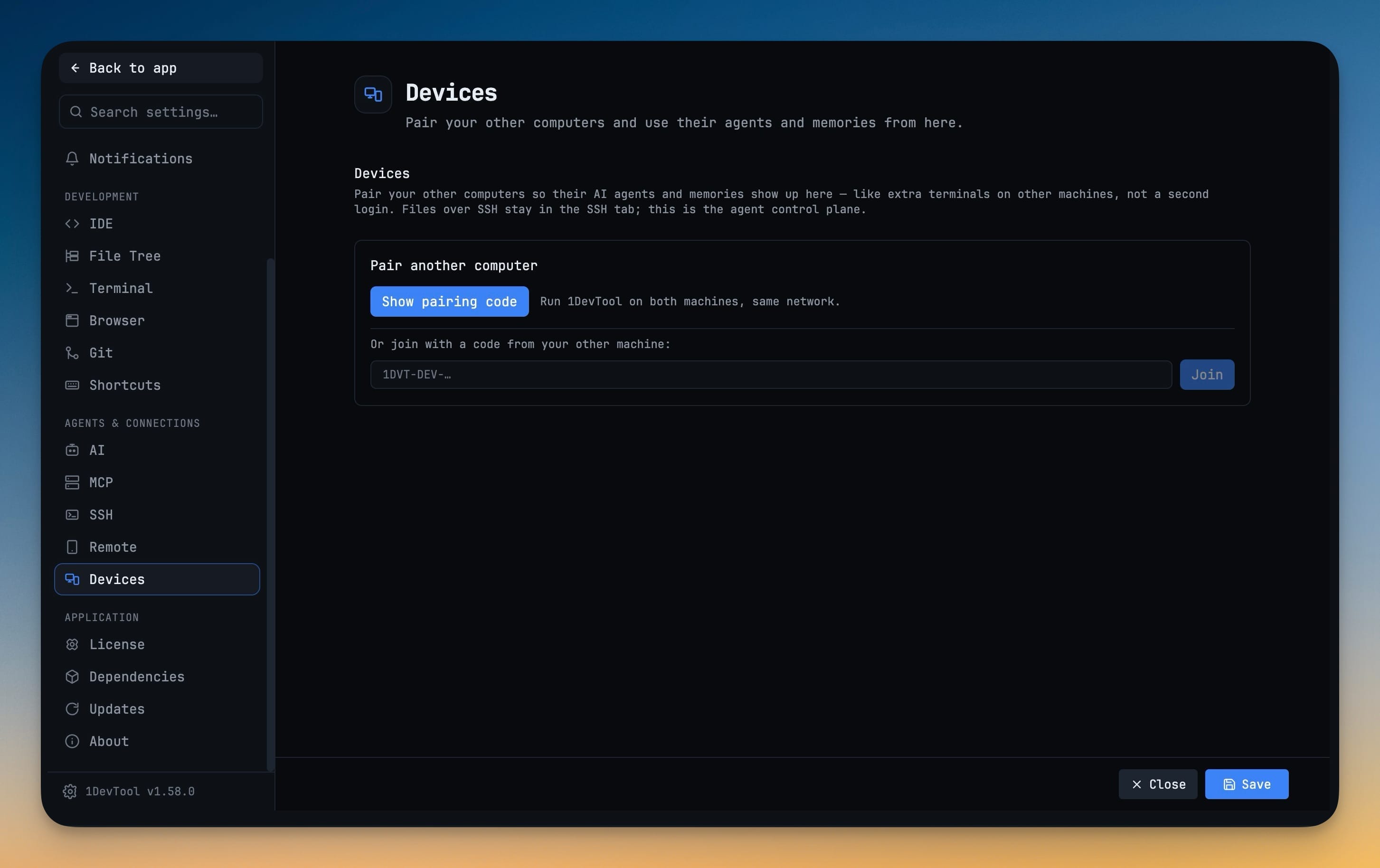
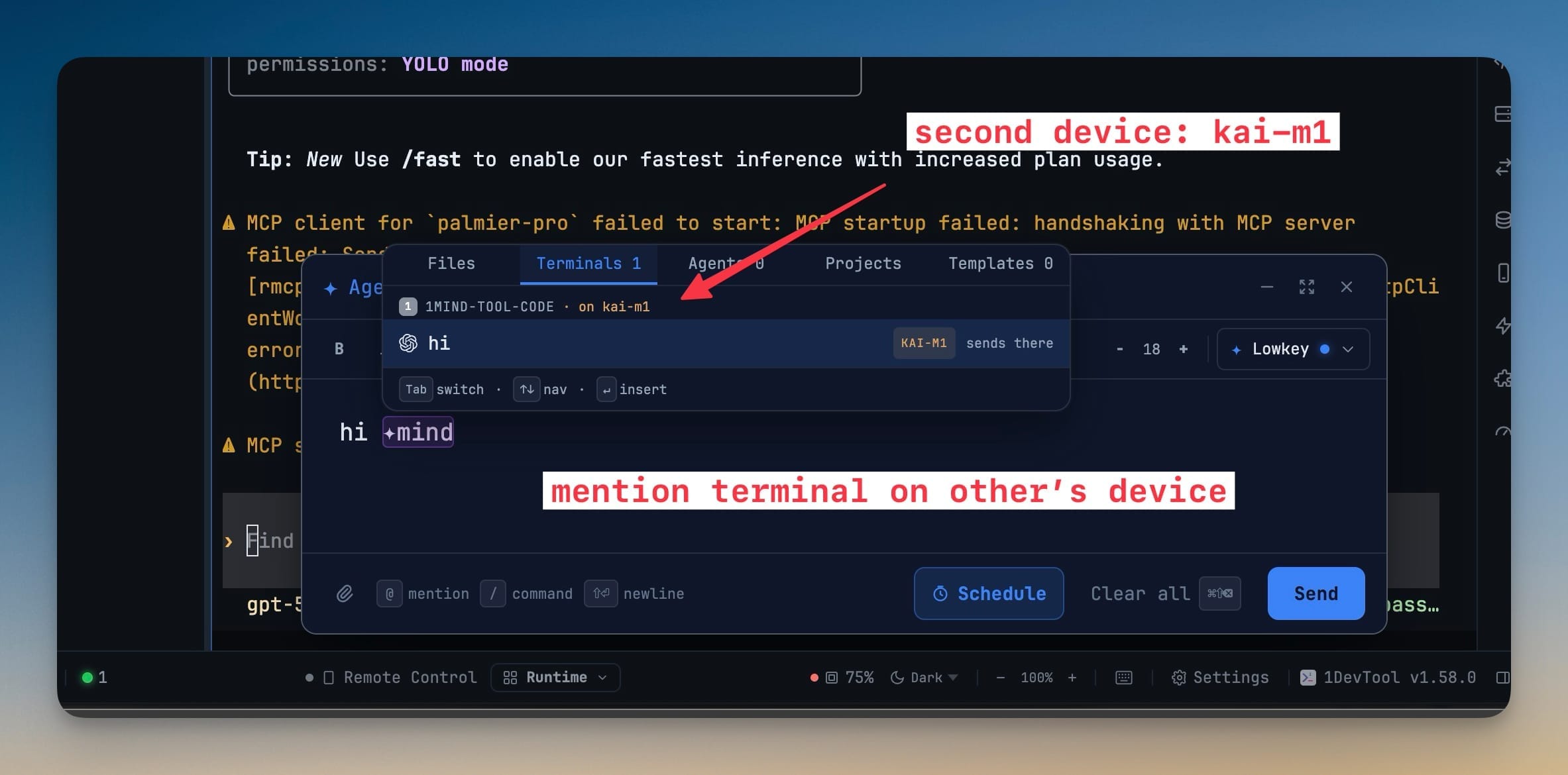
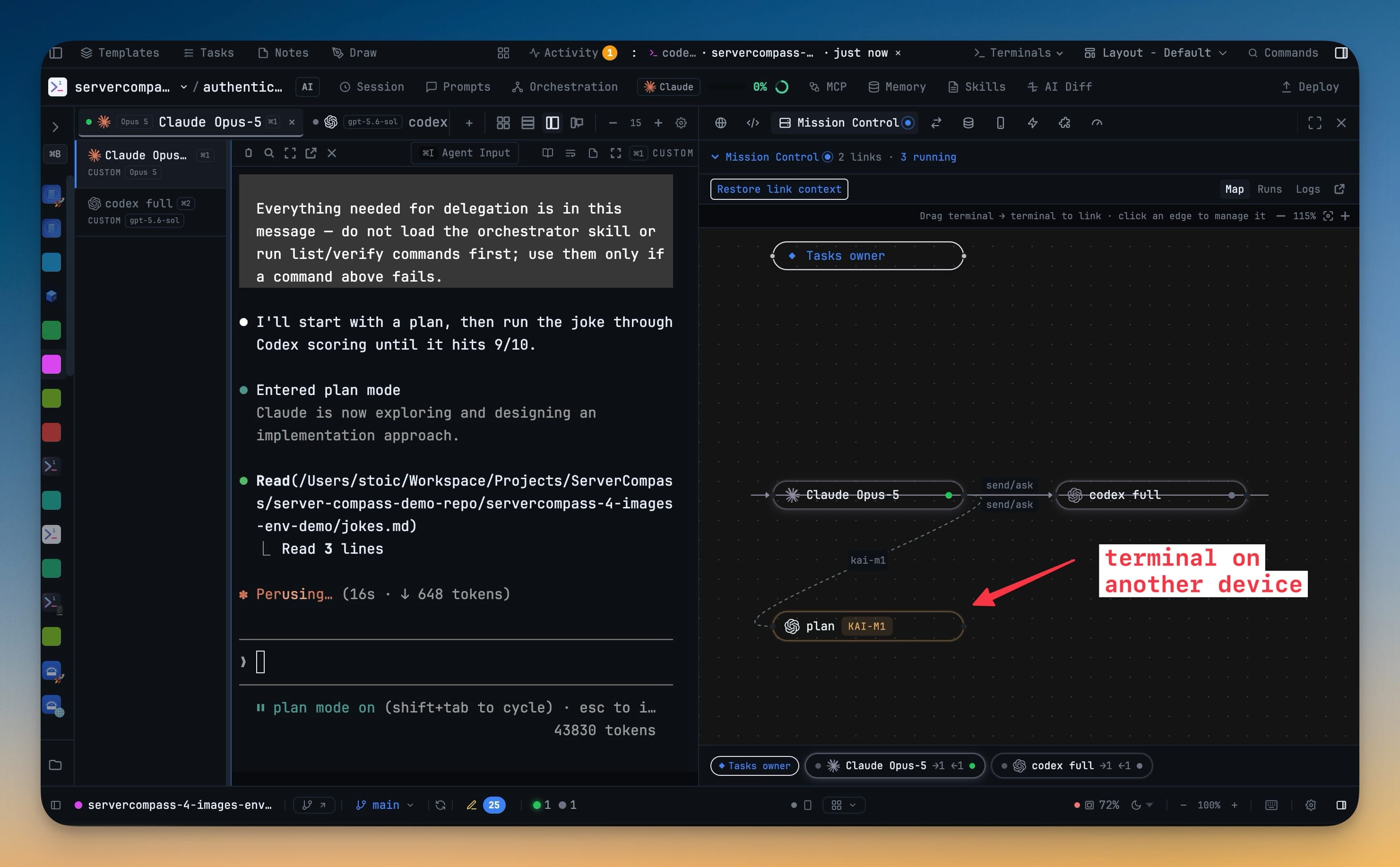
Settings → Machines → Pair a computer pairs this computer with another machine running 1DevTool — a Mac mini, an office box, a VPS — so its AI terminals, projects and installed agent CLIs are usable from this window. @mention a peer's terminal in Agent Input and send it a prompt like any local one. Projects can live on the paired computer too — add one from Add Project and prompt its agents with no SSH.
More Screenshots
Click any image to zoom in
Why You Need This
How this feature boosts your daily productivity
The second machine you own is usually idle while the one on your lap runs hot, because reaching its agents means SSHing in and driving them blind. Pairing turns it into capacity you can address from where you already work: show a pairing code on one computer, paste it on the other, and confirm the same three-word fingerprint on both screens so a key exchange nobody read aloud never becomes a paired device. Each peer gets its own grants — see terminals, control terminals, orchestration, read memories, write memories, headless runs — enforced by the machine that owns the resource rather than the one asking, and revocable at any time. With nothing paired there is no server, no device identity and no background work at all.
How It Works
Get started in 4 simple steps
Open Settings → Machines → Pair a computer
With nothing paired there is no server, no device identity and no background work — the pairing panel under Machines is the only trace of the feature in the app.
Exchange a pairing code
Press Show pairing code on one computer and paste it into “Or join with a code from your other computer” on the other. Both must be running 1DevTool.
Confirm the fingerprint on both screens
The same three-word fingerprint has to be confirmed on each machine, so a key exchange nobody read aloud never becomes a paired device.
Grant only what it should have
See terminals & agents, Control terminals, Orchestration, Read memories, Write memories and Headless runs are per-peer, enforced by the machine that owns the resource, and revocable at any time.
Without 1DevTool
The manual way vs. the 1DevTool way
The Hard Way
The 1DevTool Way
How it compares
To use agents on a second computer, people SSH in and drive them inside tmux, or open the folder remotely with VS Code's Remote - SSH extension.
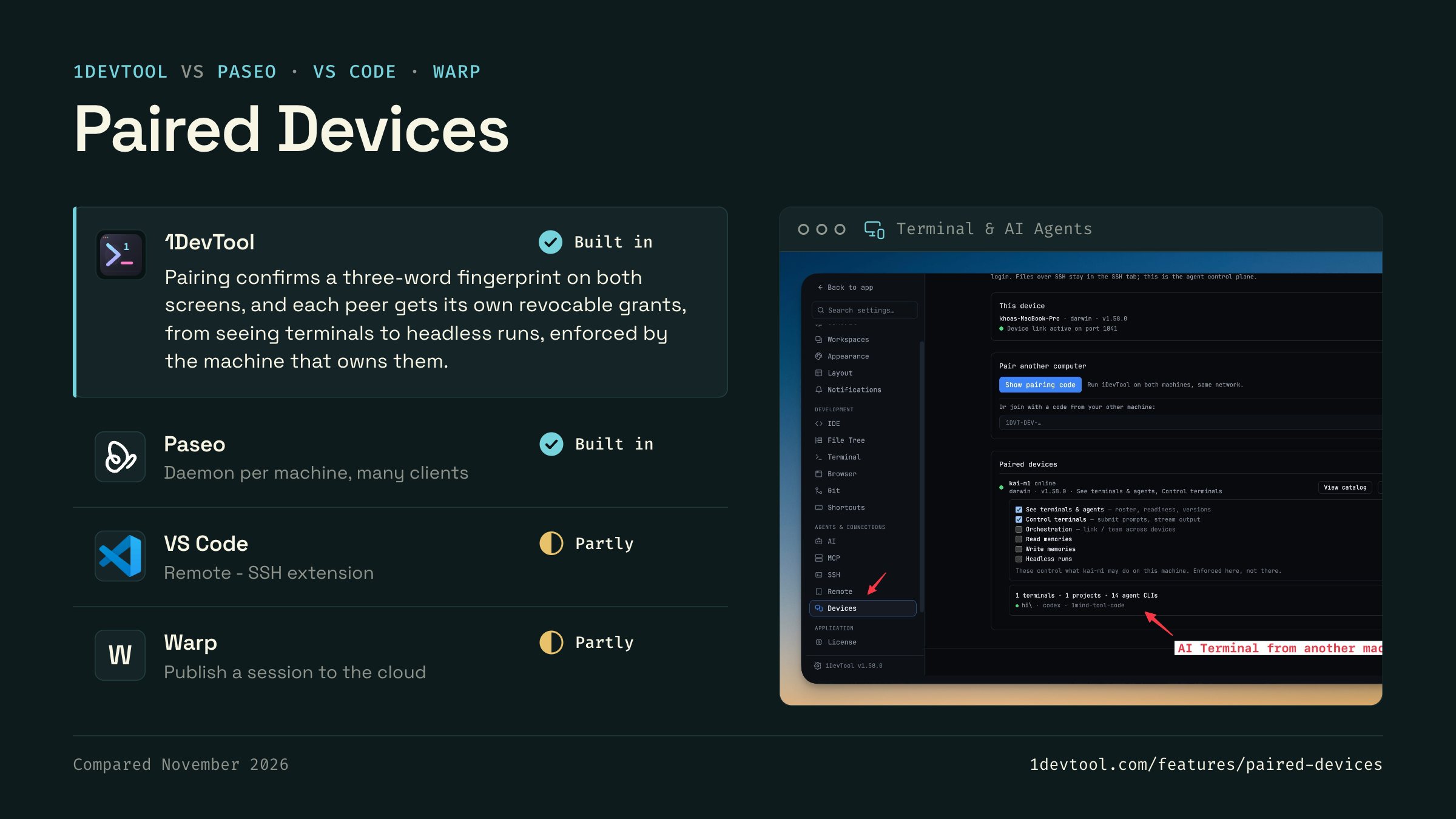
 1DevToolBuilt inBuilt in
Pairing confirms a three-word fingerprint on both screens, and each peer gets its own revocable grants, from seeing terminals to headless runs, enforced by the machine that owns them.
- Built in
Paseo runs a daemon where the agents live. Its desktop, web, mobile and CLI clients connect to it directly or over an end-to-end encrypted relay.
- Partly
Microsoft's Remote - SSH extension opens a folder on another machine, with its files and terminals in your local VS Code window.
- Partly
Warp can publish a CLI agent session to the cloud, so you can monitor and steer it from another computer or a phone.


Checked November 2026 against each app's public docs. These products change quickly. If a row is out of date, tell us at feedback.stoicsoft.com/1devtool.
Key Capabilities
Everything included with Paired Devices
Why It Matters
The productivity impact of having terminal & ai agents built into your workspace
Zero Context Switching
All your AI agents and terminals live in one window. No more alt-tabbing between 5 different terminal apps.
Visual Status Tracking
Color-coded tabs and the Kanban dashboard tell you which agents are done, running, or need attention — at a glance.
Persistent Sessions
Tmux-backed persistence means your terminal state survives crashes and restarts. Never lose scrollback history again.
Flexible Arrangements
One-click layouts adapt to your task: grid for monitoring, columns for comparing, fullscreen for deep focus.
More in Terminal & AI Agents
Other features in this category you might find useful
Multi-Agent Terminals
Run Claude Code, Codex, Gemini CLI, Amp, OpenCode, Qwen, and custom AI commands in dedicated terminal tabs with recognizable agent logos, custom colors, and status indicators.
Flexible Terminal Layouts
View terminals in 2×2 grid, side-by-side columns, or single fullscreen mode with resizable panes.
Terminal Dashboard
Kanban-style board view of all terminal statuses — Idle, Running, and Review — with real-time polling.
Session Persistence
Terminal sessions persist across app restarts with full scrollback history via tmux integration.
Ready to boost your workflow?
Download 1DevTool for free and experience Paired Devices along with 342 other features — all in one app.