Panel Tab Groups & Fullscreen Tools
Tab groups created in Layout settings render as separate work areas in the right sidebar, and each group remembers its own active tab. Any tool can be expanded over the window without losing the rest of its tabs, then restored with Escape.
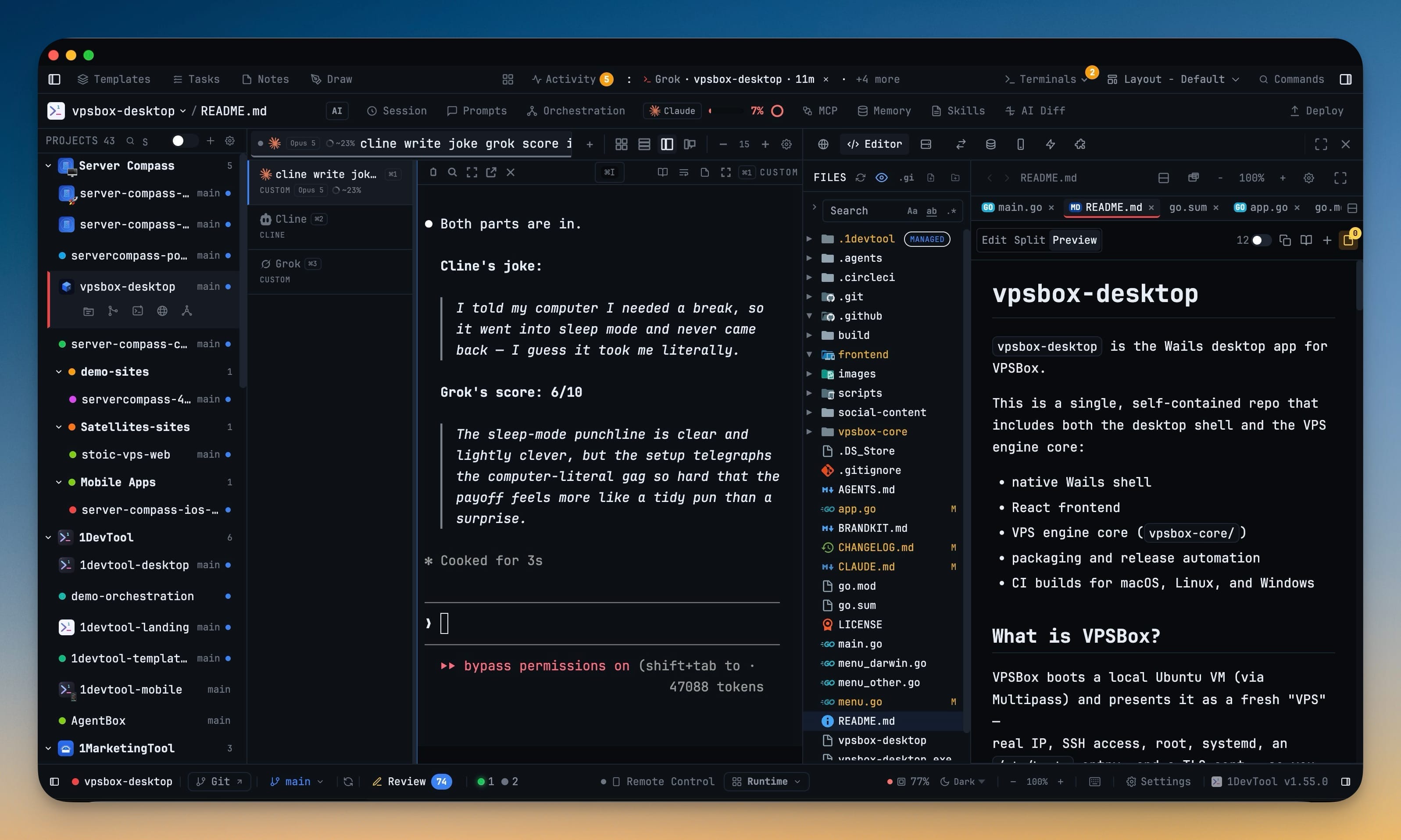
More Screenshots
Click any image to zoom in
Why You Need This
How this feature boosts your daily productivity
A single tab strip forces every tool in the sidebar to compete for one slot. Open the Browser to check a page and you lose the Editor; go back to the Editor and you lose the Browser — even though there is plenty of vertical room for both. Grouping splits that strip into independent regions, each with its own active tab, so a reference tool and a working tool can stay visible together. Fullscreen solves the opposite problem: when one tool needs the whole window, expanding it no longer means tearing down the arrangement you will want back thirty seconds later.
How It Works
Get started in 4 simple steps
Open Layout settings
Drag one panel onto another in the right slot to create a tab group, or drop a panel into an existing group box.
See the groups render separately
Each group becomes its own work area in the right sidebar, with its own tab strip.
Switch tabs per group
Selecting a tab in one group leaves the other groups untouched — each remembers what you had open.
Go fullscreen and come back
Expand the current tool over the window. The rest of its tabs are preserved, and Escape restores the sidebar.
Without 1DevTool
The manual way vs. the 1DevTool way
The Hard Way
The 1DevTool Way
Key Capabilities
Everything included with Panel Tab Groups & Fullscreen Tools
Why It Matters
The productivity impact of having customization built into your workspace
Your Editor, Your Rules
Every shortcut, font, theme, and layout is configurable. Make 1DevTool feel like home.
Eye Comfort
Dark and light themes tuned for all-day coding. Reduce eye strain with the right contrast for your environment.
Muscle Memory Friendly
Remap shortcuts to match your existing habits. No relearning required when switching from VS Code or Vim.
Per-Project Defaults
Different projects can have different terminal types, default URLs, and behavior settings.
More in Customization
Other features in this category you might find useful
Theme Options
Choose between Dark, Light, or System-following themes designed for comfortable all-day coding.
Keyboard Shortcuts
Customize every shortcut to match your muscle memory. Conflict detection prevents accidental duplicates.
Terminal Fonts
Choose from JetBrains Mono, Fira Code, Cascadia Code, or use custom fonts. Adjust size and line height.
MCP Settings
Configure MCP servers for Claude Code, Gemini CLI, and Codex from a unified settings tab — install, enable, and troubleshoot with one click.
Ready to boost your workflow?
Download 1DevTool for free and experience Panel Tab Groups & Fullscreen Tools along with 347 other features — all in one app.