Remote Start on Launch
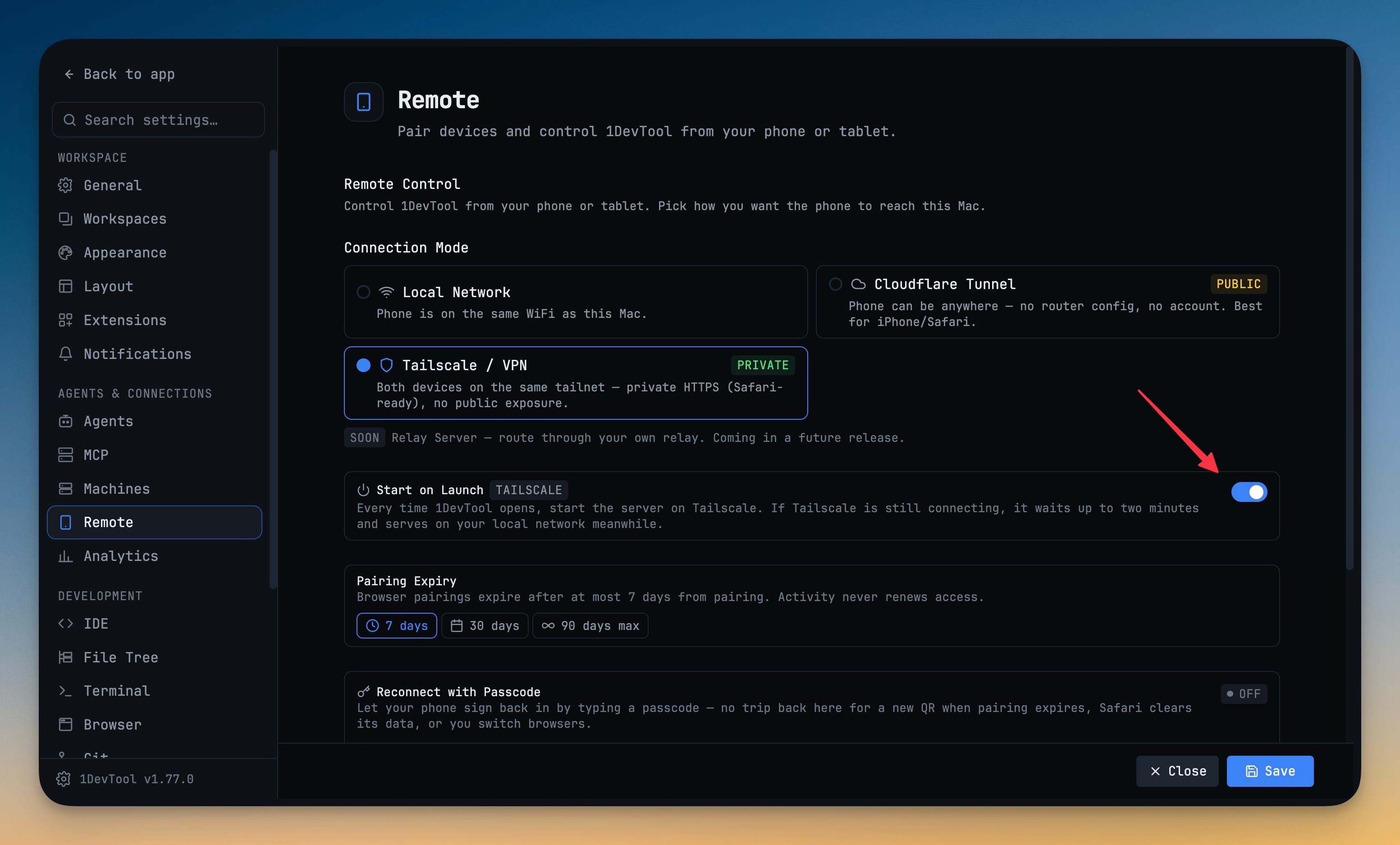
Have your paired phone reconnect on its own. Start on Launch in Settings, Remote starts the remote server every time 1DevTool opens, on your local network or on Tailscale, so the phone finds your desktop without a trip back to Settings.
Why You Need This
How this feature boosts your daily productivity
Remote control is most useful when you are away from the desk, which is exactly when you can't click Start in Settings. Restart the Mac, update 1DevTool or quit it for the night, and the remote server used to stay down until you came back and turned it on again, so the phone you had paired just showed a dead connection. Start on Launch makes the server part of opening the app. On Local Network it comes up on your Wi-Fi straight away. On Tailscale it waits up to two minutes for Tailscale to connect after a reboot and serves on your local network in the meantime, so the phone has something to reach either way. Cloudflare Tunnel is deliberately excluded: it publishes a public URL, so it never starts by itself and the switch is turned off while that mode is selected.
How It Works
Get started in 4 simple steps
Open Settings → Remote
Pick Local Network or Tailscale / VPN as the connection mode. Start on Launch stays off for Cloudflare Tunnel.
Turn on Start on Launch
Flip the switch. A badge next to the label shows which mode the server will start in.
Open 1DevTool as usual
The remote server starts on launch. On Tailscale it waits up to two minutes for the tailnet and serves on your local network meanwhile.
Your phone reconnects
A phone paired within its pairing expiry finds the desktop on its own, with no trip back to Settings.
Without 1DevTool
The manual way vs. the 1DevTool way
The Hard Way
The 1DevTool Way
Key Capabilities
Everything included with Remote Start on Launch
Why It Matters
The productivity impact of having project management built into your workspace
Phone Works After a Restart
Reboot or update the Mac and the remote server is back by the time 1DevTool opens, so your paired phone just reconnects.
Tailscale-Aware
It waits for Tailscale to connect and covers the gap on your local network, so a slow tailnet doesn't leave the phone with nothing to reach.
Never Public by Accident
Cloudflare Tunnel publishes a public URL, so it is excluded and only ever starts when you start it yourself.
More in Project Management
Other features in this category you might find useful
Multi-Project Workspace
Work on multiple projects simultaneously with instant switching. Entire workspace state is preserved per project.
Smart File Explorer
Real-time file tree with type icons, .gitignore filtering, search, and right-click context menus.
Per-Project Code Intelligence
Spawn real typescript-language-server, gopls, pyright, rust-analyzer, clangd, solargraph, intelephense, or sourcekit-lsp for the projects you opt into — with project-aware errors and zero false positives.
Color-Coded Projects
Assign accent colors to each project for instant visual identification across your workspace.
Ready to boost your workflow?
Download 1DevTool for free and experience Remote Start on Launch along with 327 other features — all in one app.