Team Preview
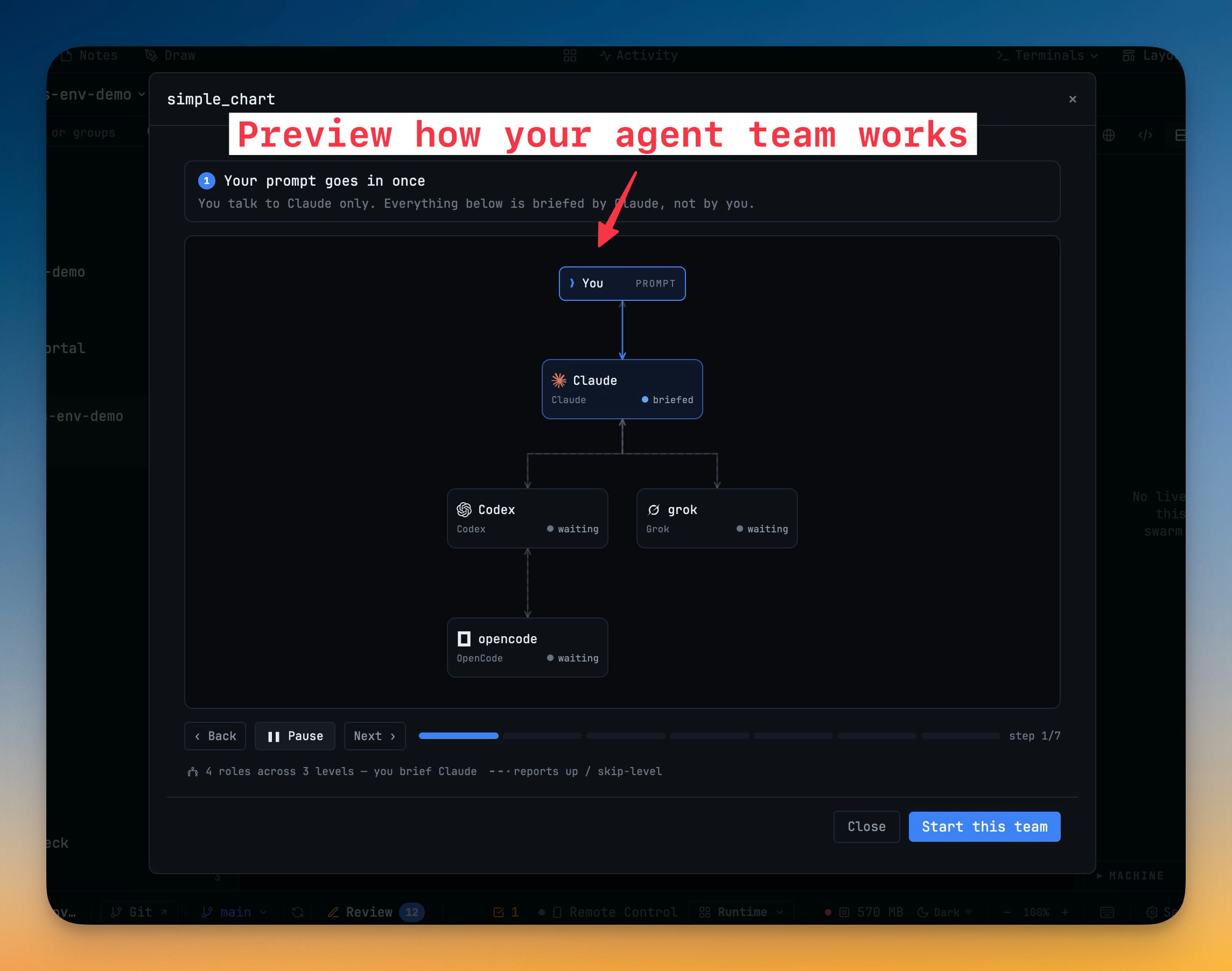
Preview any orchestration chart as an animated, step-by-step walkthrough before it opens a single terminal. A spark rides each wire, seats move through briefed, working, reporting and done, and a caption explains every beat — so you understand how a team will talk to itself before you start it.
More Screenshots
Click any image to zoom in
Why You Need This
How this feature boosts your daily productivity
Opening a four-terminal team used to be the only way to find out how it was wired — and by then the terminals already existed. Team Preview lets you watch the chart run first: who briefs whom, which hand-offs report up, where a pipeline returns its result. You see whether the team does what you meant before you commit any terminals to it, and starting it stays a separate, deliberate act.
How It Works
Get started in 4 simple steps
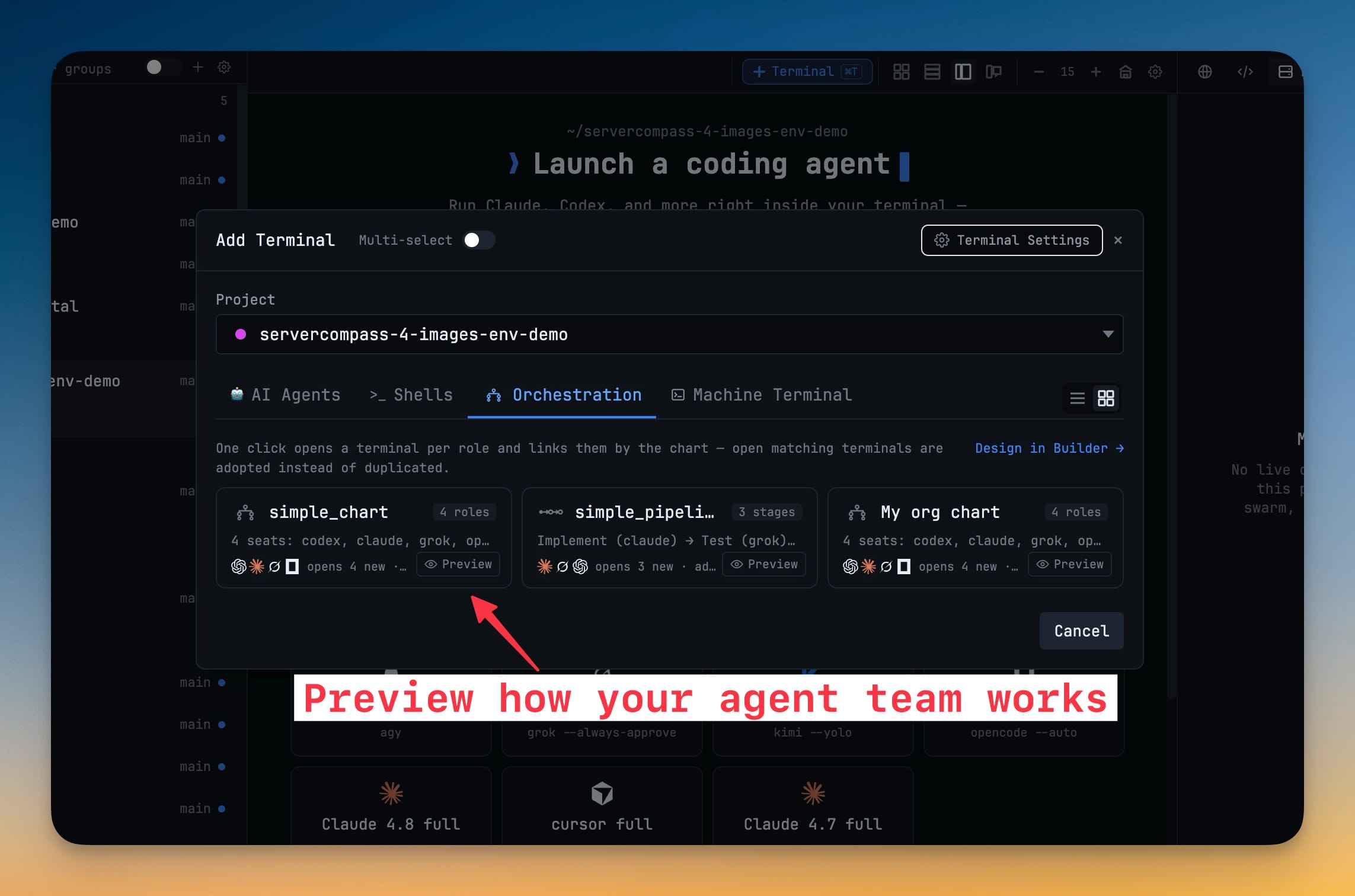
Open Add Terminal, Orchestration
The Orchestration tab lists your saved charts and pipelines, each card carrying a Preview button beside its role count.
Press Preview
The chart opens as a walkthrough — you brief the lead, the lead fans out to the workers — with a step counter like 1/7.
Play or step through it
A spark rides each wire, seats light up as briefed, working or reporting, and a caption narrates the beat. Back, Pause and Next are yours.
Start when you're ready
Start this team sits in the footer. A preview only ever explains, so nothing runs until you click it.
Without 1DevTool
The manual way vs. the 1DevTool way
The Hard Way
The 1DevTool Way
Key Capabilities
Everything included with Team Preview
Why It Matters
The productivity impact of having ai productivity built into your workspace
Searchable Prompt Library
Every prompt you've ever sent is captured and searchable. Find and reuse your best AI interactions.
Visual AI Communication
Annotate screenshots and embed them in prompts. Show your AI agent exactly what you see.
Session Knowledge Base
AI conversations become searchable history. Find how you solved a similar problem last week.
Power Navigation
Command palette gives you instant access to any feature. Navigate 1DevTool at the speed of thought.
More in AI Productivity
Other features in this category you might find useful
Prompt History
Search prompts and sticky notes from Remote Control while away from the desktop. Switch between This project and All projects, filter prompts by agent or notes by source, copy entries, delete with Operator access, and sync local prompt history.
Resume UI
Read any past AI session before you resume it. Resume AI Sessions is a split view with a searchable list of every Claude Code, Codex, Gemini CLI and other agent session on the left and a live preview of the project, branch, tool calls and conversation on the right, with Resume, bypass permissions and an editable command one click away.
Combine Sessions
Merge several past AI sessions into one opening prompt, or hand a single session to a different agent. Tick sessions in Resume AI Sessions, see a token estimate of the context they add, and send the result to a new chat with any agent or preset or to a terminal that is already open.
AI Diff Review Panel
Track every file modification any AI agent makes — Claude Code, Codex, Gemini, Amp, custom — and review, accept, or revert their work per file from a dedicated panel with inline diff overlays in the editor.
Ready to boost your workflow?
Download 1DevTool for free and experience Team Preview along with 327 other features — all in one app.