Oct 27, 2026
Find any setting by typing, and see each account's quota in the pane
Settings in 1DevTool now sits in five groups under one search box that finds any setting, page or shortcut and opens it on the right tab. Terminals on a saved AI account show that account's 5-hour and weekly quota in the pane header.
You know the setting exists. You changed it once, months ago, to stop an agent from pinging you every time a command finished. Now you want it back, and you are clicking through Settings tabs trying to remember whether it lived under General, Terminal, Notifications or somewhere inside Agents. Each tab has its own sub-tabs. By the fourth page you start to wonder whether you imagined it.
1DevTool kept adding settings because every new tool, agent and machine needs a few, and the list of pages grew one at a time. There are 21 of them now, and finding the right one meant remembering where each feature had been filed when it shipped. Meanwhile, in your terminals, you had a different problem: you were running three agents on two Claude accounts and had no way to tell which one was about to hit its 5-hour limit without opening another panel.
What changed
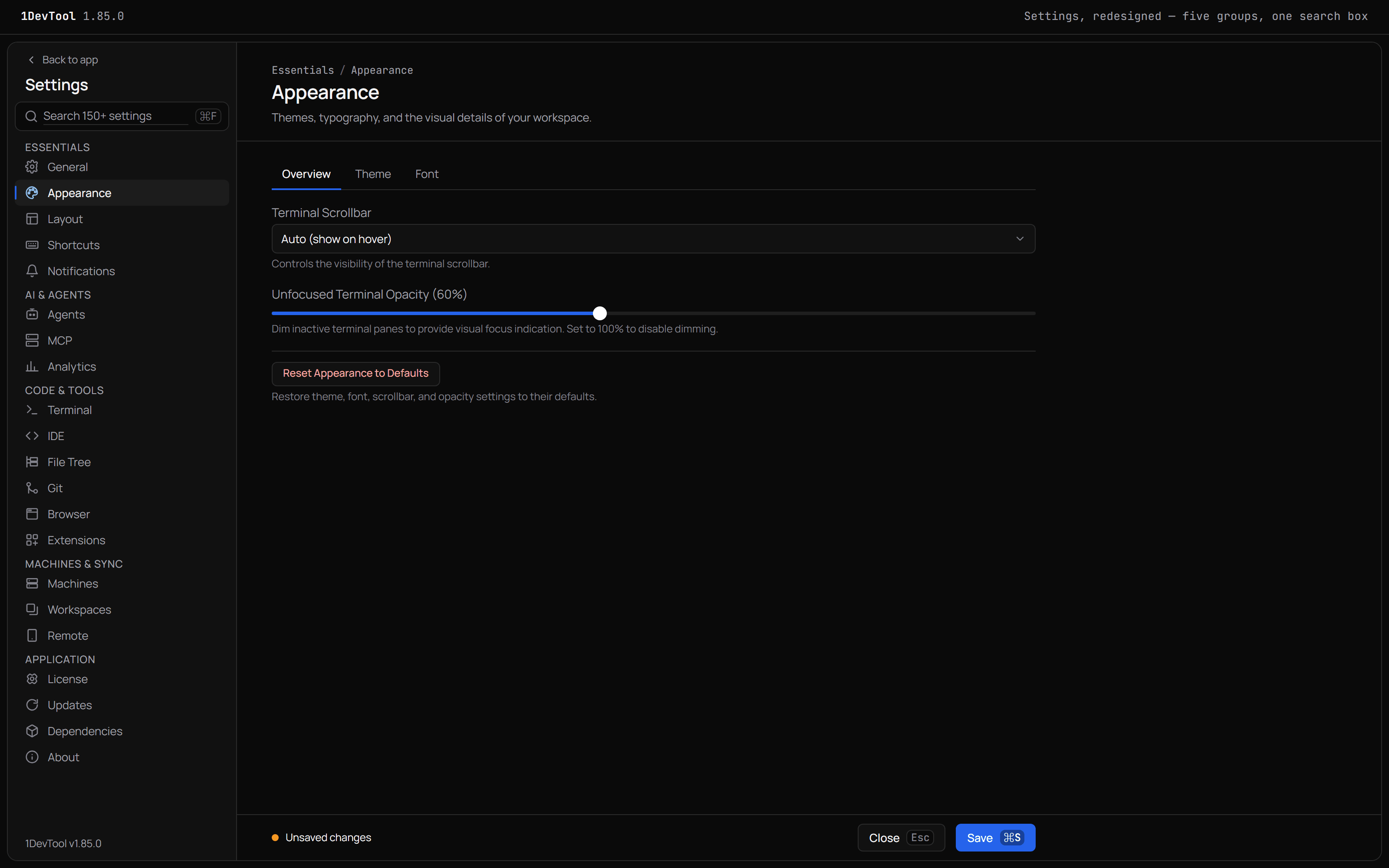
1DevTool v1.85.1 sorts Settings into five named groups and puts one search box above them. Type part of a word and every matching setting, page and keyboard shortcut appears, grouped by page, with the path to each one. Pick a result and Settings opens that page on the right sub-tab and points at the setting. The same release puts each account's quota in the terminal's own pane header, so you can see how close an agent is to its limit without leaving the pane.
How it works in practice
Find a setting by typing what it does
Open Settings and start typing. You don't need to click first: ⌘F (Ctrl+F on Windows and Linux) puts the cursor in the search box, and so does / when you are not already typing in a field.
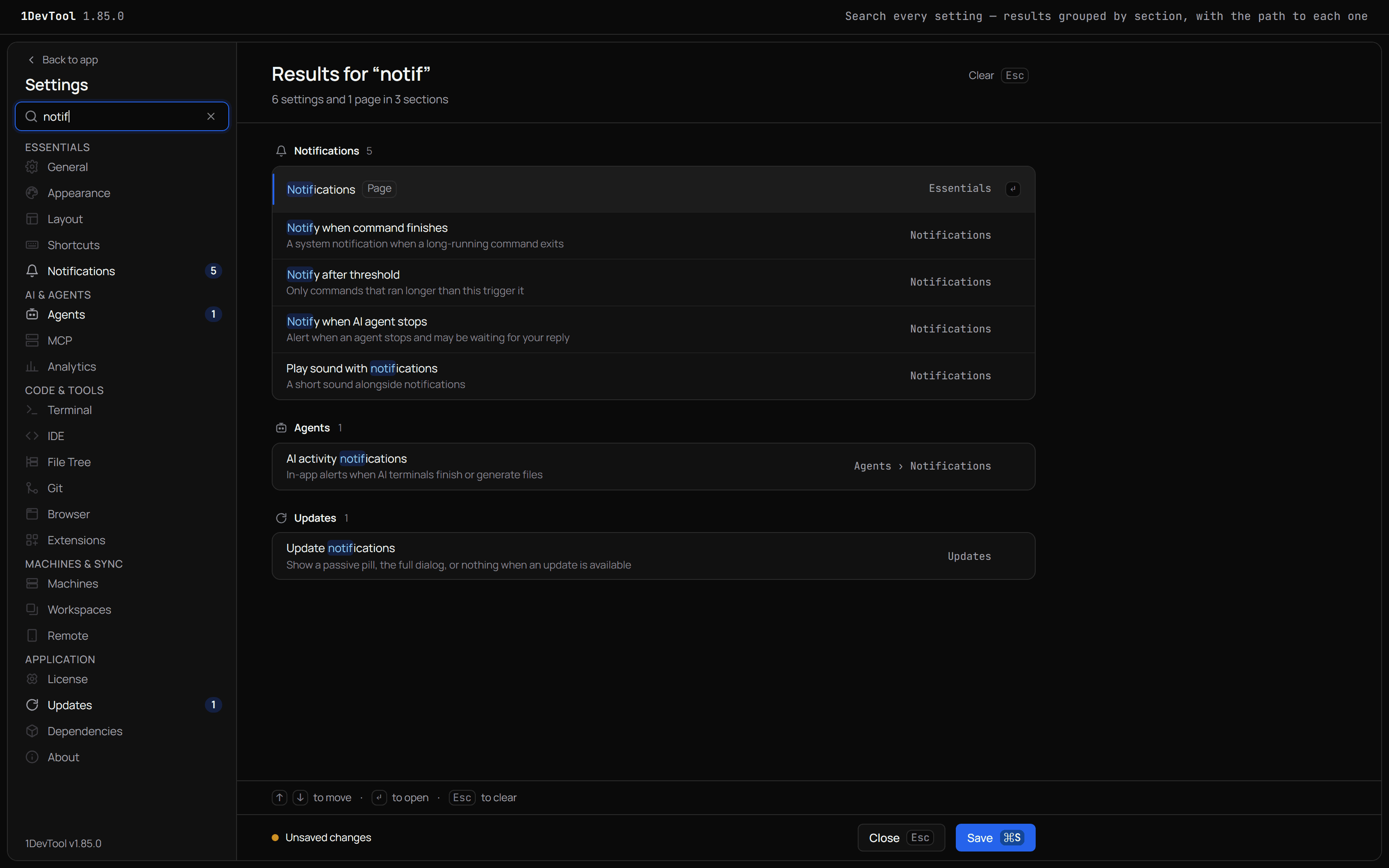
The right side of the window becomes a results page. It opens with Results for "notif" and a count such as 6 settings and 1 page in 3 sections. Each section is one Settings page with its icon and the number of hits. Every row shows the setting's name with your text marked, a one-line description, and on the right the path that leads to it, such as Agents › Notifications. Whole pages show a Page tag and keyboard shortcuts show a Shortcut tag, because search covers shortcuts too.
The sidebar follows along. Pages with matches get a small count badge, and pages without any fade back, so you can see at a glance where a word appears across the app.
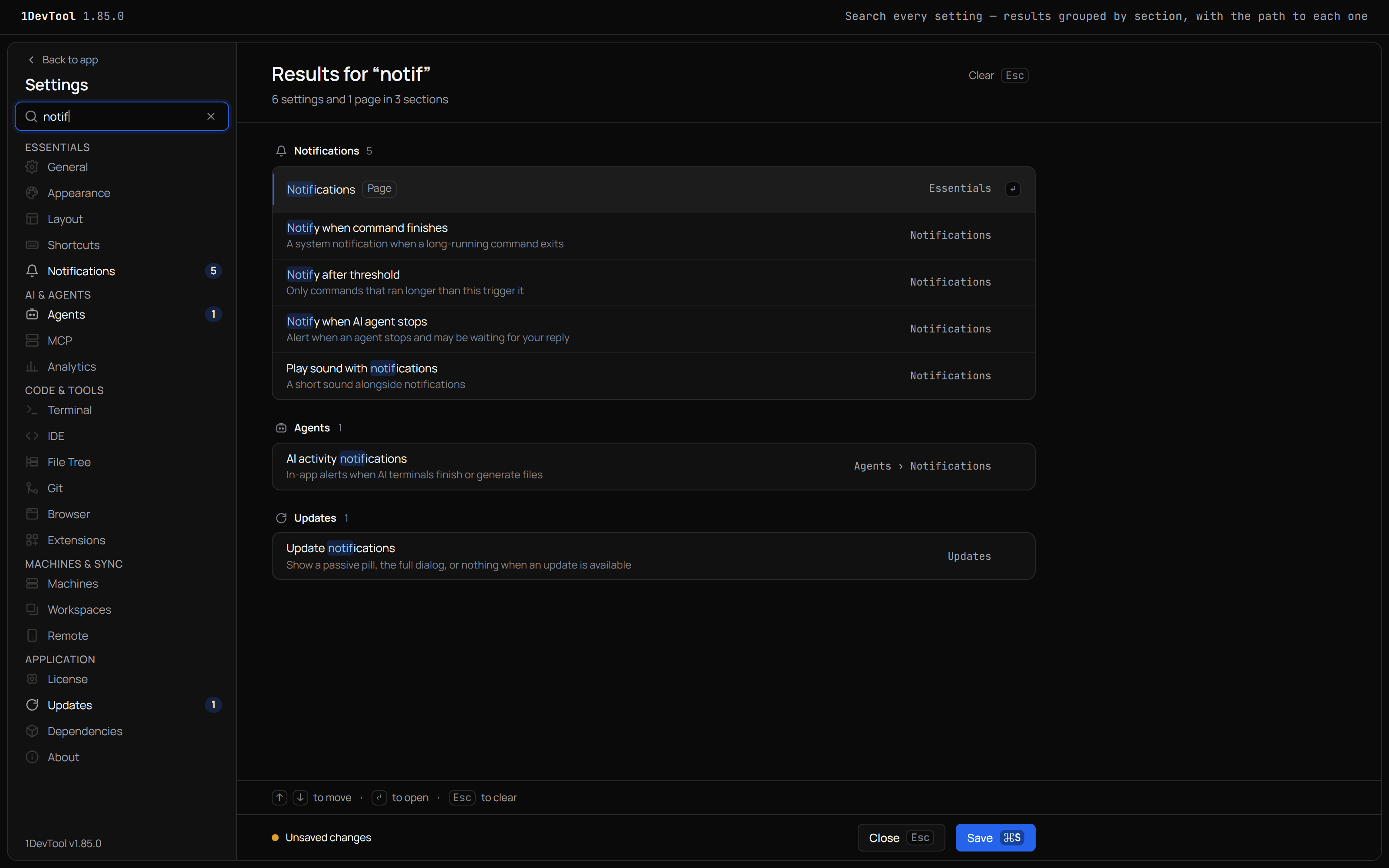
Use ↑ and ↓ to move through the results and ↵ to open one. Settings switches to that page, opens the right sub-tab, scrolls the setting to the middle of the window and flashes it for a moment so your eye lands on it. Esc clears the search without closing Settings. If you search for something that lives in Accounts & Quota, the row says Opens Accounts & Quota ↗ and takes you straight to that panel.
When nothing matches, you get No settings match with a few suggestions to browse instead: Theme, Font size, Agent permissions, Notifications, Git accounts and Keyboard shortcuts.
Browse when you don't know the word
Sometimes you don't know what a setting is called, only roughly what it does. The sidebar is now sorted by what you are trying to do:
- Essentials: General, Appearance, Layout, Shortcuts, Notifications
- AI & Agents: Agents, MCP, Analytics
- Code & Tools: Terminal, IDE, File Tree, Git, Browser, Extensions
- Machines & Sync: Machines, Workspaces, Remote
- Application: License, Updates, Dependencies, About
A few pages moved to where you would look for them. Shortcuts now sits under Essentials, Workspaces under Machines & Sync, and Extensions under Code & Tools. On macOS, the app menu's Settings Sections submenu lists the pages in the same order, starting with All Settings.... The same submenu is under Tools → Settings on every platform.
Save without wondering whether you changed anything
The bar at the bottom of Settings now tells you the truth. It reads Unsaved changes only when something really differs from what is saved, and All changes saved otherwise. If you flip a toggle and flip it back, the warning goes away. ⌘S (Ctrl+S) saves even while you are typing in a field, the button shows Saving… and then Saved, and Settings stays open, so you can keep going down your list.
See an account's quota where the agent is running
A terminal that runs on one of your saved AI accounts now shows that account's quota in its pane header, next to the account name: CLAUDE · [email protected] · 5h 42% wk 10%. It covers saved accounts for Claude, Codex, Gemini, Qwen, OpenCode and Grok.
Each number stays neutral while you have room, turns amber at 80% used and red at 95%. The colour belongs to each window on its own, so a weekly cap that is running hot does not repaint a healthy 5-hour number. Hover the chip to see each limit, when it resets and when it was last read, for example 5-hour limit: 42% used · resets 4:00 PM and checked 3m ago. A reading older than ten minutes is shown muted and labelled Stale reading in the tooltip. If a parallel Claude account has had its saved login rejected, the chip says re-login instead of showing numbers that no longer mean anything.
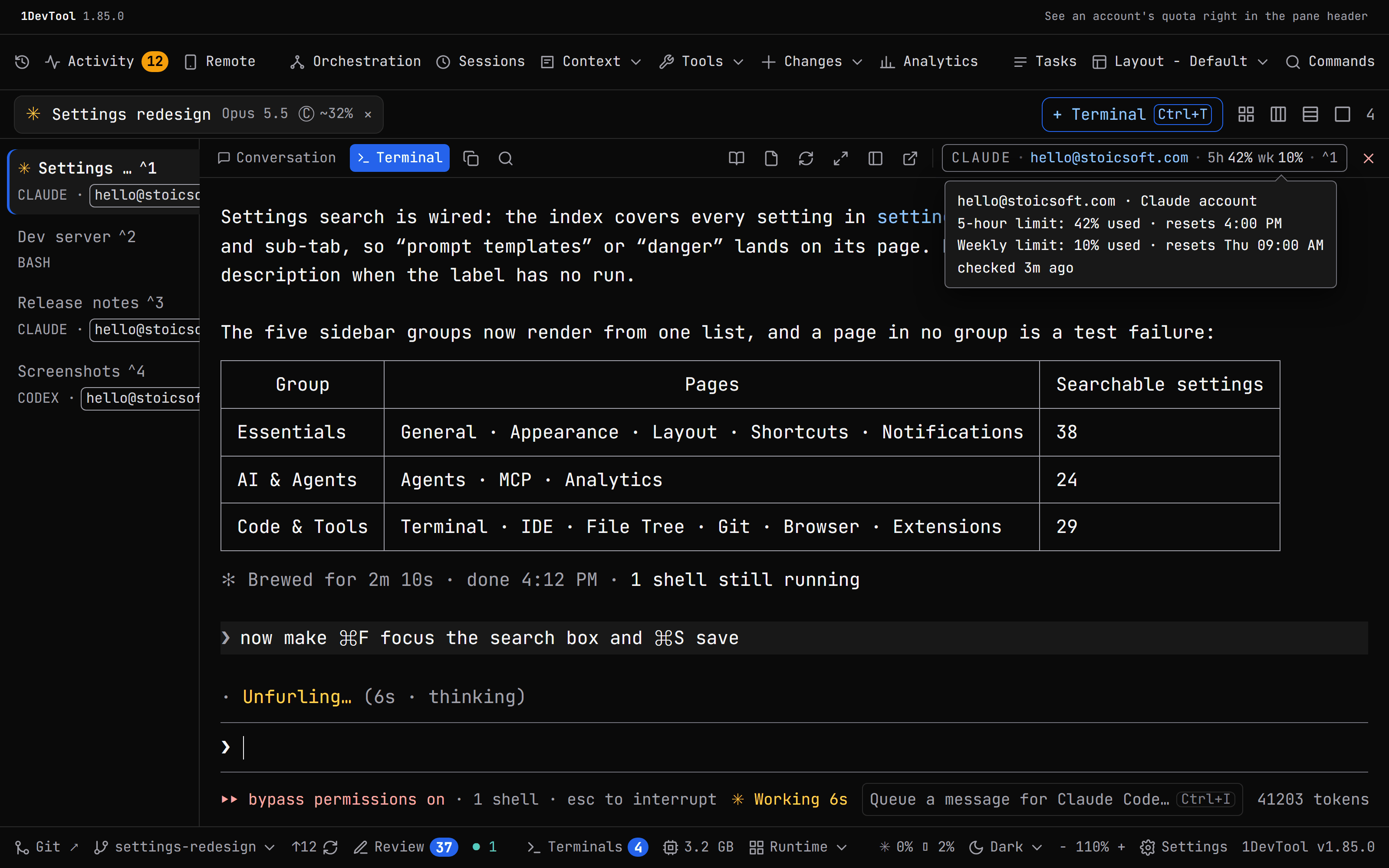
The chip does not run its own check. It reads the same account data as the Accounts & Quota panel and the account picker in Add Terminal, so all three always show the same numbers.
Enter a key you already bought, from wherever you got stopped
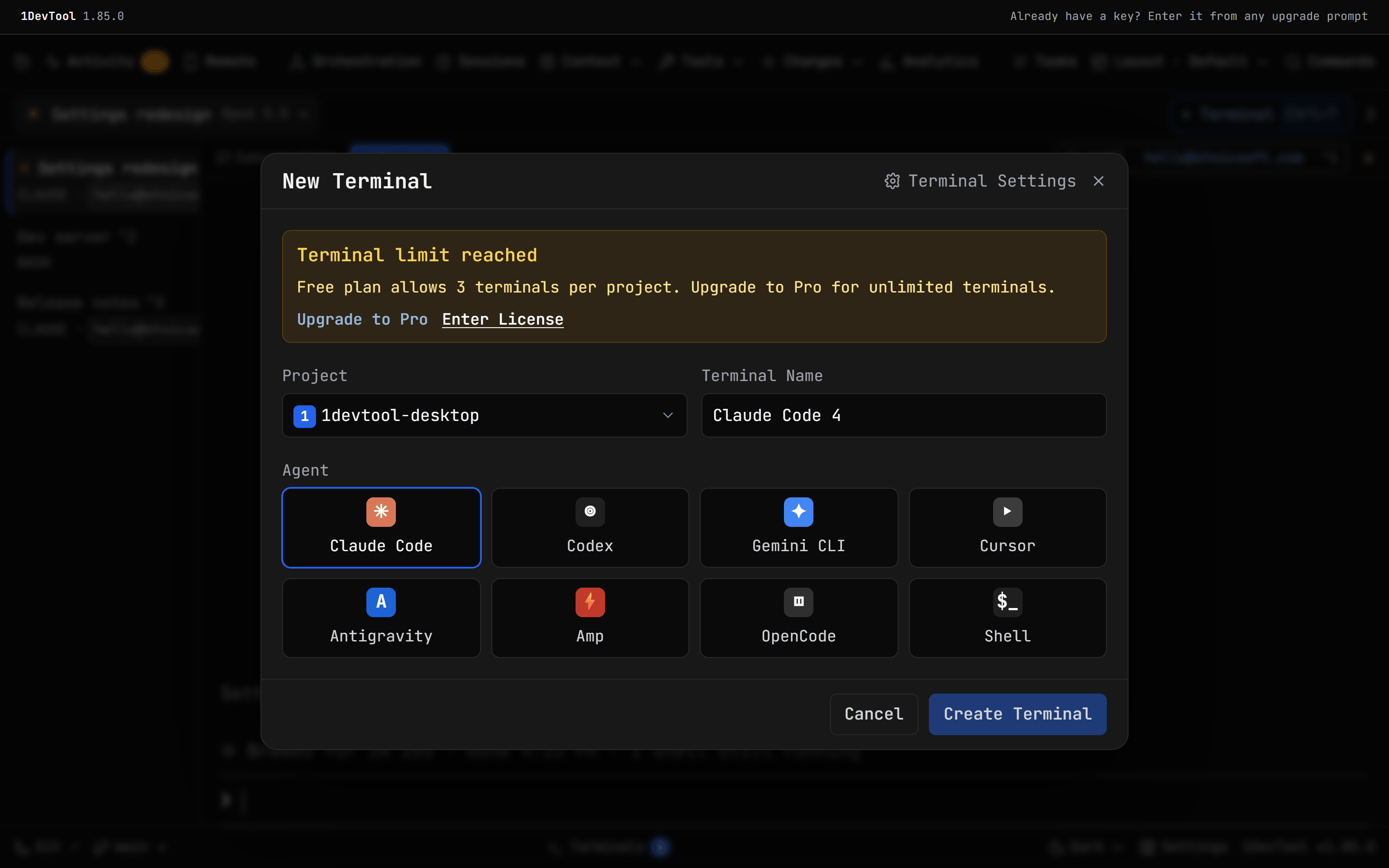
If you bought 1DevTool, or a StoicSoft bundle, and then hit a free-plan limit before activating, the prompt used to offer only an upgrade. Now the terminal limit, project limit and Project Settings prompts have Enter License next to the upgrade button, and the upgrade dialog has Already have a key? Enter License under it. Each one opens Settings → License, where you paste the key you already have.
Before vs After
| Task | Before v1.85.1 | With v1.85.1 |
|---|---|---|
| Find "notify when an agent stops" | Open Settings, guess a tab, check its sub-tabs, try the next tab | ⌘F, type "notif", press ↵ on the row |
| Find a page you rarely use | Scan the sidebar for the right tab | Look in one of five named groups |
| Know whether you have unsaved edits | A save bar that could stay on after you undid a change | Unsaved changes only when something differs |
| Check how close an agent's account is to its limit | Open Accounts & Quota and find the account | Read 5h 42% wk 10% in the pane header |
| Activate a key after hitting a limit | Close the prompt, open Settings, find License | Click Enter License on the prompt |
Who benefits most
People who tune their setup. If you adjust notification rules, agent permissions or terminal behaviour often, typing two or three letters is faster than remembering which of 21 pages holds each setting.
Anyone running several agents across accounts. With two Claude accounts and a Codex account in different panes, the header tells you which agent is about to run out without opening another panel. Combine it with Auto pools in Add Terminal and you can see where new work should go.
Customers who bought a key before activating it. You no longer have to close a limit prompt and look for License yourself. The prompt that stopped you takes you there.
Try it
Update to 1DevTool v1.85.1, open Settings and press ⌘F. Type the first few letters of anything you have ever changed and press ↵. Then open a terminal on one of your saved accounts and watch its quota in the header. On Windows, this release also starts without the long stalls some users saw at launch, and new terminals find CLIs you installed while the app was open. You spend less time looking for settings, and you can see each agent's quota in its own pane.