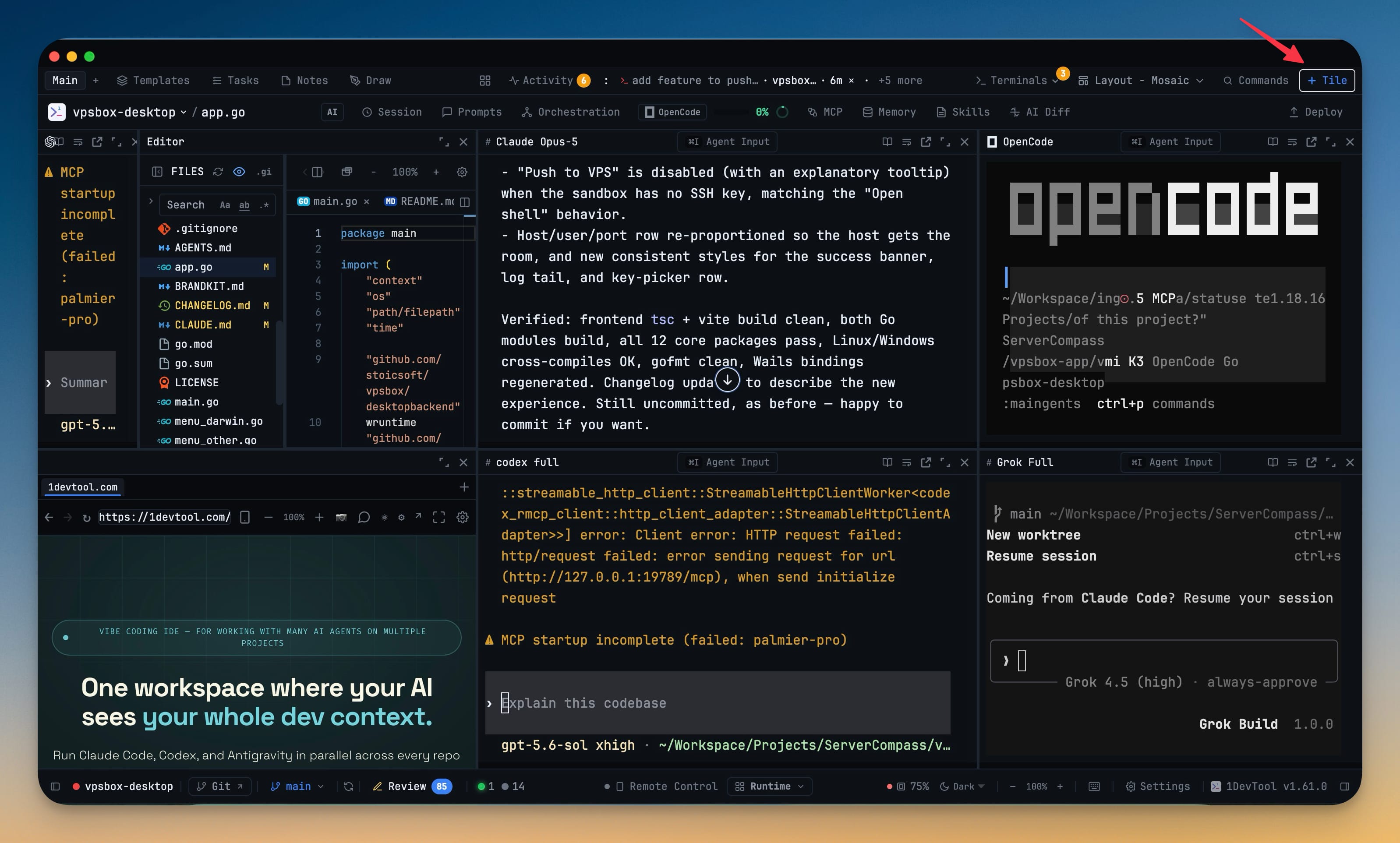
New Mosaic Layout and Shared Skills
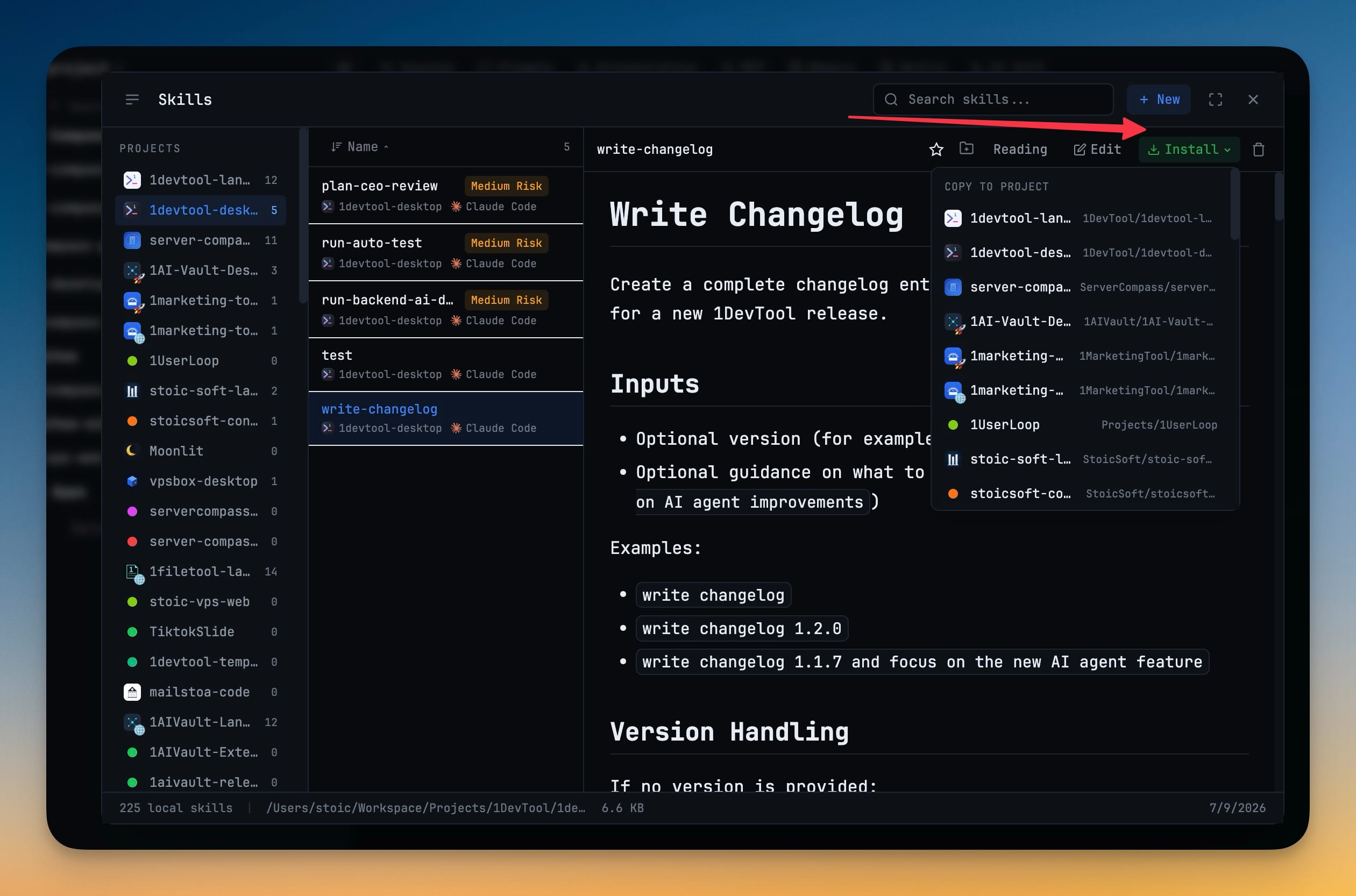
Mosaic turns the whole window into tiles — pick it in the layout picker and the sidebars disappear, leaving every tool you already have as a tile you split, drag, resize and magnify where you want it. Rearranging never restarts a thing: running agents, PTYs and scrollback survive every move, and each project can keep more than one named arrangement. The Skills Control Plane installs a skill once into a versioned library on your machine, then pins a version per project and applies it as a link — the manifest lives in .1devtool/skills-manifest.json, so committing it gives your whole team the same skills at the same versions. A "N need you" chip beside Activity counts the agents actually waiting on you in every layout, and Cursor's renamed agent CLI is now recognised everywhere, including through a WSL bridge on Windows.
Download v1.62.0
The download page always has the newest build; installers for this version are on GitHub.
What changed
New features
14- Turn the whole window into tiles with Mosaic — pick Mosaic in the layout picker and the sidebars disappear; every tool you already have becomes a tile you place where you want it. Terminals, editor, browser, database, HTTP client, Mission Control and the rest all work as tiles.
- Split, stack and resize tiles — split any tile left, right, up or down, drag a tile onto another to stack them as tabs, drag the seams to resize, and magnify the tile you are working in without disturbing the others.
- Add a tile from one searchable list — tools, the terminals already open in this project, and "New terminal…" all live in the same picker.
- Keep more than one arrangement per project — name a workspace, add a second one, and switch between them without rebuilding your layout.
- Rearranging never restarts anything — splitting, moving, resizing and magnifying leave running agents, PTYs and scrollback completely untouched.
- Drive Mosaic from the keyboard — add a tile, split right or down, close, magnify, and move focus between tiles; the shortcuts only apply while Mosaic is the active layout.
- Install a skill once, use it in every project — the new Control Plane view in the Skills dialog keeps a versioned library on your machine instead of a copy per project.
- Pin a version per project and apply it as a link — choose which version each project gets and which agent directory it lands in (Claude, Cursor, Codex, Kimi). Apply shows exactly what it will link, switch and remove before it touches anything, and a real skill folder is never overwritten silently — it is reported as a conflict until you say otherwise.
- Share the exact skill set with your team — the manifest lives in your project as
.1devtool/skills-manifest.json, so committing it gives everyone the same skills at the same versions. - Roll back or move forward at any time — pick an older version from the row, or repin every outdated skill to the newest in one click. Each library skill also lists the projects that pinned it and the version they are on.
- Know which agents are waiting on you — a "N need you" chip sits beside Activity in every layout, and clicking it jumps straight to the first one. It counts an agent when a prompt could not be confirmed as submitted, or when its run finished and you have not looked at that terminal yet, and disappears entirely when nothing needs you.
- Cursor's renamed command is recognized everywhere — Cursor now ships its CLI as
agent, and 1DevTool accepts that spelling alongside the originalcursor-agentin detection, startup commands, resume, model chips and sub-agent badges. Windows installs are found where Cursor's installer actually puts them, and becauseagentis a name other AI CLIs ship too, 1DevTool proves the binary really is Cursor before claiming it. - A terminal follows the agent it is actually running — when a saved preset names one agent but the startup command launches another, the command wins, so the label, readiness, prompt delivery and resume all agree on the same agent.
- A Windows command that bridges into WSL can be a real Cursor terminal — a custom startup command that starts Cursor inside WSL now gets the full Cursor treatment, is accepted as an Agent Team member, and keeps Cursor's prompt handling and sub-agent attribution. Cold WSL launches get more time to paint their composer before 1DevTool asks you to confirm the send by hand.
Improvements
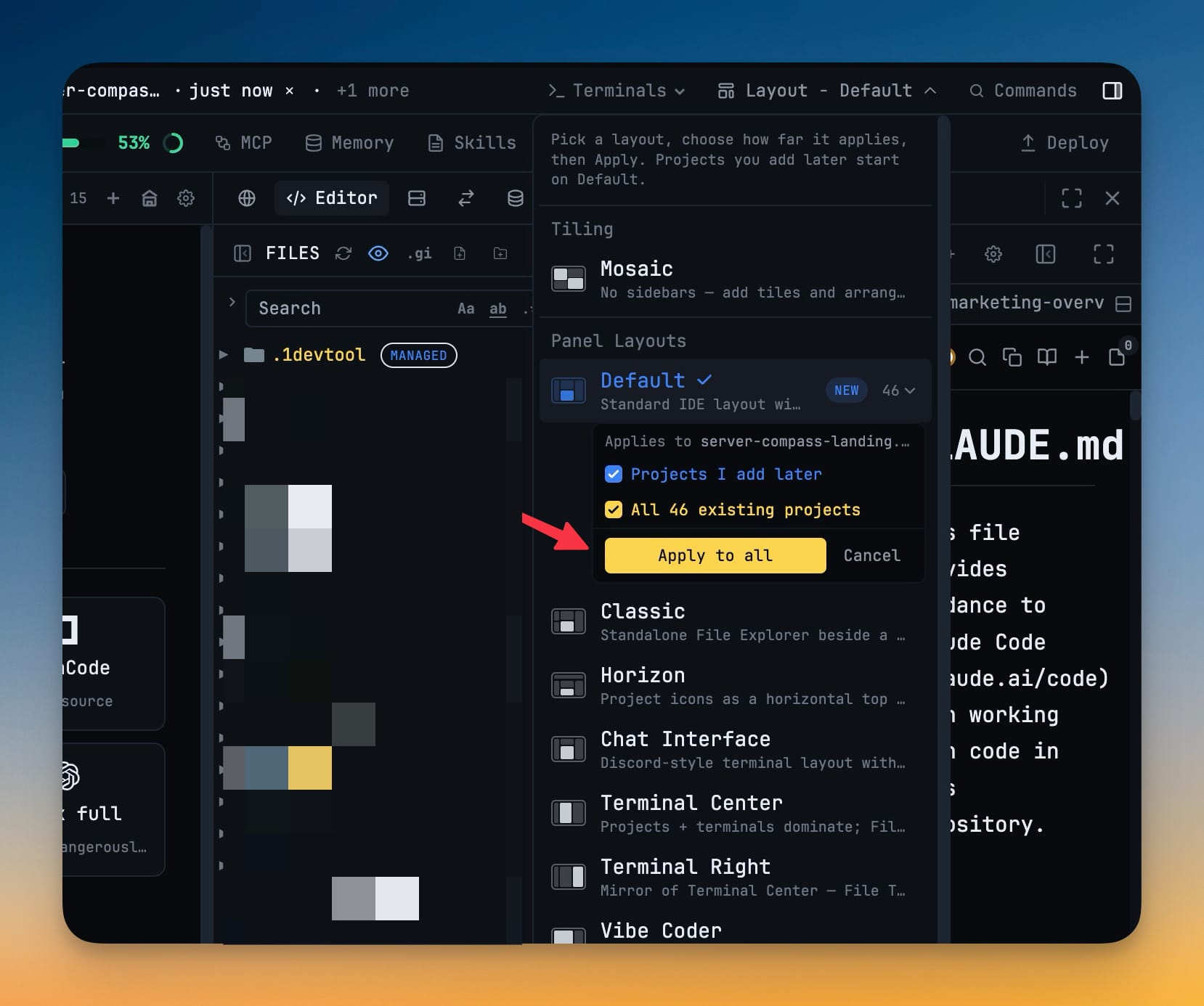
8- Apply a layout to every project at once — the layout picker gains Apply to all projects, with a confirmation step because it replaces existing arrangements, plus an Apply to future projects option for everything you add later.
- Tiling and panel layouts are now grouped separately in the list, so Mosaic is not mistaken for another sidebar preset.
- The first-run checklist now shows you where the layouts live — a Change layout step points at the layout picker in the toolbar, and ticks itself once you actually switch layouts.
- Mission Control shows the latest agent-to-agent activity without opening the timeline — the newest hand-off, its delivery state and a preview are visible on the map, and screen readers are told when it changes.
- Windows prompt delivery is confirmed, not assumed — typing, pastes, links and the final Enter share one ordered queue that waits for Windows to actually accept the bytes before reporting success. A linked prompt the agent really did run is no longer left marked as failed, and a prompt is never re-sent on a delivery doubt, so a task cannot run twice.
- Jump-to-bottom works on Windows AI terminals — OpenCode, and other agents that own their own transcript, now get the same floating jump control the rest of the app has.
- Jump-to-bottom reaches the live prompt — it no longer stops a few screens short of the bottom, and the agent's own scrollbar can be clicked and dragged again.
- Project pickers in the Skills dialog show your project identity — choosing where to install a skill now shows the same avatar and emoji you see in the sidebar, instead of a plain colour dot.
Bug fixes
7- Fixed a JavaScript error popup killing the app on Windows SSHFS projects — a single unreadable file on a remote mount is now logged and ignored instead of crashing the main process.
- Fixed Tailscale Remote unable to finish HTTPS setup in the installed app — 1DevTool now reads your
.ts.netname correctly when launched from the Dock or Start menu, so the Safari-ready address is available. - Fixed AI agents reporting "command not found" on SSH host projects — remote agents now start through your login shell, so CLIs installed with nvm or npm are found exactly as they are in a normal SSH session.
- Fixed the composer being see-through on Terminal Canvas cards — the message box no longer blends into the live terminal output behind it.
- Fixed Escape closing the entire Skills dialog — pressing Escape in a nested picker now closes just that picker and keeps your dialog and staged work.
- Fixed stray characters appearing in an agent's composer on Windows — long prompts and jump-to-bottom no longer split a control sequence in half and leave the remainder typed as text.
- Fixed a Cursor terminal introducing itself as Claude — a pane whose saved preset had gone stale reported the wrong agent to links, mentions and Agent Team, which then waited on the wrong composer and left delegated prompts queued forever; the command that actually started the terminal now decides its identity.
Screenshots