Screenshots — capture any app, send it to any agent
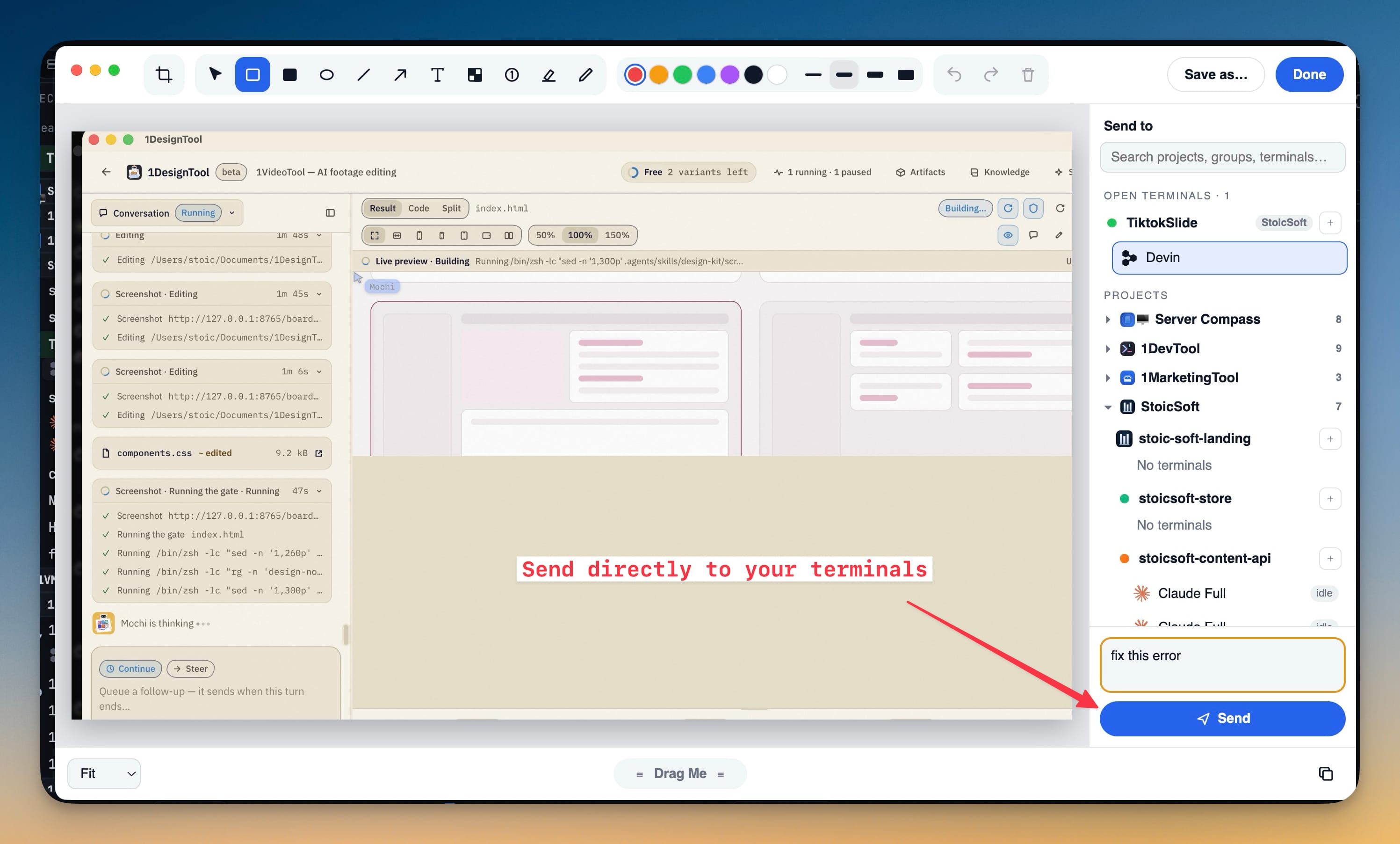
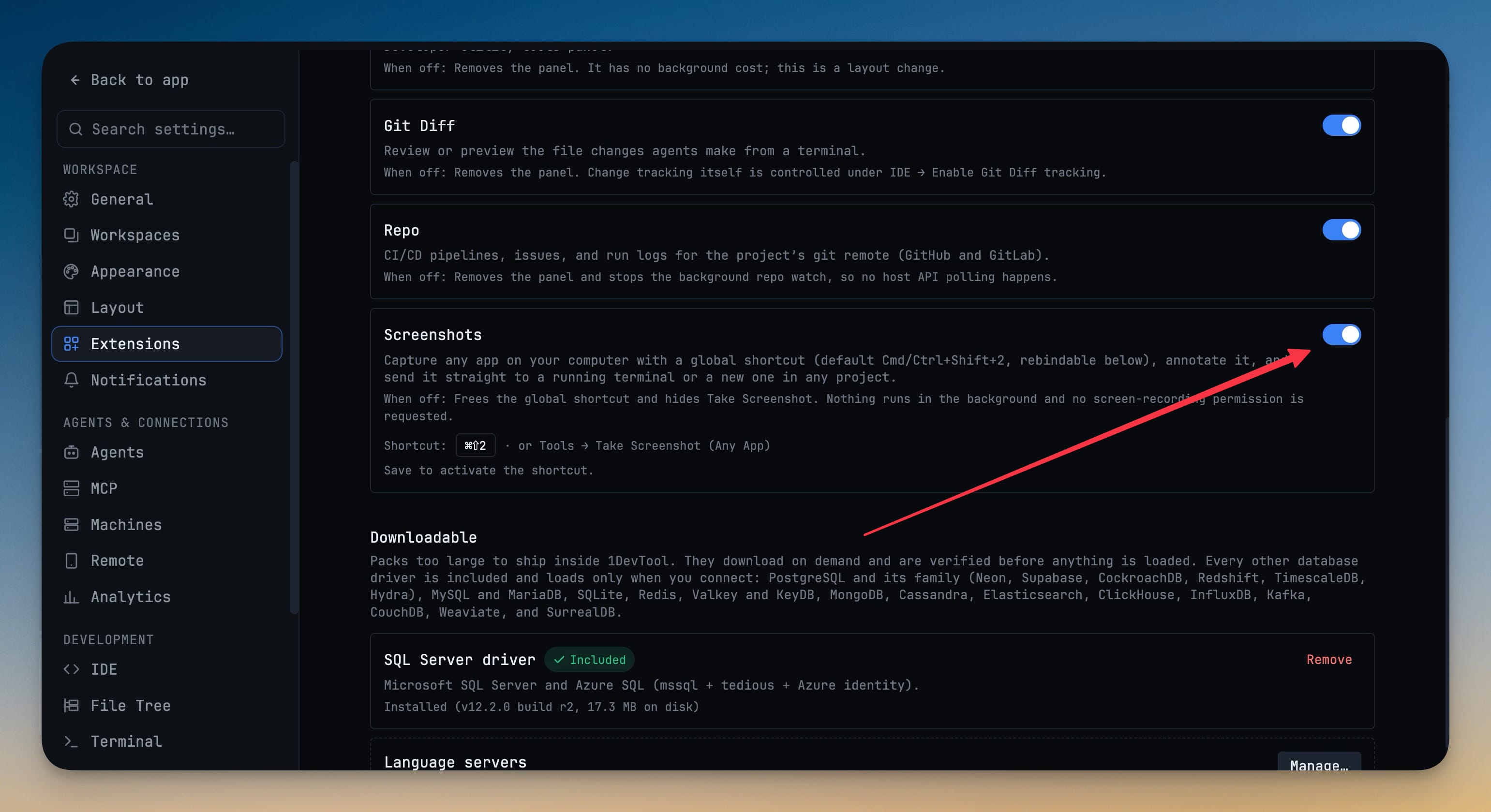
Screenshots — capture any app, send it to any agent. A new opt-in extension turns 1DevTool into a system-wide screenshot tool: switch it on in Settings → Extensions → Screenshots, press Cmd/Ctrl+Shift+2 (rebindable) or pick Tools → Take Screenshot (Any App) over any app on any display, then drag a region or press Enter for the full screen. A floating editor adds crop, boxes, ellipses, lines, arrows, text, pixelate, numbered badges, highlighter and pen, with undo, redo and zoom, and lets you Save as…, copy with Done, or Drag Me into another app. One click sends the marked-up image into a running agent's prompt with an optional message: live terminals are pinned on top, every other project follows your sidebar's groups with search, you can tick several terminals at once, and the + beside a project opens Add Terminal and delivers the shot into whatever you create. While the extension is off, no shortcut is registered and no screen-recording permission is requested.
Download v1.76.6
The download page always has the newest build; installers for this version are on GitHub.
What changed
New features
12- Capture anything on your computer — a new opt-in extension adds a global shortcut (Cmd/Ctrl+Shift+2 by default) and a Take Screenshot (Any App) entry in the Tools menu; drag a region, press Enter for the full screen, or Esc to cancel
- Turn it on in Settings → Extensions → Screenshots — it's off by default; while off, no shortcut is registered, nothing runs in the background and no screen-recording permission is requested
- Rebind the shortcut — click it in Settings and press the chord you want; an invalid choice falls back to the default
- Works across multiple displays — each screen freezes for a clean, precise selection
- Annotate before you send — a floating editor with crop, rectangle, filled rectangle, ellipse, line, arrow, text, pixelate, numbered badges, highlighter and pen
- Pick colour and stroke, move and delete shapes, undo and redo, and zoom in for detail
- Save as… to a file, Done to copy to the clipboard and close, or Drag Me to drop the image straight into another app
- Send to any terminal in one click — the annotated image lands in a running AI agent's prompt, with an optional message alongside it
- Terminals with a live session are pinned on top, tagged with their group, and every row shows the agent's logo and the project's avatar
- Every other project is listed below in the same groups and order as your sidebar, with a search box that matches project, group, terminal name or agent
- Pick several targets at once — the same screenshot is delivered to each terminal you tick
- Start a fresh terminal from the list — the + beside any project opens the full Add Terminal dialog (every agent, shell, machine, worktree or team), and the screenshot goes into whatever terminal you create
Screenshots