Ready, Working or Draft on Every AI Terminal
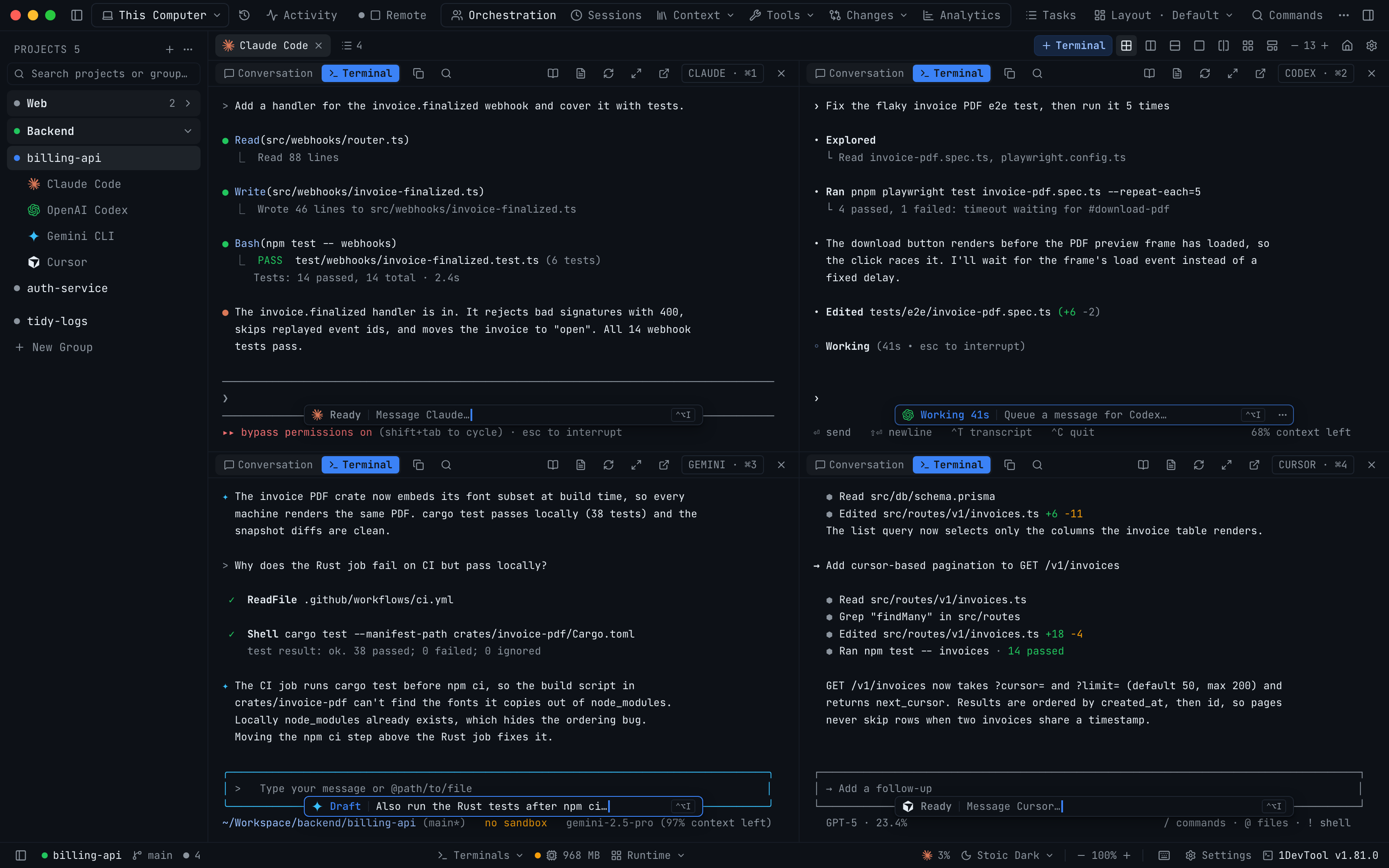
With Agent Input closed, each AI terminal shows a small capsule reading Ready, Working with the elapsed time, or Draft with a preview of your unsent prompt. It sits on the divider above the agent's own status line and shrinks to fit 2×2 and 3×3 grids.
Why You Need This
How this feature boosts your daily productivity
In a grid of four or nine agents, the only way to know which one had finished was to read the last lines of every pane, and a prompt you started typing in one of them was easy to forget. The capsule answers both questions from across the screen. Ready means the agent is idle and the capsule offers Message Claude…. Working shows the elapsed time and offers Queue a message for Codex…, because what you type waits for the current turn. Draft previews the prompt you left unsent. The capsule now sits on the divider above the agent's status line instead of covering it, and in narrow panes it drops the word for a glyph and shortens its text.
How It Works
Get started in 4 simple steps
Close Agent Input
Each AI terminal shows a small capsule on the divider above the agent’s own status line.
Read the state
Ready means idle, Working shows the elapsed time, and Draft previews the prompt you left unsent.
Click to write
The capsule opens Agent Input. While the agent works, what you type is queued for after the current turn.
Hide it if you like
Its ⋯ menu offers Hide in this pane or Turn off in all terminals; Settings → Terminal turns it back on.
Without 1DevTool
The manual way vs. the 1DevTool way
The Hard Way
The 1DevTool Way
Key Capabilities
Everything included with Ready, Working or Draft on Every AI Terminal
Why It Matters
The productivity impact of having ai productivity built into your workspace
Read the Grid at a Glance
You see which agent is free for its next instruction without clicking into each pane.
No Forgotten Drafts
A half-written prompt shows as Draft with a preview, so it doesn’t get lost in pane three.
Nothing Covered
The capsule sits on the divider, not over the footer the agent prints.
More in AI Productivity
Other features in this category you might find useful
Prompt History
Search prompts and sticky notes from Remote Control while away from the desktop. Switch between This project and All projects, filter prompts by agent or notes by source, copy entries, delete with Operator access, and sync local prompt history.
Resume UI
Read any past AI session before you resume it. Resume AI Sessions is a split view with a searchable list of every Claude Code, Codex, Gemini CLI and other agent session on the left and a live preview of the project, branch, tool calls and conversation on the right, with replies rendered as Markdown, with Resume, bypass permissions and an editable command one click away.
Combine Sessions
Merge several past AI sessions into one opening prompt, or hand a single session to a different agent. Tick sessions in Resume AI Sessions, see a token estimate of the context they add, and send the result to a new chat with any agent or preset or to a terminal that is already open.
AI Diff Review Panel
Track every file modification any AI agent makes — Claude Code, Codex, Gemini, Amp, custom — and review, accept, or revert their work per file from a dedicated panel with inline diff overlays in the editor.
Ready to boost your workflow?
Download 1DevTool for free and experience Ready, Working or Draft on Every AI Terminal along with 340 other features — all in one app.