Choose Where Your Agent Runs
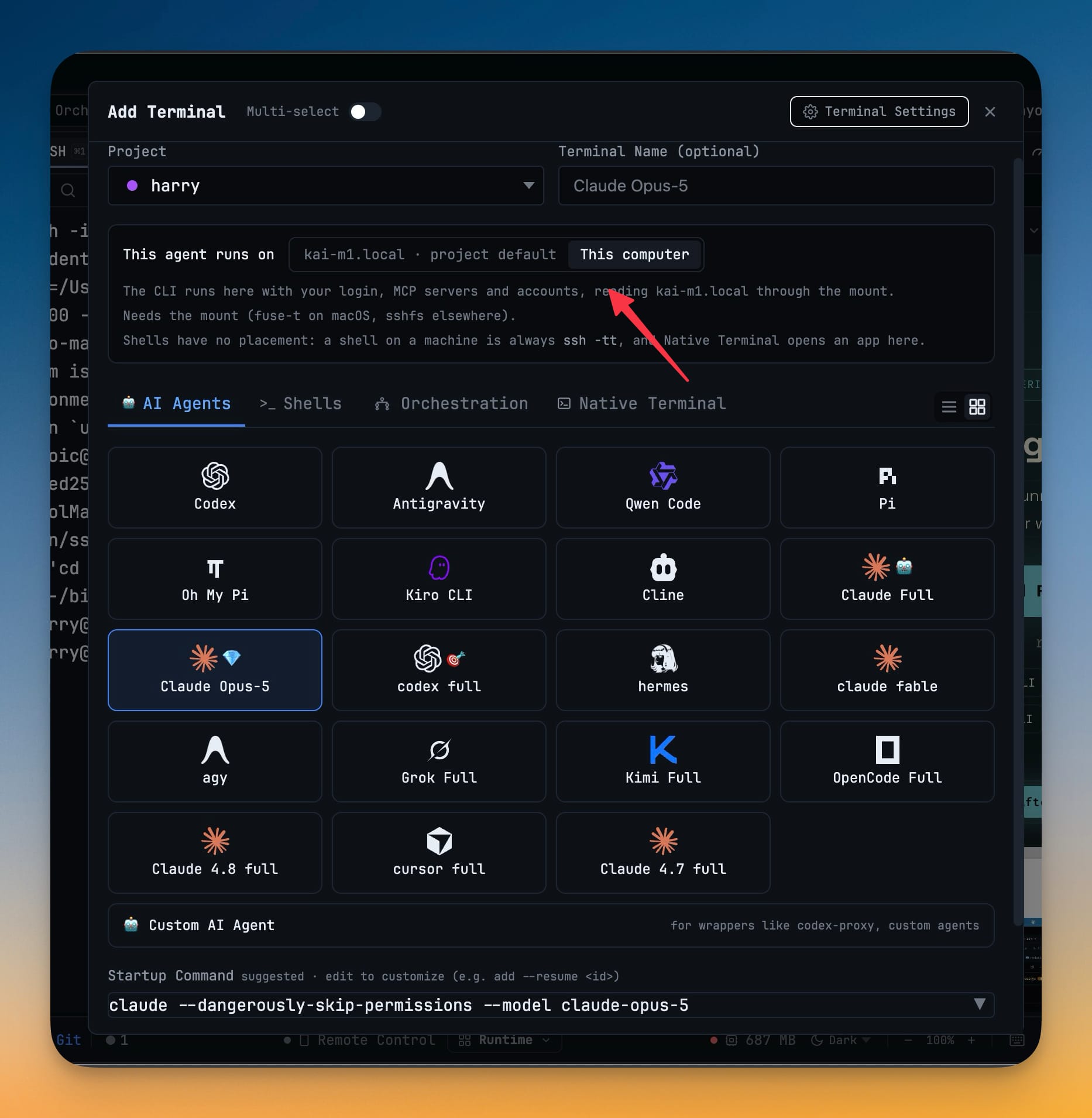
Add Terminal's This agent runs on control decides where the AI CLI process actually runs: This Computer runs it locally with your own login, quota, memory, skills and MCP servers against a mount, and On the machine runs it over ssh -tt on the machine itself. Set it per project and override it per terminal.
Why You Need This
How this feature boosts your daily productivity
Where the files live and where the agent runs are two different questions, and treating them as one is how you end up with a CLI that is a stranger on your own server — no login, no quota, none of the MCP servers you configured, a fresh config staring at you. 1DevTool now asks the question out loud and never answers it for you: neither placement is a fallback for the other, and the app never switches between them on its own. An agent that is not installed on the target machine is greyed out with the reason instead of accepting the launch and failing at the prompt, so "Claude isn't on the mini" is something you read before you commit, not sixty seconds into a run that was never going to work.
How It Works
Get started in 4 simple steps
Open Add Terminal
The This agent runs on control sits above the agent grid, showing the project's machine and This Computer as two explicit choices.
Pick This Computer to keep your own setup
The CLI runs here with your login, quota, memory, skills and MCP servers, reading the machine's files through a mount (fuse-t on macOS, sshfs elsewhere).
Or pick the machine to run it there
The CLI runs over ssh -tt on the machine itself, using whatever is installed on that host.
Set it per project, override per terminal
The project default applies to new terminals; any single terminal can be pointed the other way without changing the project.
Read the greyed-out reasons
An agent that is not installed on the target machine is disabled with the reason shown, instead of accepting the launch and failing at the prompt.
Without 1DevTool
The manual way vs. the 1DevTool way
The Hard Way
The 1DevTool Way
Key Capabilities
Everything included with Choose Where Your Agent Runs
Why It Matters
The productivity impact of having terminal & ai agents built into your workspace
Zero Context Switching
All your AI agents and terminals live in one window. No more alt-tabbing between 5 different terminal apps.
Visual Status Tracking
Color-coded tabs and the Kanban dashboard tell you which agents are done, running, or need attention — at a glance.
Persistent Sessions
Tmux-backed persistence means your terminal state survives crashes and restarts. Never lose scrollback history again.
Flexible Arrangements
One-click layouts adapt to your task: grid for monitoring, columns for comparing, fullscreen for deep focus.
More in Terminal & AI Agents
Other features in this category you might find useful
Multi-Agent Terminals
Run Claude Code, Codex, Gemini CLI, Amp, OpenCode, Qwen, and custom AI commands in dedicated terminal tabs with recognizable agent logos, custom colors, and status indicators.
Flexible Terminal Layouts
View terminals in 2×2 grid, side-by-side columns, or single fullscreen mode with resizable panes.
Terminal Dashboard
Kanban-style board view of all terminal statuses — Idle, Running, and Review — with real-time polling.
Session Persistence
Terminal sessions persist across app restarts with full scrollback history via tmux integration.
Ready to boost your workflow?
Download 1DevTool for free and experience Choose Where Your Agent Runs along with 345 other features — all in one app.