AI Accounts on the Welcome Screen
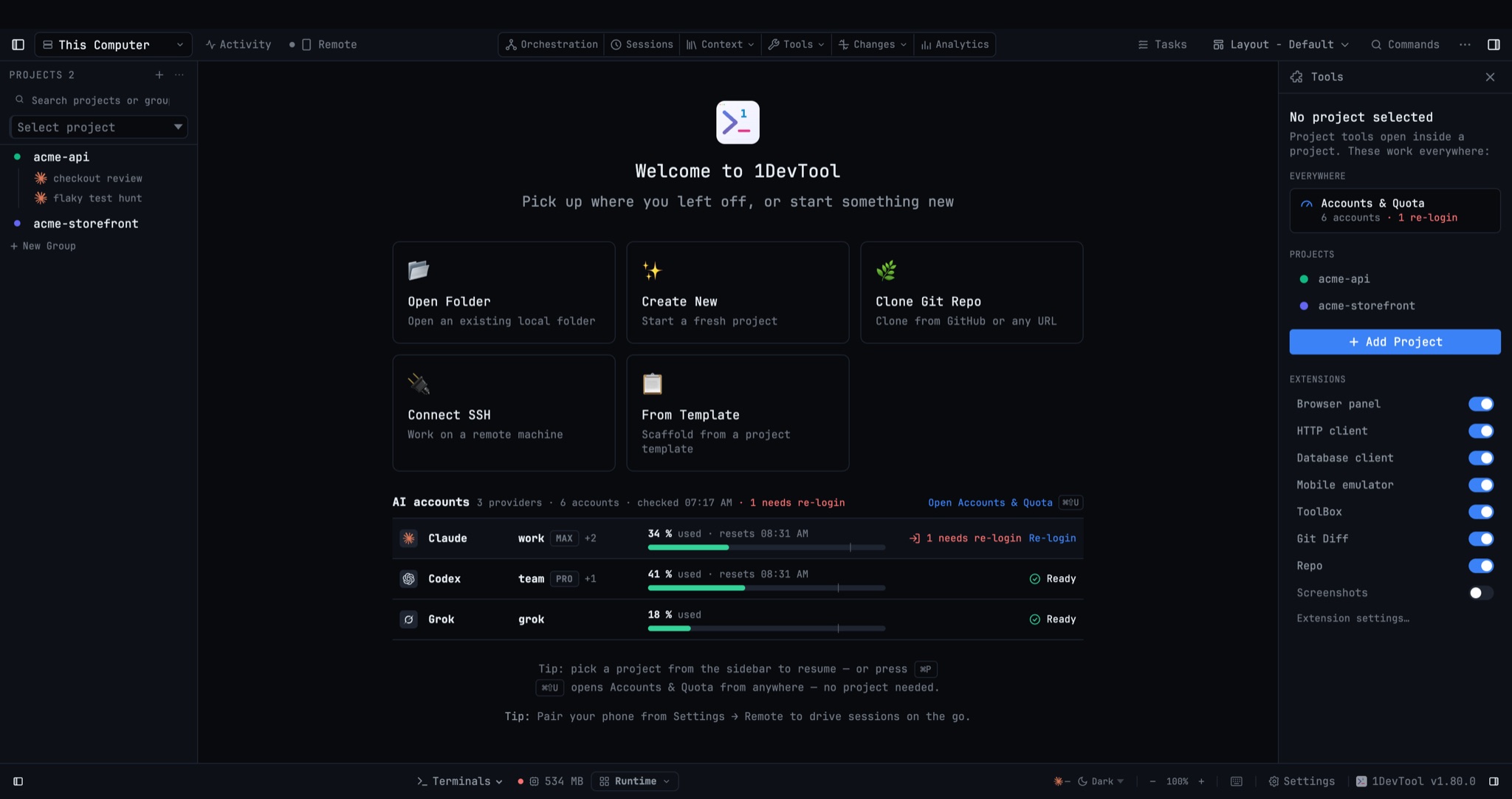
See the account each provider's next terminal will start on, its 5-hour usage and one clear status before you open any project. Re-login or add your first AI account right from the Welcome screen.
More Screenshots
Click any image to zoom in
Why You Need This
How this feature boosts your daily productivity
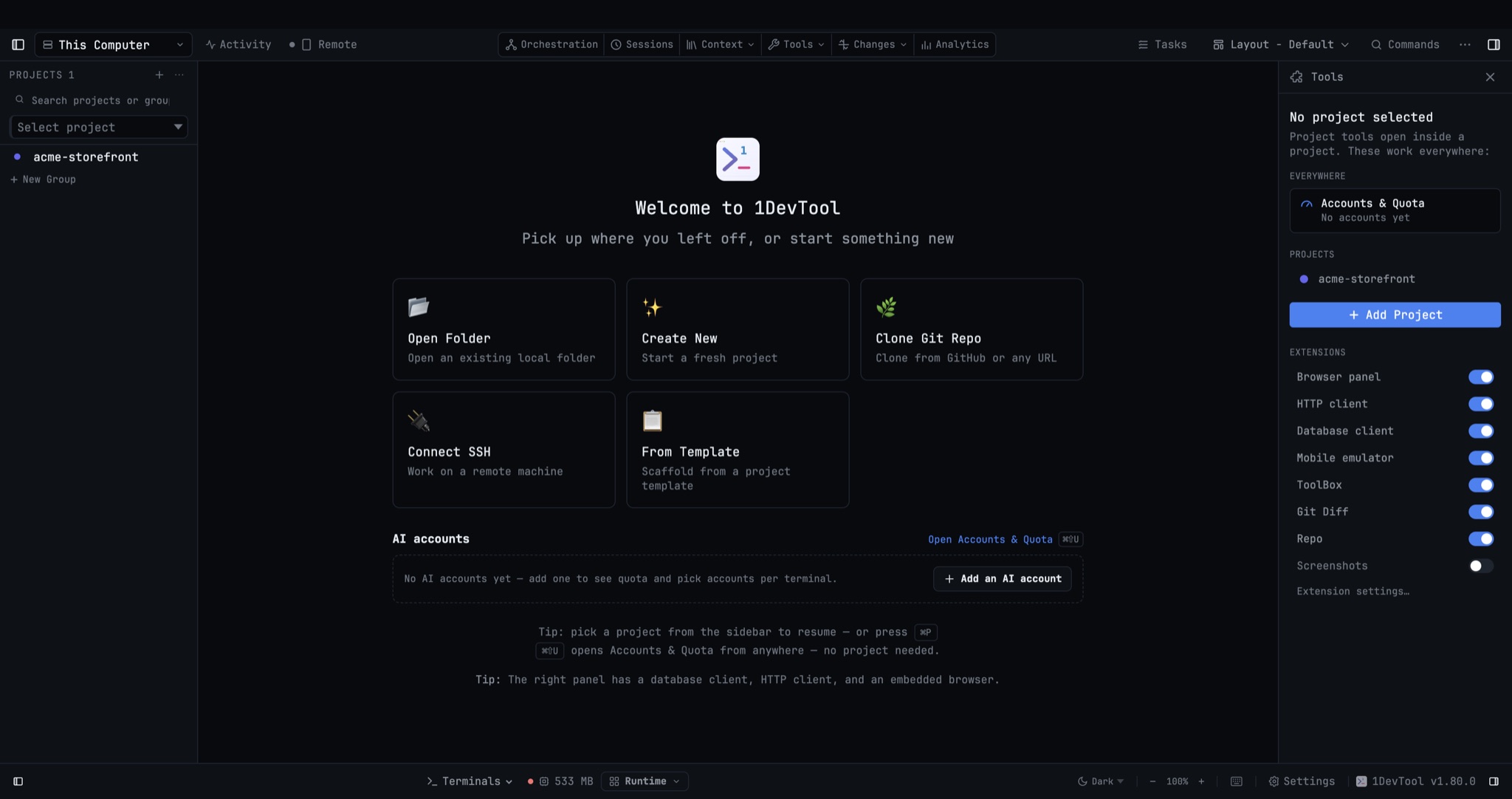
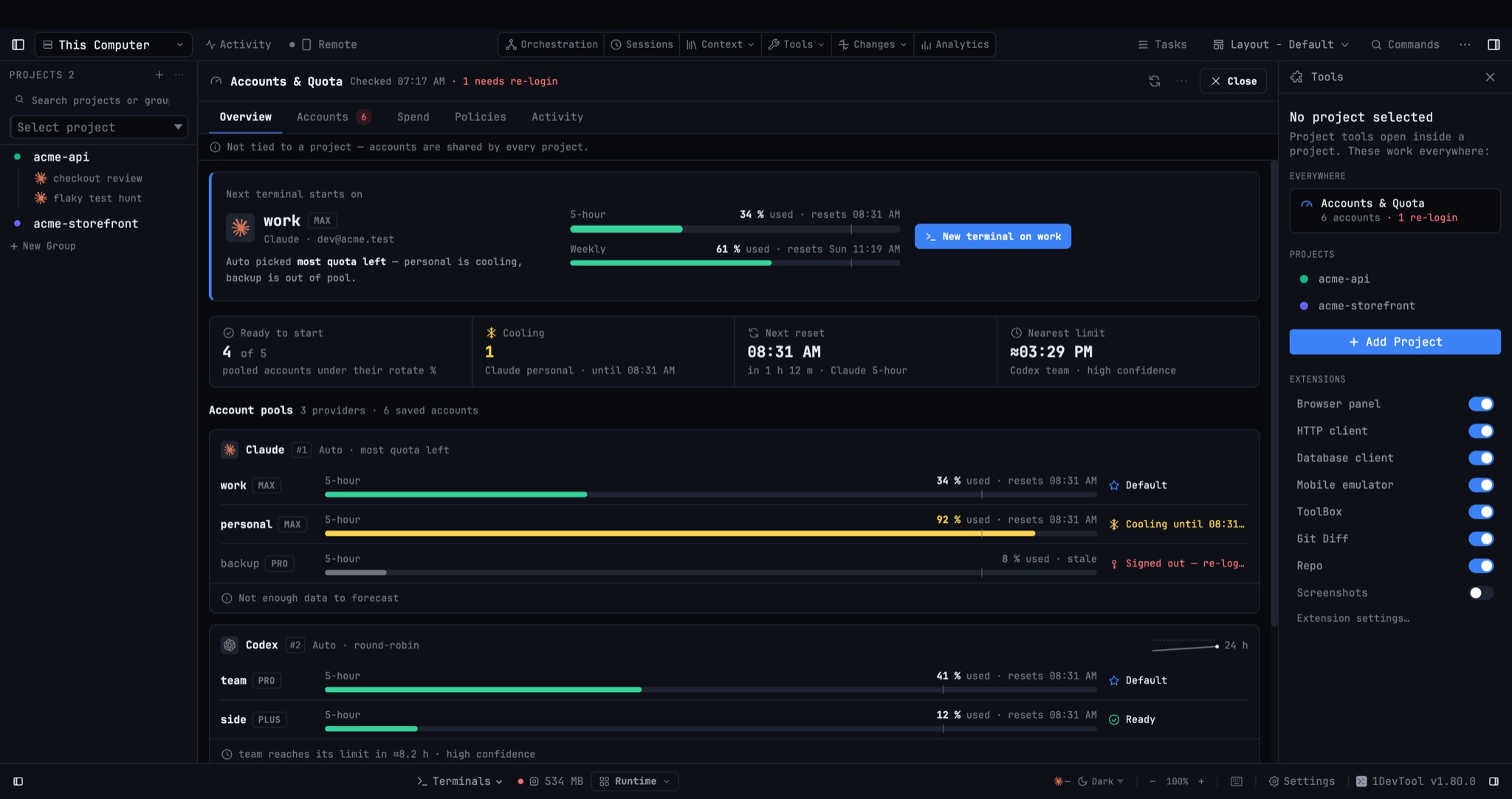
Accounts are shared by every project, yet checking them used to mean opening a project first. Now the Welcome screen lists your AI accounts: each provider, the account its next terminal will use, the 5-hour usage bar with its reset time and a single status such as Ready or 1 needs re-login, with a Re-login button on the row that needs one. With no accounts yet, Add an AI account is one click away. The empty Tools sidebar gains an Everywhere section with Accounts & Quota and your account count, and ⌘⇧U opens the full panel with or without a project. Opened that way it has its own Close, and if a project becomes active it moves into that project's layout instead of disappearing.
How It Works
Get started in 4 simple steps
Start 1DevTool without a project
The Welcome screen lists AI accounts under the project cards: one row per provider with its next account and plan.
Read one status per provider
Each row shows the 5-hour usage bar with its reset time and a single status, such as Ready or 1 needs re-login.
Fix it from there
Re-login sits on the row that needs it. With no accounts yet, Add an AI account starts the add flow.
Open the full panel
Open Accounts & Quota or ⌘⇧U opens the panel with its own Close; opening a project moves it into that project's layout.
Without 1DevTool
The manual way vs. the 1DevTool way
The Hard Way
The 1DevTool Way
Key Capabilities
Everything included with AI Accounts on the Welcome Screen
Why It Matters
The productivity impact of having ai productivity built into your workspace
Check Headroom First
See which provider has room before you choose what to work on, without opening a project.
Expired Logins Surface Early
An account that needs re-login is flagged on the first screen you see, not when a terminal fails to start.
Works From Anywhere
⌘⇧U and the Everywhere entry open Accounts & Quota whether or not a project is active.
More in AI Productivity
Other features in this category you might find useful
Prompt History
Search prompts and sticky notes from Remote Control while away from the desktop. Switch between This project and All projects, filter prompts by agent or notes by source, copy entries, delete with Operator access, and sync local prompt history.
Resume UI
Browse, search, and resume past AI sessions from Claude Code, Codex, and Gemini CLI — or combine multiple sessions into one.
Combine Sessions
Select sessions from Claude Code, Codex, and Gemini CLI and merge them into a single conversation — giving your next agent the full cross-agent context.
AI Diff Review Panel
Track every file modification any AI agent makes — Claude Code, Codex, Gemini, Amp, custom — and review, accept, or revert their work per file from a dedicated panel with inline diff overlays in the editor.
Ready to boost your workflow?
Download 1DevTool for free and experience AI Accounts on the Welcome Screen along with 326 other features — all in one app.