Apply A Layout To Every Project
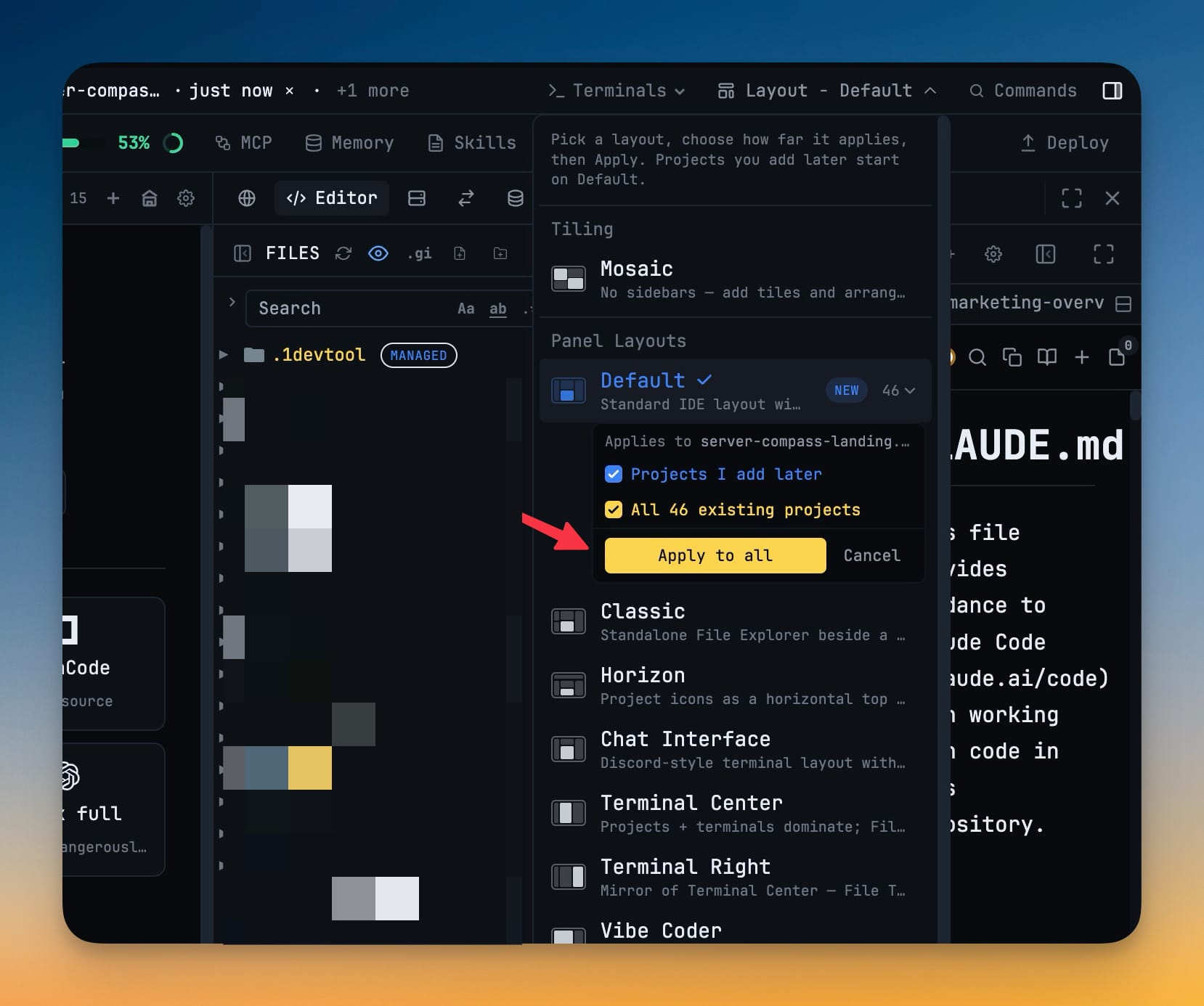
Push the layout you are looking at to every project in one click, with a single confirm — and keep every project you add later starting from it too. It only ever offers to broadcast a layout you have already applied and can see.
Why You Need This
How this feature boosts your daily productivity
Settling on an arrangement and then re-picking it project by project is the kind of chore that grows with your project count. The old fix was a checkbox at the top of the layout picker — and it had the worst property a destructive setting can have: it stayed switched on. Turn it on once, forget it, change layouts a week later, and every project in your workspace was silently rewritten. The action now lives under the layout it applies to, asks once — "Overwrite N project layouts?" — and forgets it was armed the moment the dropdown closes. You broadcast a layout you are currently looking at, so what every project is about to get is on screen when you decide. Alongside the one-off broadcast, **Projects I add later** covers the other half of the chore: everything you create in future opens on your layout instead of Default. The picker also groups Tiling separately from Panel Layouts, so Mosaic is not mistaken for another sidebar preset on the way past.
How It Works
Get started in 4 simple steps
Get the layout right on one project
Pick a preset or arrange the panels the way you want them. The broadcast action only appears under a layout that is already applied and visible.
Open the layout picker
In the header picker, the applied layout carries an "Apply to all projects (N)" action right beneath it, with N being how many projects would change.
Confirm once
The first click arms it and the label becomes "Overwrite N project layouts?". A second click writes the layout to every project.
Nothing stays armed
Closing the dropdown resets the confirm, so a later visit can never inherit a half-pressed destructive action from this one.
Without 1DevTool
The manual way vs. the 1DevTool way
The Hard Way
The 1DevTool Way
Key Capabilities
Everything included with Apply A Layout To Every Project
Why It Matters
The productivity impact of having project management built into your workspace
Nothing Stays Armed
The old checkbox could be switched on once and silently rewrite every project a week later. The confirm now resets the moment the picker closes.
You Broadcast What You Can See
The action lives under the layout it applies to, so what every project is about to get is on screen when you decide to send it.
The Count Is In The Question
"Overwrite N project layouts?" tells you the blast radius before the second click, rather than after.
One Click Instead Of Twenty
Settling on an arrangement no longer means re-picking it project by project, which is exactly the chore that grew with your project count.
More in Project Management
Other features in this category you might find useful
Multi-Project Workspace
Work on multiple projects simultaneously with instant switching. Entire workspace state is preserved per project.
Smart File Explorer
Real-time file tree with type icons, .gitignore filtering, search, and right-click context menus.
Per-Project Code Intelligence
Spawn real typescript-language-server, gopls, pyright, rust-analyzer, clangd, solargraph, intelephense, or sourcekit-lsp for the projects you opt into — with project-aware errors and zero false positives.
Color-Coded Projects
Assign accent colors to each project for instant visual identification across your workspace.
Ready to boost your workflow?
Download 1DevTool for free and experience Apply A Layout To Every Project along with 347 other features — all in one app.