Auto Account Pools
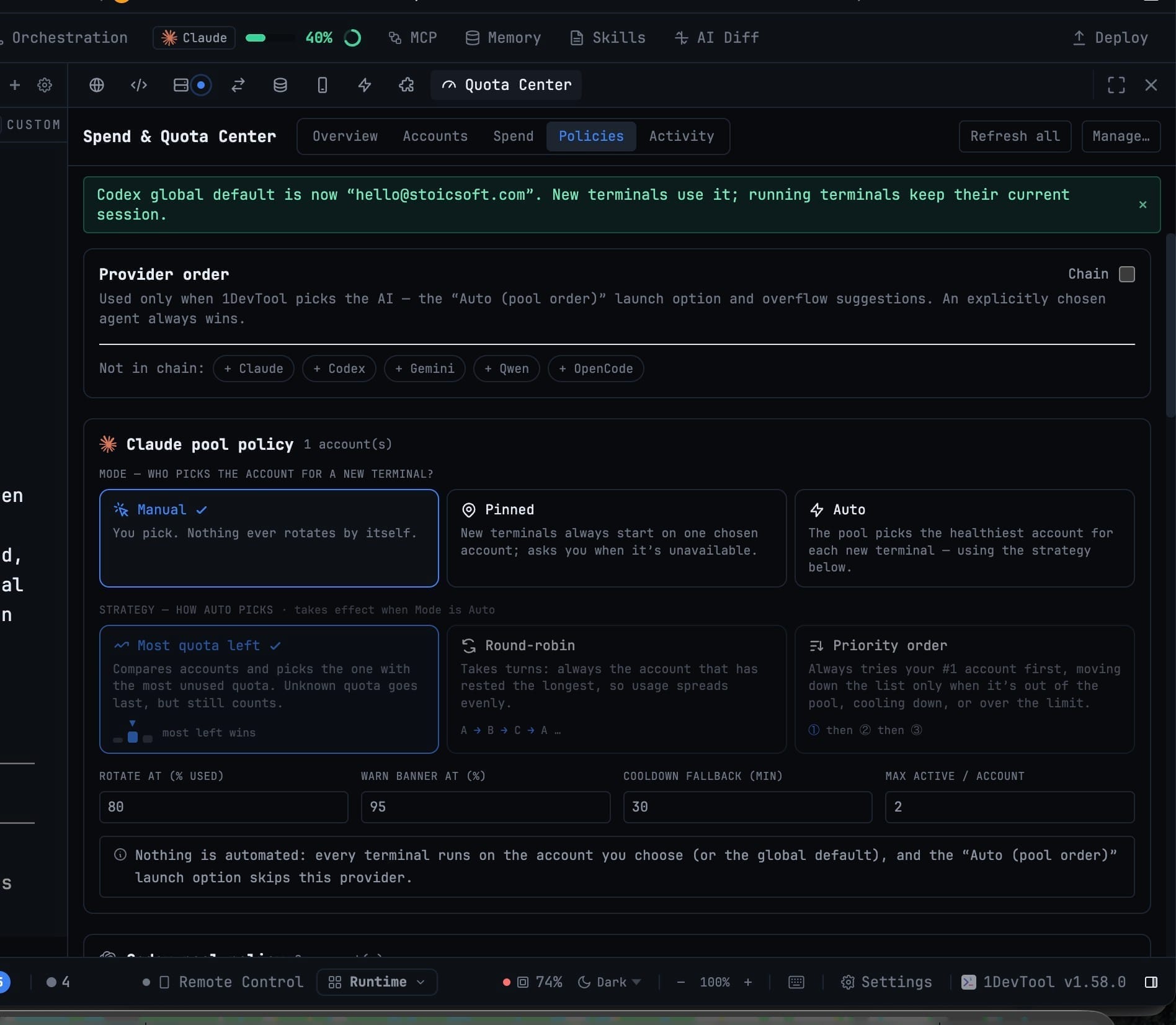
Pick ⚡ Auto (pool order) when adding a terminal and 1DevTool walks your provider chain, then starts the terminal on the healthiest account of the first pool that can take work. Rotation happens between launches only — a running terminal never has its account swapped out from under it.
More Screenshots
Click any image to zoom in
Why You Need This
How this feature boosts your daily productivity
Choosing an account by hand every time you open a terminal is a small tax you pay dozens of times a day, and you pay it with stale information about which account has room. Auto pools make that choice for you using live quota, with rules designed to never surprise you: a terminal keeps the account it started on for its whole life, a launch that would conflict is refused with a reason instead of quietly mixing credentials, and nothing sits on the network path between the CLI and its provider. Bench an account to hold it out of rotation, and the Activity log tells you exactly why any terminal got the account it got.
How It Works
Get started in 4 simple steps
Put accounts in the pool
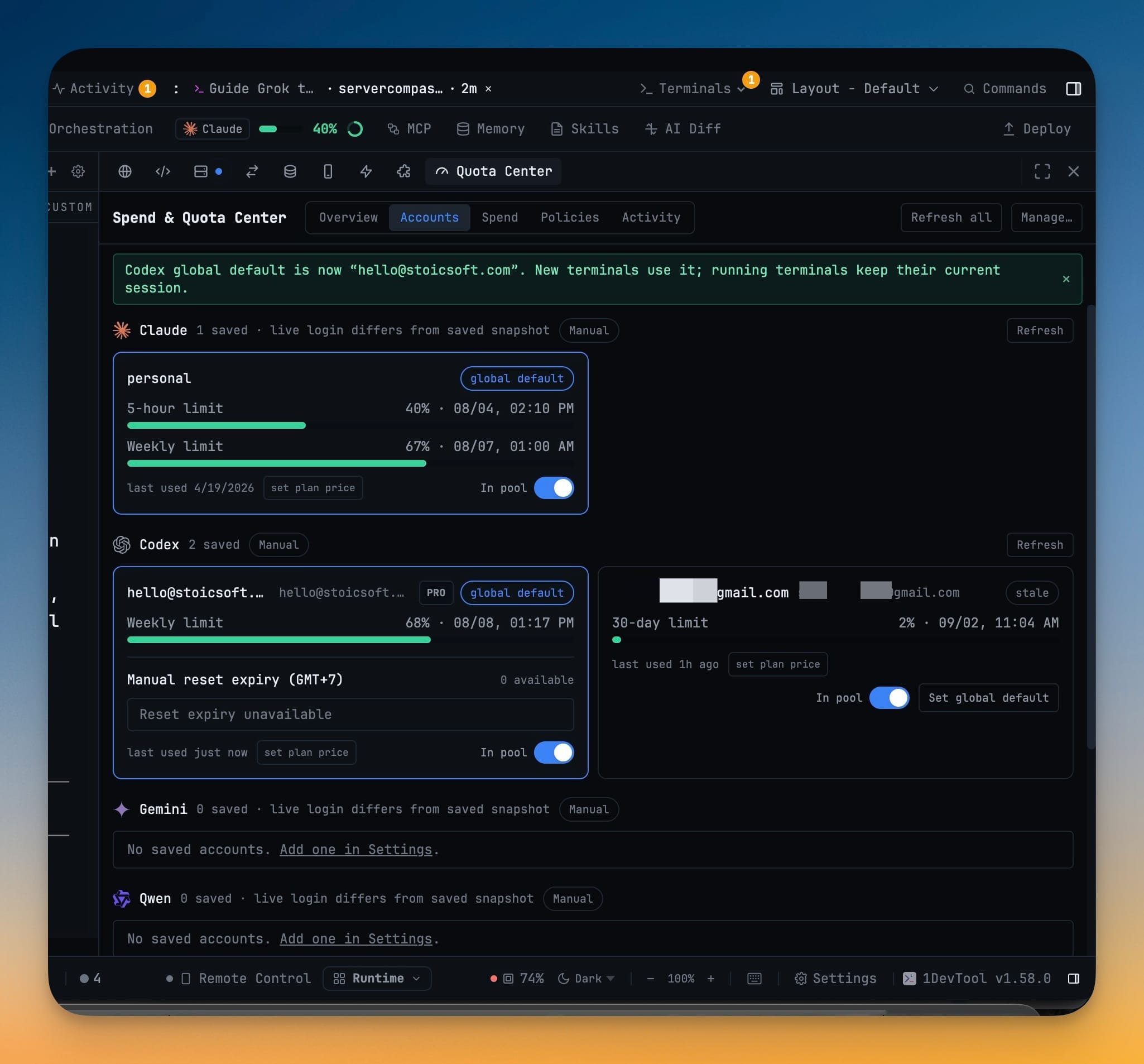
On the Accounts tab, the In pool toggle decides which saved accounts the pool may draw from. Bench one to hold it out without removing it.
Set the mode and strategy
The Policies tab holds the provider chain and per-pool rules: Manual, Pinned or Auto, and for Auto a strategy of Most quota left, Round-robin or Priority order.
Launch with ⚡ Auto (pool order)
Pick it in the Add Terminal dialog and 1DevTool walks the chain, starting the terminal on the healthiest account of the first pool that can take work.
Read the Activity log
Every switch, lease and cooldown is logged, so you can always find out why a terminal got the account it got. Running terminals never switch accounts.
Without 1DevTool
The manual way vs. the 1DevTool way
The Hard Way
The 1DevTool Way
How it compares
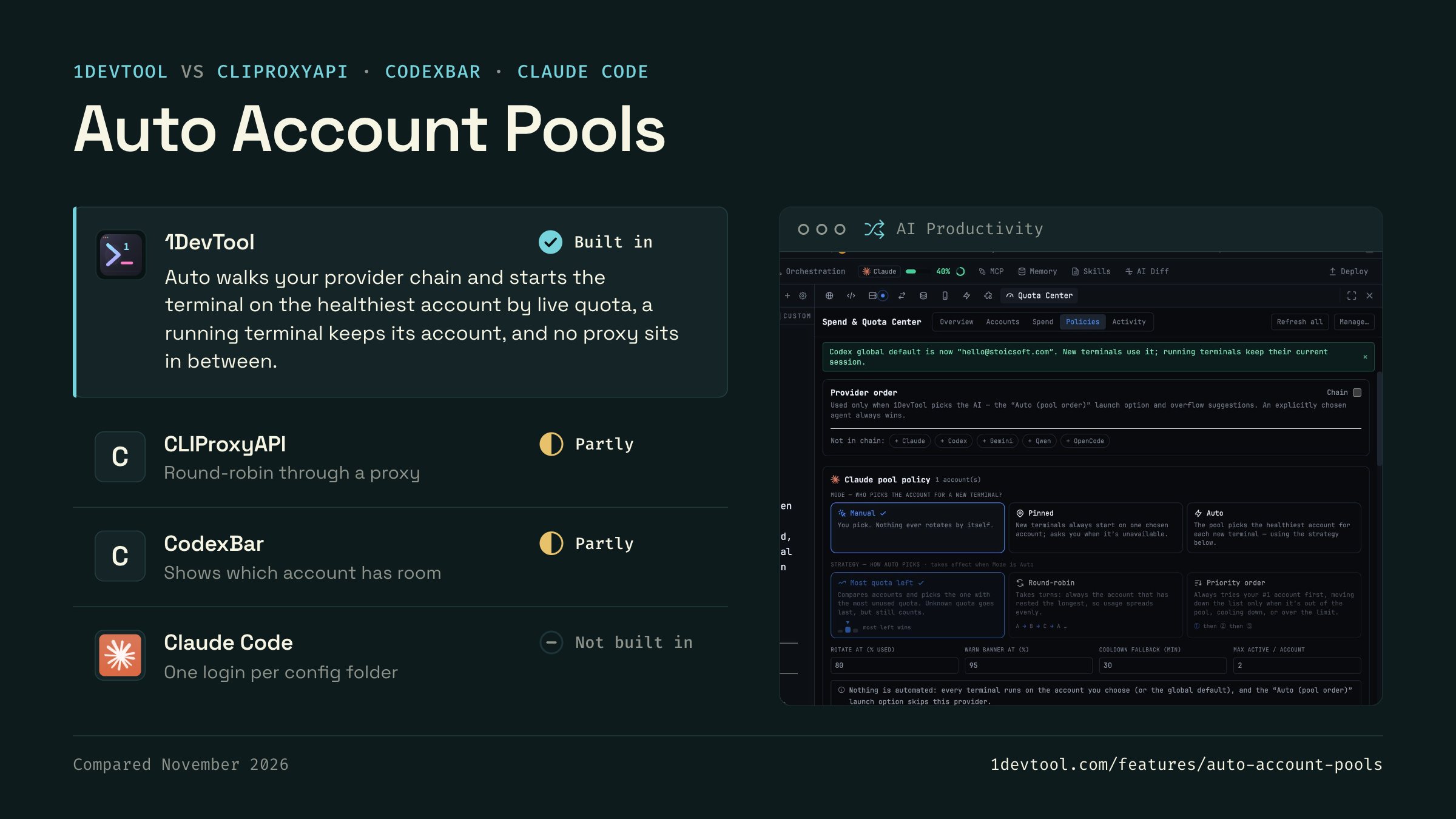
Picking an account is usually manual: you choose the alias or config folder for the account you think has room, or route requests through a proxy.
 1DevToolBuilt inBuilt in
Auto walks your provider chain and starts the terminal on the healthiest account by live quota, a running terminal keeps its account, and no proxy sits in between.
- CLIProxyAPIPartlyPartly
CLIProxyAPI signs in several Claude, Codex or Gemini accounts and spreads requests across them through a local API endpoint.
- CodexBarPartlyPartly
CodexBar shows each provider's session and weekly usage in the menu bar, so you can see where there is room before you choose.
 Claude CodeNot built inNot built in
Claude Code starts on the account stored in its config folder. Another account means a different CLAUDE_CONFIG_DIR or /login.
Checked November 2026 against each app's public docs. These products change quickly. If a row is out of date, tell us at feedback.stoicsoft.com/1devtool.
Key Capabilities
Everything included with Auto Account Pools
Why It Matters
The productivity impact of having ai productivity built into your workspace
Searchable Prompt Library
Every prompt you've ever sent is captured and searchable. Find and reuse your best AI interactions.
Visual AI Communication
Annotate screenshots and embed them in prompts. Show your AI agent exactly what you see.
Session Knowledge Base
AI conversations become searchable history. Find how you solved a similar problem last week.
Power Navigation
Command palette gives you instant access to any feature. Navigate 1DevTool at the speed of thought.
More in AI Productivity
Other features in this category you might find useful
Prompt History
Search prompts and sticky notes from Remote Control while away from the desktop. Switch between This project and All projects, filter prompts by agent or notes by source, copy entries, delete with Operator access, and sync local prompt history.
Resume UI
Read any past AI session before you resume it. Resume AI Sessions is a split view with a searchable list of every Claude Code, Codex, Gemini CLI and other agent session on the left and a live preview of the project, branch, tool calls and conversation on the right, with replies rendered as Markdown, with Resume, bypass permissions and an editable command one click away.
Combine Sessions
Merge several past AI sessions into one opening prompt, or hand a single session to a different agent. Tick sessions in Resume AI Sessions, see a token estimate of the context they add, and send the result to a new chat with any agent or preset or to a terminal that is already open.
AI Diff Review Panel
Track every file modification any AI agent makes — Claude Code, Codex, Gemini, Amp, custom — and review, accept, or revert their work per file from a dedicated panel with inline diff overlays in the editor.
Ready to boost your workflow?
Download 1DevTool for free and experience Auto Account Pools along with 342 other features — all in one app.