File Tree + Editor Workspace
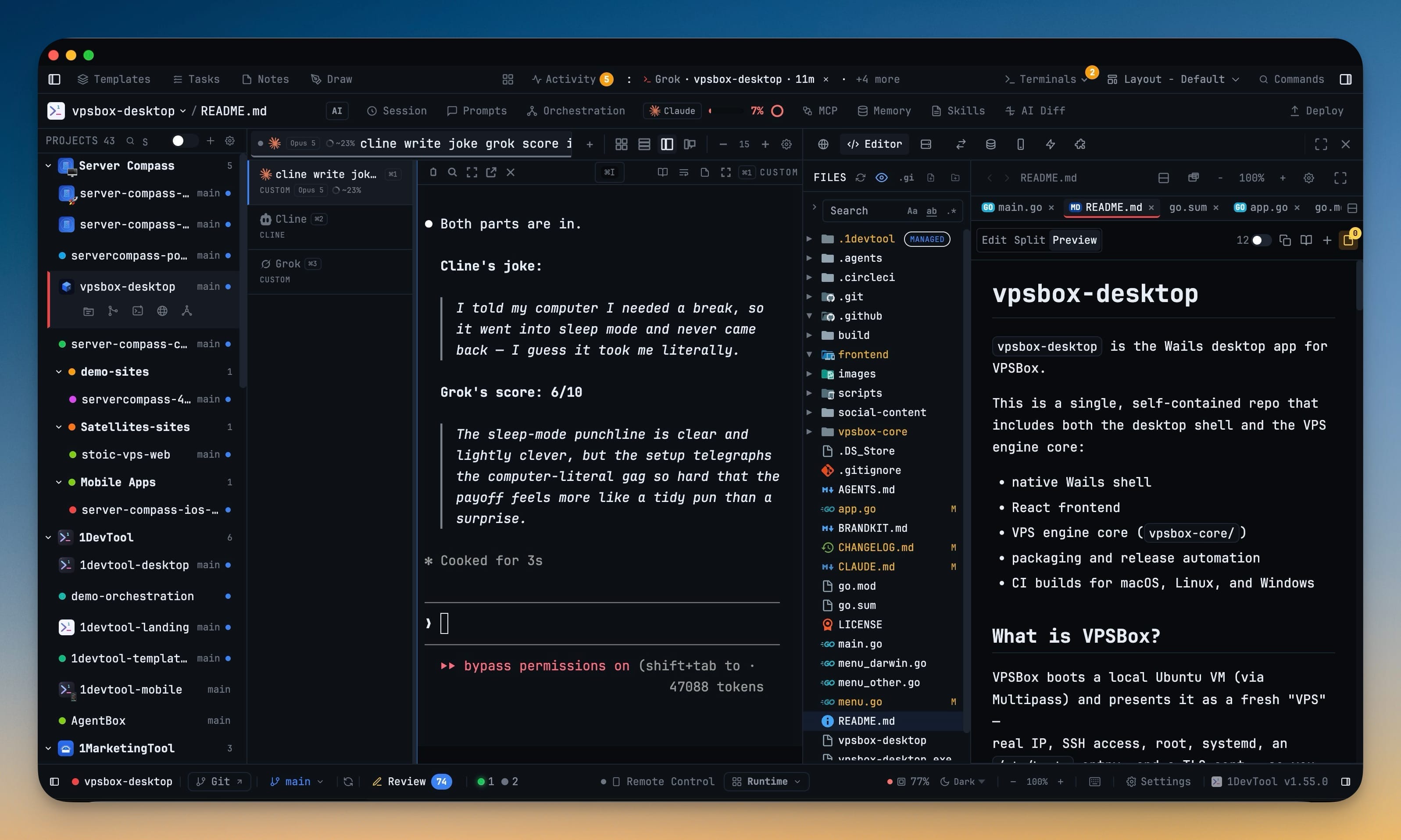
The File Tree sits beside the editor in a single workspace tab across every built-in layout, so opening a file no longer moves you between separate panels. The workspace keeps expanded folders, open files, editor models and scroll position while you work in other tools.
More Screenshots
Click any image to zoom in
Why You Need This
How this feature boosts your daily productivity
Navigation and code are one activity, but most editors split them across two panels you have to switch between. Every file you open costs a tab click, the loss of the tree, and the work of finding your place again when you come back. Worse, leaving for ten seconds to check a diff used to reset the hierarchy you had carefully expanded. Sharing one panel lifecycle fixes both: the tree and the editor move, hide, focus and restore together, and the workspace remembers exactly what you had open. A hidden workspace also stops its refresh work entirely and catches up once when shown, so the tree is not quietly scanning your project while you are somewhere else.
How It Works
Get started in 4 simple steps
Open the workspace
Every built-in layout now has one workspace tab. Layouts that had separate File Tree and Editor entries were combined automatically.
Browse and edit together
The tree keeps a fixed left column and the editor takes the rest. Clicking a file opens it beside the tree, not in place of it.
Go do something else
Switch to the Git Client, a terminal, or the Browser. Expanded folders, open files, editor models and scroll position are all preserved.
Take it fullscreen when you need room
Fullscreen File Tree + Editor expands the workspace over the window and titles it with the project name. Escape returns you.
Without 1DevTool
The manual way vs. the 1DevTool way
The Hard Way
The 1DevTool Way
Key Capabilities
Everything included with File Tree + Editor Workspace
Why It Matters
The productivity impact of having project management built into your workspace
Instant Project Switching
Switch between projects in one click with complete state restoration. No more 5-minute setup rituals.
Visual Organization
Color-coded projects, file type icons, and layout presets keep your workspace organized and recognizable.
Smart File Navigation
.gitignore-aware filtering, instant search, and context menus make finding and opening files effortless.
Workspace Memory
Every project remembers its terminals, open files, database connections, and layout. Pick up exactly where you left off.
More in Project Management
Other features in this category you might find useful
Multi-Project Workspace
Work on multiple projects simultaneously with instant switching. Entire workspace state is preserved per project.
Smart File Explorer
Real-time file tree with type icons, .gitignore filtering, search, and right-click context menus.
Per-Project Code Intelligence
Spawn real typescript-language-server, gopls, pyright, rust-analyzer, clangd, solargraph, intelephense, or sourcekit-lsp for the projects you opt into — with project-aware errors and zero false positives.
Color-Coded Projects
Assign accent colors to each project for instant visual identification across your workspace.
Ready to boost your workflow?
Download 1DevTool for free and experience File Tree + Editor Workspace along with 347 other features — all in one app.