Keyboard Planes
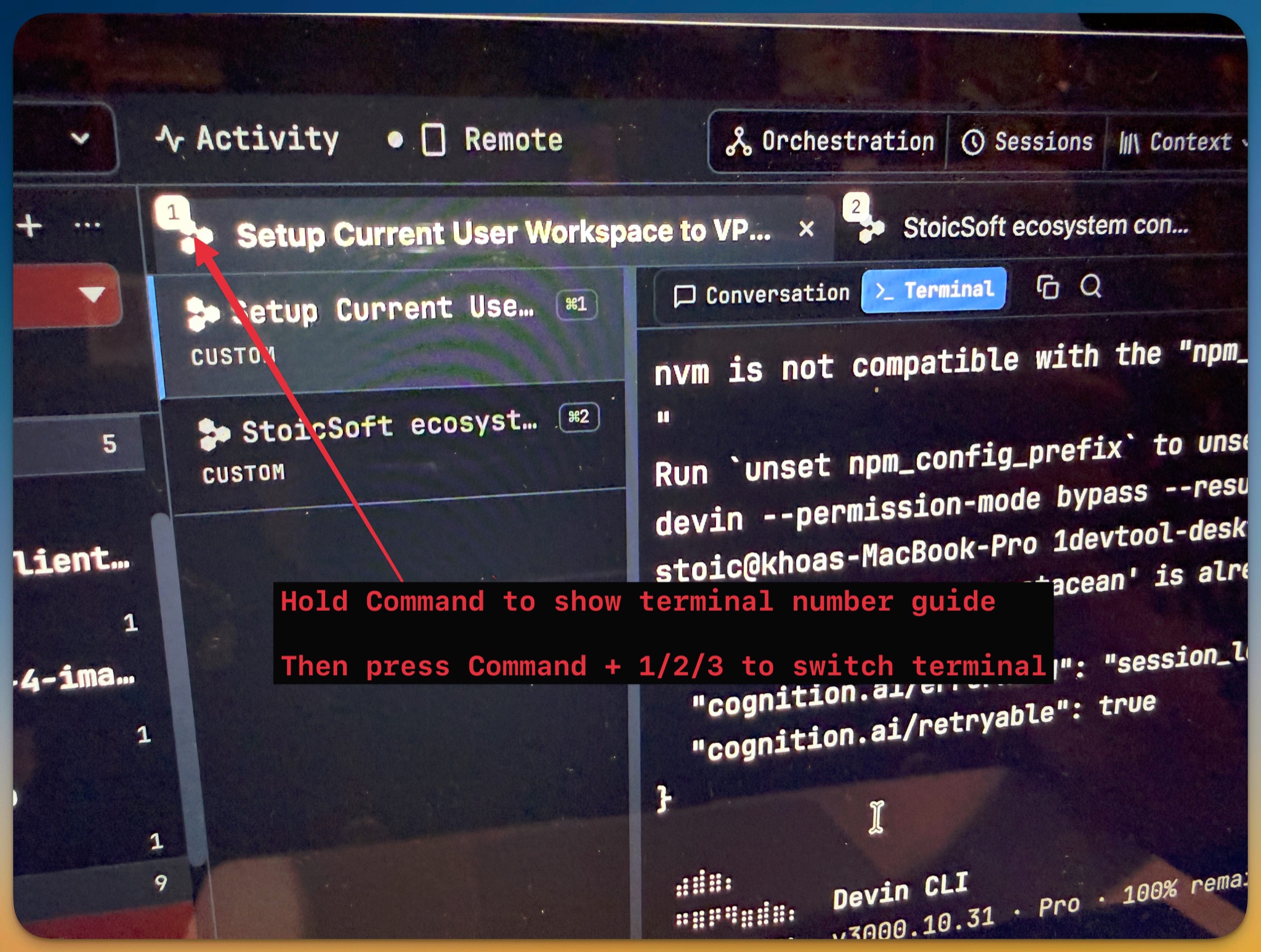
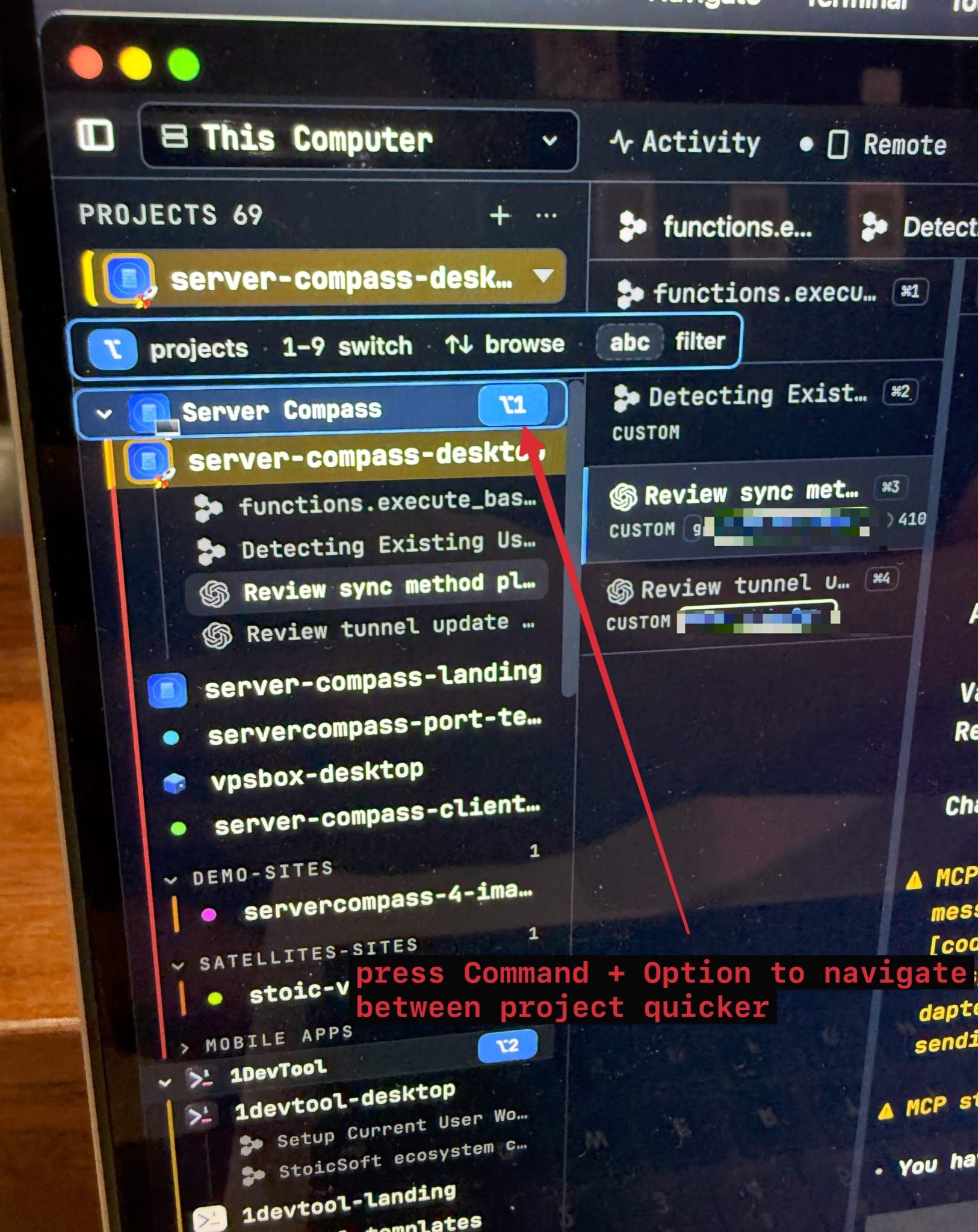
Hold ⌘ and numbered badges appear over your terminals; hold ⌥ and they appear over your projects — press the digit to jump. The planes hand over to each other mid-hold, project groups renumber as you drill in so two digits reach a nested project, and typing letters while ⌥ is held filters the sidebar with the badges following the rows that survive.
More Screenshots
Click any image to zoom in
Why You Need This
How this feature boosts your daily productivity
A numbered shortcut only helps if you already know the number, and a folded tab strip of fifteen truncated titles never tells you. Keyboard planes paint the numbers on the app itself after a short hold, so you read the target instead of recalling it — and because a quick press and a held press always mean the same entry, learning the overlay is also learning the shortcut. Projects moved to ⌥1–9 on every platform, out of the way of macOS Mission Control, which used to swallow ⍃1–9 before the app ever saw it.
How It Works
Get started in 4 simple steps
Hold ⌘ and read the numbers
After about a quarter of a second — long enough that an ordinary ⌘ chord never triggers it — numbered badges appear over the tab strip and the terminal list. Press the digit to jump.
Add ⌥ without letting go
The planes hand over instead of cancelling: while ⌘ holds the terminal numbers, adding ⌥ switches straight to the project badges, and each plane advertises the other's key where you are already looking.
Walk a project address
A digit on a group opens it — collapsed groups expand — and renumbers its children for the next digit. Backspace steps back out a level, and typing letters while ⌥ is held filters the sidebar with the badges following the surviving rows.
Browse, open, dismiss
↑/↓ walk the level, ↵ opens, Esc or a click dismisses. With no sidebar on screen the numbers float instead, painted from the same source the digits read.
Without 1DevTool
The manual way vs. the 1DevTool way
The Hard Way
The 1DevTool Way
Key Capabilities
Everything included with Keyboard Planes
Why It Matters
The productivity impact of having customization built into your workspace
You Read the Shortcut Instead of Recalling It
The number you press is painted on the thing you want, so a window of truncated tabs stops being something you have to memorise.
Depth Stops Costing Clicks
Project groups renumber as you drill in, so two digits reach a project that used to take an expand, a scroll and a click.
macOS Stops Eating Your Keys
Projects moved off ⌃1–9, which Mission Control claimed for switching desktops, onto ⌥1–9 — the same keys on every platform.
Nothing You Chose Gets Overwritten
Moved defaults are re-keyed once, automatically, and a shortcut you set yourself is never touched.
More in Customization
Other features in this category you might find useful
Theme Options
Choose between Dark, Light, or System-following themes designed for comfortable all-day coding.
Keyboard Shortcuts
Customize every shortcut to match your muscle memory. Conflict detection prevents accidental duplicates.
Terminal Fonts
Choose from JetBrains Mono, Fira Code, Cascadia Code, or use custom fonts. Adjust size and line height.
MCP Settings
Configure MCP servers for Claude Code, Gemini CLI, and Codex from a unified settings tab — install, enable, and troubleshoot with one click.
Ready to boost your workflow?
Download 1DevTool for free and experience Keyboard Planes along with 319 other features — all in one app.