MCP Control
One place to see and gate every tool your agents can reach through 1DevTool — an MCP button in the top bar instead of a settings tab three clicks deep. Turn individual tools on or off, read an Activity log of every call and its result, and get a badge on the terminal naming any tool an agent was denied.
More Screenshots
Click any image to zoom in
Why You Need This
How this feature boosts your daily productivity
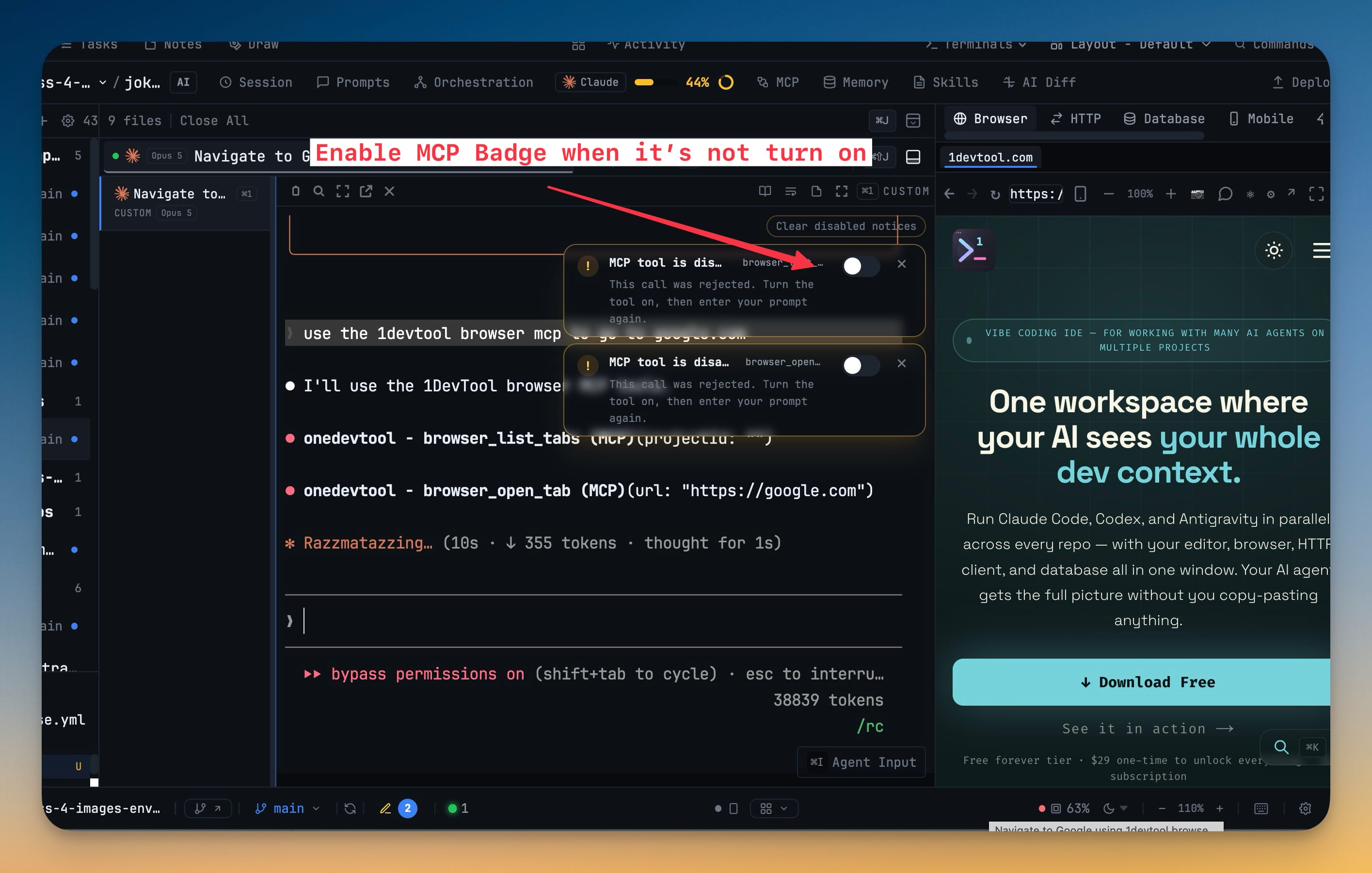
Agents reach into your browser, your database, your HTTP client and your task board, and until you can see that surface you are trusting it blind. MCP Control puts the whole list behind one button in the top bar, grouped by what each tool actually touches, so deciding what an agent may do is a switch rather than an act of faith. The Activity tab then shows you what was really called and what came back, groupable by agent or by project. The part that saves the most time is the failure path: when an agent calls a tool you have turned off, it normally improvises, guesses, or gives up without saying why. Instead a badge appears on that terminal naming the tool, with a one-click Enable — so you find out immediately and the agent retries instead of wandering.
How It Works
Get started in 4 simple steps
Open MCP from the top bar
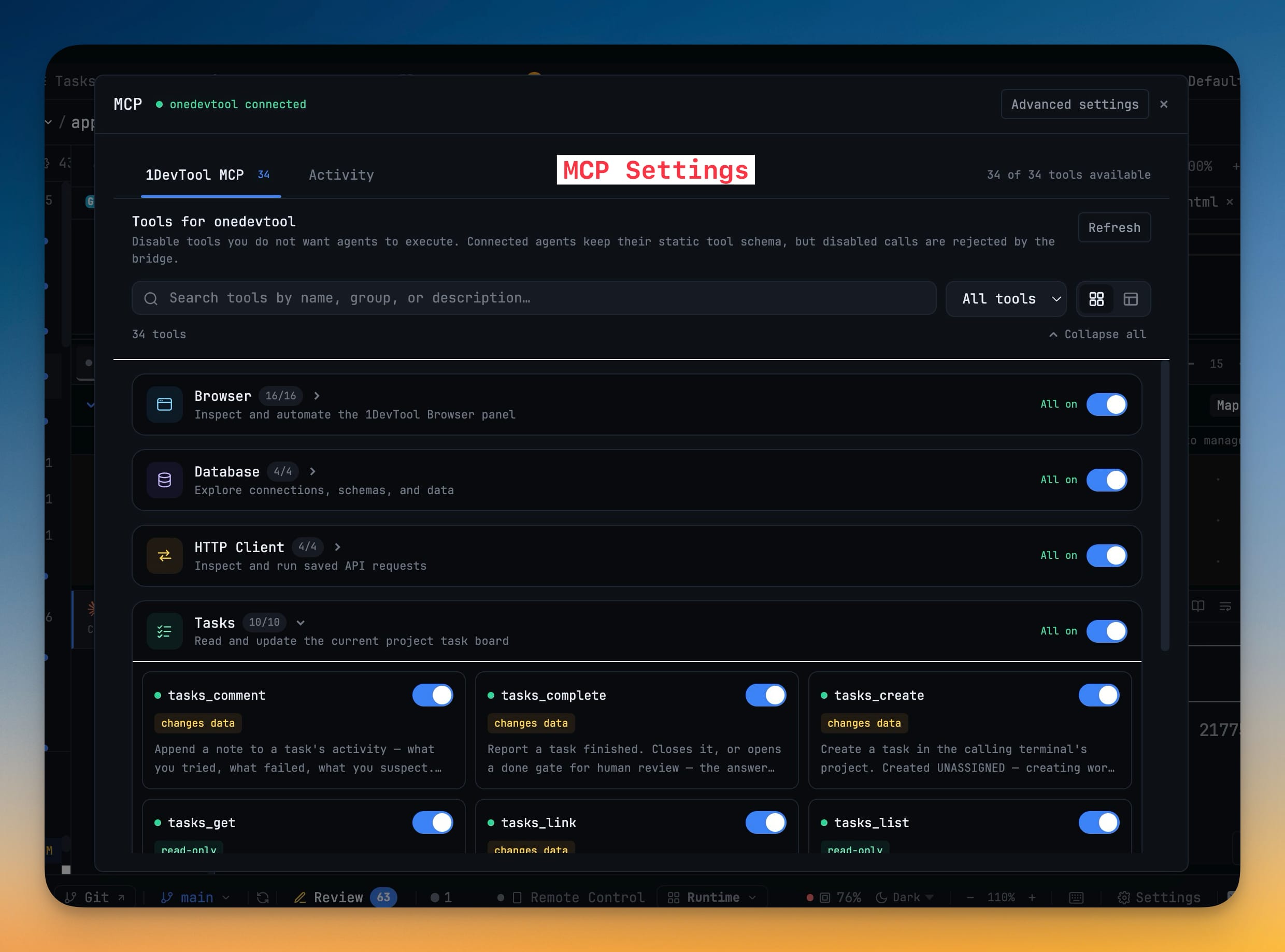
The dialog shows the connection state and how many tools are available — 34 of 34 when everything is on.
Gate what agents may touch
Expand a group and flip individual tools, or use All on / All off for the whole group. Filter by enabled or disabled and switch between grid and table views.
Read the Activity tab
Every call an agent made is logged with its result, groupable by agent or by project, so you can audit the surface instead of guessing at it.
Unblock a refused call
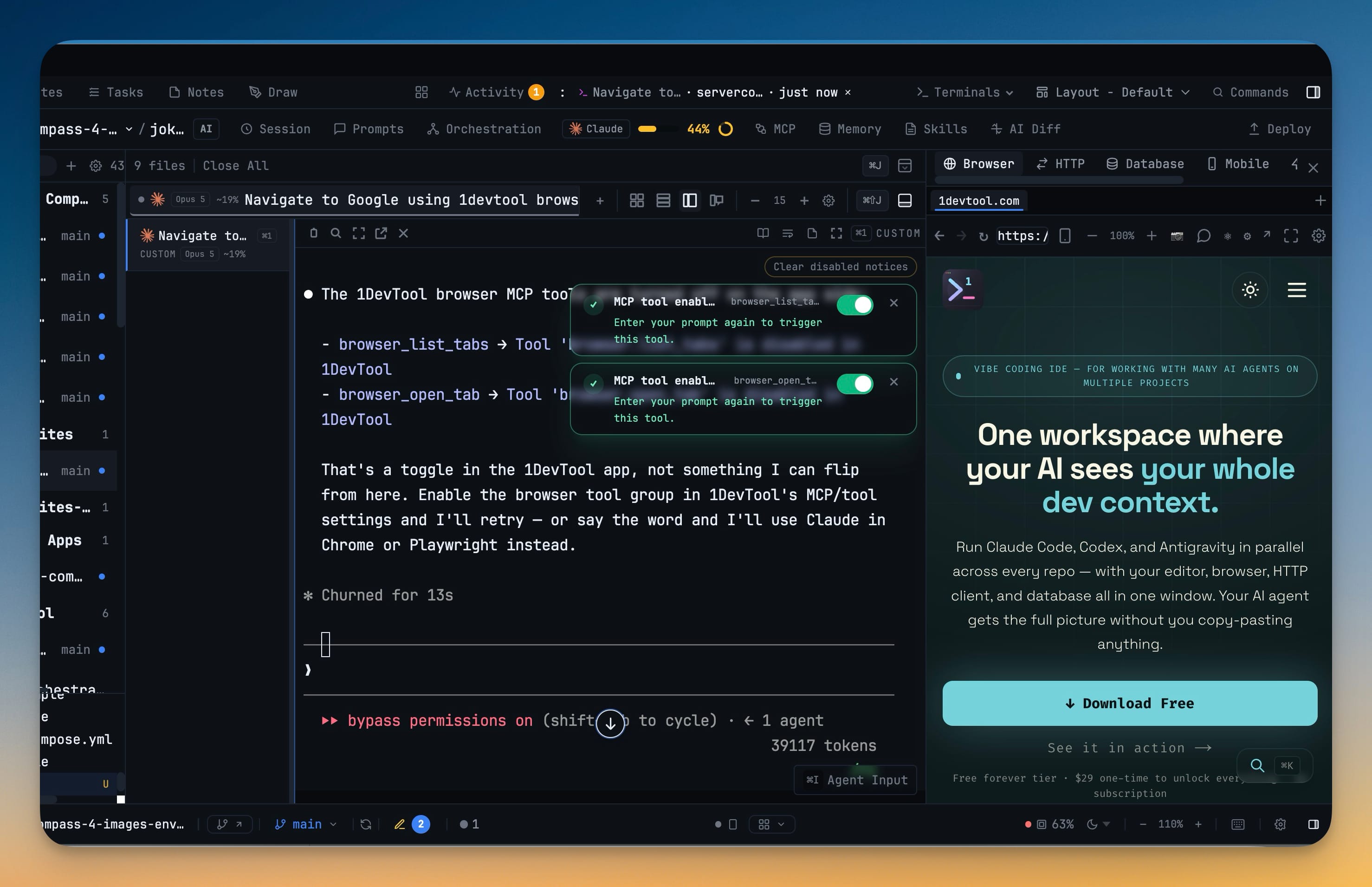
When an agent hits a disabled tool, a badge names it on that terminal. Enable it there and the badge turns green, telling the agent to send the prompt again.
Without 1DevTool
The manual way vs. the 1DevTool way
The Hard Way
The 1DevTool Way
Key Capabilities
Everything included with MCP Control
Why It Matters
The productivity impact of having customization built into your workspace
One Place, Not Three Clicks Deep
An MCP button in the top bar replaces a settings tab you had to go hunting for, so gating what agents may touch is a switch rather than an act of faith.
Refusals Are Visible
A denied call puts a badge on that terminal naming the tool, instead of the agent improvising, guessing, or giving up without telling you why.
One Click To Unblock
Enable the tool from the badge and it turns green, telling the agent to send the prompt again — no dialog hunt, no restart.
Grouped By What They Touch
Browser, Database, HTTP Client, Tasks and Core, so a decision about access is a decision about a real capability rather than an opaque tool name.
More in Customization
Other features in this category you might find useful
Theme Options
Choose between Dark, Light, or System-following themes designed for comfortable all-day coding.
Keyboard Shortcuts
Customize every shortcut to match your muscle memory. Conflict detection prevents accidental duplicates.
Terminal Fonts
Choose from JetBrains Mono, Fira Code, Cascadia Code, or use custom fonts. Adjust size and line height.
MCP Settings
Configure MCP servers for Claude Code, Gemini CLI, and Codex from a unified settings tab — install, enable, and troubleshoot with one click.
Ready to boost your workflow?
Download 1DevTool for free and experience MCP Control along with 345 other features — all in one app.