One-Click Project Picker on the Welcome Screen
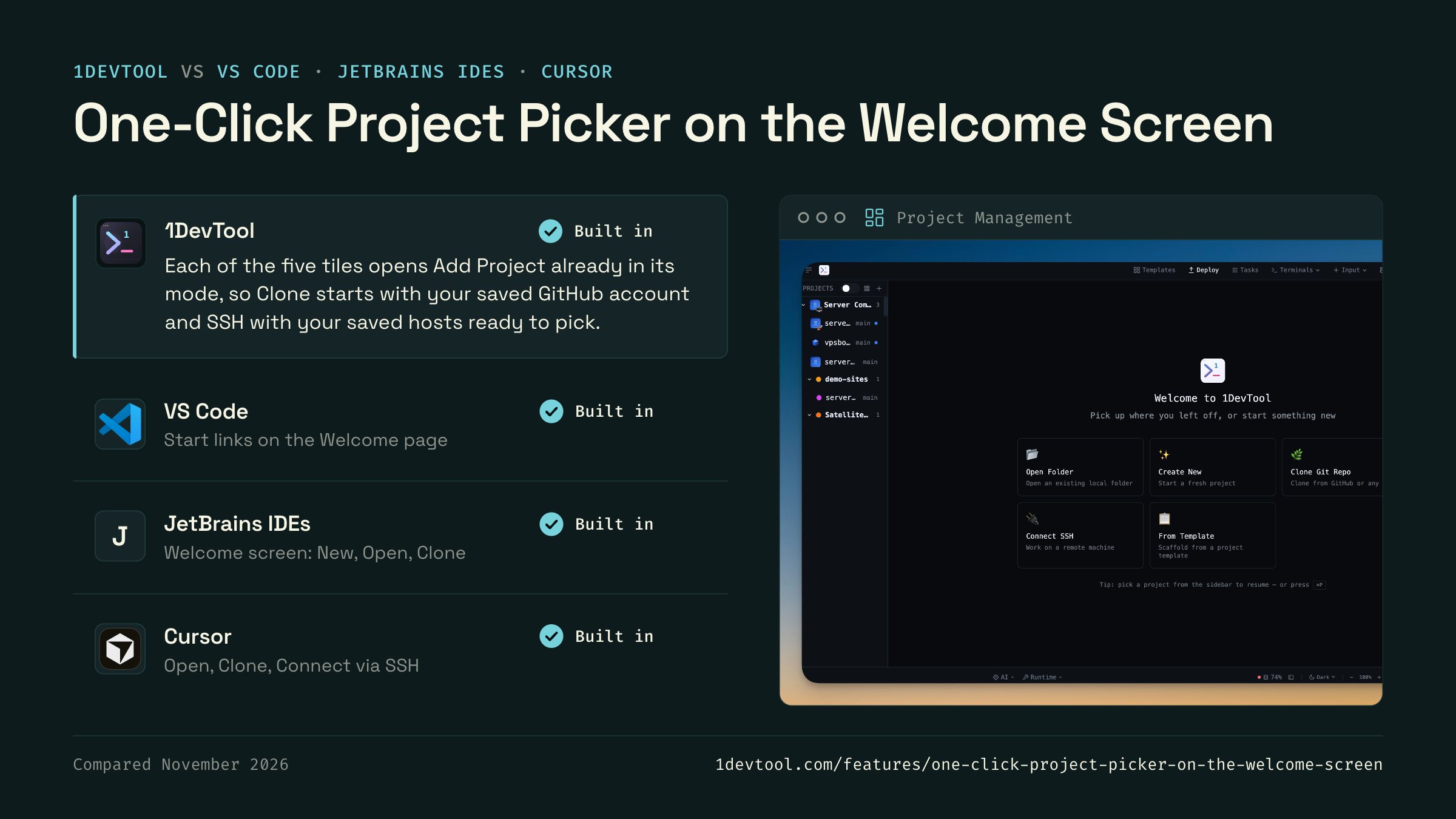
A brand-new welcome screen with five large tiles — Open Folder, Create New, Clone Git Repo, Connect SSH, From Template — each pre-selecting its mode in the Add Project dialog so SSH and Clone flows skip the 'which kind of project?' first screen.

Why You Need This
How this feature boosts your daily productivity
Adding a project used to start with one ambiguous button and a multi-step dialog. The new welcome screen turns the question 'how do I want to start?' into a single click — Open Folder, Create New, Clone, SSH, or From Template — and each tile carries you straight into the right pre-configured flow.
How It Works
Get started in 4 simple steps
Add Your Projects
Click the "+" button to add project folders. Assign unique colors for instant visual identification.
Browse & Navigate
Use the file explorer to browse your project. Filter files, toggle hidden items, and search instantly.
Switch Instantly
Click any project to switch. Your entire workspace state — terminals, files, layout — restores automatically.
Choose Your Layout
Select a preset layout or create a custom one. Your layout is saved per project for consistent workflows.
Without 1DevTool
The manual way vs. the 1DevTool way
The Hard Way
The 1DevTool Way
How it compares
Editors open on a start screen with a few ways in: open a folder, clone a repository, or connect to a remote machine.
 1DevToolBuilt inBuilt in
Each of the five tiles opens Add Project already in its mode, so Clone starts with your saved GitHub account and SSH with your saved hosts ready to pick.
- Built in
VS Code's Welcome page starts with New File, Open, Clone Git Repository and Connect to, which uses the remote extensions.
- Built in
The JetBrains welcome screen offers New Project, Open and Clone Repository, with project templates and a separate Remote Development tab for SSH.
- Built in
Cursor's start screen has three buttons, Open project, Clone repo and Connect via SSH, above a list of recent projects.


Checked November 2026 against each app's public docs. These products change quickly. If a row is out of date, tell us at feedback.stoicsoft.com/1devtool.
Key Capabilities
Everything included with One-Click Project Picker on the Welcome Screen
Why It Matters
The productivity impact of having project management built into your workspace
Instant Project Switching
Switch between projects in one click with complete state restoration. No more 5-minute setup rituals.
Visual Organization
Color-coded projects, file type icons, and layout presets keep your workspace organized and recognizable.
Smart File Navigation
.gitignore-aware filtering, instant search, and context menus make finding and opening files effortless.
Workspace Memory
Every project remembers its terminals, open files, database connections, and layout. Pick up exactly where you left off.
More in Project Management
Other features in this category you might find useful
Multi-Project Workspace
Work on multiple projects simultaneously with instant switching. Entire workspace state is preserved per project.
Smart File Explorer
Real-time file tree with type icons, .gitignore filtering, search, and right-click context menus.
Per-Project Code Intelligence
Spawn real typescript-language-server, gopls, pyright, rust-analyzer, clangd, solargraph, intelephense, sourcekit-lsp, or csharp-ls for the projects you opt into — with project-aware errors and zero false positives.
Color-Coded Projects
Assign accent colors to each project for instant visual identification across your workspace.
Ready to boost your workflow?
Download 1DevTool for free and experience One-Click Project Picker on the Welcome Screen along with 347 other features — all in one app.