Orchestration Activity
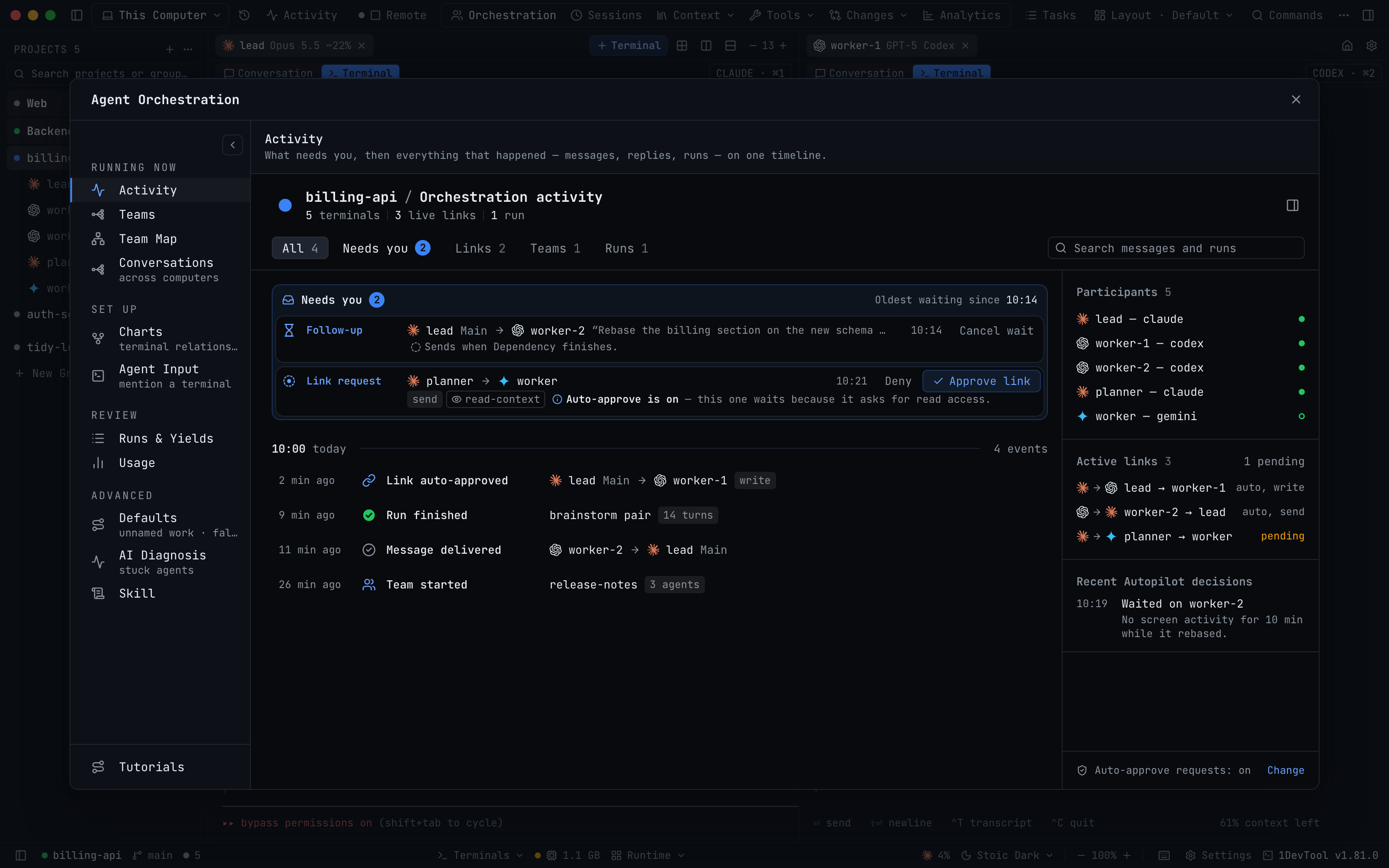
One view of everything that needs you across your linked agents, with link requests, held messages and pending decisions at the top. Under that box is a timeline of the messages, replies, runs and teams in the project, which you can filter by All, Needs you, Links, Teams or Runs.
Why You Need This
How this feature boosts your daily productivity
When agents work as a team, the things that block them are spread out. A link request sits in settings, a message waits for Submit now on a confirm-each link, a run fails in the run list, and a lead waits for a decision. Activity puts them in one place. The Needs you box lists each item with the button that clears it (Approve link, Review scope, Submit now, Cancel wait or Open) and shows how long the oldest one has been waiting. Below it, the timeline groups everything that happened by hour, with Jump to terminal and Open run log on each row. A side rail lists the participants, the active links and Autopilot's recent decisions.
How It Works
Get started in 4 simple steps
Open Activity
Choose Activity under Running now in the Orchestration dashboard, or open Mission Control, which shows it by default.
Clear what needs you
Needs you lists link requests, read-access reviews, held messages and decisions, each with the button that clears it.
Read the timeline
Messages, replies, runs and team events are grouped by hour, with Jump to terminal and Open run log on each row.
Narrow it down
Filter by All, Needs you, Links, Teams or Runs, or search messages and runs.
Without 1DevTool
The manual way vs. the 1DevTool way
The Hard Way
The 1DevTool Way
Key Capabilities
Everything included with Orchestration Activity
Why It Matters
The productivity impact of having ai productivity built into your workspace
One Place to Look
What blocks a team is listed together instead of across settings, run lists and terminals.
Oldest First
The box shows how long the oldest item has waited, so nothing sits forgotten.
The Story of a Run
The timeline shows who sent what, who answered, and how each run ended.
More in AI Productivity
Other features in this category you might find useful
Prompt History
Search prompts and sticky notes from Remote Control while away from the desktop. Switch between This project and All projects, filter prompts by agent or notes by source, copy entries, delete with Operator access, and sync local prompt history.
Resume UI
Read any past AI session before you resume it. Resume AI Sessions is a split view with a searchable list of every Claude Code, Codex, Gemini CLI and other agent session on the left and a live preview of the project, branch, tool calls and conversation on the right, with replies rendered as Markdown, with Resume, bypass permissions and an editable command one click away.
Combine Sessions
Merge several past AI sessions into one opening prompt, or hand a single session to a different agent. Tick sessions in Resume AI Sessions, see a token estimate of the context they add, and send the result to a new chat with any agent or preset or to a terminal that is already open.
AI Diff Review Panel
Track every file modification any AI agent makes — Claude Code, Codex, Gemini, Amp, custom — and review, accept, or revert their work per file from a dedicated panel with inline diff overlays in the editor.
Ready to boost your workflow?
Download 1DevTool for free and experience Orchestration Activity along with 340 other features — all in one app.