Prompt History in the Composer
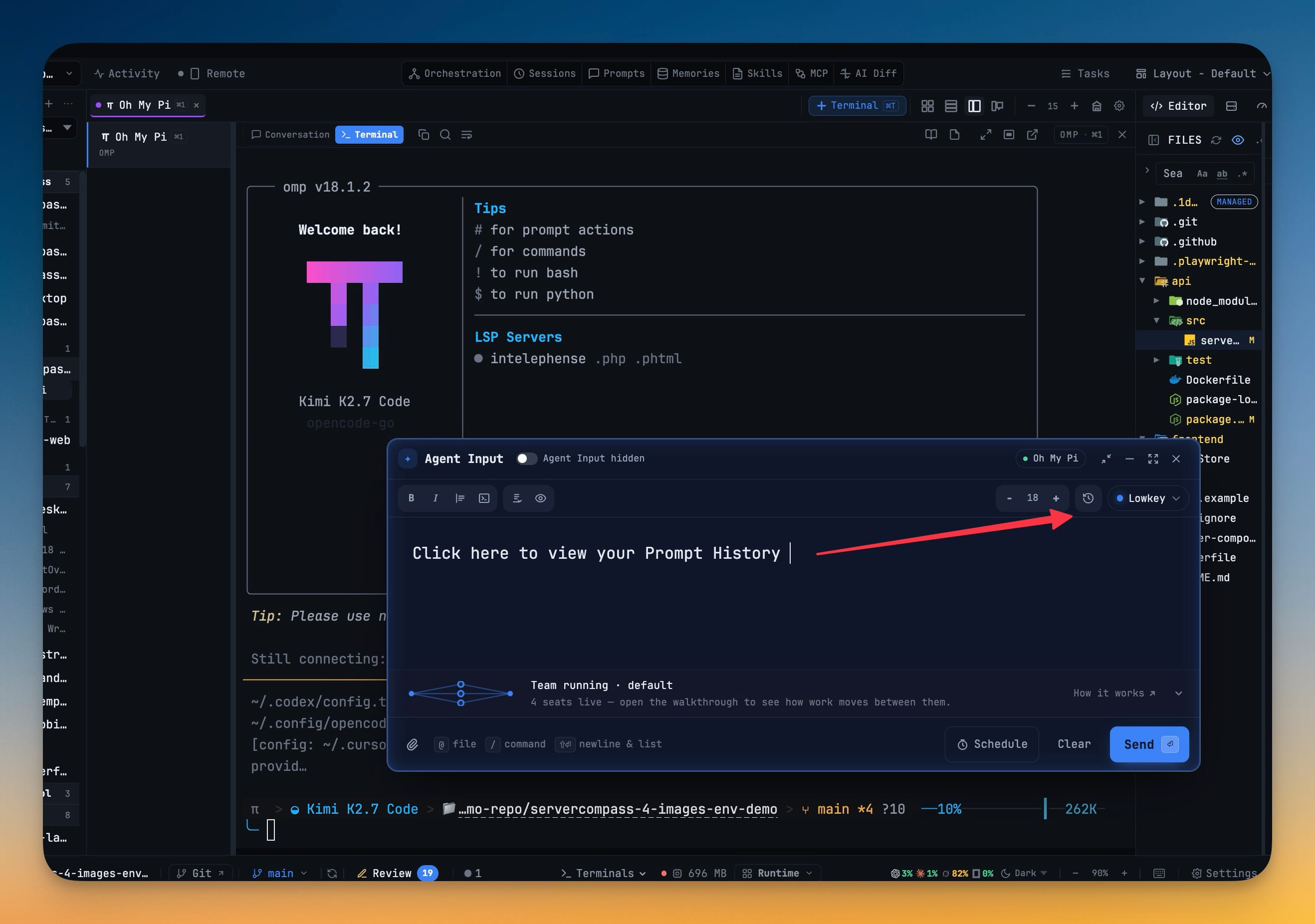
A history button on the Agent Input toolbar opens Prompt History above the composer — including when it is expanded or detached. Use drops the past prompt in at the caret, replacing a selection or landing blank-line separated beside what you have already written, and never overwrites the unsent draft.
Why You Need This
How this feature boosts your daily productivity
Reusing a prompt used to cost you the one you were writing. Prompt History opened from the top bar, which meant leaving the composer: you found the prompt, copied it, came back, and either pasted at the end and reordered by hand or discovered the draft was gone. Most people stopped bothering and retyped a worse version from memory. Opening history from inside the composer removes the trip. Use inserts at the caret because the common case is borrowing a prompt into something you are still composing, and a silent overwrite of unsent work is the one mistake you cannot undo your way out of. Escape closes the dialog and leaves the composer standing exactly as you left it, and Copy is still there when you open history from the top bar instead — so nothing you already do stopped working.
How It Works
Get started in 4 simple steps
Press the history button on the composer
It sits on the Agent Input toolbar and opens Prompt History above the composer — including when the composer is expanded or detached.
Find the prompt
The dialog is the same Prompt History you know, with its filters and its Notes tab.
Press Use
The prompt drops in at the caret — replacing a selection, or separated by a blank line when it lands next to text you have already written. The draft is never overwritten.
Or leave without touching the draft
Escape closes the dialog and leaves the composer standing exactly as it was. Copy is still available when you open history from the top bar instead.
Without 1DevTool
The manual way vs. the 1DevTool way
The Hard Way
The 1DevTool Way
Key Capabilities
Everything included with Prompt History in the Composer
Why It Matters
The productivity impact of having ai productivity built into your workspace
Searchable Prompt Library
Every prompt you've ever sent is captured and searchable. Find and reuse your best AI interactions.
Visual AI Communication
Annotate screenshots and embed them in prompts. Show your AI agent exactly what you see.
Session Knowledge Base
AI conversations become searchable history. Find how you solved a similar problem last week.
Power Navigation
Command palette gives you instant access to any feature. Navigate 1DevTool at the speed of thought.
More in AI Productivity
Other features in this category you might find useful
Prompt History
Search prompts and sticky notes from Remote Control while away from the desktop. Switch between This project and All projects, filter prompts by agent or notes by source, copy entries, delete with Operator access, and sync local prompt history.
Resume UI
Read any past AI session before you resume it. Resume AI Sessions is a split view with a searchable list of every Claude Code, Codex, Gemini CLI and other agent session on the left and a live preview of the project, branch, tool calls and conversation on the right, with replies rendered as Markdown, with Resume, bypass permissions and an editable command one click away.
Combine Sessions
Merge several past AI sessions into one opening prompt, or hand a single session to a different agent. Tick sessions in Resume AI Sessions, see a token estimate of the context they add, and send the result to a new chat with any agent or preset or to a terminal that is already open.
AI Diff Review Panel
Track every file modification any AI agent makes — Claude Code, Codex, Gemini, Amp, custom — and review, accept, or revert their work per file from a dedicated panel with inline diff overlays in the editor.
Ready to boost your workflow?
Download 1DevTool for free and experience Prompt History in the Composer along with 345 other features — all in one app.