Prompt History Split View
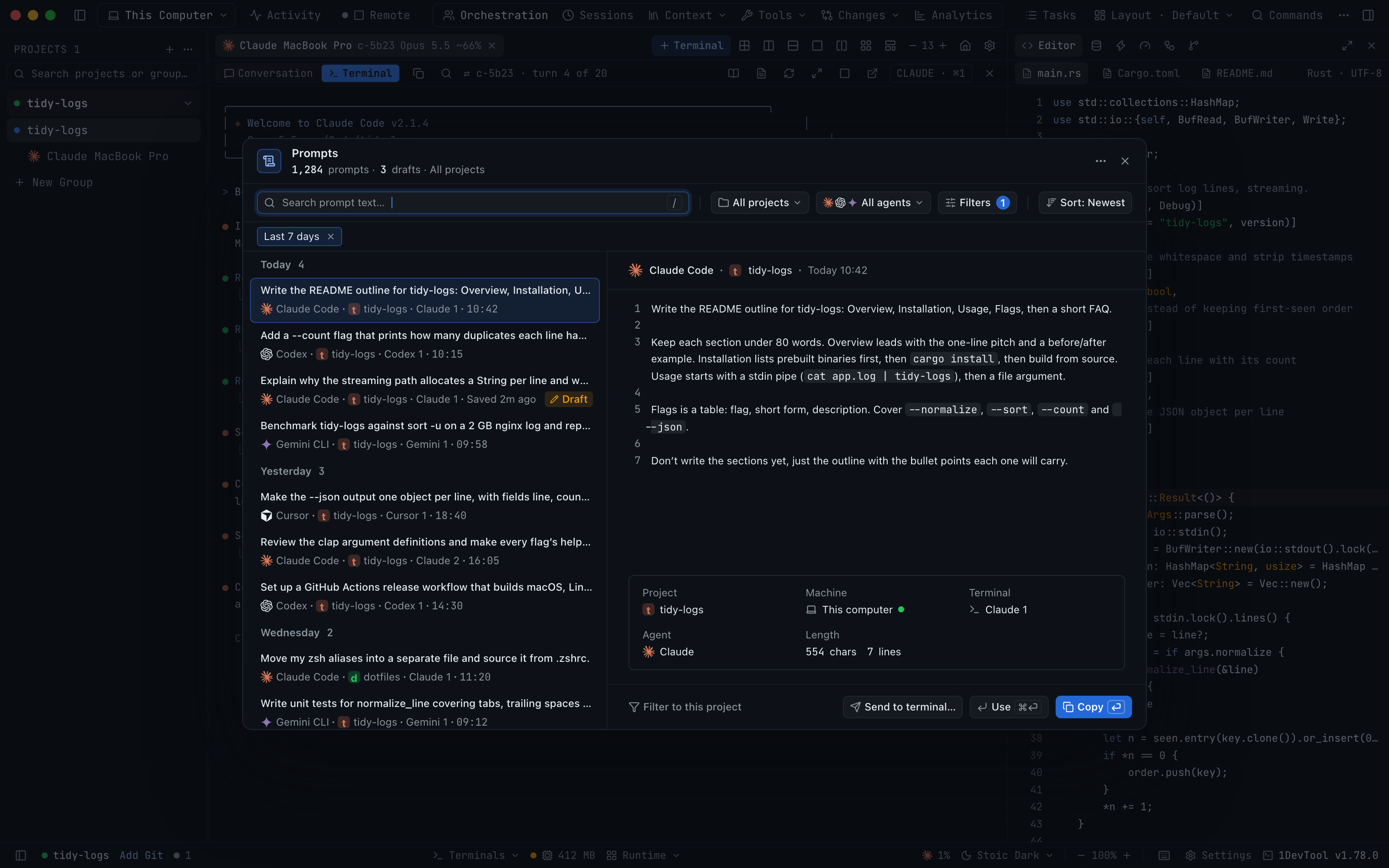
Find the prompt that worked: Prompt History is now a list grouped by day beside a preview with the full prompt, its project, machine, terminal, agent and length. Narrow it by machine, group or project and filter by status, date, terminal, attachments and length.
Why You Need This
How this feature boosts your daily productivity
A prompt that got a good result is worth reusing, but a flat list of truncated rows makes you open each one to see whether it is the right one, and on a busy week the list is mostly other projects. The split view keeps the list in place while the preview shows the whole prompt and where it came from. Scope mirrors your sidebar, so you can look at all machines, one machine, a group or a project, and ⌘-click to pick several. Filters for status, date, terminal, attachments, length and sort each show as a chip you can remove on its own, and when nothing matches, one-click suggestions say how many prompts you would find by clearing the search, widening the scope or choosing Search all machines.
How It Works
Get started in 4 simple steps
Open Prompt History
Open it from the top bar or the Agent Input toolbar. The header counts prompts, drafts and the current scope.
Set the scope
Choose all machines, one machine, a group or a project. ⌘-click adds to the selection.
Filter the list
Use Status, Date, Attachments, Length, Terminal and Sort. Each active filter is a removable chip.
Act from the preview
Copy, Use in composer, Send to terminal… in its project, or Filter to this project.
Without 1DevTool
The manual way vs. the 1DevTool way
The Hard Way
The 1DevTool Way
Key Capabilities
Everything included with Prompt History Split View
Why It Matters
The productivity impact of having ai productivity built into your workspace
Spot the Right Prompt Fast
The preview shows the whole prompt and its context while the list stays where it was.
History That Matches Your Sidebar
Scope follows the machine and project you are working in until you choose otherwise.
Never a Dead End
An empty search suggests the change that would find something, with the number of prompts each one would show.
More in AI Productivity
Other features in this category you might find useful
Prompt History
Search prompts and sticky notes from Remote Control while away from the desktop. Switch between This project and All projects, filter prompts by agent or notes by source, copy entries, delete with Operator access, and sync local prompt history.
Resume UI
Read any past AI session before you resume it. Resume AI Sessions is a split view with a searchable list of every Claude Code, Codex, Gemini CLI and other agent session on the left and a live preview of the project, branch, tool calls and conversation on the right, with Resume, bypass permissions and an editable command one click away.
Combine Sessions
Merge several past AI sessions into one opening prompt, or hand a single session to a different agent. Tick sessions in Resume AI Sessions, see a token estimate of the context they add, and send the result to a new chat with any agent or preset or to a terminal that is already open.
AI Diff Review Panel
Track every file modification any AI agent makes — Claude Code, Codex, Gemini, Amp, custom — and review, accept, or revert their work per file from a dedicated panel with inline diff overlays in the editor.
Ready to boost your workflow?
Download 1DevTool for free and experience Prompt History Split View along with 333 other features — all in one app.