Auto-Saved Prompt Drafts
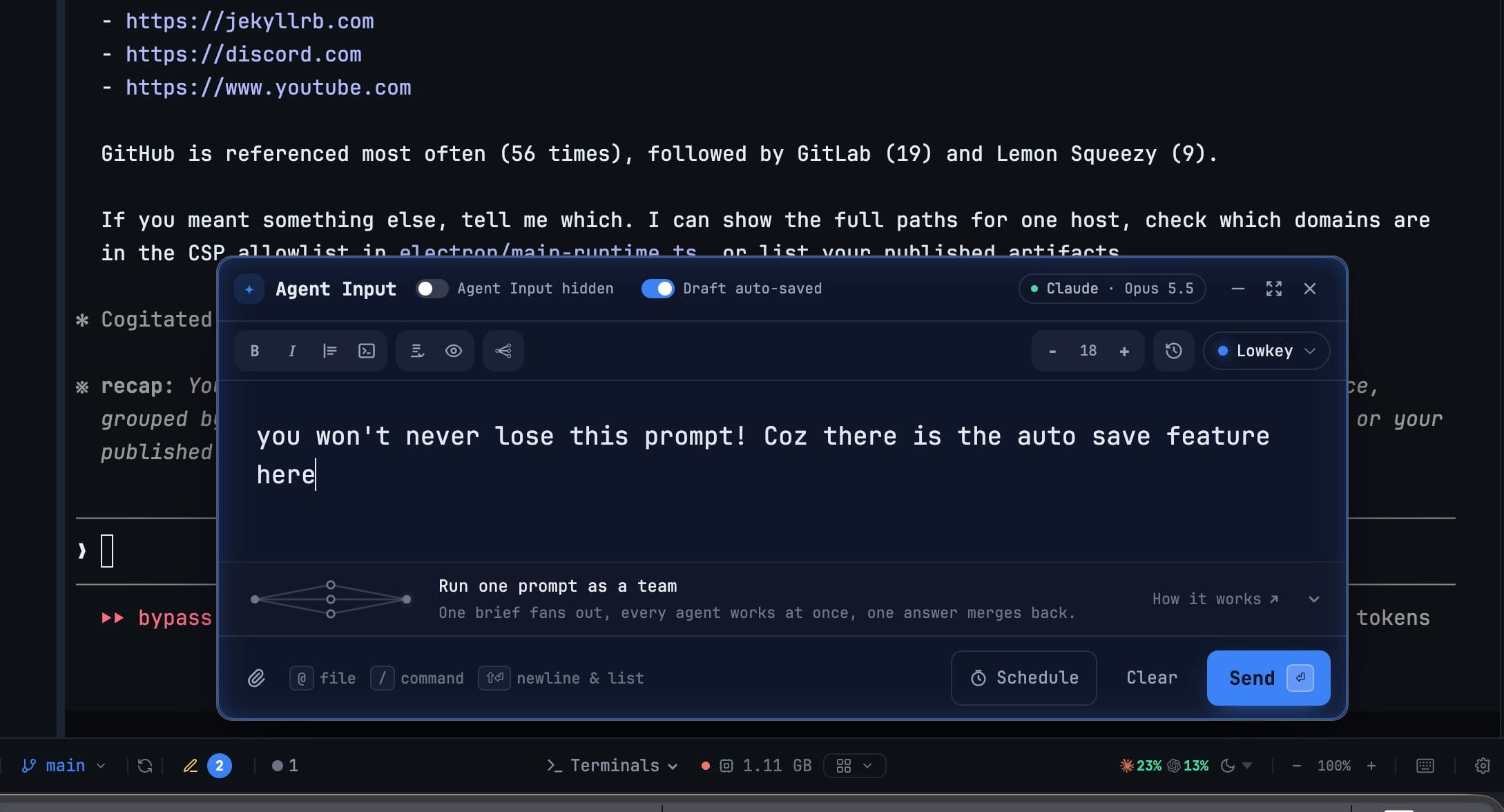
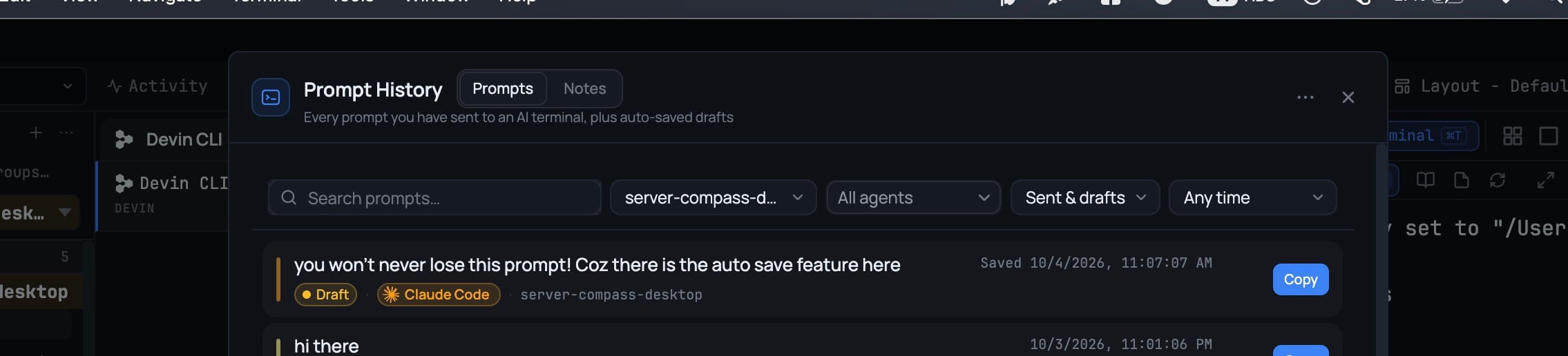
Keep the prompt you are still writing: with Auto-save draft on in the Agent Input header, your unsent text, pasted screenshots and dropped files are saved to Prompt History as a Draft after each typing pause. Use brings the text back at your caret with the images and files restored as chips, and the draft disappears the moment you send or clear it.
More Screenshots
Click any image to zoom in
Why You Need This
How this feature boosts your daily productivity
The prompt worth saving is the one you have not sent yet. A long brief for an agent, with a stack trace, two screenshots and a note about which file not to touch, takes minutes to write and exists only in the composer until you press Send. Close the wrong panel or get pulled into another terminal and it is gone, and Prompt History could not help because it only recorded what had already gone out. Auto-saved drafts close that gap. Flip one switch and the composer is written to Prompt History after every pause in typing, one draft per terminal, attachments included. It is replaced as you edit and removed when you send or clear, so your history never fills with near-duplicates, and the Sent & drafts, Sent only and Drafts only filter keeps sent work and unfinished work apart.
How It Works
Get started in 4 simple steps
Flip Auto-save draft
The switch sits in the Agent Input header, off by default. Its label turns to Draft auto-saved while it is on.
Write the way you always do
After each pause in typing, the text and any pasted screenshots or dropped files are written to Prompt History as this terminal's Draft.
Find it in Prompt History
Draft rows carry a Draft tag, the agent and the project. Filter with Sent & drafts, Sent only or Drafts only.
Use it, or just send
Use puts the text at your caret and restores the images and files as chips. Sending or pressing Clear removes the draft.
Without 1DevTool
The manual way vs. the 1DevTool way
The Hard Way
The 1DevTool Way
Key Capabilities
Everything included with Auto-Saved Prompt Drafts
Why It Matters
The productivity impact of having ai productivity built into your workspace
The Expensive Prompt Is Kept
A long brief with screenshots is saved after every pause in typing, so closing the wrong panel no longer costs you ten minutes.
No Pile of Half-Prompts
Each terminal holds one draft, replaced as you edit and deleted when you send or clear, so nothing is ever listed twice.
Attachments Come Back Too
Use restores pasted images and dropped files as chips in the composer, for drafts and for past prompts that carried them.
More in AI Productivity
Other features in this category you might find useful
Prompt History
Search prompts and sticky notes from Remote Control while away from the desktop. Switch between This project and All projects, filter prompts by agent or notes by source, copy entries, delete with Operator access, and sync local prompt history.
Resume UI
Browse, search, and resume past AI sessions from Claude Code, Codex, and Gemini CLI — or combine multiple sessions into one.
Combine Sessions
Select sessions from Claude Code, Codex, and Gemini CLI and merge them into a single conversation — giving your next agent the full cross-agent context.
AI Diff Review Panel
Track every file modification any AI agent makes — Claude Code, Codex, Gemini, Amp, custom — and review, accept, or revert their work per file from a dedicated panel with inline diff overlays in the editor.
Ready to boost your workflow?
Download 1DevTool for free and experience Auto-Saved Prompt Drafts along with 322 other features — all in one app.