Search Every Setting
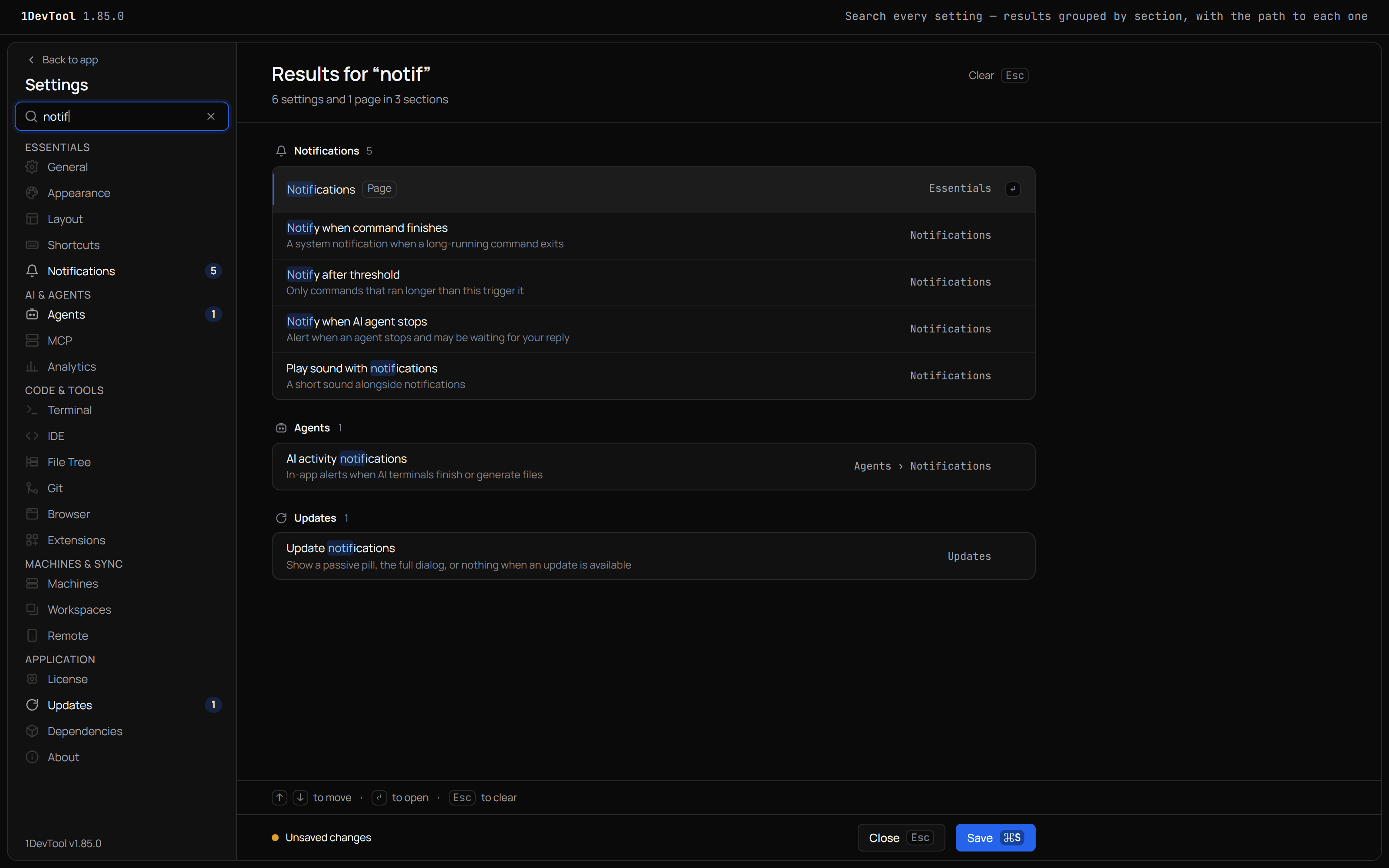
Type a few letters in Settings and every matching setting, page and keyboard shortcut appears, grouped by page with the path to each one. Pick a result and Settings opens that page on the right sub-tab and flashes the setting so you see it at once.
More Screenshots
Click any image to zoom in
Why You Need This
How this feature boosts your daily productivity
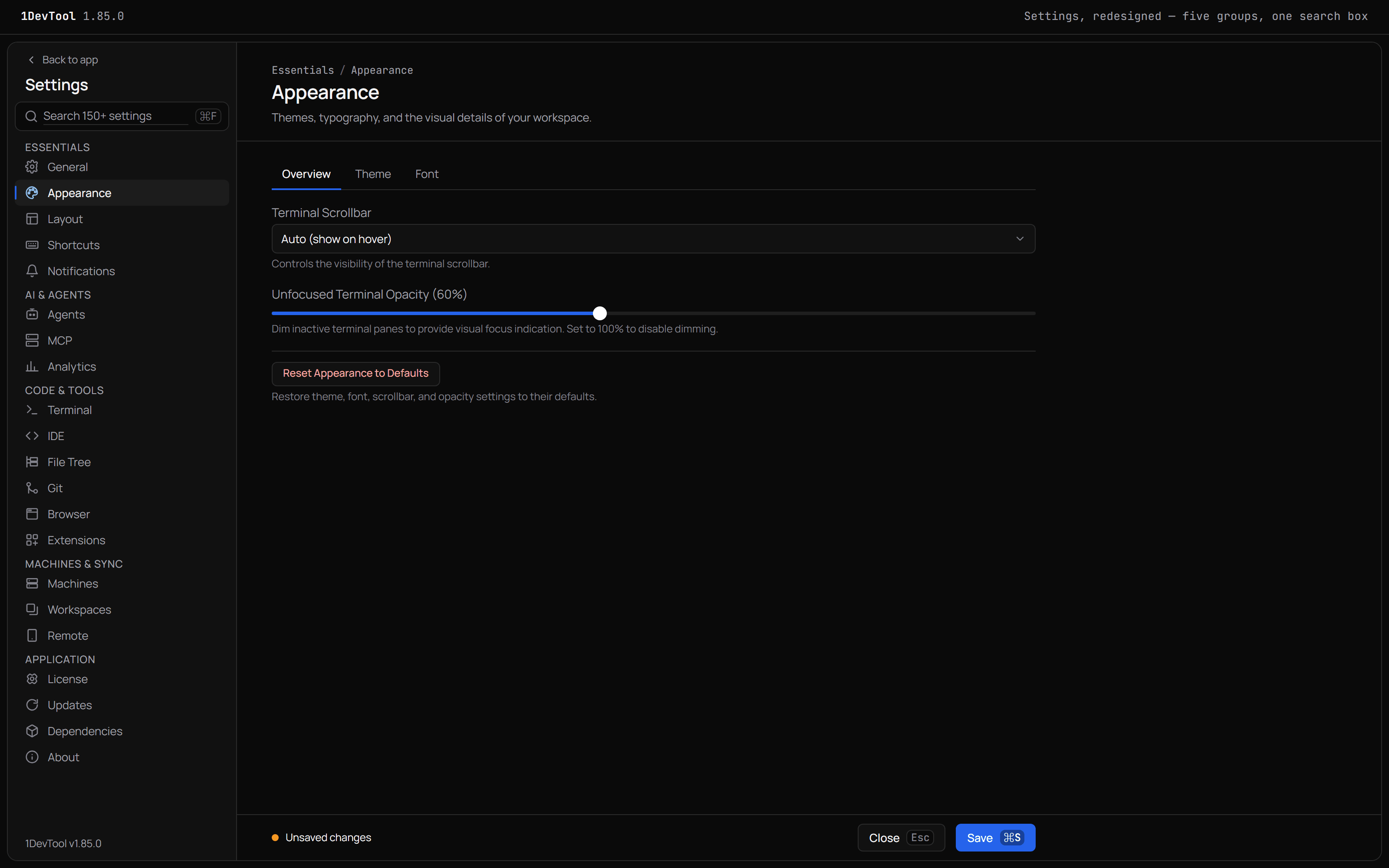
Settings has 21 pages, many with their own sub-tabs, and a setting you changed months ago could be on any of them. Instead of guessing a tab and clicking through it, you type what the setting does and land on it. For the times you would rather browse, the sidebar is sorted into five named groups, and the save bar only says Unsaved changes when something really differs from what is saved.
How It Works
Get started in 4 simple steps
Open Settings and press ⌘F
⌘F (Ctrl+F) or / puts the cursor in the search box. It covers every setting, every Settings page and your keyboard shortcuts.
Type what the setting does
Results for “notif” lists the matches grouped by page, with your text marked, a short description and the path, such as Agents › Notifications.
Open it with ↵
↑ and ↓ move through the results and ↵ opens one. Settings switches to its page and sub-tab, scrolls it to the middle and flashes it.
Save and keep going
Unsaved changes shows only when something differs. ⌘S saves even while you type, Settings stays open, and Esc clears the search.
Without 1DevTool
The manual way vs. the 1DevTool way
The Hard Way
The 1DevTool Way
Key Capabilities
Everything included with Search Every Setting
Why It Matters
The productivity impact of having customization built into your workspace
No More Tab Hunting
You type what a setting does instead of remembering which of 21 pages it was filed under when it shipped.
Lands on the Exact Row
A result opens the right sub-tab and flashes the setting, so you never scan a long page looking for it.
A Save Bar You Can Trust
Unsaved changes appears only when something really differs, and saving keeps Settings open for the next change.
More in Customization
Other features in this category you might find useful
Theme Options
Choose between Dark, Light, or System-following themes designed for comfortable all-day coding.
Keyboard Shortcuts
Customize every shortcut to match your muscle memory. Conflict detection prevents accidental duplicates.
Terminal Fonts
Choose from JetBrains Mono, Fira Code, Cascadia Code, or use custom fonts. Adjust size and line height.
MCP Settings
Configure MCP servers for Claude Code, Gemini CLI, and Codex from a unified settings tab — install, enable, and troubleshoot with one click.
Ready to boost your workflow?
Download 1DevTool for free and experience Search Every Setting along with 347 other features — all in one app.