Sticky Notes Render Markdown
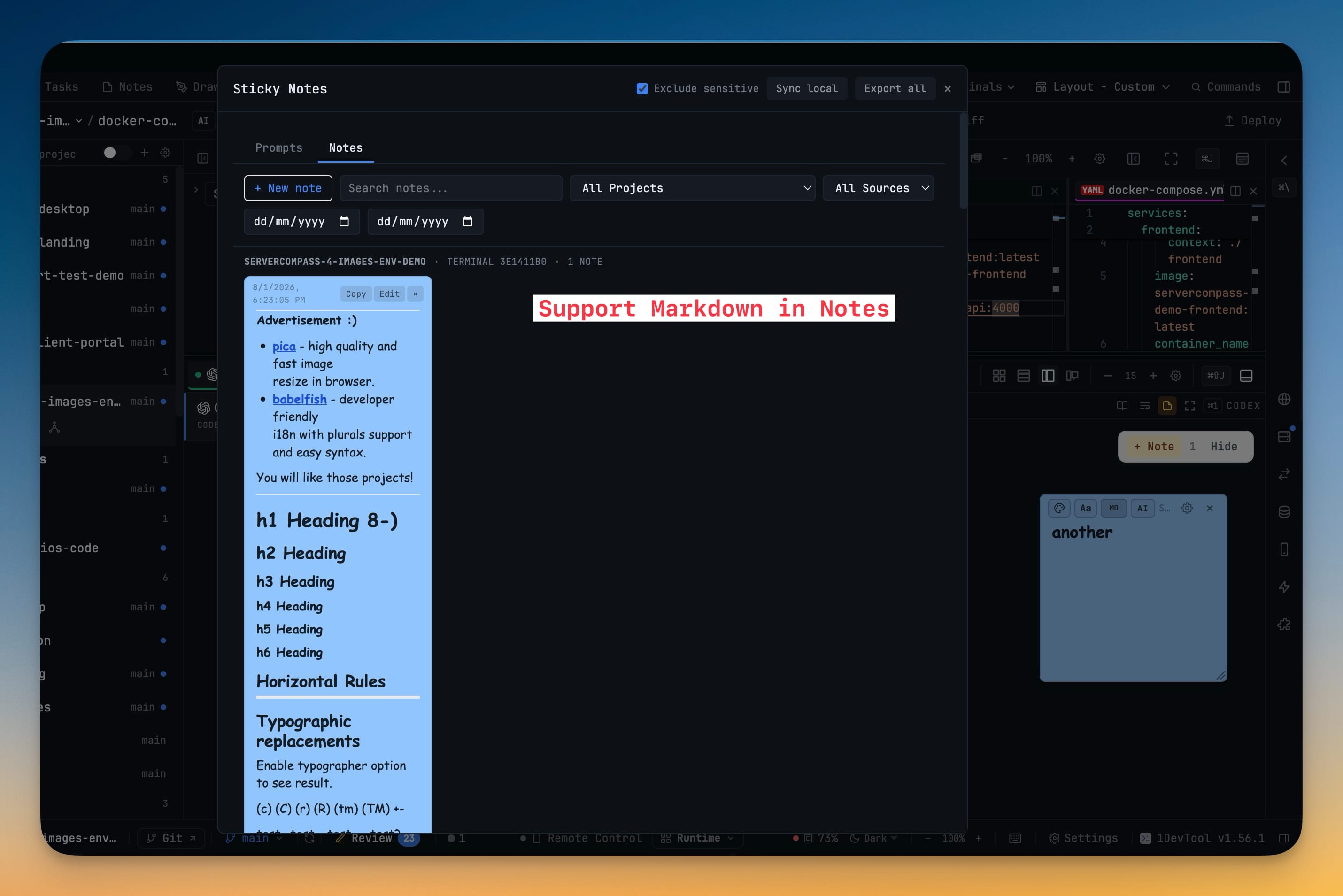
A sticky note you are not editing renders as formatted text — headings, lists, checkboxes, quotes, tables, code blocks and links. Click anywhere on the note to go back to editing, or use the MD button in the note toolbar to switch between writing and reading.
Why You Need This
How this feature boosts your daily productivity
Notes grow past the one-line reminder they started as: a checklist, a snippet, a decision with links to the issues behind it. Read back as raw Markdown, all of that structure is noise you have to parse — hashes, pipes, brackets. Rendering a note the moment you stop editing it makes the structure do its job, and keeps links clickable so a note can point at the thing it is about. Nothing about writing changed: a new, empty note still opens ready to type in, and one click puts any note back into edit.
How It Works
Get started in 4 simple steps
Write the note
A new, empty note opens ready to type in. Write plain text or Markdown — headings, lists, checkboxes, quotes, tables, code blocks and links.
Click away to read it
A note you are not editing renders as formatted text. The structure does its job instead of showing you hashes and pipes.
Toggle with MD
The MD button in the note toolbar switches between Edit Markdown and Preview Markdown, or click anywhere on the note to go straight back to editing.
Follow its links
Links open in your browser, and a link to a heading inside the same note scrolls to that heading rather than leaving the note.
Without 1DevTool
The manual way vs. the 1DevTool way
The Hard Way
The 1DevTool Way
Key Capabilities
Everything included with Sticky Notes Render Markdown
Why It Matters
The productivity impact of having project management built into your workspace
Structure You Can Actually See
Checklists, tables and headings render as themselves. A note stops being source you decode and goes back to being something you read.
One Click Back To Writing
Clicking the note edits it. Reading mode never becomes a place you have to escape from, so quick edits stay quick.
Links That Go Somewhere
A note can point at the issue, PR or doc it is about, and a link to a heading in the same note scrolls there rather than leaving.
Nothing Slower To Jot
A new, empty note still opens ready to type in — the rendering only applies once you stop editing.
More in Project Management
Other features in this category you might find useful
Multi-Project Workspace
Work on multiple projects simultaneously with instant switching. Entire workspace state is preserved per project.
Smart File Explorer
Real-time file tree with type icons, .gitignore filtering, search, and right-click context menus.
Per-Project Code Intelligence
Spawn real typescript-language-server, gopls, pyright, rust-analyzer, clangd, solargraph, intelephense, or sourcekit-lsp for the projects you opt into — with project-aware errors and zero false positives.
Color-Coded Projects
Assign accent colors to each project for instant visual identification across your workspace.
Ready to boost your workflow?
Download 1DevTool for free and experience Sticky Notes Render Markdown along with 347 other features — all in one app.