Terminals Inside Reader Mode
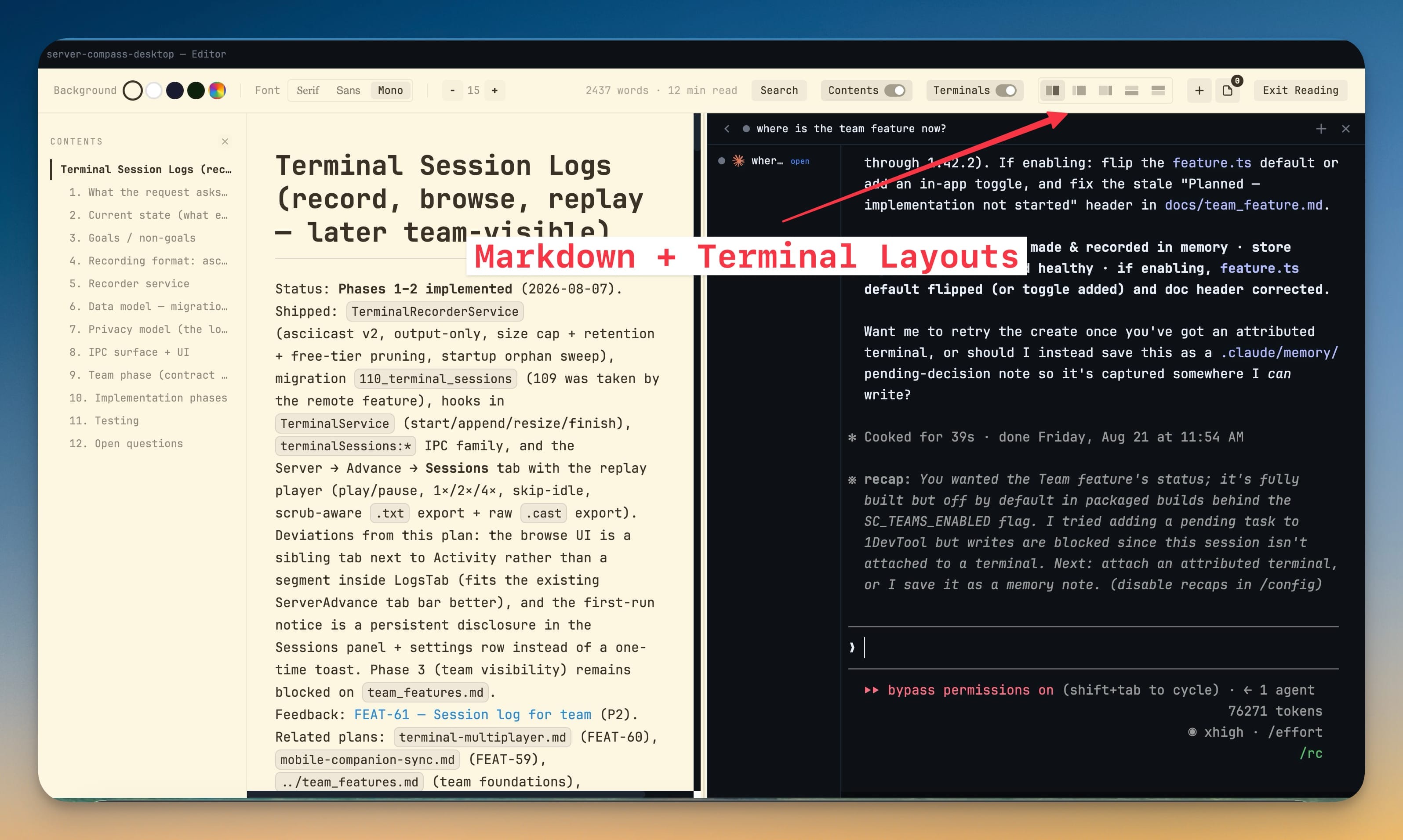
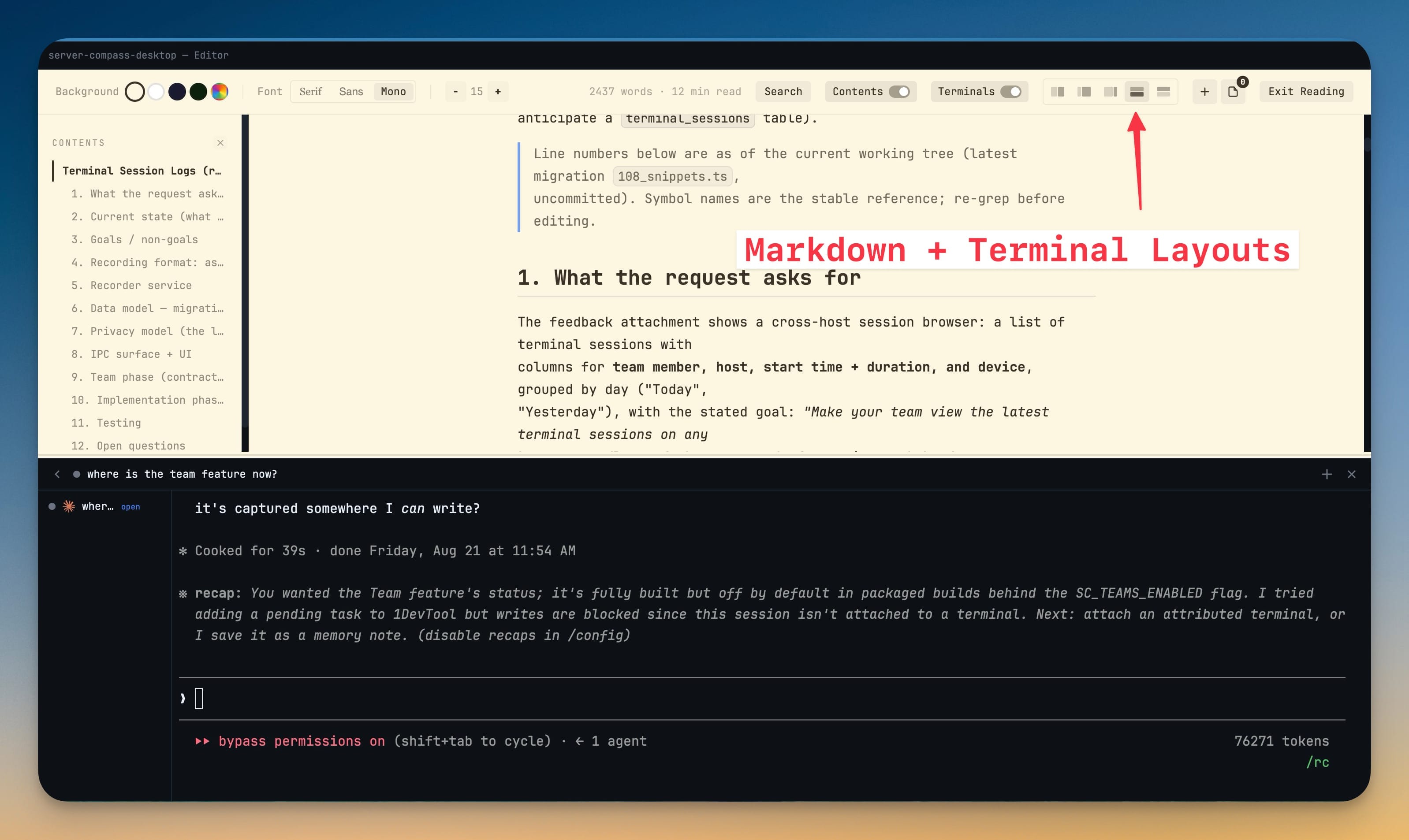
Put a live project terminal beside the Markdown file you are reading — a real resizable split, not an overlay that covers the page. Choose 5 : 5, 3 : 7 or 7 : 3 side-by-side, or stack markdown above the terminal or the terminal above markdown; drag the sash to fine-tune and the layout is remembered.
More Screenshots
Click any image to zoom in
Why You Need This
How this feature boosts your daily productivity
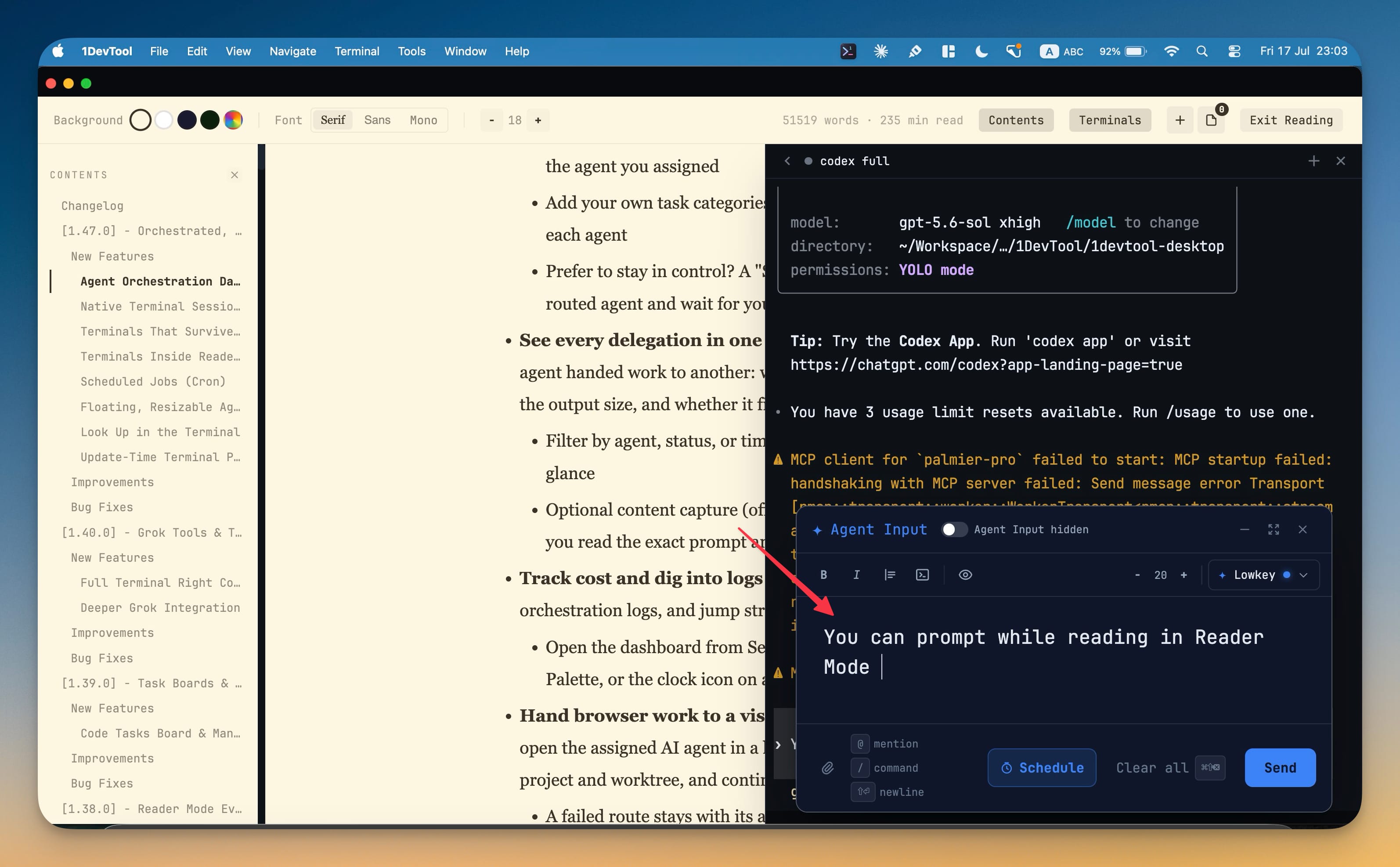
Reader Mode is the best way to work through a long plan or design doc, but running a command used to mean leaving it and losing your place. Docking a terminal beside the page fixed that, and v1.70.0 finished the job: the terminal is no longer a floating dock that sits on top of the paragraph you were reading. Markdown and the terminal now occupy two panes of a split you size yourself, so you can run commands and prompt AI agents with the document still fully visible next to them.
How It Works
Get started in 4 simple steps
Open a Markdown file in Reader Mode
Enter Reader Mode on any Markdown document for the clean, book-like reading view with a contents outline and reading-time estimate.
Turn on Terminals
The Terminals toggle in the header puts a live terminal in a pane beside the document — a real split, not an overlay that covers what you are reading.
Pick a layout that fits the document
Choose 5 : 5, 3 : 7 or 7 : 3 side-by-side, or stack markdown above the terminal or the terminal above markdown. Drag the sash to fine-tune, and the layout is remembered.
Run and prompt without leaving
The terminal is live — full output, scrollback and Agent Input — so you can run commands and prompt an AI agent while the document stays open beside it.
Without 1DevTool
The manual way vs. the 1DevTool way
The Hard Way
The 1DevTool Way
Key Capabilities
Everything included with Terminals Inside Reader Mode
Why It Matters
The productivity impact of having terminal & ai agents built into your workspace
Read Without the Exit
Run a command or fire a prompt without dropping out of Reader Mode, so a long review stays a review instead of a window-switching chore.
Nothing Covers the Page
Markdown and the terminal are two panes in a split you size, so the terminal no longer floats over the paragraph you were reading.
The Real Terminal, Not a Copy
Full output, scrollback and Agent Input come with it, so it behaves exactly like the terminal you already had.
Your Layout Sticks
The preset you pick and the sash you drag are remembered, so the reading setup you like is there the next time you open a document.
More in Terminal & AI Agents
Other features in this category you might find useful
Multi-Agent Terminals
Run Claude Code, Codex, Gemini CLI, Amp, OpenCode, Qwen, and custom AI commands in dedicated terminal tabs with recognizable agent logos, custom colors, and status indicators.
Flexible Terminal Layouts
View terminals in 2×2 grid, side-by-side columns, or single fullscreen mode with resizable panes.
Terminal Dashboard
Kanban-style board view of all terminal statuses — Idle, Running, and Review — with real-time polling.
Session Persistence
Terminal sessions persist across app restarts with full scrollback history via tmux integration.
Ready to boost your workflow?
Download 1DevTool for free and experience Terminals Inside Reader Mode along with 335 other features — all in one app.