Terminals on Every Computer
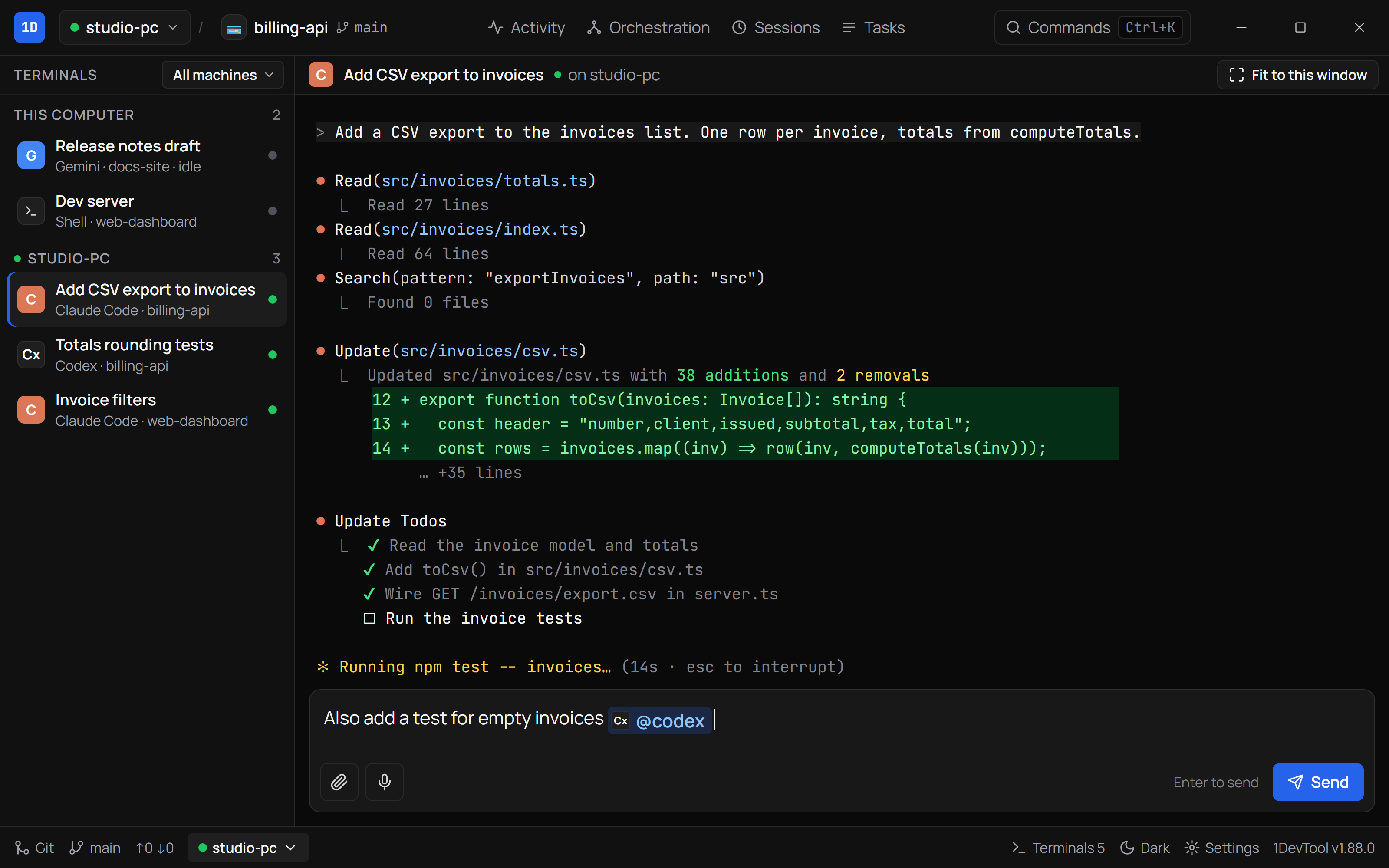
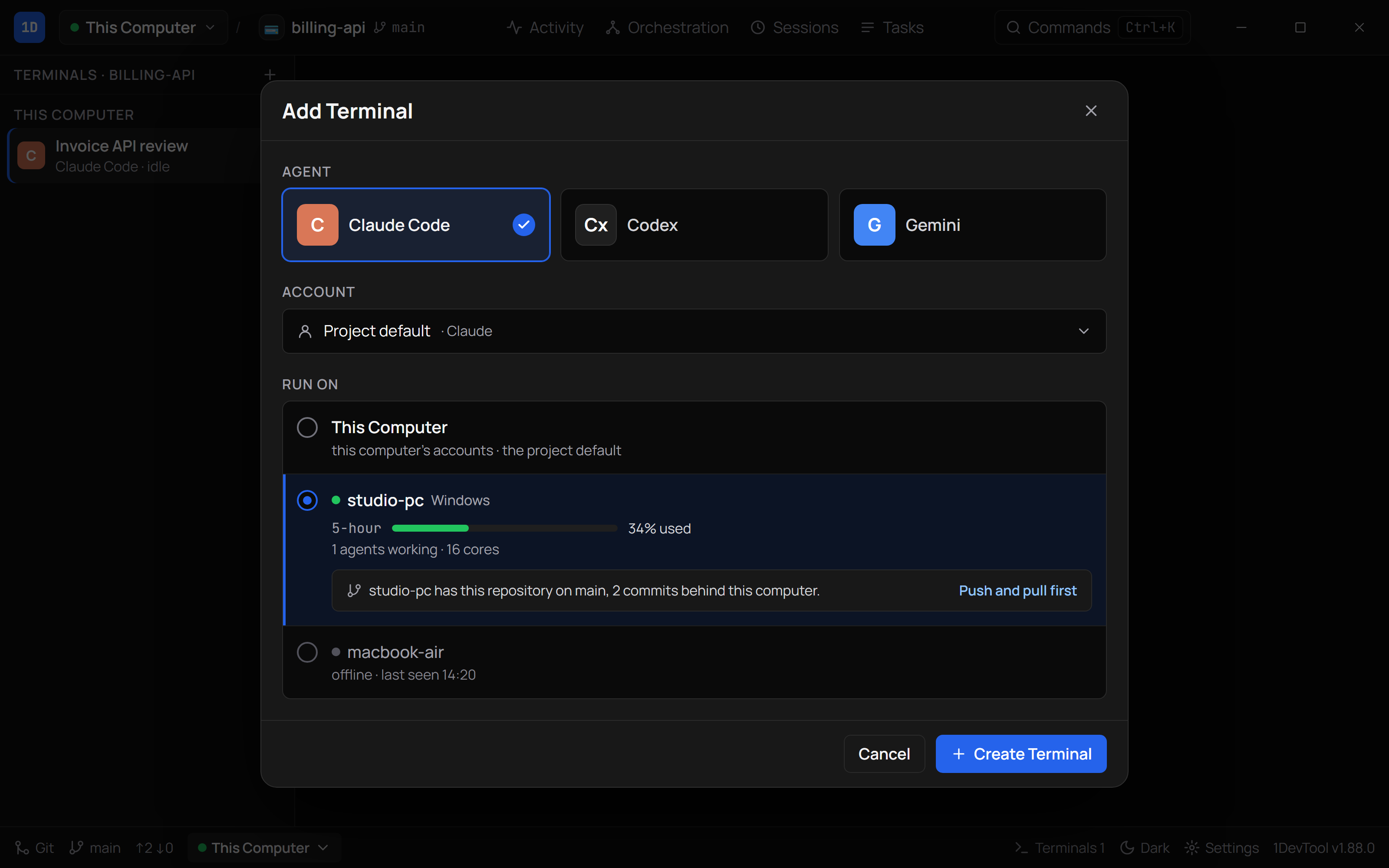
Terminals running on a paired computer show up in the sidebar, the Terminal Dashboard and the command palette. Open one to watch it live, type into it, prompt it from Agent Input or stop it, and use Run on in Add Terminal to start an agent on whichever computer has the quota and the cores.
More Screenshots
Click any image to zoom in
Why You Need This
How this feature boosts your daily productivity
Agents on another computer are easy to forget and awkward to check. Here they sit in the same list as your own terminals. The mirror pane fits any width and offers Fit to this window, and the computer being watched shows Watched from, Typing from or Sized for with your computer's name. Run on lists each computer with its accounts and quota, how many agents are working there and its cores, and warns when the agent is not installed there, the computer is offline or its copy of the repository is behind, with a one-click push and pull first. Turn on Notify me when agents on … finish in Settings → Machines to hear when an agent there finishes, fails or hits a usage limit.
How It Works
Get started in 4 simple steps
Open a Terminal
Click "+" to create a new terminal tab. Choose from Claude Code, Codex, Gemini CLI, Amp, bash, zsh, or custom shells.
Arrange Your Layout
Switch between grid, columns, or fullscreen with one click. Drag dividers to resize panes to your preference.
Run Your Agents
Start your AI agents with pre-configured prompts or type freely. Watch them work in real-time with status indicators.
Monitor & Manage
Use the Terminal Dashboard for a bird's-eye view. Sessions persist across restarts so you never lose context.
Without 1DevTool
The manual way vs. the 1DevTool way
The Hard Way
The 1DevTool Way
Key Capabilities
Everything included with Terminals on Every Computer
Why It Matters
The productivity impact of having terminal & ai agents built into your workspace
Zero Context Switching
All your AI agents and terminals live in one window. No more alt-tabbing between 5 different terminal apps.
Visual Status Tracking
Color-coded tabs and the Kanban dashboard tell you which agents are done, running, or need attention — at a glance.
Persistent Sessions
Tmux-backed persistence means your terminal state survives crashes and restarts. Never lose scrollback history again.
Flexible Arrangements
One-click layouts adapt to your task: grid for monitoring, columns for comparing, fullscreen for deep focus.
More in Terminal & AI Agents
Other features in this category you might find useful
Multi-Agent Terminals
Run Claude Code, Codex, Gemini CLI, Amp, OpenCode, Qwen, and custom AI commands in dedicated terminal tabs with recognizable agent logos, custom colors, and status indicators.
Flexible Terminal Layouts
View terminals in 2×2 grid, side-by-side columns, or single fullscreen mode with resizable panes.
Terminal Dashboard
Kanban-style board view of all terminal statuses — Idle, Running, and Review — with real-time polling.
Session Persistence
Terminal sessions persist across app restarts with full scrollback history via tmux integration.
Ready to boost your workflow?
Download 1DevTool for free and experience Terminals on Every Computer along with 350 other features — all in one app.