Accounts & Quota
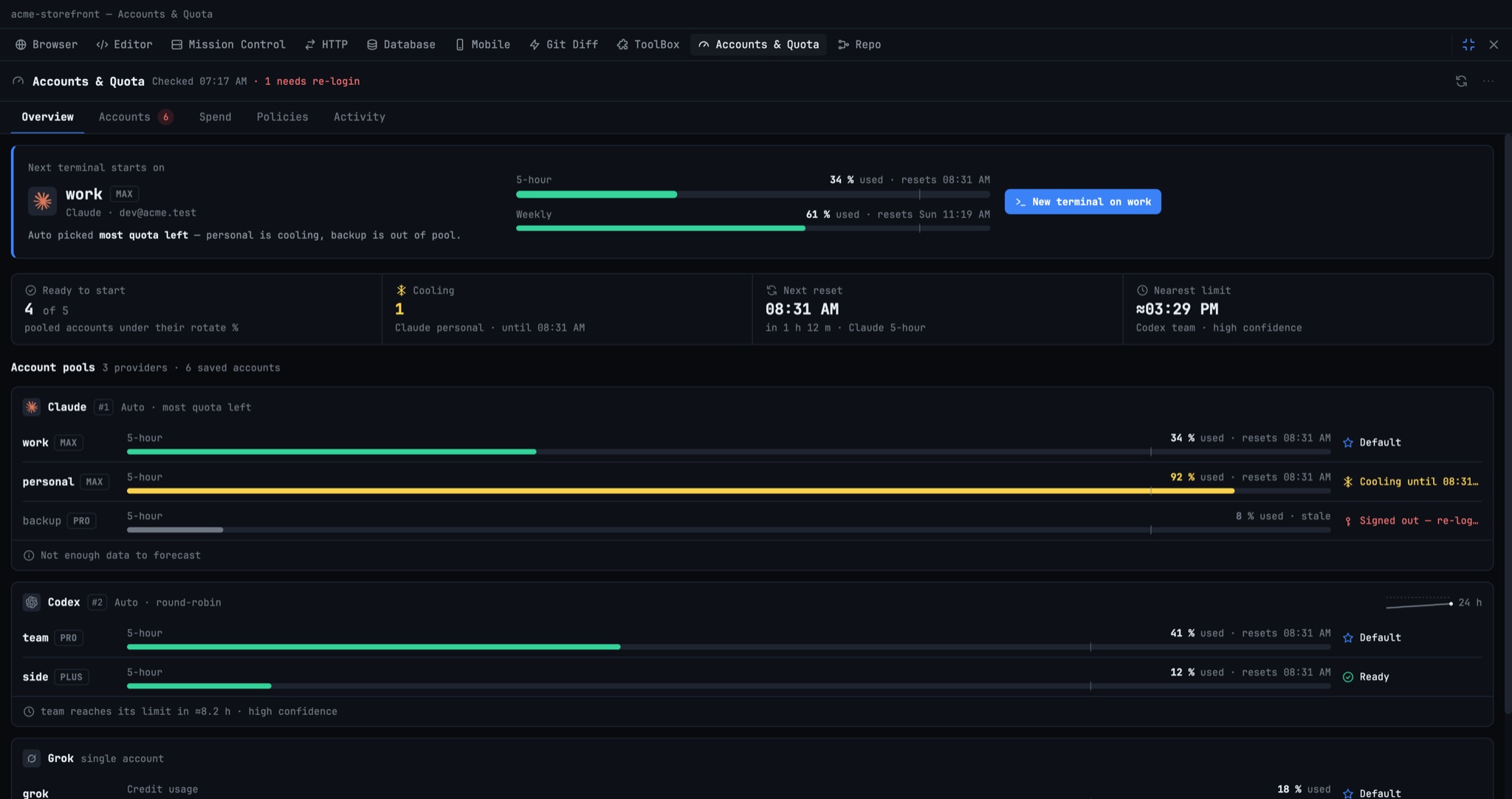
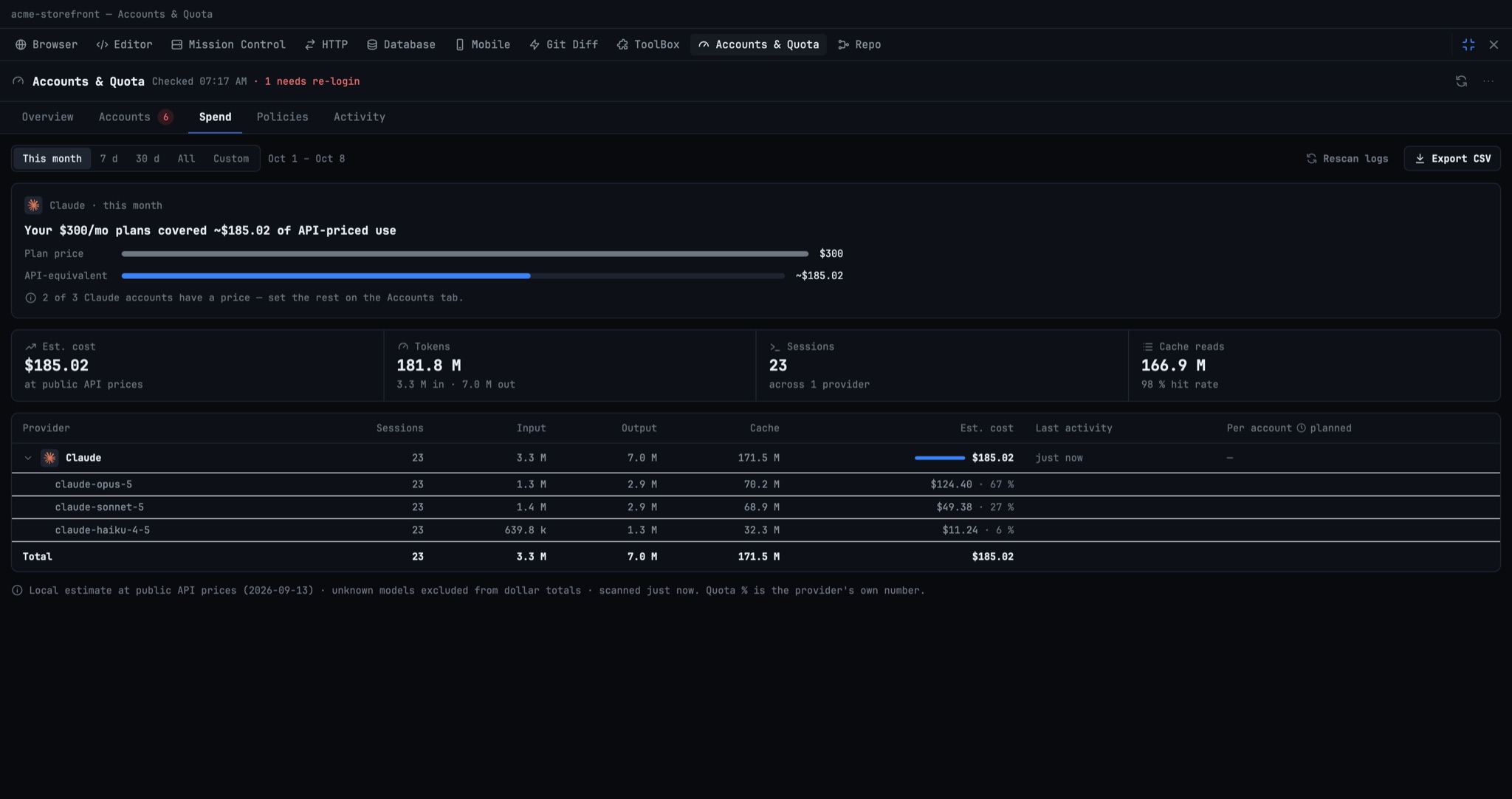
One panel to add, switch, re-login and remove every AI account, beside the quota and spend each one has. The Overview shows which account your next terminal starts on and why, and Spend breaks the month's cost down by model.
More Screenshots
Click any image to zoom in
Why You Need This
How this feature boosts your daily productivity
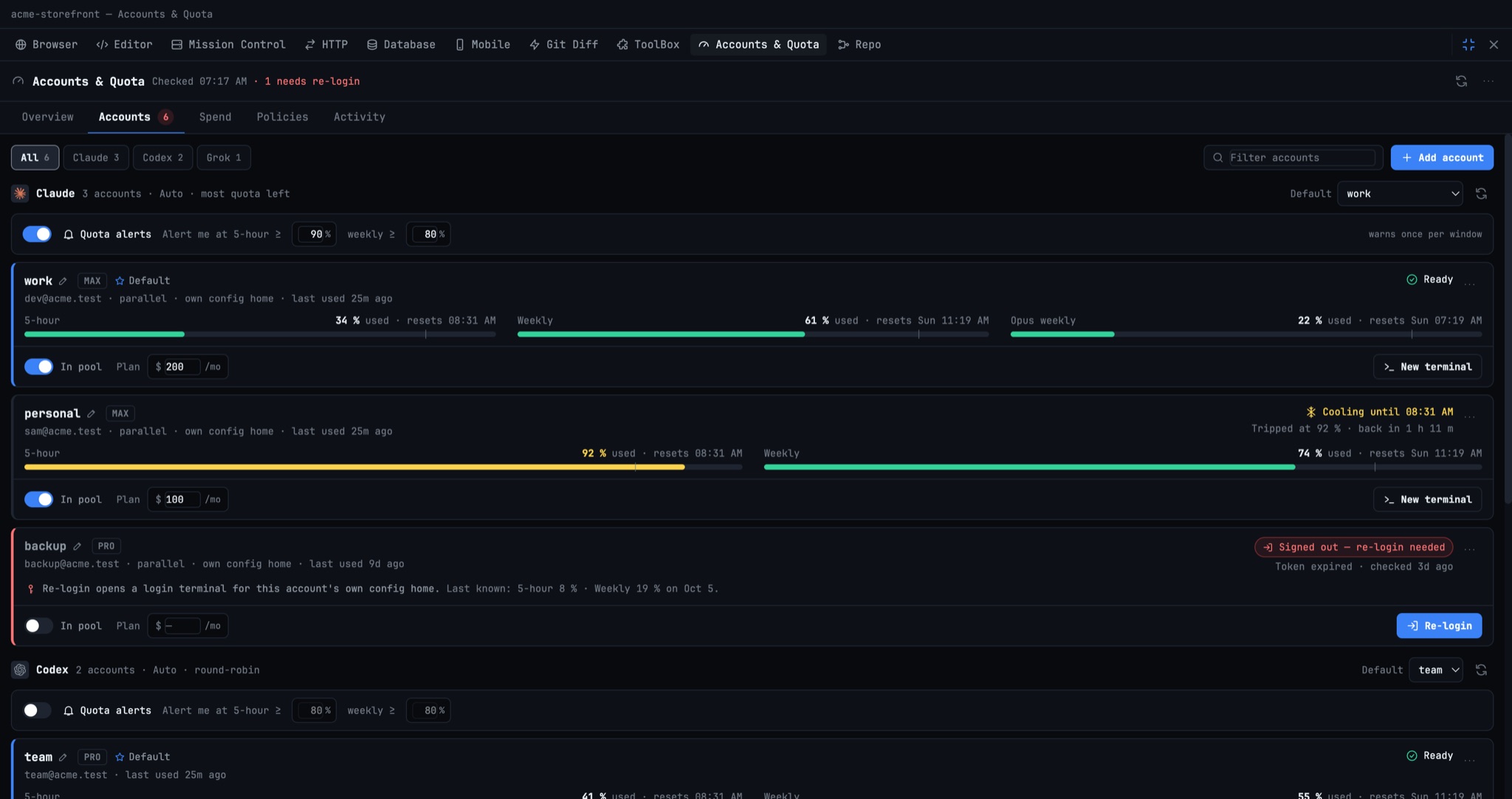
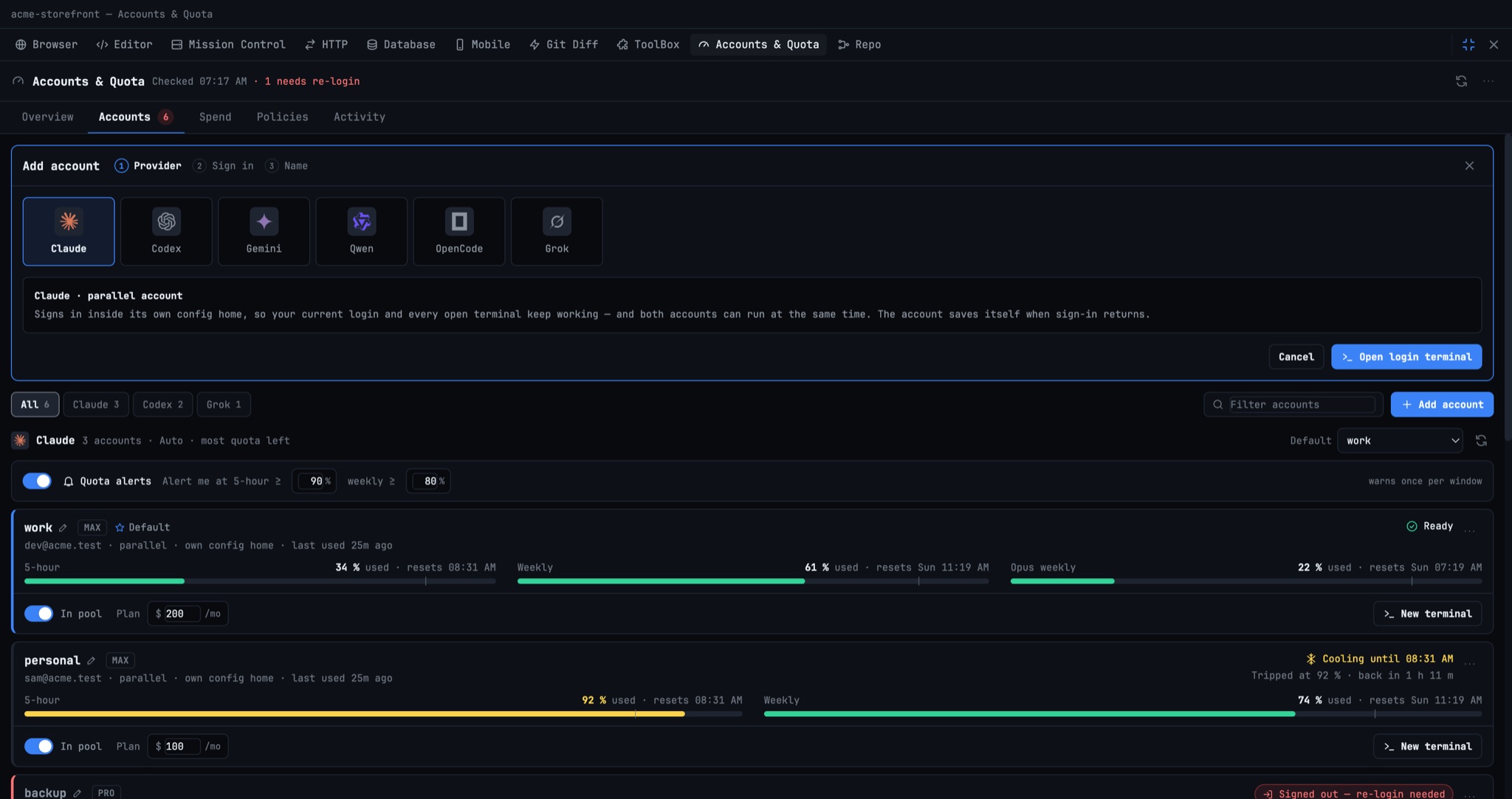
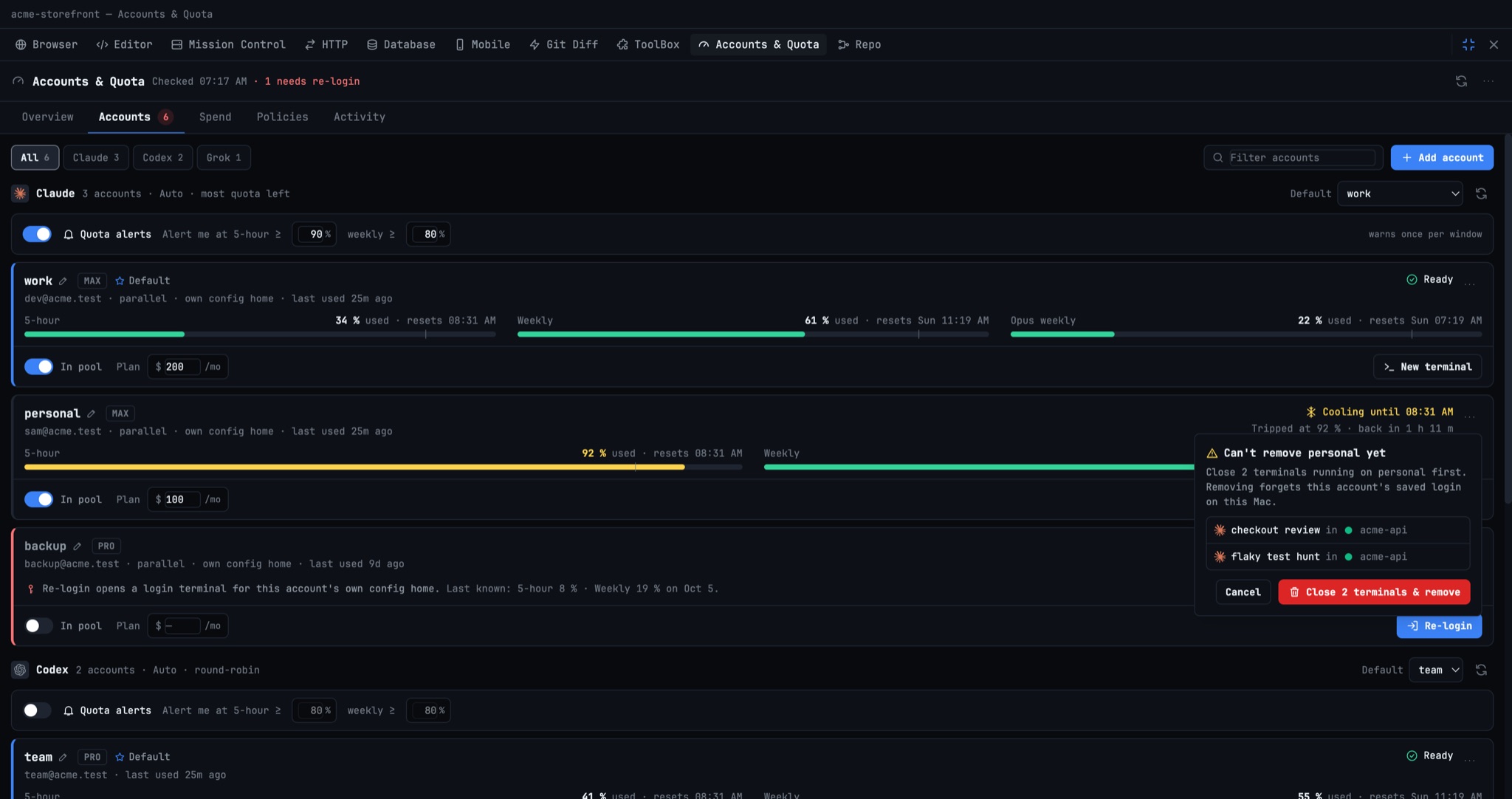
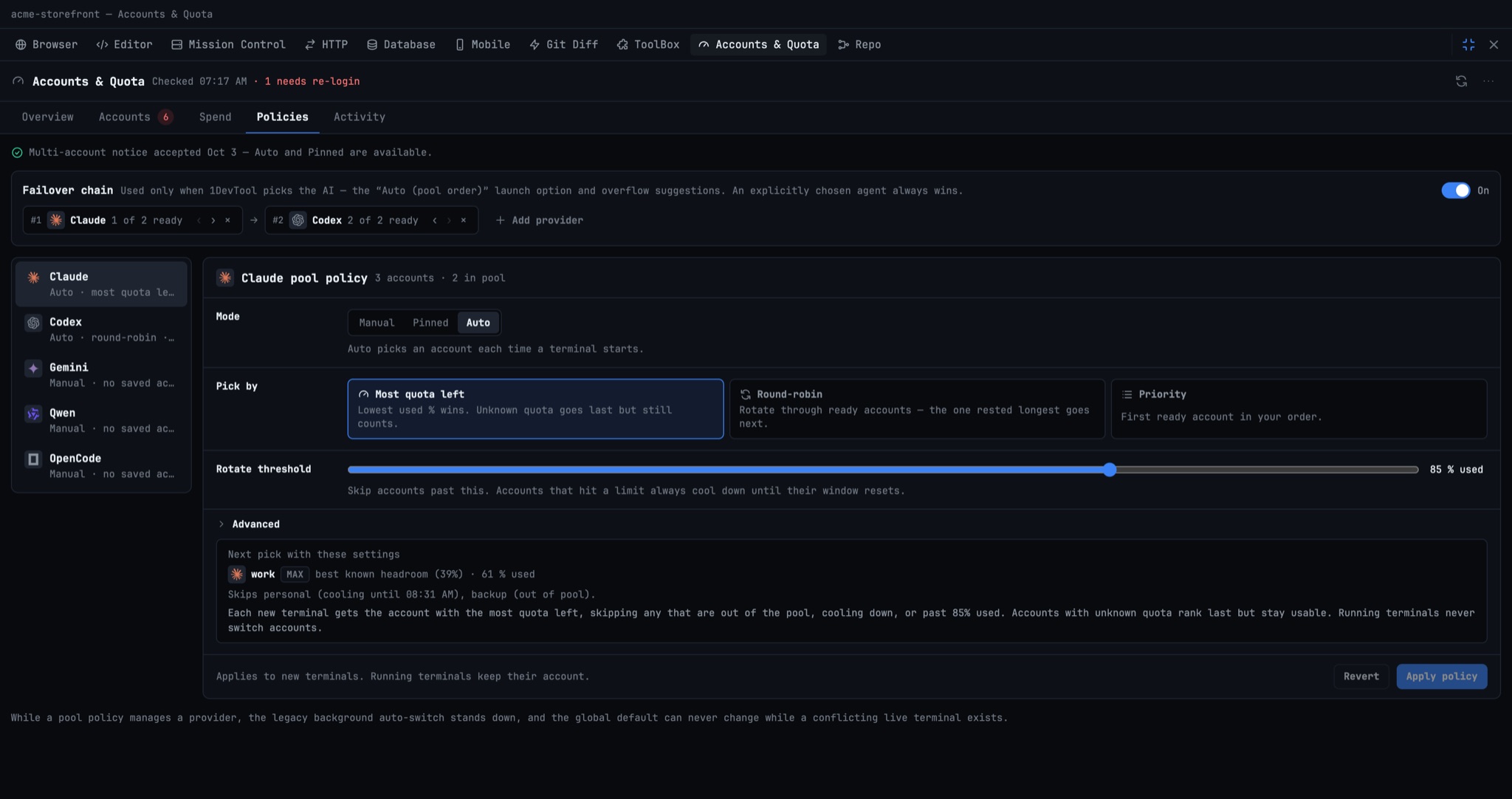
With two Claude seats, a Codex plan and Grok, the question that decides your next hour is which account the next terminal will burn, and the answer used to be spread across a quota panel, Settings → Agents → Accounts and a Usage page, with the pick itself left for you to work out from the pool policy. Accounts & Quota puts all of it in one panel you can open with ⌘⇧U from anywhere. The Next terminal starts on card names the exact account, computed the way the app picks it. Adding an account is three steps, an expired login has a Re-login button where you will see it, an account that terminals are still using can be removed in one step after closing them, and the Spend tab shows cost by model against what your plans cost. Policies previews the next pick as you change settings, so tuning the pool is no longer trial and error.
How It Works
Get started in 4 simple steps
Open Accounts & Quota
Press ⌘⇧U, pick it from the command palette, or click Everywhere → Accounts & Quota in the Tools sidebar. No project needs to be open.
Read the next pick
Overview opens on Next terminal starts on: the account, its 5-hour and weekly usage, and why Auto chose it. New terminal on starts one there.
Add or fix an account
In Accounts, Add account walks provider → login terminal → name. Each card has In pool, plan price, Re-login, Rename and Diagnostics.
Check spend and tune the pool
Spend shows cost by model for any date range. Policies previews Next pick with these settings while you change mode, strategy or threshold.
Without 1DevTool
The manual way vs. the 1DevTool way
The Hard Way
The 1DevTool Way
Key Capabilities
Everything included with Accounts & Quota
Why It Matters
The productivity impact of having ai productivity built into your workspace
No Guessing Which Account Runs
The Next terminal starts on card is computed the same way the app picks, so you know what a new terminal will burn before you open it.
One Place for Every Account Job
Adding, re-login, renaming, removing, alerts, plan price and pool membership all sit in the panel that shows the quota.
Spend You Can Act On
Cost by model and a plan-price comparison show whether each subscription is paying for itself this month.
More in AI Productivity
Other features in this category you might find useful
Prompt History
Search prompts and sticky notes from Remote Control while away from the desktop. Switch between This project and All projects, filter prompts by agent or notes by source, copy entries, delete with Operator access, and sync local prompt history.
Resume UI
Browse, search, and resume past AI sessions from Claude Code, Codex, and Gemini CLI — or combine multiple sessions into one.
Combine Sessions
Select sessions from Claude Code, Codex, and Gemini CLI and merge them into a single conversation — giving your next agent the full cross-agent context.
AI Diff Review Panel
Track every file modification any AI agent makes — Claude Code, Codex, Gemini, Amp, custom — and review, accept, or revert their work per file from a dedicated panel with inline diff overlays in the editor.
Ready to boost your workflow?
Download 1DevTool for free and experience Accounts & Quota along with 326 other features — all in one app.