Account Quota in the Pane Header
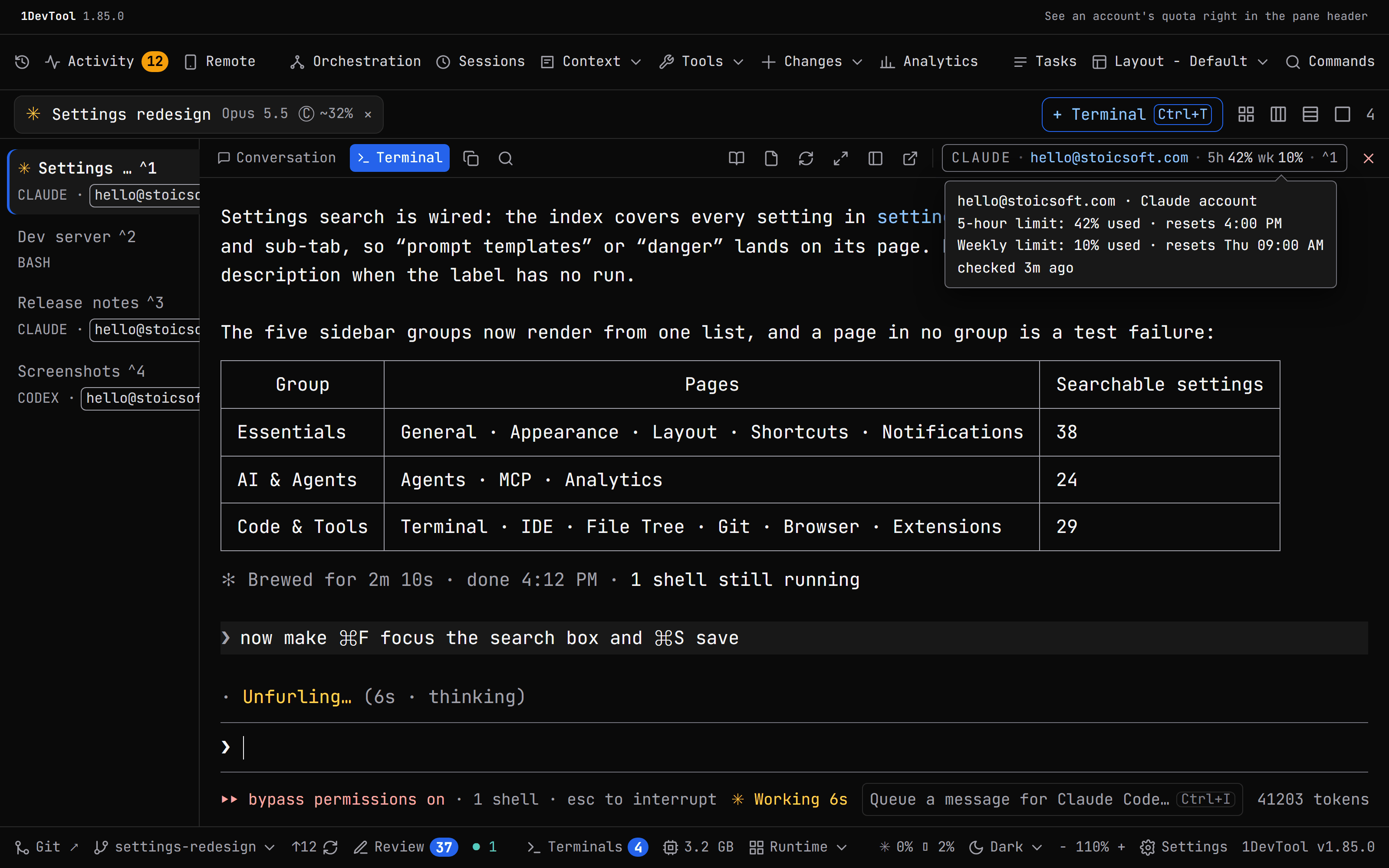
A terminal running on one of your saved AI accounts shows that account's 5-hour and weekly quota next to its name in the pane header, amber from 80% used and red from 95%. Hover it to see when each limit resets and when it was last checked.
Why You Need This
How this feature boosts your daily productivity
When several agents run on two or three accounts, the question is always which one is about to stop. The quota used to live in a separate panel, so checking it meant leaving the pane you were watching. Now the numbers sit beside the account name in every terminal, and they always match Accounts & Quota and the Add Terminal picker because all three read the same account data.
How It Works
Get started in 4 simple steps
Start a terminal on a saved account
Pick an account in Add Terminal or let Auto choose one. Saved Claude, Codex, Gemini, Qwen, OpenCode and Grok accounts all show a chip.
Read the pane header
Beside the account name you see its quota, for example 5h 42% wk 10%. Each number turns amber at 80% used and red at 95%.
Hover for the details
The tooltip lists each limit with its reset time, such as 5-hour limit: 42% used · resets 4:00 PM, and when it was checked.
Act on what it tells you
A reading older than ten minutes is muted. A parallel Claude account whose login was rejected shows re-login; fix it in Accounts & Quota.
Without 1DevTool
The manual way vs. the 1DevTool way
The Hard Way
The 1DevTool Way
Key Capabilities
Everything included with Account Quota in the Pane Header
Why It Matters
The productivity impact of having ai productivity built into your workspace
Quota Where You Are Looking
You check how close an agent is to its limit without leaving the pane it is working in.
One Set of Numbers
The header, Accounts & Quota and the Add Terminal picker read the same account data, so they never disagree.
No Extra Checks
The chip reads account data the app already has. It does not run a quota check of its own for every pane.
More in AI Productivity
Other features in this category you might find useful
Prompt History
Search prompts and sticky notes from Remote Control while away from the desktop. Switch between This project and All projects, filter prompts by agent or notes by source, copy entries, delete with Operator access, and sync local prompt history.
Resume UI
Read any past AI session before you resume it. Resume AI Sessions is a split view with a searchable list of every Claude Code, Codex, Gemini CLI and other agent session on the left and a live preview of the project, branch, tool calls and conversation on the right, with replies rendered as Markdown, with Resume, bypass permissions and an editable command one click away.
Combine Sessions
Merge several past AI sessions into one opening prompt, or hand a single session to a different agent. Tick sessions in Resume AI Sessions, see a token estimate of the context they add, and send the result to a new chat with any agent or preset or to a terminal that is already open.
AI Diff Review Panel
Track every file modification any AI agent makes — Claude Code, Codex, Gemini, Amp, custom — and review, accept, or revert their work per file from a dedicated panel with inline diff overlays in the editor.
Ready to boost your workflow?
Download 1DevTool for free and experience Account Quota in the Pane Header along with 347 other features — all in one app.