Agent Hooks Manager
Every hook your agents have configured, in one dialog — Claude, Codex, Gemini, Kimi, Cursor, Kiro, Devin, Qwen, Qoder, Grok and more. Flip one off with a switch, pause a whole agent's set, and read the journal of every edit.
Why You Need This
How this feature boosts your daily productivity
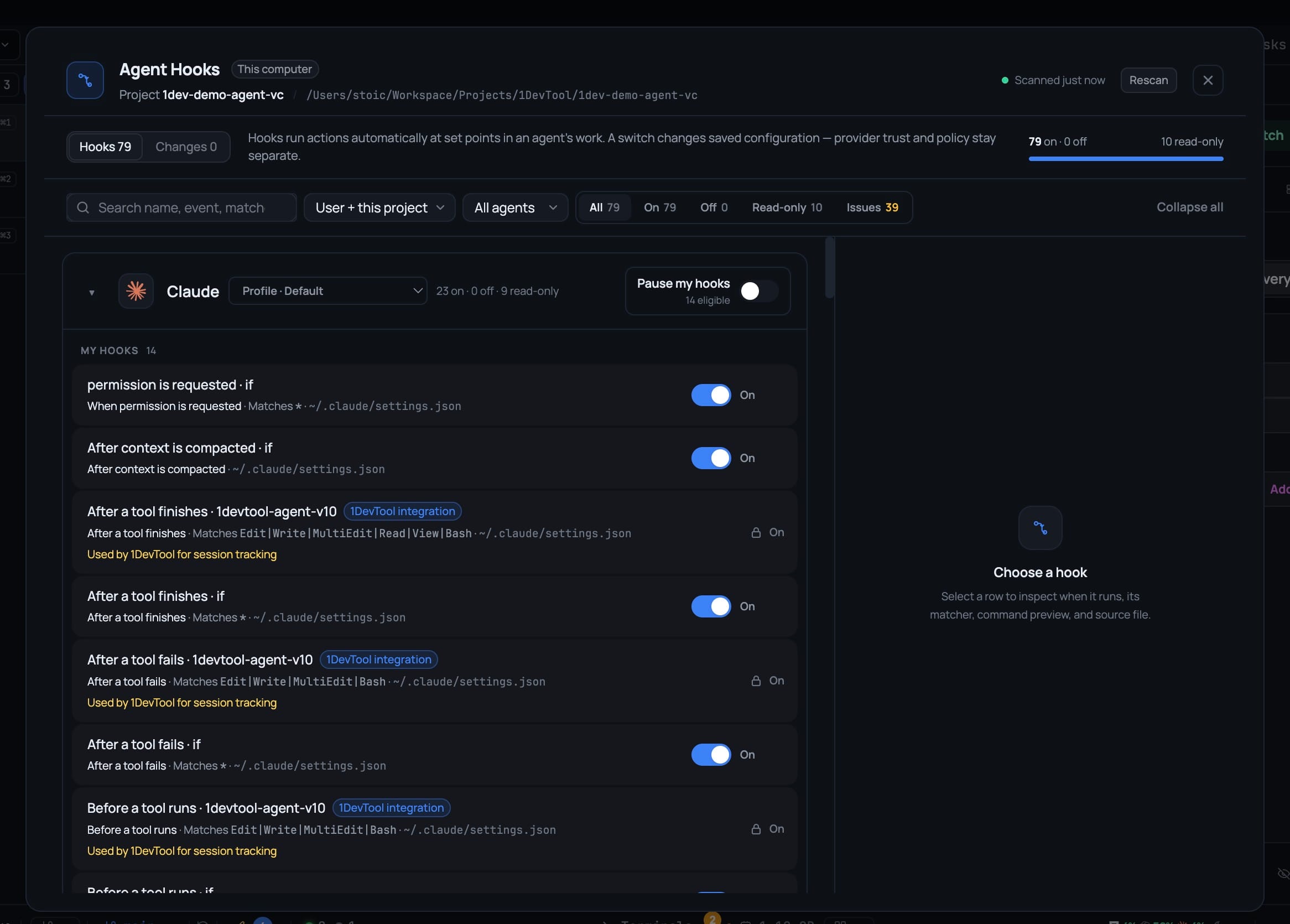
Hooks run commands automatically at set points in an agent's work, and they accumulate across a dozen config files you never open — so when one misfires you are grepping JSON to find out which agent owns it. Open it from Tools → Hooks or Settings → Agents → Open hook manager and every hook is grouped by agent with the config profile it reads, each row naming when it runs (Before a tool runs, After a tool finishes, When a session starts, When you send a prompt…), the file it came from, whether it is user or project scope, and who owns it. A switch edits the agent's real config file and offers Undo afterwards; Pause my hooks captures the currently enabled set and restores exactly that set when you unpause. 1DevTool's own session-tracking integrations, organization policies and plugin-owned hooks show read-only with the reason and are never rewritten.
How It Works
Get started in 4 simple steps
Open the hook manager
Tools → Hooks in the AI group, or Settings → Agents → Open hook manager — both land on the same dialog, which scans and shows when it last ran.
Read a hook without opening its file
Hooks are grouped by agent with the config profile each group reads. Every row says when it runs — Before a tool runs, After a tool finishes, When a session starts, When you send a prompt — plus its config file, user or project scope, and who owns it.
Find the one you mean
Search by name, event or match, and filter by agent, scope or status — including a view of just the entries that need attention.
Switch it off, or pause the set
A switch edits the agent's real config file and offers Undo afterwards. Pause my hooks captures the currently enabled set and disables it; unpausing restores exactly that set. The Changes tab journals every write.
Without 1DevTool
The manual way vs. the 1DevTool way
The Hard Way
The 1DevTool Way
How it compares
Agent hooks live in each CLI's own config files, so people open files such as ~/.claude/settings.json and edit the JSON or TOML by hand.
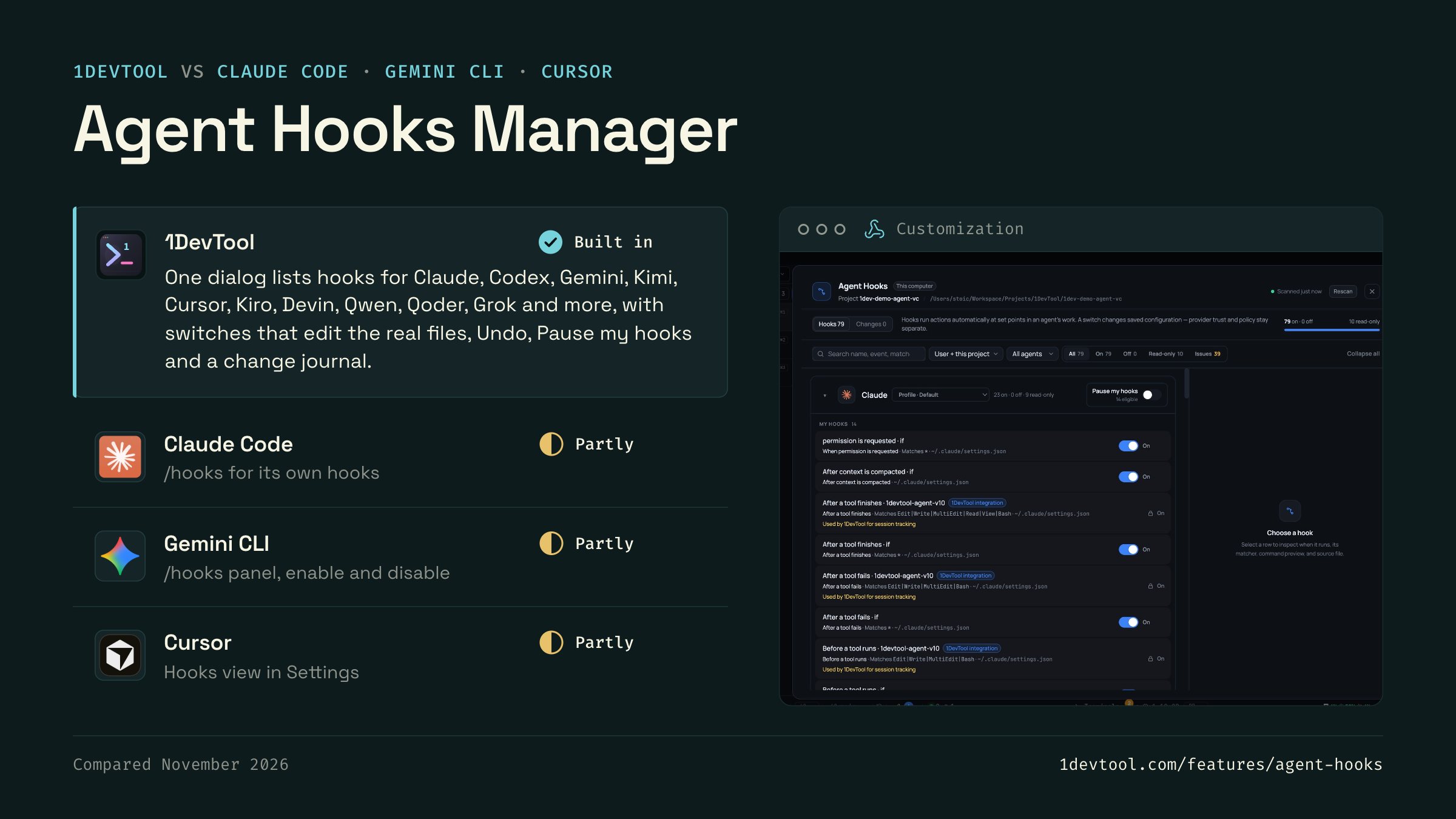
 1DevToolBuilt inBuilt in
One dialog lists hooks for Claude, Codex, Gemini, Kimi, Cursor, Kiro, Devin, Qwen, Qoder, Grok and more, with switches that edit the real files, Undo, Pause my hooks and a change journal.
 Claude CodePartlyPartly
Claude Code's /hooks command shows the hooks configured across its user and project settings files, for Claude Code only.
 Gemini CLIPartlyPartly
Gemini CLI's /hooks panel shows its hooks, and /hooks enable or disable switches one hook, or all of them, on or off.
- Partly
Cursor reads hooks from hooks.json files and from Claude Code settings, and its Settings show the loaded hooks with an execution log.

Checked November 2026 against each app's public docs. These products change quickly. If a row is out of date, tell us at feedback.stoicsoft.com/1devtool.
Key Capabilities
Everything included with Agent Hooks Manager
Why It Matters
The productivity impact of having customization built into your workspace
Your Editor, Your Rules
Every shortcut, font, theme, and layout is configurable. Make 1DevTool feel like home.
Eye Comfort
Dark and light themes tuned for all-day coding. Reduce eye strain with the right contrast for your environment.
Muscle Memory Friendly
Remap shortcuts to match your existing habits. No relearning required when switching from VS Code or Vim.
Per-Project Defaults
Different projects can have different terminal types, default URLs, and behavior settings.
More in Customization
Other features in this category you might find useful
Theme Options
Choose between Dark, Light, or System-following themes designed for comfortable all-day coding.
Keyboard Shortcuts
Customize every shortcut to match your muscle memory. Conflict detection prevents accidental duplicates.
Terminal Fonts
Choose from JetBrains Mono, Fira Code, Cascadia Code, or use custom fonts. Adjust size and line height.
MCP Settings
Configure MCP servers for Claude Code, Gemini CLI, and Codex from a unified settings tab — install, enable, and troubleshoot with one click.
Ready to boost your workflow?
Download 1DevTool for free and experience Agent Hooks Manager along with 342 other features — all in one app.