Agent Input Picks the Pattern for You
Agent Input’s mode control is now Auto / Team / Swarm / Pipeline / Off. Auto reads what you are typing and applies the matching pattern, naming the reason it chose — and picking any other mode locks it there until you choose Auto again.
More Screenshots
Click any image to zoom in
Why You Need This
How this feature boosts your daily productivity
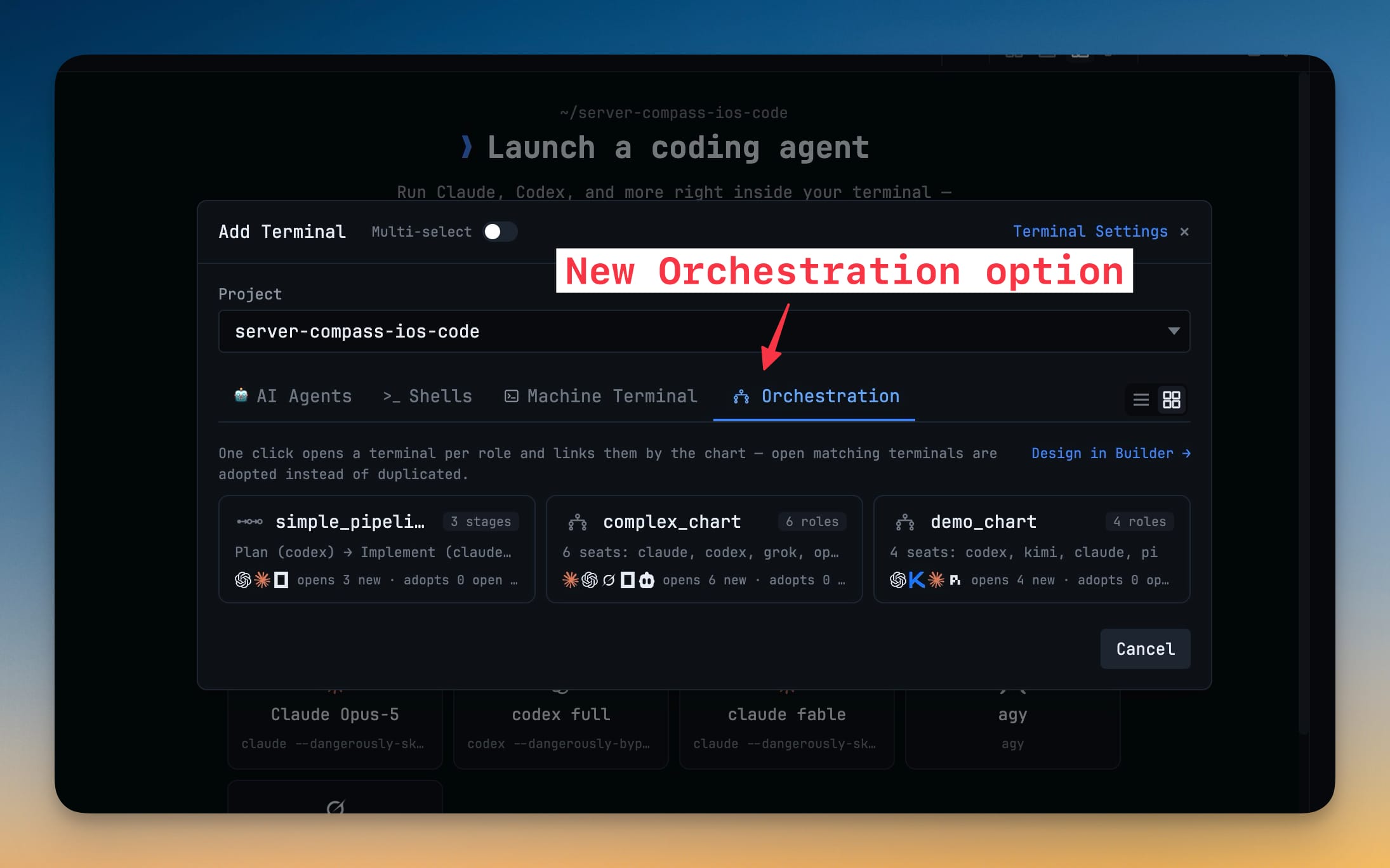
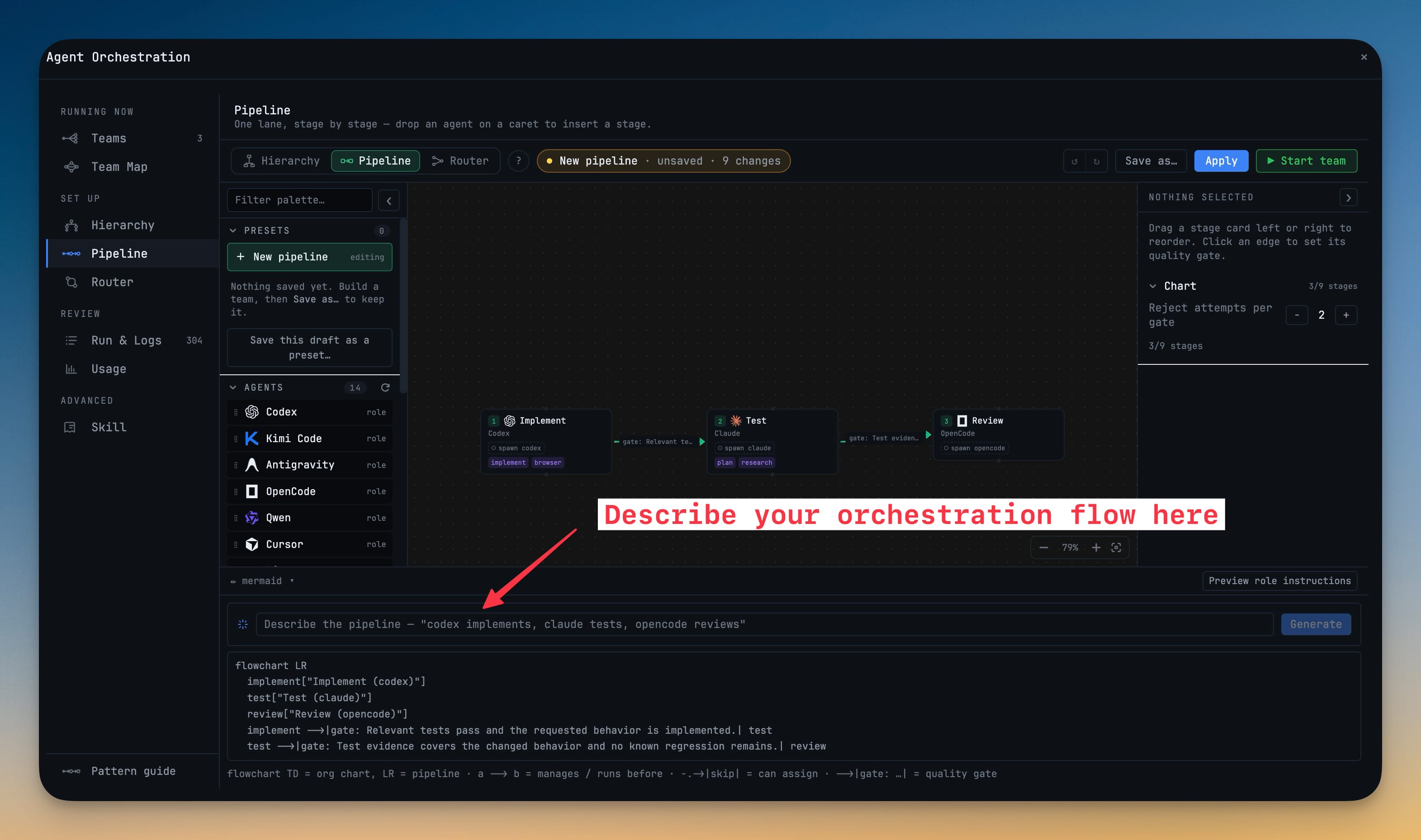
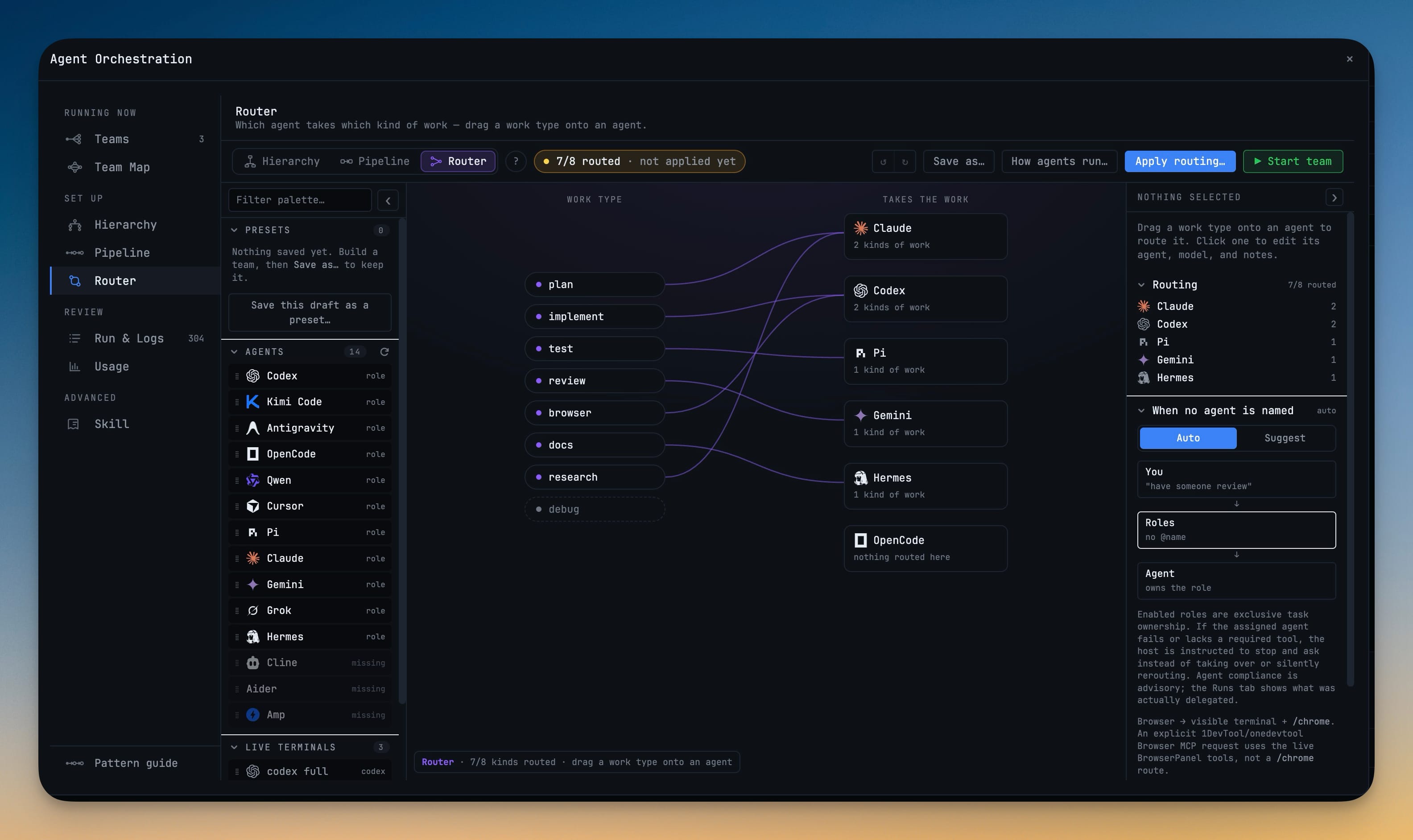
Knowing that 1DevTool can run a team, a swarm, a hierarchy and a pipeline is not the same as knowing which one this prompt wants. Auto closes that gap by reading the sentence you already typed: write "then" between two agents and it applies Pipeline, telling you why in the same breath (Using Pipeline · you wrote "then"). It is a deterministic parser over your composer text, not a second model guessing from terminal output, and when it is not sure it says so and asks you to pick rather than choosing for you. Anything other than Auto is a lock — it stays put no matter what you type next, so a mode you deliberately chose is never changed underneath you, and an existing choice is kept as a lock when you upgrade. A Pattern Guide behind the ? beside the control answers the question directly, comparing Team, Swarm, Hierarchy, Pipeline and Mesh side by side with the one verb that separates each from the others. When you already know the team you want, the Orchestration tab in Add Terminal lists your saved charts, pipelines and routing presets, and one click opens the terminals, links them and starts the team.
How It Works
Get started in 4 simple steps
Work Naturally
Use AI agents in your terminals as you normally would. Prompts and sessions are captured automatically.
Search Your History
Open Prompt History to find past prompts. Search by keyword to find the exact prompt you used before.
Annotate Visually
Capture and annotate screenshots. Embed them in AI prompts for visual context that text alone can't convey.
Build Your Library
Your prompt history becomes a personal knowledge base. Reuse proven prompts and refine your AI workflow over time.
Without 1DevTool
The manual way vs. the 1DevTool way
The Hard Way
The 1DevTool Way
Key Capabilities
Everything included with Agent Input Picks the Pattern for You
Why It Matters
The productivity impact of having ai productivity built into your workspace
Searchable Prompt Library
Every prompt you've ever sent is captured and searchable. Find and reuse your best AI interactions.
Visual AI Communication
Annotate screenshots and embed them in prompts. Show your AI agent exactly what you see.
Session Knowledge Base
AI conversations become searchable history. Find how you solved a similar problem last week.
Power Navigation
Command palette gives you instant access to any feature. Navigate 1DevTool at the speed of thought.
More in AI Productivity
Other features in this category you might find useful
Prompt History
Search prompts and sticky notes from Remote Control while away from the desktop. Switch between This project and All projects, filter prompts by agent or notes by source, copy entries, delete with Operator access, and sync local prompt history.
Resume UI
Browse, search, and resume past AI sessions from Claude Code, Codex, and Gemini CLI — or combine multiple sessions into one.
Combine Sessions
Select sessions from Claude Code, Codex, and Gemini CLI and merge them into a single conversation — giving your next agent the full cross-agent context.
AI Diff Review Panel
Track every file modification any AI agent makes — Claude Code, Codex, Gemini, Amp, custom — and review, accept, or revert their work per file from a dedicated panel with inline diff overlays in the editor.
Ready to boost your workflow?
Download 1DevTool for free and experience Agent Input Picks the Pattern for You along with 321 other features — all in one app.