Agent Team and Agent Swarms
Put multiple AI agents on one job and run them together — a Team that shares a workspace or a Swarm of headless workers — coordinated from a single Orchestrations view. Watch live status, follow handoffs on a message activity rail, and pause, resume, or cancel the whole pool from one place.
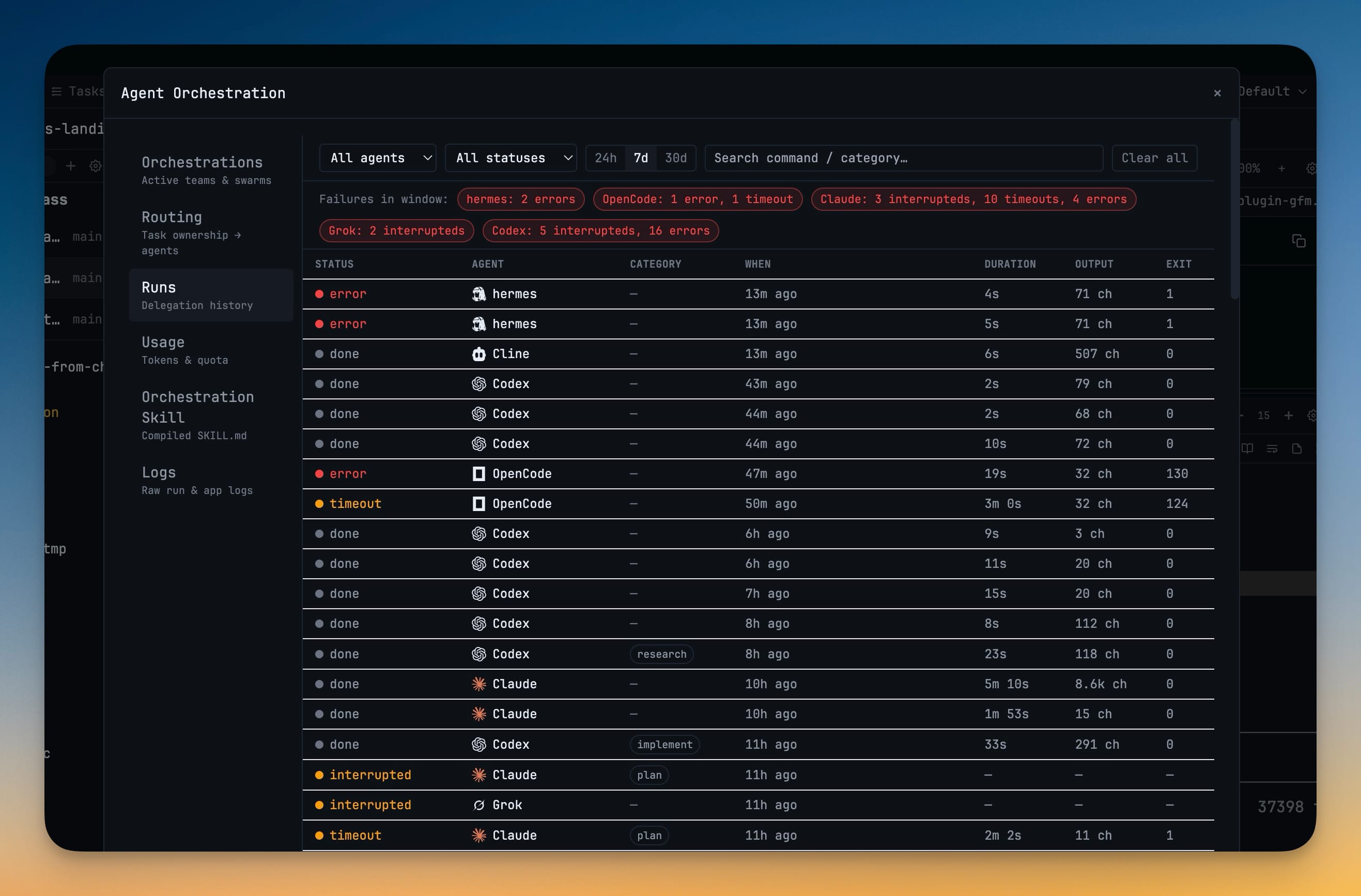
More Screenshots
Click any image to zoom in
Why You Need This
How this feature boosts your daily productivity
Splitting a big job across several agents used to mean a wall of terminals you polled one by one — no shared view of who was working, who was blocked, or who handed off to whom, and no way to pause everything without killing tabs. Agent Teams gives the group a single control surface: every team and swarm shows up as a live row, the messages between agents read as a rail, and pool-wide Pause, Resume, and Cancel let you steer a large run instead of babysitting it.
How It Works
Get started in 4 simple steps
Start a Team or a Swarm
Ask an agent to work in Team mode to bring up teammates that share your workspace, or start a Swarm of headless workers from the 1devtool-agent CLI.
Open the Orchestrations view
In the Orchestration Dashboard, the Orchestrations tab lists every active run as a row — "Agent Team" or "Swarm · headless" — each with a live status badge.
Watch the handoffs
The Team activity rail shows messages passing between members, agent to agent, so you can see who handed work to whom and where a run is blocked.
Steer the pool
Use Pause pool or Resume pool to throttle a run, Cancel queued workers while running ones finish, or Open Team workspace to jump into the agents’ terminals.
Without 1DevTool
The manual way vs. the 1DevTool way
The Hard Way
The 1DevTool Way
Key Capabilities
Everything included with Agent Team and Agent Swarms
Why It Matters
The productivity impact of having ai productivity built into your workspace
One Board, Not a Wall of Tabs
Every team and swarm is a single row with a live status badge, so you read the whole job at a glance instead of polling terminals one by one.
Handoffs You Can See
The Team activity rail turns agent-to-agent messages into a readable feed, so a blocked run shows why instead of leaving you to guess.
Steer, Do Not Babysit
Pause, resume, and cancel apply to the whole pool, so a big run is something you throttle and trim rather than kill tab by tab.
Pick the Right Shape
A Team shares a workspace for chained work; a Swarm runs headless for fan-out. Choose per job instead of forcing one pattern.
More in AI Productivity
Other features in this category you might find useful
Prompt History
Search prompts and sticky notes from Remote Control while away from the desktop. Switch between This project and All projects, filter prompts by agent or notes by source, copy entries, delete with Operator access, and sync local prompt history.
Resume UI
Read any past AI session before you resume it. Resume AI Sessions is a split view with a searchable list of every Claude Code, Codex, Gemini CLI and other agent session on the left and a live preview of the project, branch, tool calls and conversation on the right, with replies rendered as Markdown, with Resume, bypass permissions and an editable command one click away.
Combine Sessions
Merge several past AI sessions into one opening prompt, or hand a single session to a different agent. Tick sessions in Resume AI Sessions, see a token estimate of the context they add, and send the result to a new chat with any agent or preset or to a terminal that is already open.
AI Diff Review Panel
Track every file modification any AI agent makes — Claude Code, Codex, Gemini, Amp, custom — and review, accept, or revert their work per file from a dedicated panel with inline diff overlays in the editor.
Ready to boost your workflow?
Download 1DevTool for free and experience Agent Team and Agent Swarms along with 335 other features — all in one app.