Mirror a Real Android Phone Over adb
Mirror and drive a physical Android phone connected over USB or wireless adb, right next to your emulators in the Mobile panel. Tap, swipe and type on it, send its screen to an AI agent, or Build & Run your app straight onto it.
More Screenshots
Click any image to zoom in
Why You Need This
How this feature boosts your daily productivity
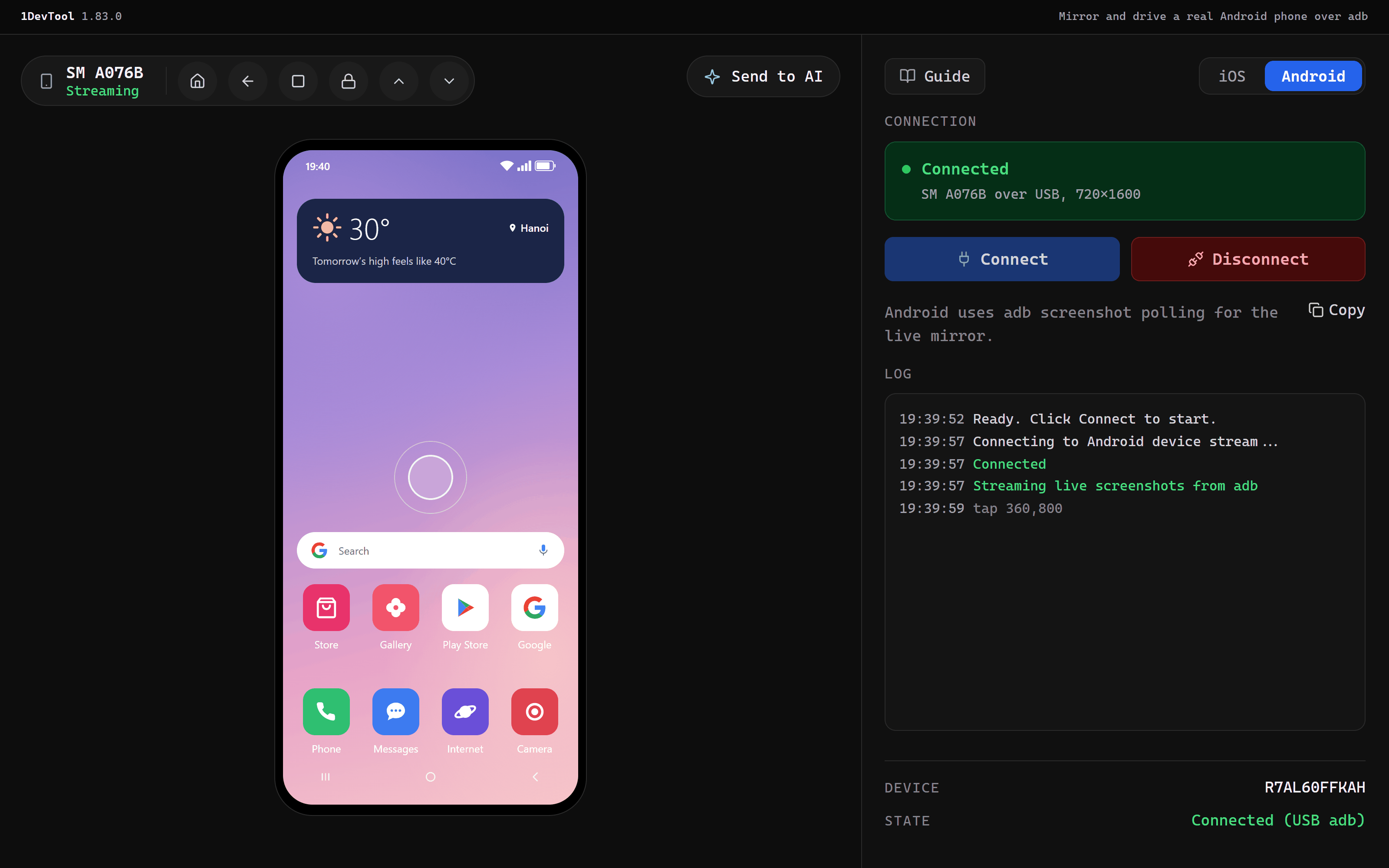
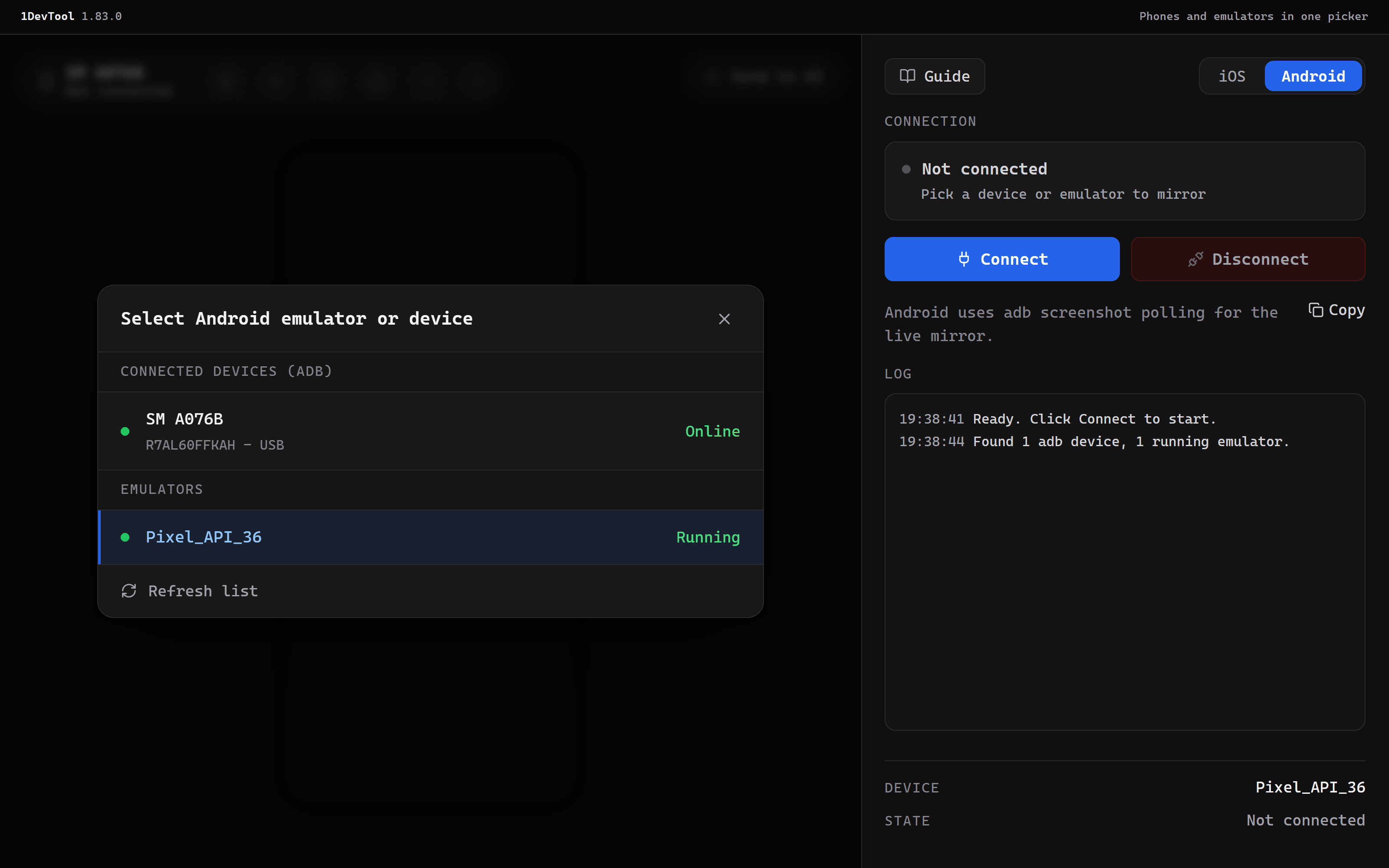
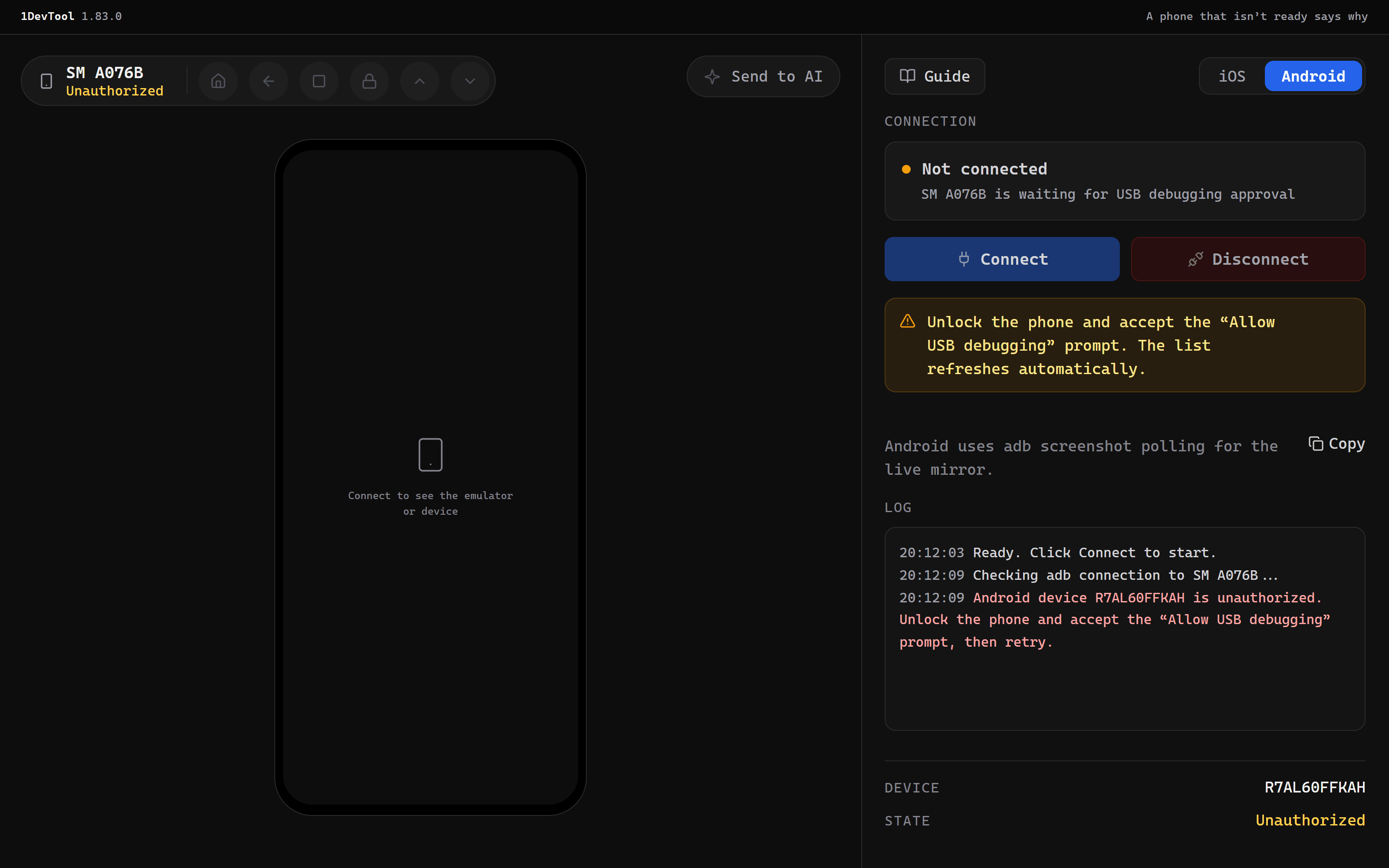
Emulators hide the problems real phones have: a gesture bar over your bottom button, a large system font, a small screen. Testing on the phone itself used to mean looking away from your code, and showing an agent what went wrong meant taking a screenshot on the phone and moving it to the computer by hand. In the Mobile panel's Android mode, phones that adb can see are listed under Connected devices (adb) with their model name and USB or Wi-Fi. Pick one, click Connect, and the phone mirrors in the panel. Tap, swipe and type on it, press Home, Back and Overview, send the screen to an AI terminal with Send to AI, or install your build with Build & Run. Only Android SDK Platform-Tools is needed. A phone that hasn't accepted the Allow USB debugging prompt, or has gone offline, says so in amber, with the fix, and the list refreshes on its own until the phone is ready.
How It Works
Get started in 4 simple steps
Plug in the phone
Turn on USB debugging in Developer options, plug the phone in and accept Allow USB debugging. On Android 11+, adb pair and adb connect work over Wi-Fi.
Pick it in the Mobile panel
Switch the Mobile panel to Android. The phone is listed under Connected devices (adb) as Online, next to your emulators.
Click Connect
Nothing boots. The panel checks the phone is ready and mirrors it; the state reads Connected (USB adb) or Connected (Wi-Fi adb).
Drive it, test it, show it
Tap, swipe and type on the mirror, use Home, Back and Overview, Build & Run onto the phone, or Send to AI with the device context.
Without 1DevTool
The manual way vs. the 1DevTool way
The Hard Way
The 1DevTool Way
Key Capabilities
Everything included with Mirror a Real Android Phone Over adb
Why It Matters
The productivity impact of having project management built into your workspace
Test What Users Hold
Gesture bars, big system fonts and small screens show up on the real phone, not the emulator.
Eyes Stay on the Code
The phone mirrors next to your terminals, so you stop looking down at the desk.
Agents See the Device
Send to AI hands the agent the real screen and which phone it came from.
More in Project Management
Other features in this category you might find useful
Multi-Project Workspace
Work on multiple projects simultaneously with instant switching. Entire workspace state is preserved per project.
Smart File Explorer
Real-time file tree with type icons, .gitignore filtering, search, and right-click context menus.
Per-Project Code Intelligence
Spawn real typescript-language-server, gopls, pyright, rust-analyzer, clangd, solargraph, intelephense, or sourcekit-lsp for the projects you opt into — with project-aware errors and zero false positives.
Color-Coded Projects
Assign accent colors to each project for instant visual identification across your workspace.
Ready to boost your workflow?
Download 1DevTool for free and experience Mirror a Real Android Phone Over adb along with 345 other features — all in one app.