Autopilot
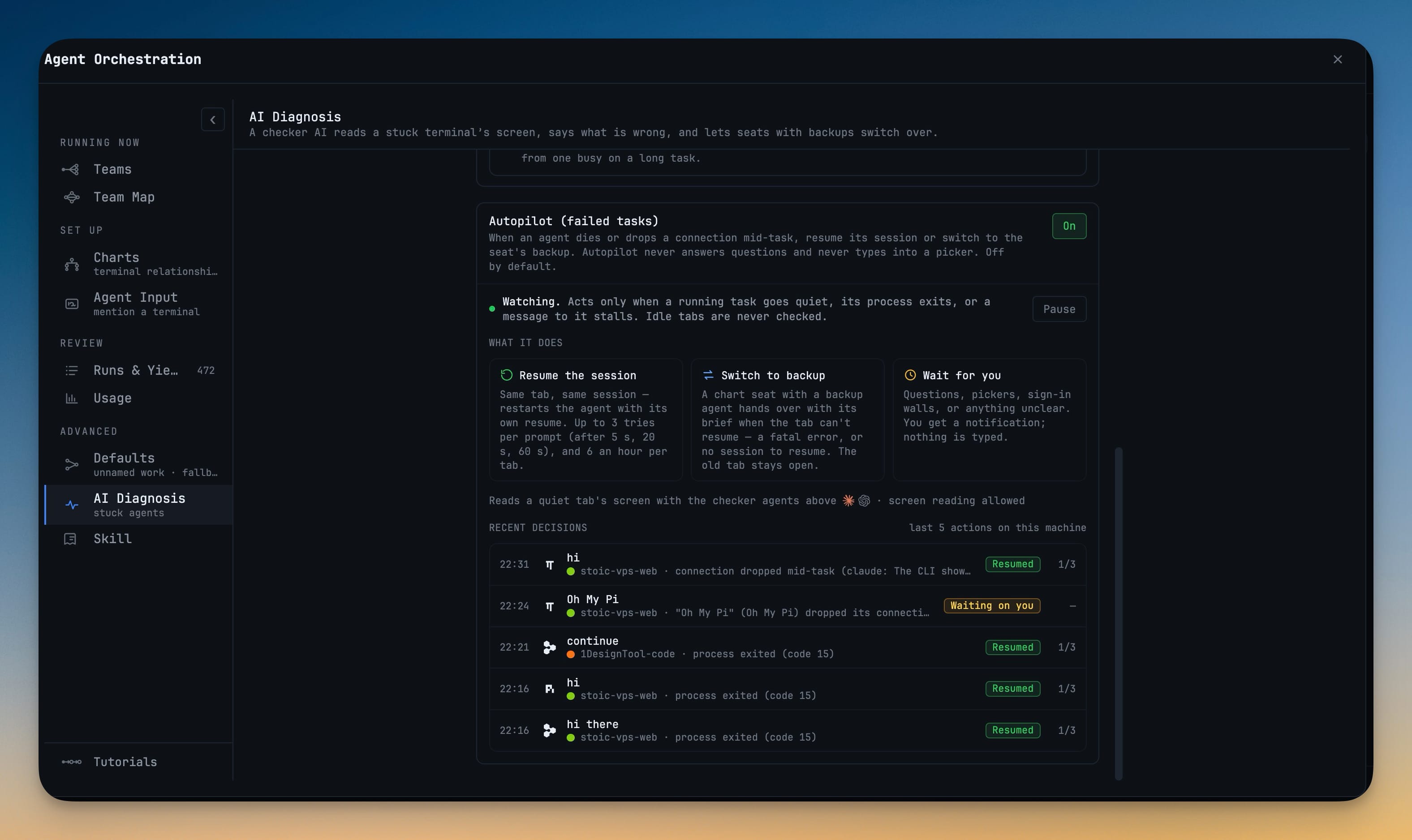
Leave agents running without coming back to a dead tab: when an agent crashes or drops its connection mid-task, Autopilot restarts it in the same terminal with its session resumed and tells it to continue — or hands the task to the seat's backup agent. It never types into a question, picker or half-written prompt, and after three spaced tries it stops and pages you.
More Screenshots
Click any image to zoom in
Why You Need This
How this feature boosts your daily productivity
Unattended agents fail in the most boring way possible: a connection drops, the CLI exits, and the terminal sits at a shell prompt until you happen to look. Recovering means finding the dead tab, relaunching the agent with the right resume flag for that CLI, and typing your own "carry on, don't redo anything" — exactly the babysitting you wanted to stop doing. Autopilot, under Agent Orchestration → Advanced → AI Diagnosis, does that recovery for you on terminals that are actually working on a prompt. It restarts the agent on the same tab with its own resume command, hands the task to a backup seat when there is nothing to resume, waits whenever a question, picker or draft is on screen, caps its retries so it can never loop, and writes every decision down.
How It Works
Get started in 4 simple steps
Switch on Autopilot (failed tasks)
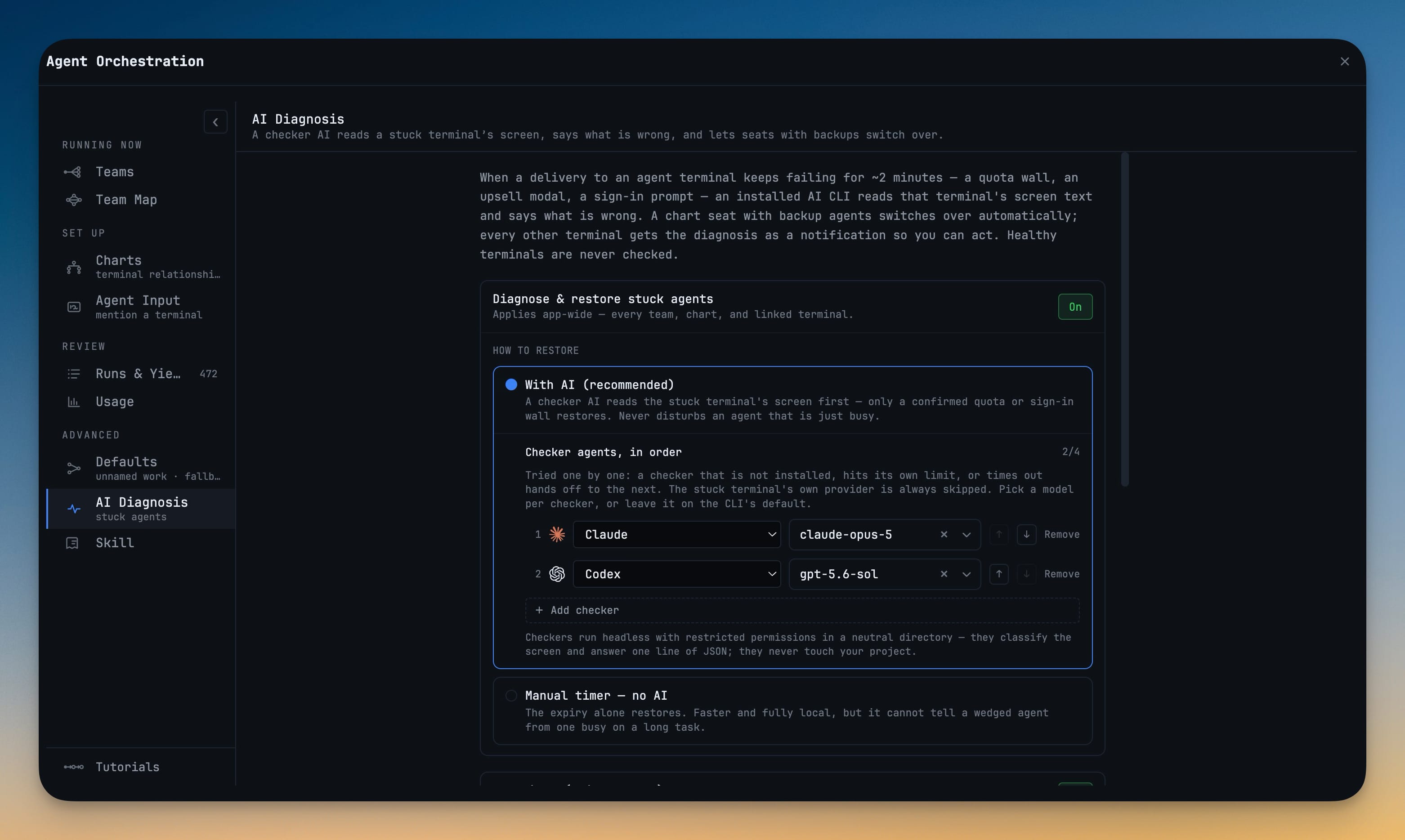
Open the Orchestration Dashboard, go to Advanced → AI Diagnosis and set Autopilot (failed tasks) to On. It is off by default and reads Watching once enabled.
A working task dies or stalls
Autopilot acts only when a running task's process exits with an error, the task goes quiet, or a message to it stalls. Idle tabs and a clean /exit are never touched.
Resume, or switch to backup
It restarts the agent in the same terminal with the CLI's own resume command and asks it to continue; with no session to resume, the chart seat's backup agent takes the task.
Three tries, then it pages you
Retries wait 5 s, 20 s and 60 s, never more than 6 restarts per terminal an hour, then an Activity card asks for you. Recent decisions lists every action.
Without 1DevTool
The manual way vs. the 1DevTool way
The Hard Way
The 1DevTool Way
Key Capabilities
Everything included with Autopilot
Why It Matters
The productivity impact of having ai productivity built into your workspace
Walk Away From Long Runs
A dropped connection at minute four no longer costs the whole session — the agent is back at work on the same tab within seconds.
Never Typed Over
Autopilot reads the screen first and waits whenever a question, picker or draft is showing, so it can never answer for you.
No Restart Loops
Spaced retries and an hourly cap end in an Activity card, so a genuinely broken terminal asks for a human instead of burning quota.
A Record of Every Move
Recent decisions and the on-disk ledger show what was resumed, switched or left waiting while you were away.
More in AI Productivity
Other features in this category you might find useful
Prompt History
Search prompts and sticky notes from Remote Control while away from the desktop. Switch between This project and All projects, filter prompts by agent or notes by source, copy entries, delete with Operator access, and sync local prompt history.
Resume UI
Read any past AI session before you resume it. Resume AI Sessions is a split view with a searchable list of every Claude Code, Codex, Gemini CLI and other agent session on the left and a live preview of the project, branch, tool calls and conversation on the right, with replies rendered as Markdown, with Resume, bypass permissions and an editable command one click away.
Combine Sessions
Merge several past AI sessions into one opening prompt, or hand a single session to a different agent. Tick sessions in Resume AI Sessions, see a token estimate of the context they add, and send the result to a new chat with any agent or preset or to a terminal that is already open.
AI Diff Review Panel
Track every file modification any AI agent makes — Claude Code, Codex, Gemini, Amp, custom — and review, accept, or revert their work per file from a dedicated panel with inline diff overlays in the editor.
Ready to boost your workflow?
Download 1DevTool for free and experience Autopilot along with 347 other features — all in one app.