Dock Icon That Shows Agents at Work (macOS)
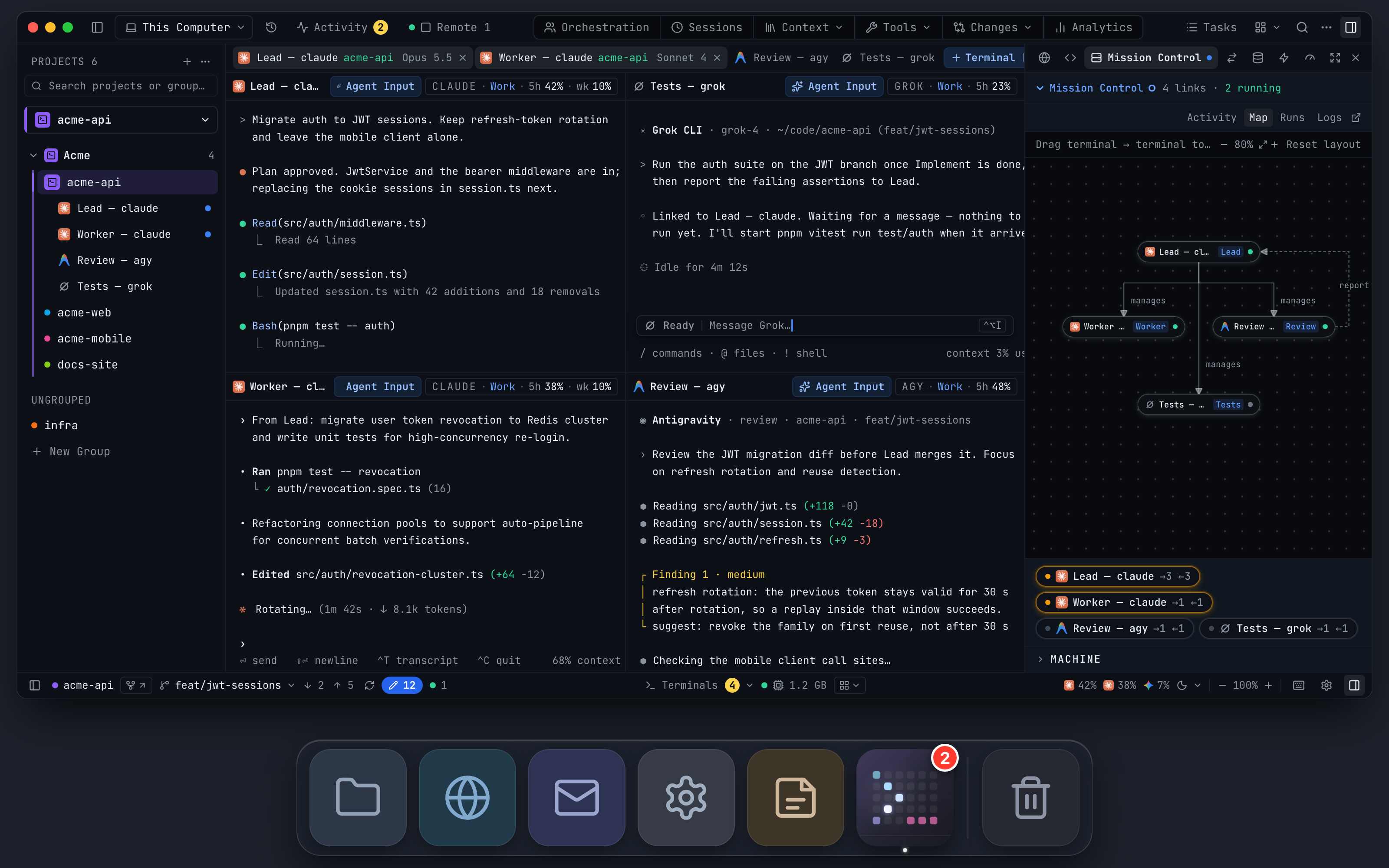
While any AI agent is working, the 1DevTool Dock icon turns into a dot-matrix prompt with a light running along it, and it goes back to normal when the last agent is idle. It is on by default, holds a still frame with Reduce Motion, and can be turned off in Settings → Notifications.
Why You Need This
How this feature boosts your daily productivity
Long agent runs invite you to go do something else, and then the question becomes whether they are done yet. Answering it meant switching back to 1DevTool and scanning panes. The Dock is visible over almost everything you do, so the icon now answers it from there: moving means an agent is still working, still means everything is idle, and the badge still counts how many are running. The setting is Animate the Dock icon while agents work, and Reduce Motion is respected.
How It Works
Get started in 4 simple steps
Leave it on
Settings → Notifications → Animate the Dock icon while agents work is on by default on macOS.
Start an agent
While any AI agent is working, the Dock icon turns into a dot-matrix >_ prompt with a light running along it.
Read it from anywhere
With 1DevTool behind other windows, a moving icon means work is still running and a still one means every agent is idle. The badge still counts working agents.
Tone it down if you like
With Reduce Motion on, the icon holds a still frame. Turn the setting off to keep the normal icon at all times.
Without 1DevTool
The manual way vs. the 1DevTool way
The Hard Way
The 1DevTool Way
Key Capabilities
Everything included with Dock Icon That Shows Agents at Work (macOS)
Why It Matters
The productivity impact of having ai productivity built into your workspace
Answer Still Running? Without Switching
The Dock stays visible over almost everything you do, so you know whether agents are done without bringing 1DevTool forward.
Motion Means Work, Stillness Means Done
There is no number to read: a moving icon is busy, a still icon is finished.
Respects Your Settings
Reduce Motion gets a still frame, the animation stops while the screen is locked, and one toggle turns it off.
More in AI Productivity
Other features in this category you might find useful
Prompt History
Search prompts and sticky notes from Remote Control while away from the desktop. Switch between This project and All projects, filter prompts by agent or notes by source, copy entries, delete with Operator access, and sync local prompt history.
Resume UI
Read any past AI session before you resume it. Resume AI Sessions is a split view with a searchable list of every Claude Code, Codex, Gemini CLI and other agent session on the left and a live preview of the project, branch, tool calls and conversation on the right, with replies rendered as Markdown, with Resume, bypass permissions and an editable command one click away.
Combine Sessions
Merge several past AI sessions into one opening prompt, or hand a single session to a different agent. Tick sessions in Resume AI Sessions, see a token estimate of the context they add, and send the result to a new chat with any agent or preset or to a terminal that is already open.
AI Diff Review Panel
Track every file modification any AI agent makes — Claude Code, Codex, Gemini, Amp, custom — and review, accept, or revert their work per file from a dedicated panel with inline diff overlays in the editor.
Ready to boost your workflow?
Download 1DevTool for free and experience Dock Icon That Shows Agents at Work (macOS) along with 345 other features — all in one app.