Extensions
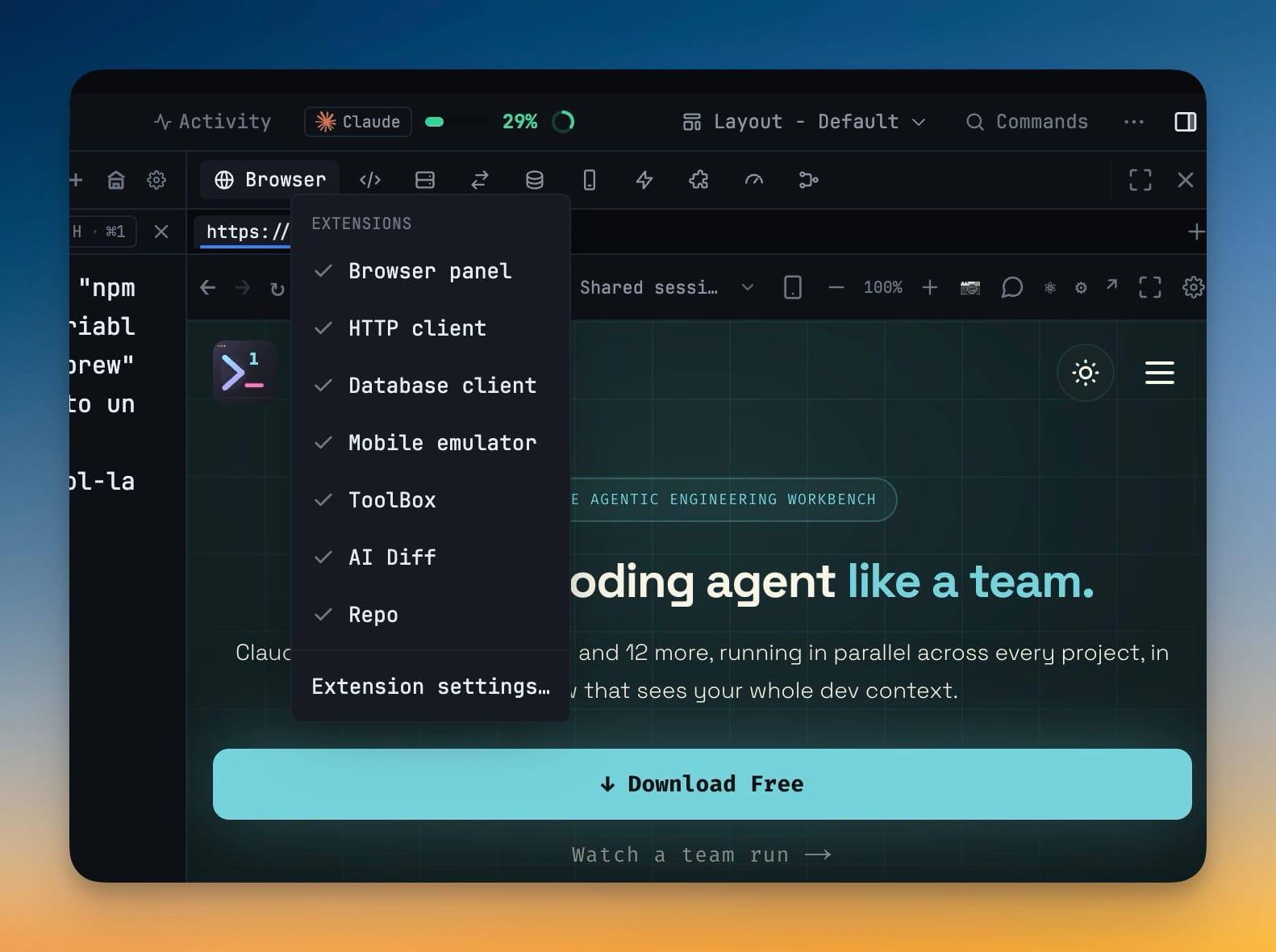
Switch off the parts of the workspace you do not use — Browser panel, HTTP client, Database client, Mobile emulator, ToolBox, AI Diff and Repo. Turning one off removes its panels from every layout and stops its tools reaching your agents and your phone; turning it back on restores your arrangement exactly. Screenshots, the system-wide capture extension added in v1.76.6, is the one switch that starts off: until you turn it on, it registers no shortcut and never asks for screen-recording permission.
Why You Need This
How this feature boosts your daily productivity
A workspace that does seven things should not charge you for the six you never open. Settings → Extensions is one switch per feature, and it is a real gate rather than a cosmetic one: the panels leave every layout, the MCP tools stop executing, and the phone's tool namespaces answer "feature disabled" instead of half-working. The important half is that it is reversible without cost — saved layouts are never rewritten for a disabled extension, they are filtered at read time, so switching one back on puts every panel where it was with its connections, saved requests and browser tabs intact. Right-click any right-sidebar tab strip for the same switches without opening Settings. New installs now start lean with just the browser, and the SQL Server driver downloads on first use (3.5 MB) against a signature built into the app rather than shipping inside it.
How It Works
Get started in 4 simple steps
Open Settings → Extensions
One switch each for Browser panel, HTTP client, Database client, Mobile emulator, ToolBox, AI Diff and Repo.
Switch off what you do not use
The panels leave every layout, the feature's MCP tools stop executing for your agents, and the phone's tool namespaces answer that the feature is disabled.
Switch it back on and get your layout
Saved layouts are never rewritten — they are filtered at read time — so every panel returns where it was, with its connections, saved requests and browser tabs intact.
Or use the right-click menu
Right-click any right-sidebar tab strip for the same switches plus Extension settings…, without opening Settings at all.
Without 1DevTool
The manual way vs. the 1DevTool way
The Hard Way
The 1DevTool Way
Key Capabilities
Everything included with Extensions
Why It Matters
The productivity impact of having customization built into your workspace
Your Editor, Your Rules
Every shortcut, font, theme, and layout is configurable. Make 1DevTool feel like home.
Eye Comfort
Dark and light themes tuned for all-day coding. Reduce eye strain with the right contrast for your environment.
Muscle Memory Friendly
Remap shortcuts to match your existing habits. No relearning required when switching from VS Code or Vim.
Per-Project Defaults
Different projects can have different terminal types, default URLs, and behavior settings.
More in Customization
Other features in this category you might find useful
Theme Options
Choose between Dark, Light, or System-following themes designed for comfortable all-day coding.
Keyboard Shortcuts
Customize every shortcut to match your muscle memory. Conflict detection prevents accidental duplicates.
Terminal Fonts
Choose from JetBrains Mono, Fira Code, Cascadia Code, or use custom fonts. Adjust size and line height.
MCP Settings
Configure MCP servers for Claude Code, Gemini CLI, and Codex from a unified settings tab — install, enable, and troubleshoot with one click.
Ready to boost your workflow?
Download 1DevTool for free and experience Extensions along with 345 other features — all in one app.