Git History Actions
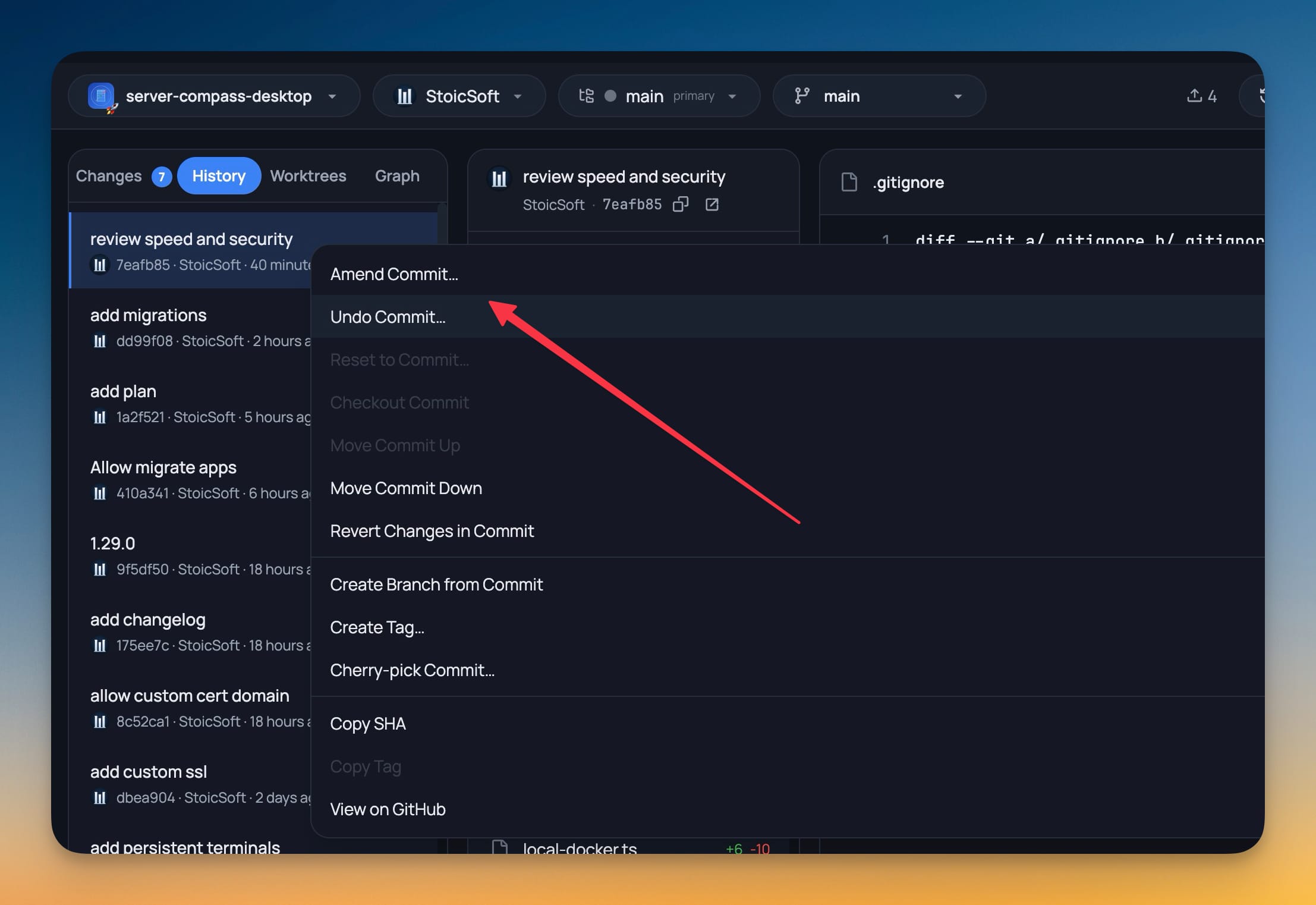
Right-click any commit in Git History to amend, undo, reset, check out, reorder, revert, branch, tag, or cherry-pick it — without dropping to the terminal. Destructive actions confirm first and stop cleanly when a conflict appears.
Why You Need This
How this feature boosts your daily productivity
Rewriting history from the command line means remembering whether you wanted a soft, mixed, or hard reset, getting the cherry-pick syntax right, and recovering by hand when something conflicts. Git History Actions moves all of that into the graph you were already reading: right-click the commit, pick the action, and let confirmation dialogs and clean conflict handling keep you out of a half-finished rebase.
How It Works
Get started in 4 simple steps
Right-click a commit
Open the Git Client, switch to History, and right-click any commit to bring up its action menu.
Rewrite or move it
Amend or Undo the latest commit, Reset (soft, mixed, or hard) or Checkout an earlier point, Move Commit Up or Down, or Revert Changes in Commit.
Branch, tag, or cherry-pick
Create Branch from Commit, Create Tag, or Cherry-pick Commit onto your current branch from the same menu.
Copy or open it
Copy SHA, Copy Tag, or open the commit on its remote host; destructive steps confirm first and abort cleanly on conflicts.
Without 1DevTool
The manual way vs. the 1DevTool way
The Hard Way
The 1DevTool Way
Key Capabilities
Everything included with Git History Actions
Why It Matters
The productivity impact of having project management built into your workspace
No Reset-Flag Roulette
Choose soft, mixed, or hard from a labelled dialog instead of guessing which reset flag you meant.
Stay in the Graph
Amend, revert, cherry-pick, and tag from the same history view you were already reading — no second terminal.
Guardrails on Destructive Work
Every rewrite confirms first, and a conflicted reorder or cherry-pick stops instead of leaving the repo mid-operation.
One Menu, Every Action
Branch, tag, copy the SHA, or open the commit on GitHub without leaving the right-click menu.
More in Project Management
Other features in this category you might find useful
Multi-Project Workspace
Work on multiple projects simultaneously with instant switching. Entire workspace state is preserved per project.
Smart File Explorer
Real-time file tree with type icons, .gitignore filtering, search, and right-click context menus.
Per-Project Code Intelligence
Spawn real typescript-language-server, gopls, pyright, rust-analyzer, clangd, solargraph, intelephense, or sourcekit-lsp for the projects you opt into — with project-aware errors and zero false positives.
Color-Coded Projects
Assign accent colors to each project for instant visual identification across your workspace.
Ready to boost your workflow?
Download 1DevTool for free and experience Git History Actions along with 326 other features — all in one app.