Manage Your PATH From Inside The App
Inspect, edit, and search the PATH that 1DevTool hands to every terminal, Docker, Git, and SSH process — without touching your shell config. The new System tab under General Settings flags missing directories and tells you exactly which directory is shadowing a binary.
Why You Need This
How this feature boosts your daily productivity
PATH bugs are the silent productivity killer of a multi-tool workspace: a fresh Docker Desktop install isn't found, a portable Node binary is invisible to the terminal 1DevTool launched, or a stale Homebrew path is shadowing a newer one. The System tab lets you see exactly which directories 1DevTool is searching and which entries don't exist on disk, so you can fix it inline instead of debugging environment variables across three windows.
How It Works
Get started in 4 simple steps
Open Preferences
Press Cmd+, (or Ctrl+,) to open the Preferences panel. All settings are organized in clear categories.
Choose Your Theme
Select Dark, Light, or System-following themes. Each is carefully tuned for readability and comfort.
Configure Shortcuts
Remap any keyboard shortcut to match your muscle memory. Conflict detection prevents overlapping bindings.
Fine-Tune Details
Set terminal fonts, font sizes, line heights, scrollback lines, and default behaviors per project.
Without 1DevTool
The manual way vs. the 1DevTool way
The Hard Way
The 1DevTool Way
How it compares
PATH problems are usually fixed by editing ~/.zshrc or system environment variables, then checking with echo $PATH and which -a.
 1DevToolBuilt inBuilt in
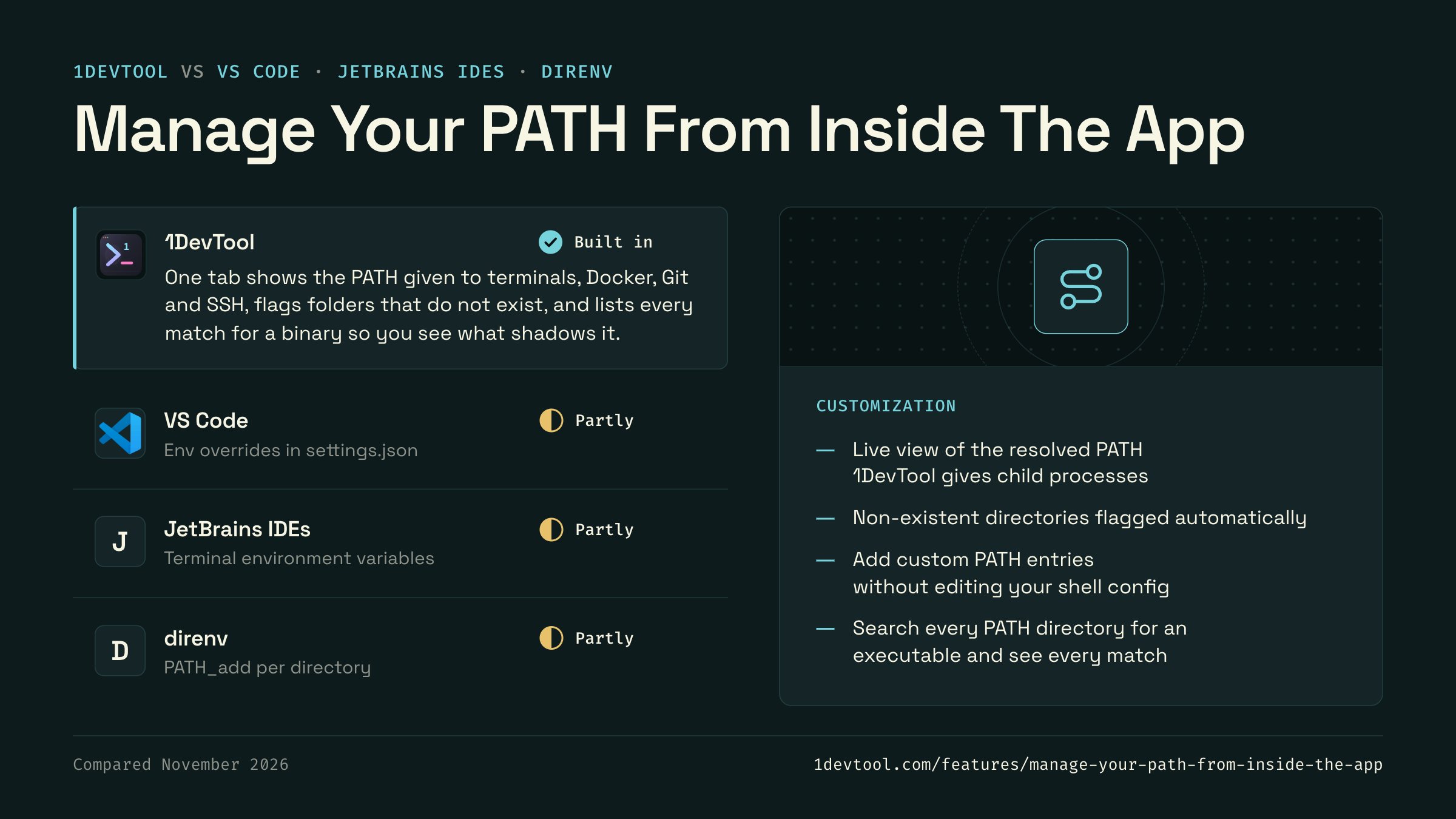
One tab shows the PATH given to terminals, Docker, Git and SSH, flags folders that do not exist, and lists every match for a binary so you see what shadows it.
- Partly
VS Code's terminal.integrated.env settings add or override variables such as PATH for its integrated terminal, per OS.
- Partly
JetBrains IDEs take extra environment variables for the built-in terminal in Settings → Tools → Terminal.
- direnvPartlyPartly
direnv loads an .envrc file when you enter a directory, and PATH_add puts a folder on PATH for that project.

Checked November 2026 against each app's public docs. These products change quickly. If a row is out of date, tell us at feedback.stoicsoft.com/1devtool.
Key Capabilities
Everything included with Manage Your PATH From Inside The App
Why It Matters
The productivity impact of having customization built into your workspace
Your Editor, Your Rules
Every shortcut, font, theme, and layout is configurable. Make 1DevTool feel like home.
Eye Comfort
Dark and light themes tuned for all-day coding. Reduce eye strain with the right contrast for your environment.
Muscle Memory Friendly
Remap shortcuts to match your existing habits. No relearning required when switching from VS Code or Vim.
Per-Project Defaults
Different projects can have different terminal types, default URLs, and behavior settings.
More in Customization
Other features in this category you might find useful
Theme Options
Choose between Dark, Light, or System-following themes designed for comfortable all-day coding.
Keyboard Shortcuts
Customize every shortcut to match your muscle memory. Conflict detection prevents accidental duplicates.
Terminal Fonts
Choose from JetBrains Mono, Fira Code, Cascadia Code, or use custom fonts. Adjust size and line height.
MCP Settings
Configure MCP servers for Claude Code, Gemini CLI, and Codex from a unified settings tab — install, enable, and troubleshoot with one click.
Ready to boost your workflow?
Download 1DevTool for free and experience Manage Your PATH From Inside The App along with 347 other features — all in one app.