Phone Pairing Asks What the Device May Do
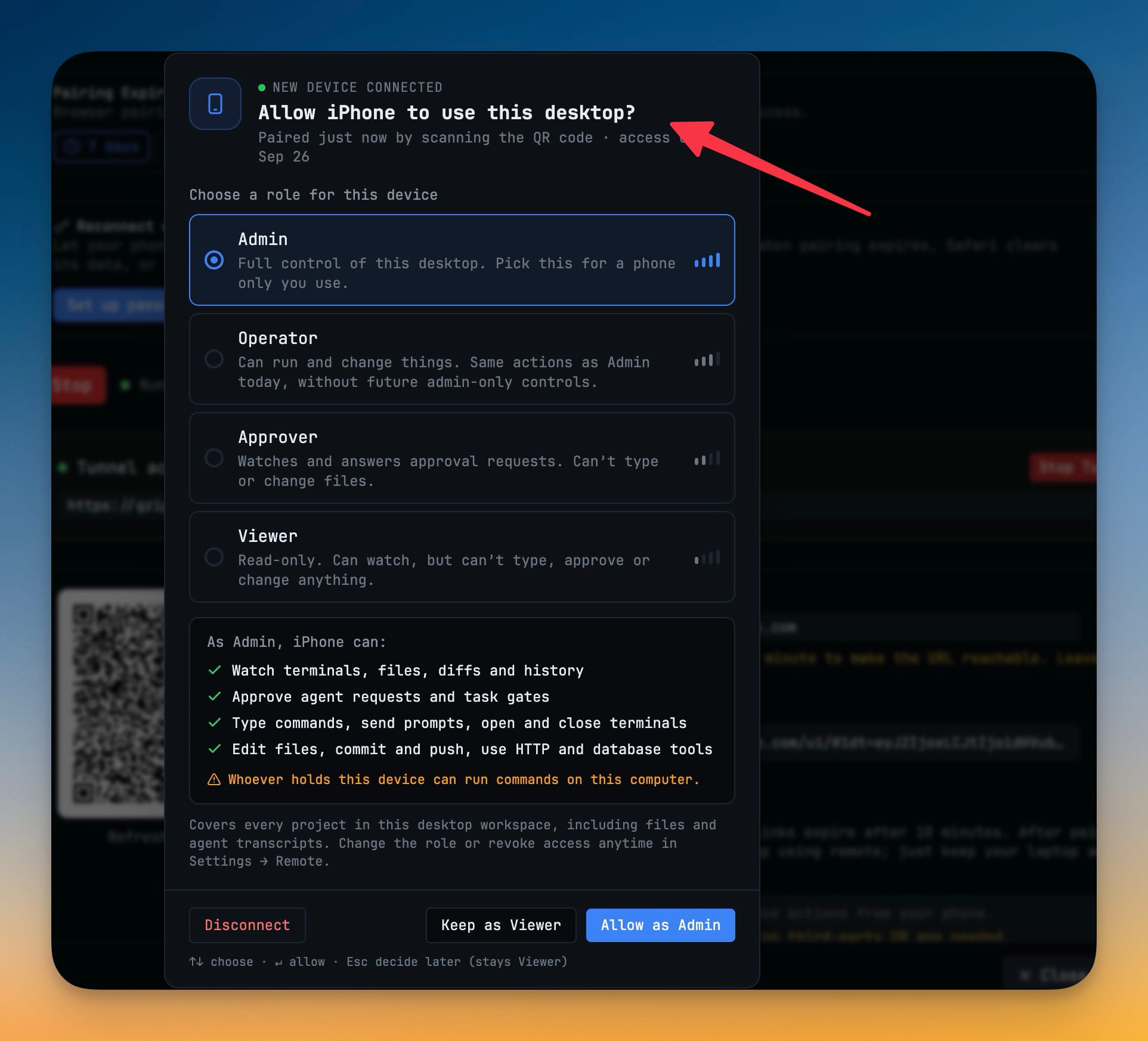
A newly paired phone starts as a Viewer and stays read-only until you pick a role and confirm. Admin, Operator, Approver and Viewer each show a live checklist of exactly what they unlock.
Why You Need This
How this feature boosts your daily productivity
A phone that can drive your desktop is a phone that can run commands on your computer, and that should never be granted by a QR scan alone. The desktop asks “Allow this device to use this desktop?” and nothing beyond watching is granted until you choose — dismissing the prompt, reloading or missing it all leave the phone a Viewer. Each role spells out its powers: watch terminals, files, diffs and history (Viewer); approve agent requests and task gates (Approver); type commands, send prompts, open and close terminals (Operator); edit files, commit and push, use HTTP and database tools (Admin), with a plain warning when the role can run commands. Several phones at once queue up one at a time, and Settings → Remote explains each device in a line.
How It Works
Get started in 4 simple steps
Pair the phone
Scan the QR code as usual. The device connects as a Viewer and can only watch.
Answer the prompt on the desktop
“Allow this device to use this desktop?” lists Admin, Operator, Approver and Viewer, strongest first, each with a one-line summary.
Read what the role unlocks
A live checklist shows the capabilities the chosen role adds — watch terminals, files, diffs and history; approve agent requests and task gates; type commands and send prompts; edit files, commit and push — with a warning when it can run commands on your computer.
Confirm, or leave it watching
Allow as Admin grants it; Keep as Viewer or Esc leaves the phone read-only. Change the role or revoke access any time in Settings → Remote.
Without 1DevTool
The manual way vs. the 1DevTool way
The Hard Way
The 1DevTool Way
How it compares
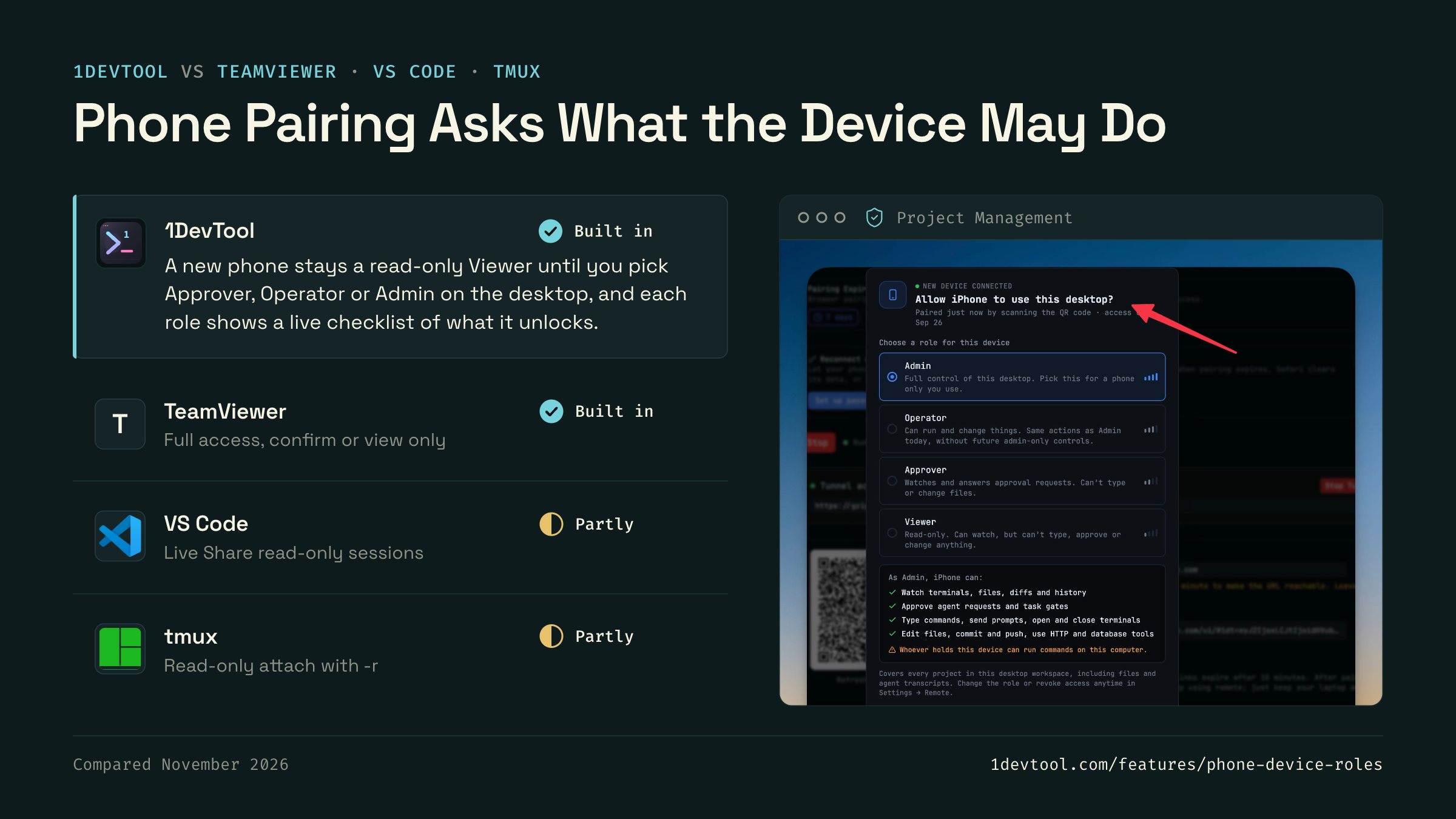
Remote access tools decide what a connected device may do through access settings on the host or a read-only mode.
 1DevToolBuilt inBuilt in
A new phone stays a read-only Viewer until you pick Approver, Operator or Admin on the desktop, and each role shows a live checklist of what it unlocks.
- TeamViewerBuilt inBuilt in
TeamViewer's access control sets incoming sessions to Full Access, Confirm all, View and show, or a custom set of permissions.
- Partly
VS Code Live Share can start a read-only session, and a shared terminal is read-only unless the host shares it read/write.
- Partly
tmux can attach a client read-only with attach -r. Other access follows the user account the device signs in as over SSH.


Checked November 2026 against each app's public docs. These products change quickly. If a row is out of date, tell us at feedback.stoicsoft.com/1devtool.
Key Capabilities
Everything included with Phone Pairing Asks What the Device May Do
Why It Matters
The productivity impact of having project management built into your workspace
Instant Project Switching
Switch between projects in one click with complete state restoration. No more 5-minute setup rituals.
Visual Organization
Color-coded projects, file type icons, and layout presets keep your workspace organized and recognizable.
Smart File Navigation
.gitignore-aware filtering, instant search, and context menus make finding and opening files effortless.
Workspace Memory
Every project remembers its terminals, open files, database connections, and layout. Pick up exactly where you left off.
More in Project Management
Other features in this category you might find useful
Multi-Project Workspace
Work on multiple projects simultaneously with instant switching. Entire workspace state is preserved per project.
Smart File Explorer
Real-time file tree with type icons, .gitignore filtering, search, and right-click context menus.
Per-Project Code Intelligence
Spawn real typescript-language-server, gopls, pyright, rust-analyzer, clangd, solargraph, intelephense, sourcekit-lsp, or csharp-ls for the projects you opt into — with project-aware errors and zero false positives.
Color-Coded Projects
Assign accent colors to each project for instant visual identification across your workspace.
Ready to boost your workflow?
Download 1DevTool for free and experience Phone Pairing Asks What the Device May Do along with 342 other features — all in one app.