History: Back and Forward Between Projects and Terminals
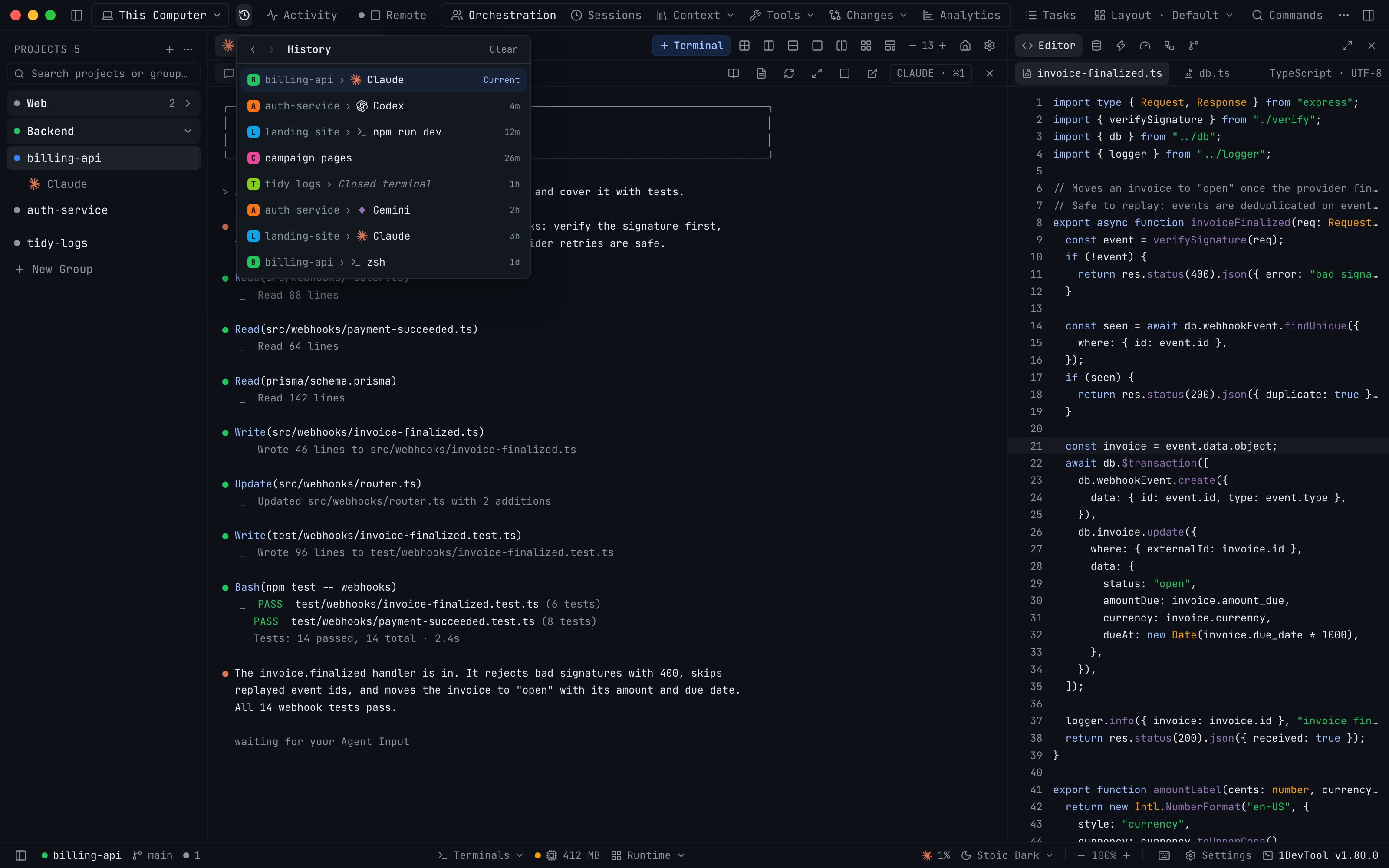
Go back to the project or terminal you were just on with ⌃⌘← (Alt+← on Windows and Linux) or your mouse's Back button. The History button in the top bar lists your recent stops newest first, each with its agent logo and how long ago you were there, so you can jump straight to any of them.
Why You Need This
How this feature boosts your daily productivity
When you run several AI agents across several repositories, you keep leaving a terminal to approve a plan somewhere else, check a dev server or read a log, and then you have to find your way back. That meant remembering which project the terminal was in and clicking through its tabs. History works like a browser's Back button for 1DevTool. Every project and terminal you land on is recorded, ⌃⌘← and ⌃⌘→ (Alt+← and Alt+→ on Windows and Linux) step back and forward, and the mouse's side buttons do the same. Click History to see the whole trail, newest first, with the project avatar, the terminal's agent logo and the time since your visit, then pick any row. A terminal you closed shows as Closed terminal and takes you to its project, removed projects are skipped, and Clear starts the list over. The trail holds your last 50 stops and starts fresh each time you open the app.
How It Works
Get started in 4 simple steps
Work as usual
Every project and terminal you land on is recorded, newest last. A project switch that then picks a terminal counts as one stop.
Step back or forward
Press ⌃⌘← / ⌃⌘→ on macOS or Alt+← / Alt+→ on Windows and Linux, or use the mouse's side Back and Forward buttons.
Open the History list
Click History at the left of the top bar to see recent stops newest first, with the agent logo and how long ago, then pick one.
Change the keys or clear
Rebind Go Back and Go Forward in Settings → Keyboard Shortcuts. Clear empties the list; it also starts fresh each launch.
Without 1DevTool
The manual way vs. the 1DevTool way
The Hard Way
The 1DevTool Way
Key Capabilities
Everything included with History: Back and Forward Between Projects and Terminals
Why It Matters
The productivity impact of having project management built into your workspace
Back to the Agent You Left
One shortcut returns you to the terminal you were on before you went to approve a plan or check a log.
A Trail You Can Read
Agent logos and time since each visit let you pick the right stop without opening it.
No Dead Ends
Closed terminals land you on their project and removed projects are skipped, so Back always goes somewhere real.
More in Project Management
Other features in this category you might find useful
Multi-Project Workspace
Work on multiple projects simultaneously with instant switching. Entire workspace state is preserved per project.
Smart File Explorer
Real-time file tree with type icons, .gitignore filtering, search, and right-click context menus.
Per-Project Code Intelligence
Spawn real typescript-language-server, gopls, pyright, rust-analyzer, clangd, solargraph, intelephense, or sourcekit-lsp for the projects you opt into — with project-aware errors and zero false positives.
Color-Coded Projects
Assign accent colors to each project for instant visual identification across your workspace.
Ready to boost your workflow?
Download 1DevTool for free and experience History: Back and Forward Between Projects and Terminals along with 335 other features — all in one app.