Project Avatars in the Header
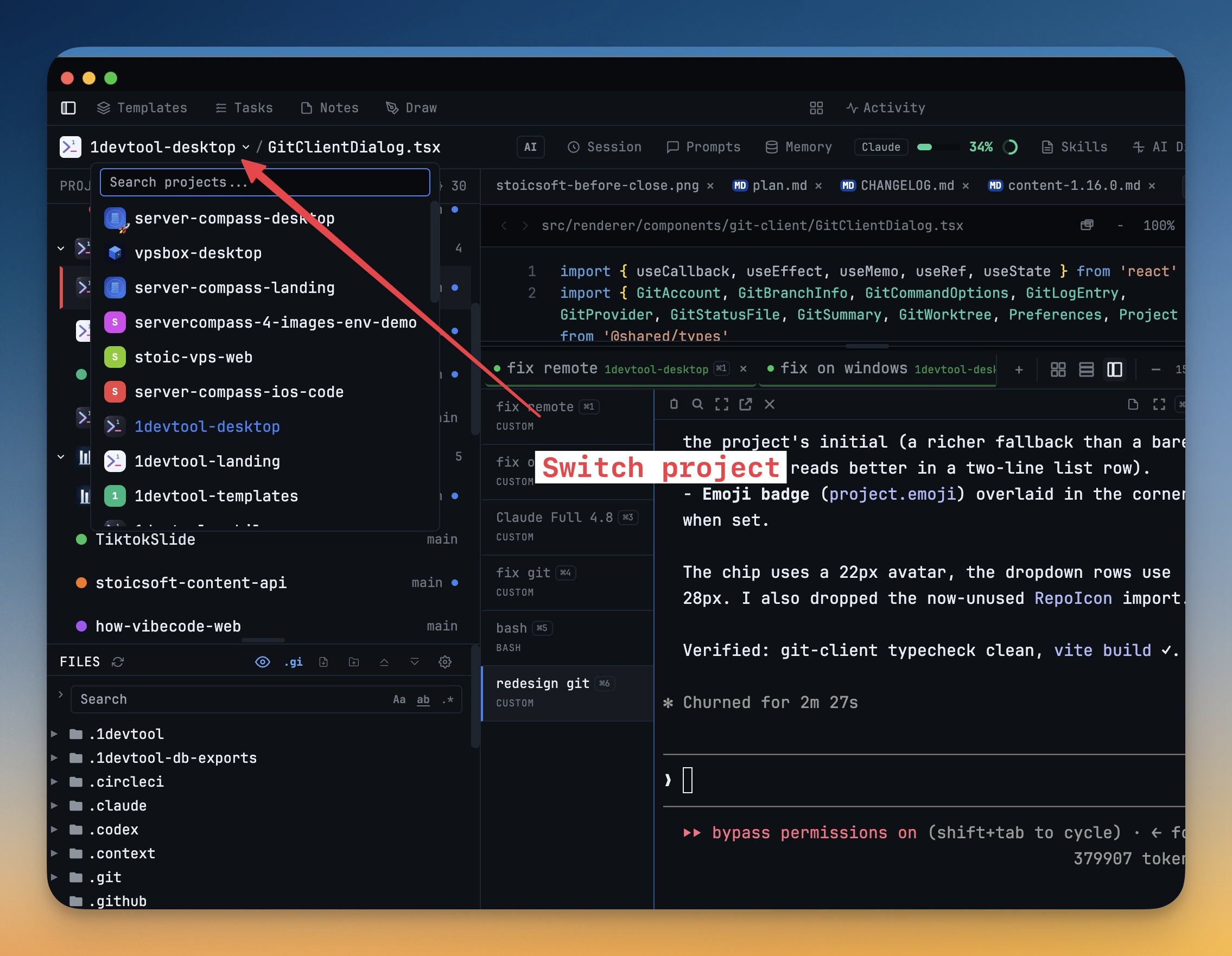
Every project shows its own avatar and emoji in the top breadcrumb switcher, so a workspace full of repos stays easy to scan and switch between at a glance.
Why You Need This
How this feature boosts your daily productivity
A workspace with a dozen projects turns into a list of near-identical names fast. The header project switcher now shows each project's avatar and emoji alongside its name, so you navigate by visual shorthand instead of reading every entry. It is the same recognizability the Git Client and color-coded projects already give you, extended to the breadcrumb you switch from most.
How It Works
Get started in 4 simple steps
Add Your Projects
Click the "+" button to add project folders. Assign unique colors for instant visual identification.
Browse & Navigate
Use the file explorer to browse your project. Filter files, toggle hidden items, and search instantly.
Switch Instantly
Click any project to switch. Your entire workspace state — terminals, files, layout — restores automatically.
Choose Your Layout
Select a preset layout or create a custom one. Your layout is saved per project for consistent workflows.
Without 1DevTool
The manual way vs. the 1DevTool way
The Hard Way
The 1DevTool Way
How it compares
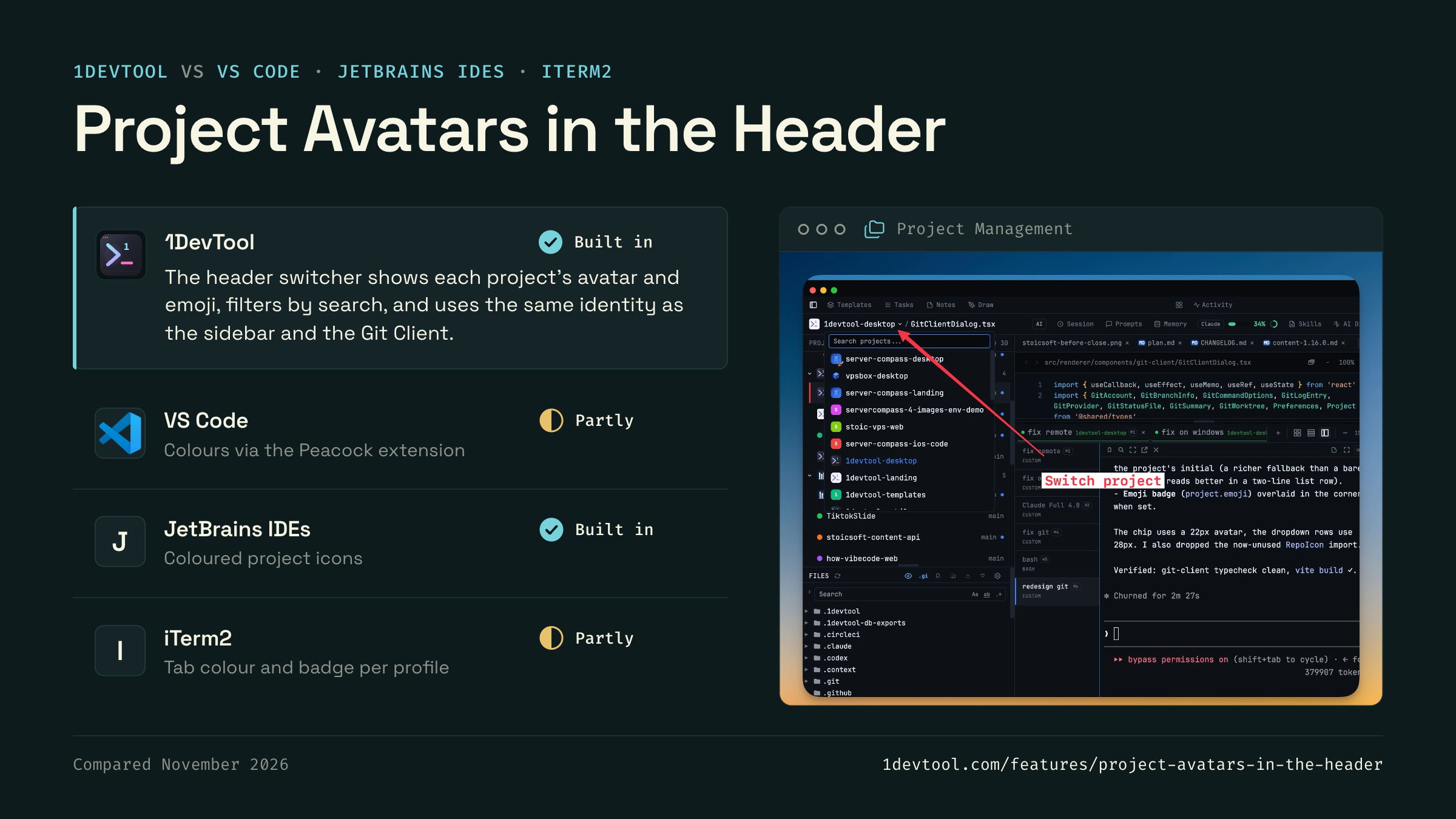
Editors tell projects apart by window title. Some people add colour with an extension, or with tab colours in their terminal.
 1DevToolBuilt inBuilt in
The header switcher shows each project's avatar and emoji, filters by search, and uses the same identity as the sidebar and the Git Client.
- Partly
VS Code shows the folder name in the title bar. The Peacock extension tints each workspace's title bar, activity bar and status bar a different colour.
- Built in
JetBrains IDEs give each project a coloured icon with its initials in the project switcher and recent projects list, and a custom icon can replace it.
- iTerm2PartlyPartly
iTerm2 profiles can set a tab colour and a badge, so windows for different projects look different.

Checked November 2026 against each app's public docs. These products change quickly. If a row is out of date, tell us at feedback.stoicsoft.com/1devtool.
Key Capabilities
Everything included with Project Avatars in the Header
Why It Matters
The productivity impact of having project management built into your workspace
Instant Project Switching
Switch between projects in one click with complete state restoration. No more 5-minute setup rituals.
Visual Organization
Color-coded projects, file type icons, and layout presets keep your workspace organized and recognizable.
Smart File Navigation
.gitignore-aware filtering, instant search, and context menus make finding and opening files effortless.
Workspace Memory
Every project remembers its terminals, open files, database connections, and layout. Pick up exactly where you left off.
More in Project Management
Other features in this category you might find useful
Multi-Project Workspace
Work on multiple projects simultaneously with instant switching. Entire workspace state is preserved per project.
Smart File Explorer
Real-time file tree with type icons, .gitignore filtering, search, and right-click context menus.
Per-Project Code Intelligence
Spawn real typescript-language-server, gopls, pyright, rust-analyzer, clangd, solargraph, intelephense, sourcekit-lsp, or csharp-ls for the projects you opt into — with project-aware errors and zero false positives.
Color-Coded Projects
Assign accent colors to each project for instant visual identification across your workspace.
Ready to boost your workflow?
Download 1DevTool for free and experience Project Avatars in the Header along with 345 other features — all in one app.