Scheduled Agent Prompts
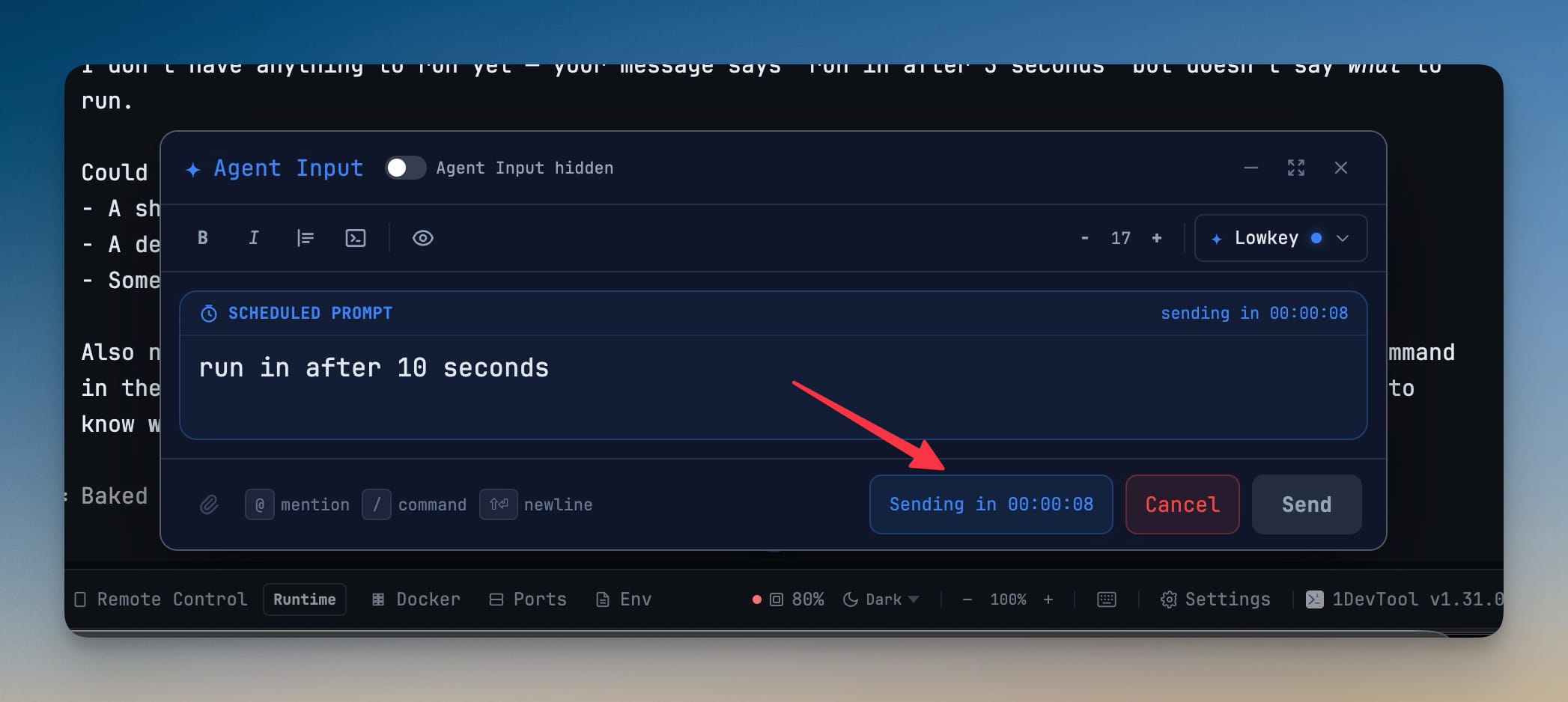
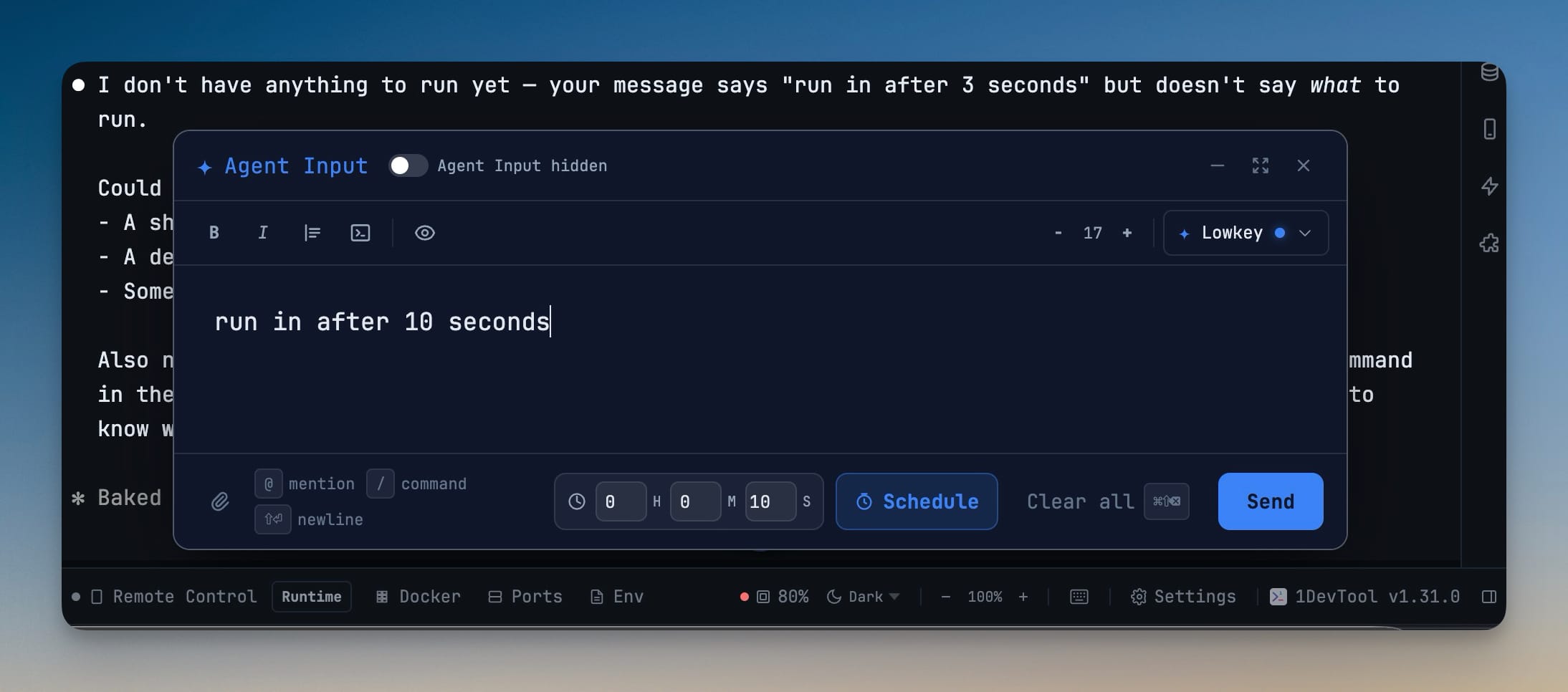
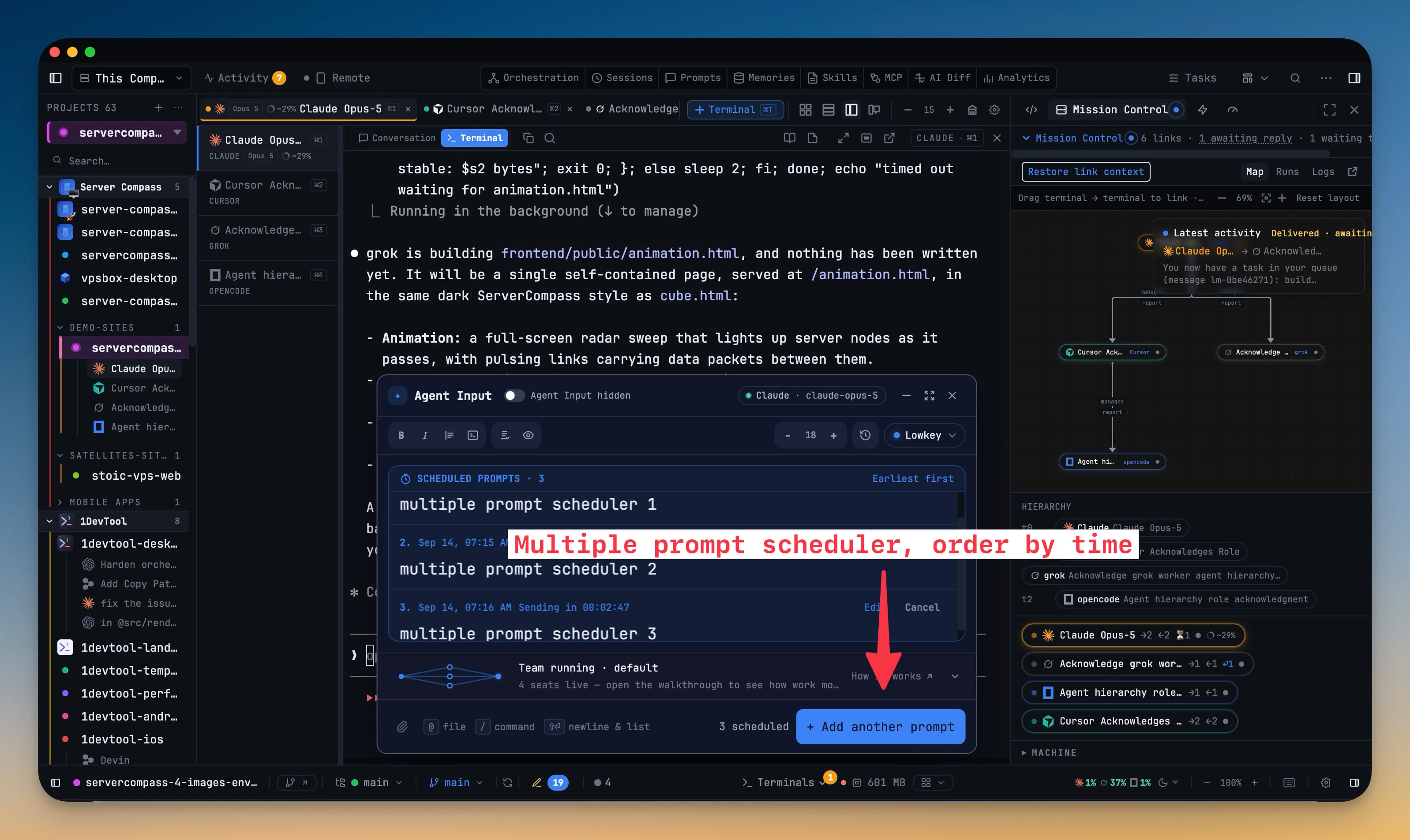
Schedule prompts in Agent Input and let 1DevTool send them to the terminal later — on a timer, at a set time, or a few minutes after an AI quota reset. A terminal can hold several scheduled prompts at once: they queue earliest first, each with its own send time, Edit and Cancel, a failed send pauses that terminal's queue until you restore or remove it, and prompts that came due while the machine slept go out one at a time. Scheduled sends reuse the same attachments, AI Diff and agent handoff as a normal send, and you can schedule from your phone through Remote Control too.
More Screenshots
Click any image to zoom in
Why You Need This
How this feature boosts your daily productivity
Some prompts shouldn't fire the instant you finish typing them. You want an agent to start after a long build completes, or to pick up a task the moment you step away from the desk — without sitting there to press Send at the right second. Scheduled Agent Prompts let you queue the message with a timer in hours, minutes, and seconds and walk away. A live countdown keeps the pending prompt visible and a Cancel button keeps you in control, and because it runs through the same submit path as a manual send, attachments and agent handoff behave exactly as they normally would. With Remote Control scheduling, you can queue that prompt from your phone and let it fire at the next quota reset while you're away from the desk.
How It Works
Get started in 4 simple steps
Write the prompt in Agent Input
Open Agent Input on the terminal, write the prompt and attach any files exactly as you would for a normal send.
Pick when it sends
Choose Timer, At time or AI reset — the last sends a few minutes after the agent’s quota window resets.
Stack more prompts
Use Add another prompt to schedule the next one. The queue lists Scheduled prompts · N, earliest first, with Edit and Cancel on each entry.
Let the queue run
Prompts send in order. A failed send pauses that terminal’s queue until you Restore or Remove it; prompts missed during sleep go out one at a time.
Without 1DevTool
The manual way vs. the 1DevTool way
The Hard Way
The 1DevTool Way
Key Capabilities
Everything included with Scheduled Agent Prompts
Why It Matters
The productivity impact of having ai productivity built into your workspace
Line Up The Night’s Work
Queue a follow-up behind the first prompt instead of a new schedule replacing the one before it.
Failures Don’t Cascade
A failed send pauses only that terminal’s queue, so nothing fires into a composer holding a half-written prompt.
Quota Resets Work For You
AI reset sends pick up the moment the window refills, even if you are asleep.
More in AI Productivity
Other features in this category you might find useful
Prompt History
Search prompts and sticky notes from Remote Control while away from the desktop. Switch between This project and All projects, filter prompts by agent or notes by source, copy entries, delete with Operator access, and sync local prompt history.
Resume UI
Browse, search, and resume past AI sessions from Claude Code, Codex, and Gemini CLI — or combine multiple sessions into one.
Combine Sessions
Select sessions from Claude Code, Codex, and Gemini CLI and merge them into a single conversation — giving your next agent the full cross-agent context.
AI Diff Review Panel
Track every file modification any AI agent makes — Claude Code, Codex, Gemini, Amp, custom — and review, accept, or revert their work per file from a dedicated panel with inline diff overlays in the editor.
Ready to boost your workflow?
Download 1DevTool for free and experience Scheduled Agent Prompts along with 321 other features — all in one app.