Show Run Timer Toggle
Control whether the elapsed-time chip appears on AI terminal tabs while an agent is processing. Defaults to on; turn it off if the live-updating timer is distracting during long agent runs.
Why You Need This
How this feature boosts your daily productivity
Some developers find the live-ticking timer anxiety-inducing during long AI agent runs. A simple toggle under Settings > Terminal > General lets you choose whether to see elapsed time or not, matching your preference without removing the feature for users who want it.
How It Works
Get started in 4 simple steps
Work Naturally
Use AI agents in your terminals as you normally would. Prompts and sessions are captured automatically.
Search Your History
Open Prompt History to find past prompts. Search by keyword to find the exact prompt you used before.
Annotate Visually
Capture and annotate screenshots. Embed them in AI prompts for visual context that text alone can't convey.
Build Your Library
Your prompt history becomes a personal knowledge base. Reuse proven prompts and refine your AI workflow over time.
Without 1DevTool
The manual way vs. the 1DevTool way
The Hard Way
The 1DevTool Way
How it compares
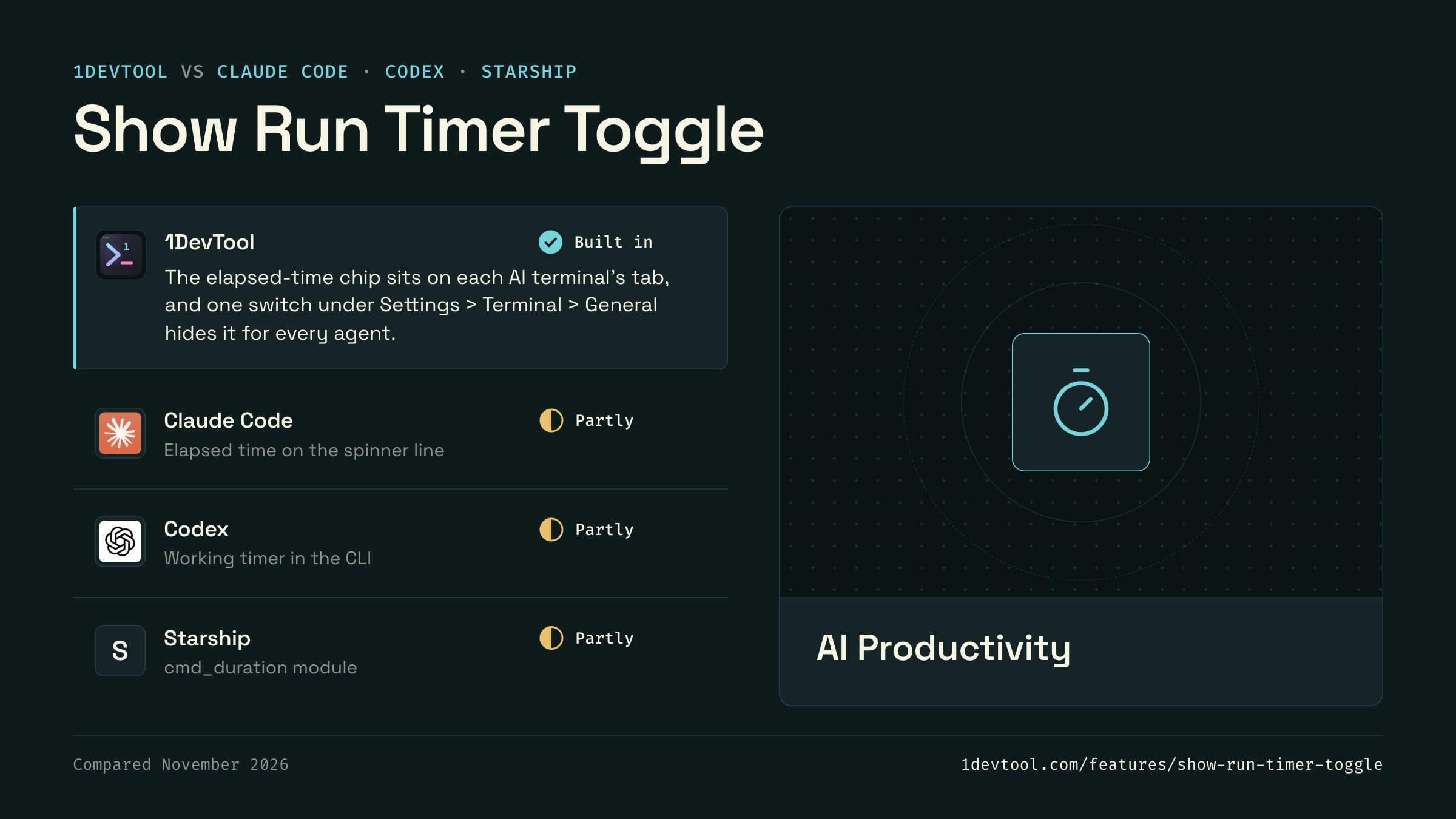
Agent CLIs show elapsed time on their own working line, and shell prompts such as Starship can show how long a command took.
 1DevToolBuilt inBuilt in
The elapsed-time chip sits on each AI terminal's tab, and one switch under Settings > Terminal > General hides it for every agent.
 Claude CodePartlyPartly
Claude Code shows elapsed seconds and a token count next to its working spinner while it runs.
 CodexPartlyPartly
The Codex CLI shows a Working status with elapsed seconds while it runs, beside the hint to press Esc to interrupt.
- StarshipPartlyPartly
Starship's cmd_duration module shows how long the last command ran once it ends, with a minimum time and a disabled switch in starship.toml.
Checked November 2026 against each app's public docs. These products change quickly. If a row is out of date, tell us at feedback.stoicsoft.com/1devtool.
Key Capabilities
Everything included with Show Run Timer Toggle
Why It Matters
The productivity impact of having ai productivity built into your workspace
Searchable Prompt Library
Every prompt you've ever sent is captured and searchable. Find and reuse your best AI interactions.
Visual AI Communication
Annotate screenshots and embed them in prompts. Show your AI agent exactly what you see.
Session Knowledge Base
AI conversations become searchable history. Find how you solved a similar problem last week.
Power Navigation
Command palette gives you instant access to any feature. Navigate 1DevTool at the speed of thought.
More in AI Productivity
Other features in this category you might find useful
Prompt History
Search prompts and sticky notes from Remote Control while away from the desktop. Switch between This project and All projects, filter prompts by agent or notes by source, copy entries, delete with Operator access, and sync local prompt history.
Resume UI
Read any past AI session before you resume it. Resume AI Sessions is a split view with a searchable list of every Claude Code, Codex, Gemini CLI and other agent session on the left and a live preview of the project, branch, tool calls and conversation on the right, with replies rendered as Markdown, with Resume, bypass permissions and an editable command one click away.
Combine Sessions
Merge several past AI sessions into one opening prompt, or hand a single session to a different agent. Tick sessions in Resume AI Sessions, see a token estimate of the context they add, and send the result to a new chat with any agent or preset or to a terminal that is already open.
AI Diff Review Panel
Track every file modification any AI agent makes — Claude Code, Codex, Gemini, Amp, custom — and review, accept, or revert their work per file from a dedicated panel with inline diff overlays in the editor.
Ready to boost your workflow?
Download 1DevTool for free and experience Show Run Timer Toggle along with 347 other features — all in one app.