Usage and Logs by Team
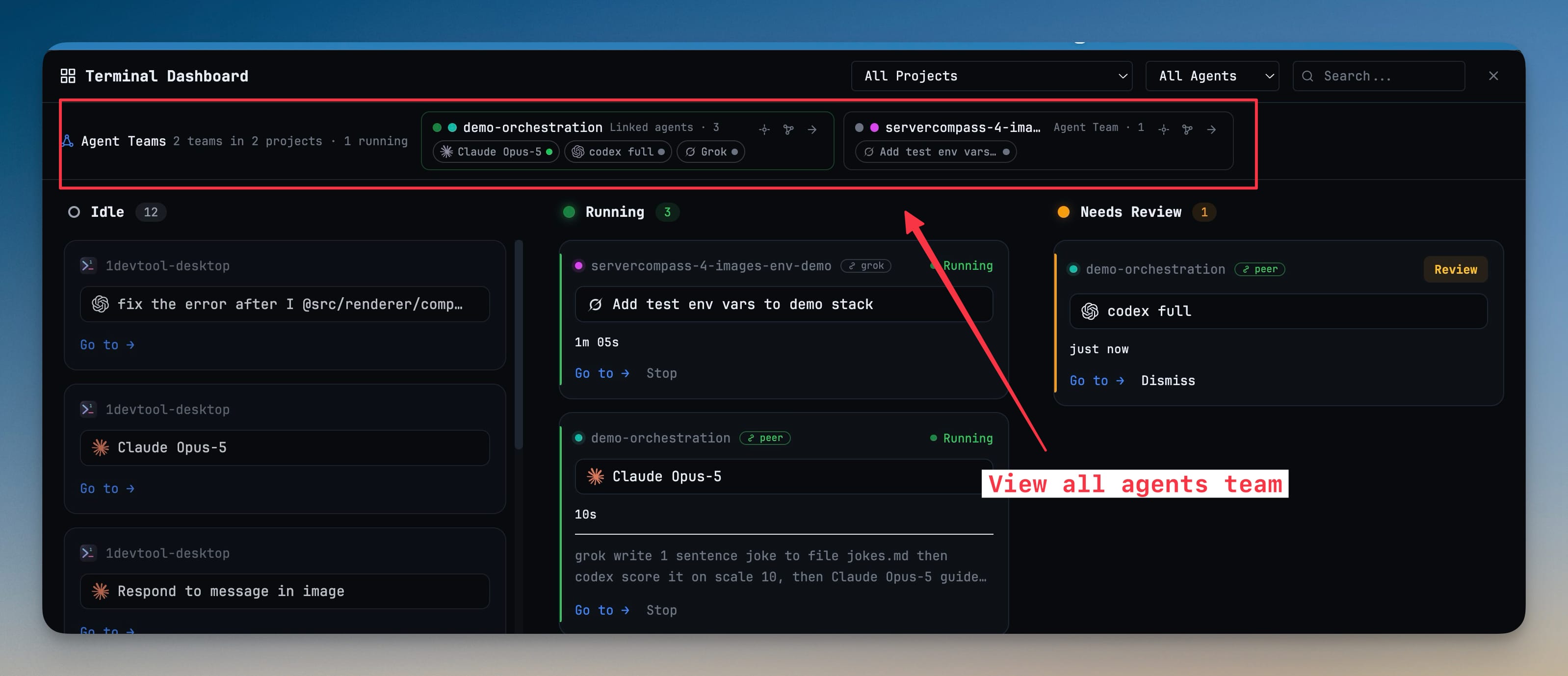
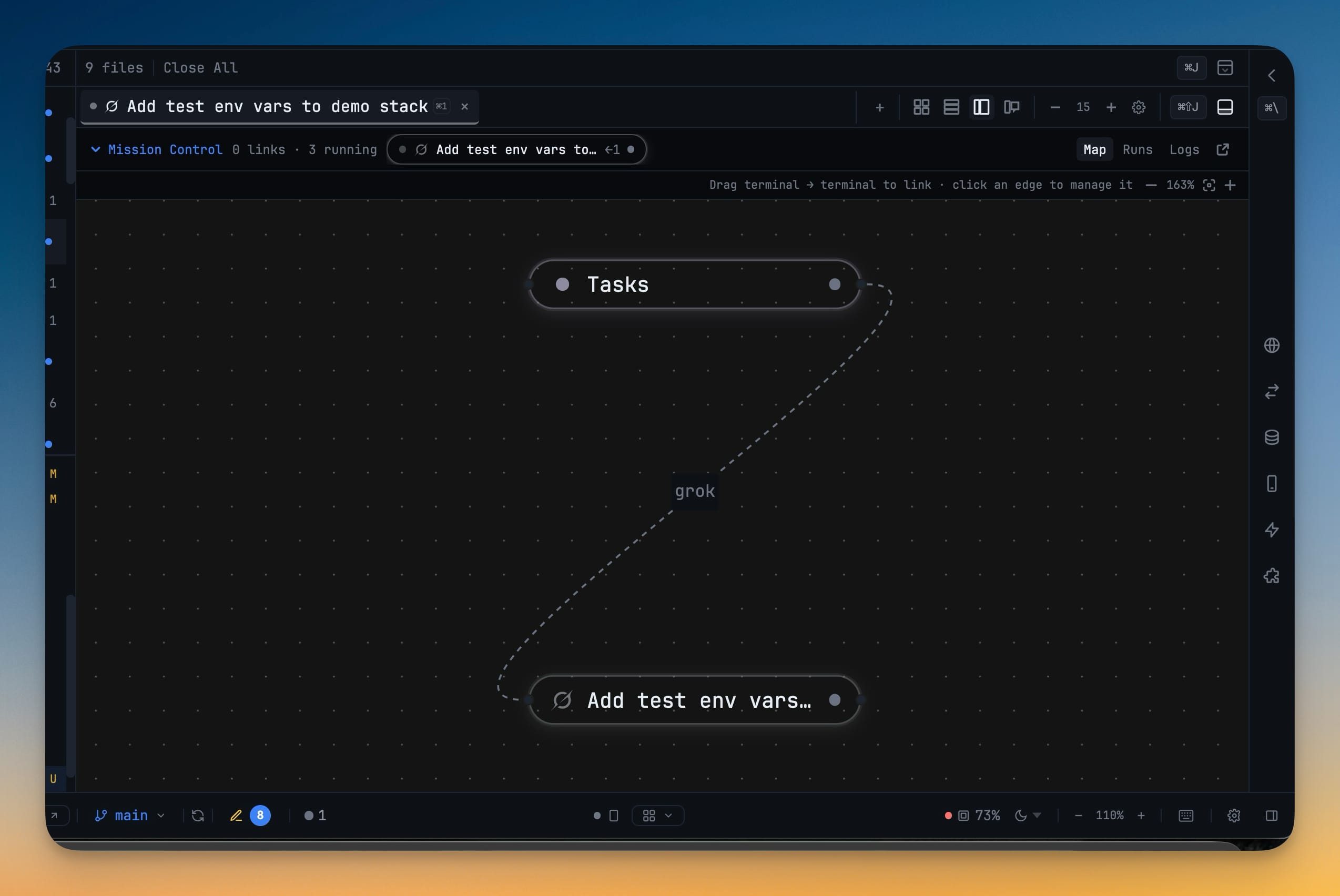
Read your orchestration by team instead of by lone agent. The Usage tab groups rows by team — named after its members, like `opus 5 + fable + codex` — Logs nest runs under the team that produced them, and a live team rail on the Dashboard, All Terminals list and Terminal Canvas gets you into a running team in one click.
More Screenshots
Click any image to zoom in
Why You Need This
How this feature boosts your daily productivity
When three agents work one job, three separate agent rows tell you almost nothing: not who they were working with, not what the job cost, not which of them is still going. Grouping by team gives a row a meaning before you open it. The numbers are honest about their own limits — tokens and cost are attributed through captured session ids only, so a member with nothing readable says `not tracked` instead of showing a fabricated zero, and sessions no live team claims stay visible as Not in a team so the rows still add up to what your machine really spent. Busy and Active are kept separate too, because agent time can exceed the clock when agents run in parallel and collapsing them would flatter the total. Logs follow the same shape: select a team header and you get one merged stream that interleaves run starts, output, and the messages that travelled between members into a readable conversation.
How It Works
Get started in 4 simple steps
Open the Usage tab
Rows arrive grouped by team. Nothing is scanned until you ask — press Load tokens & cost and the figures are cached and stamped with the time they were read.
Read a team as one row
The team is named after its members, with Busy and Active shown separately, and any session no live team claims listed as Not in a team.
Expand to per-member detail
Break the team down by member, and click a member’s tokens to jump to that terminal. Members with no readable session id say not tracked.
Follow the same grouping in Logs
Runs nest under their team, and selecting a team header opens one merged stream of run starts, output and the messages that moved between members.
Without 1DevTool
The manual way vs. the 1DevTool way
The Hard Way
The 1DevTool Way
Key Capabilities
Everything included with Usage and Logs by Team
Why It Matters
The productivity impact of having ai productivity built into your workspace
A Row That Means Something
A team named opus 5 + fable + codex tells you who worked the job before you expand it, where three separate agent rows told you almost nothing.
Honest About Its Limits
Cost is attributed through captured session ids only, so an unreadable member says not tracked rather than showing a fabricated zero.
The Totals Reconcile
Sessions no live team claims stay visible as Not in a team, so the rows always add up to what your machine really spent.
Busy And Active Stay Separate
Agent time can exceed the wall clock when agents run in parallel, so merging them into one number would flatter the total.
More in AI Productivity
Other features in this category you might find useful
Prompt History
Search prompts and sticky notes from Remote Control while away from the desktop. Switch between This project and All projects, filter prompts by agent or notes by source, copy entries, delete with Operator access, and sync local prompt history.
Resume UI
Read any past AI session before you resume it. Resume AI Sessions is a split view with a searchable list of every Claude Code, Codex, Gemini CLI and other agent session on the left and a live preview of the project, branch, tool calls and conversation on the right, with replies rendered as Markdown, with Resume, bypass permissions and an editable command one click away.
Combine Sessions
Merge several past AI sessions into one opening prompt, or hand a single session to a different agent. Tick sessions in Resume AI Sessions, see a token estimate of the context they add, and send the result to a new chat with any agent or preset or to a terminal that is already open.
AI Diff Review Panel
Track every file modification any AI agent makes — Claude Code, Codex, Gemini, Amp, custom — and review, accept, or revert their work per file from a dedicated panel with inline diff overlays in the editor.
Ready to boost your workflow?
Download 1DevTool for free and experience Usage and Logs by Team along with 345 other features — all in one app.