Write Notes From The Notes Library
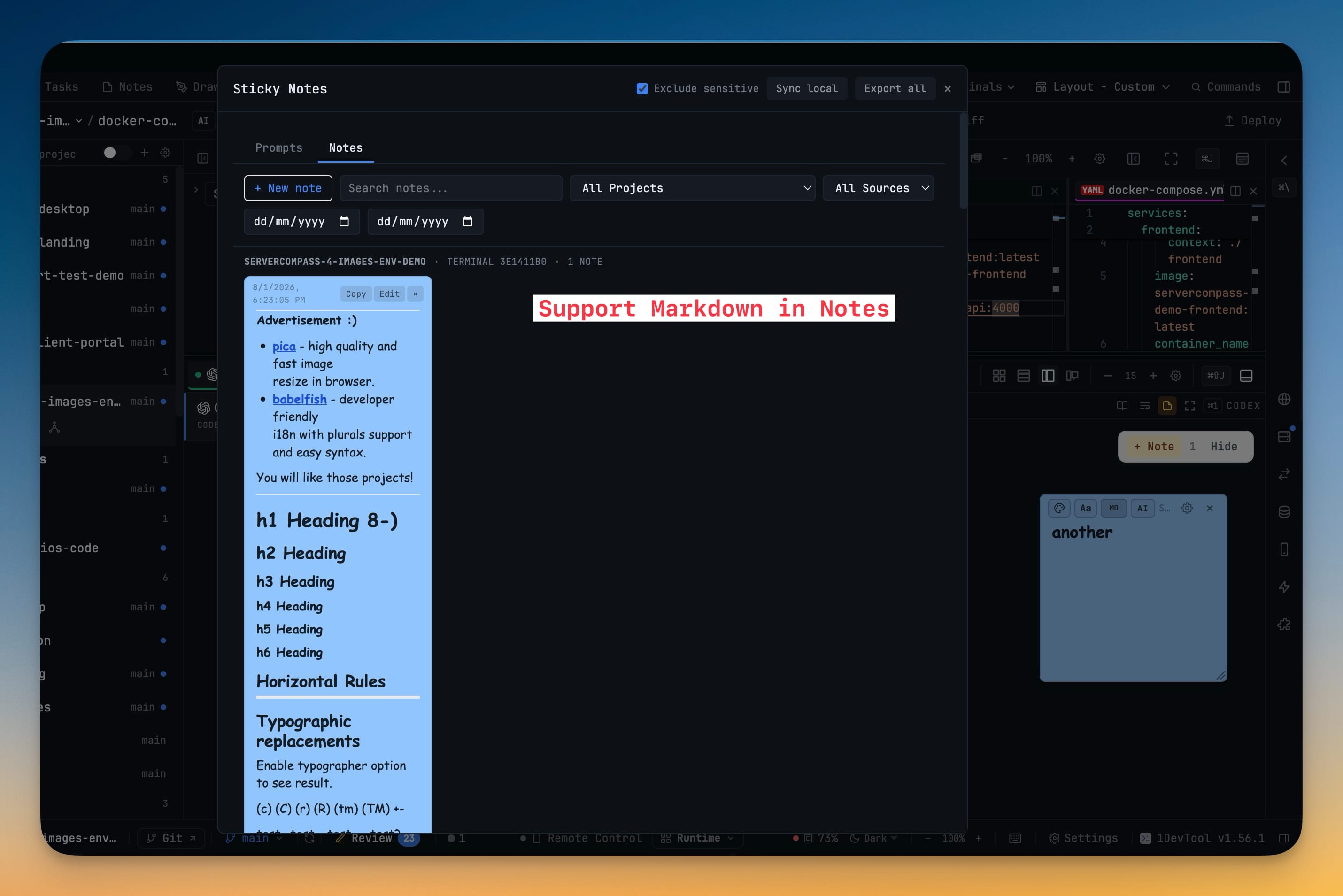
A + New note button opens a composer right in the Sticky Notes library, so a thought that belongs to a project no longer needs a file or a terminal to hang off. Pick the project and colour, save with ⌘⏎ or Save note, and find it later under the Manual source filter.
Why You Need This
How this feature boosts your daily productivity
Sticky notes used to need a host — a terminal to pin to, or a file to sit beside. That works when the thought arrives while you are already looking at the thing it concerns, and fails the rest of the time, which is most of the time. Writing straight into the library removes the hosting step: choose the project, type, save. Manual notes are grouped and filterable so they do not get lost among session notes, the composer inherits the sticky note font, size and dimensions you already set, and the list relaxes any filter that would have hidden the note you just wrote.
How It Works
Get started in 4 simple steps
Open the Sticky Notes library
Switch to the Notes tab, where every note across your projects is searchable by text, project, source and date.
Press + New note
A composer opens right in the notes list. No file to attach to, no terminal to pin against — the note stands on its own.
File it and save
Choose the project it belongs to, pick its colour, then save with ⌘⏎ or the Save note button. Escape closes the composer without closing the library.
Find it under Manual
Notes written this way group under Manual notes and surface with the Manual source filter. They reach the phone labelled as Manual note.
Without 1DevTool
The manual way vs. the 1DevTool way
The Hard Way
The 1DevTool Way
Key Capabilities
Everything included with Write Notes From The Notes Library
Why It Matters
The productivity impact of having project management built into your workspace
A Thought Needs No Host
Notes used to need a terminal to pin to or a file to sit beside. Now the note stands on its own and still belongs to a project.
Filed As You Write It
Project and colour are chosen in the composer, so a note lands where you will look for it instead of somewhere you will have to search.
Manual Notes Stay Findable
Standalone notes group under Manual notes with their own source filter, so they do not get lost among hundreds of session notes.
The List Does Not Hide Your Work
Saving relaxes any active filter that would have hidden the note you just wrote, so it never vanishes the moment you create it.
More in Project Management
Other features in this category you might find useful
Multi-Project Workspace
Work on multiple projects simultaneously with instant switching. Entire workspace state is preserved per project.
Smart File Explorer
Real-time file tree with type icons, .gitignore filtering, search, and right-click context menus.
Per-Project Code Intelligence
Spawn real typescript-language-server, gopls, pyright, rust-analyzer, clangd, solargraph, intelephense, or sourcekit-lsp for the projects you opt into — with project-aware errors and zero false positives.
Color-Coded Projects
Assign accent colors to each project for instant visual identification across your workspace.
Ready to boost your workflow?
Download 1DevTool for free and experience Write Notes From The Notes Library along with 347 other features — all in one app.