Git Changes as a Folder Tree
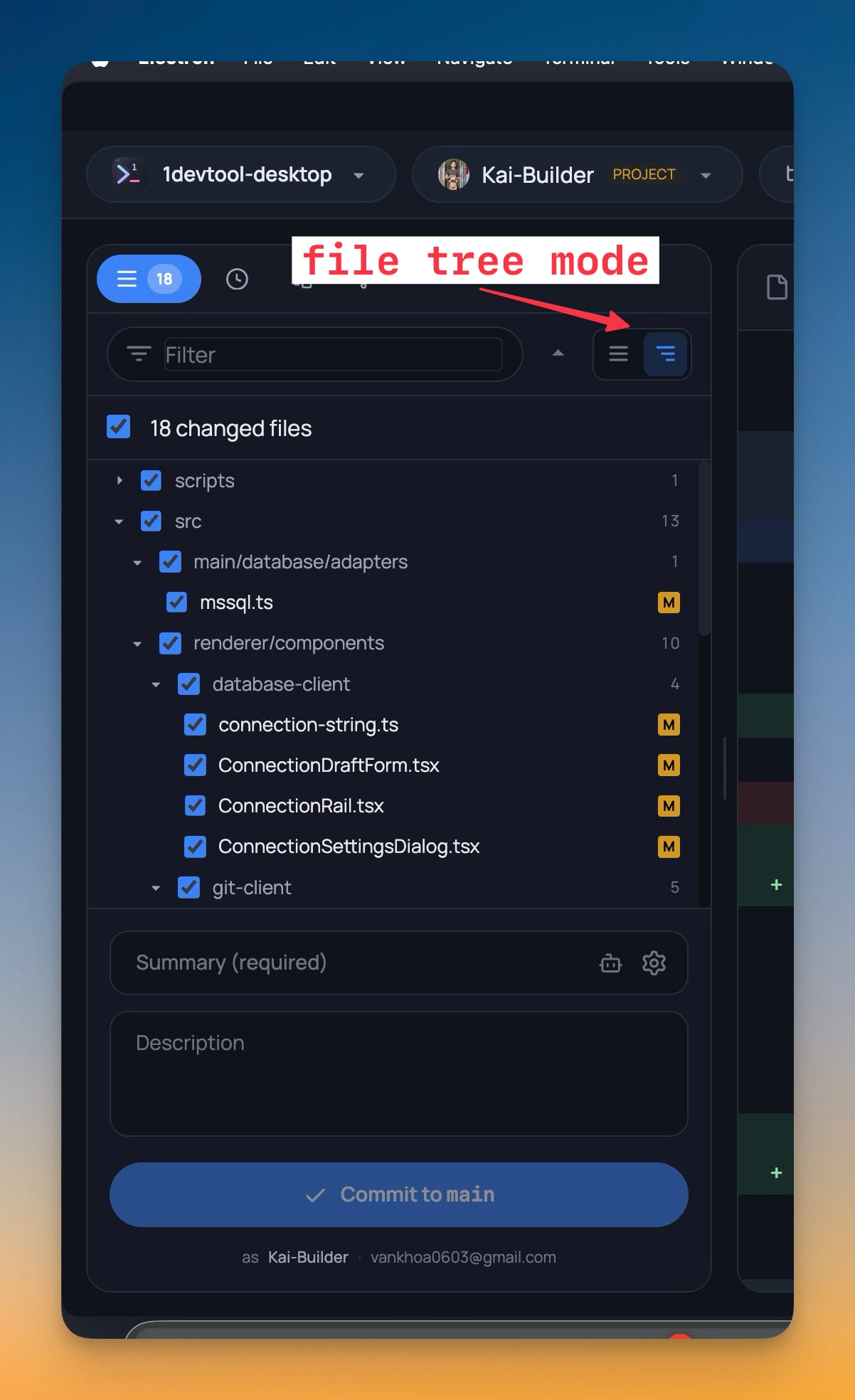
A toggle next to the filter box switches the Changes list between the flat list and a VS Code style folder tree, and your choice sticks for next time. Each directory row carries its own checkbox that stages or unstages everything beneath it, and shows a dash when only part of that folder is staged.
Why You Need This
How this feature boosts your daily productivity
Agents produce wide, shallow diffs. A change touching four directories and eighteen files is ordinary now, and a flat list turns that into eighteen rows of near-identical paths you have to read character by character to tell apart. The tree groups them the way you already think about the repo — this is the database adapter work, that is the git client work — so you can triage by area instead of by filename. Per-folder staging follows from that: once you can see an area, staging the whole area should be one click rather than eighteen. The tri-state dash matters more than it sounds, because partial staging is easy to create by accident and nearly invisible in a flat list; a folder that is neither on nor off tells you at the directory level that something inside it is only half committed. The flat list is untouched and still shows the full path on every row, for when the change set is small enough that grouping is just an extra click.
How It Works
Get started in 4 simple steps
Open Git Client → Changes
The Changes list is the working-tree view you stage and commit from.
Flip the toggle beside the filter box
Two small buttons switch between the flat list and the folder tree. Your choice is remembered the next time you open the dialog.
Stage by folder
Every directory row has its own checkbox that stages or unstages everything beneath it in one click.
Read the dash
A folder checkbox shows a dash when only part of that folder is staged, so partial staging is visible at the directory level.
Collapse or expand the lot
Collapse all and expand all handle a change set spanning many directories. The flat list is still there, still showing full paths.
Without 1DevTool
The manual way vs. the 1DevTool way
The Hard Way
The 1DevTool Way
Key Capabilities
Everything included with Git Changes as a Folder Tree
Why It Matters
The productivity impact of having project management built into your workspace
Wide Agent Diffs Fit On Screen
Eighteen files across four directories group into a handful of rows you can read by area instead of by filename.
Staging An Area Is One Click
A folder checkbox stages everything beneath it, so reviewing by area and staging by area are the same gesture.
Partial Staging Becomes Visible
The tri-state dash surfaces a half-staged folder at the directory level, where a flat list would hide it among identical-looking rows.
The Flat List Is Still There
Your choice sticks per dialog, and small change sets can stay in the view that shows the full path on every row.
More in Project Management
Other features in this category you might find useful
Multi-Project Workspace
Work on multiple projects simultaneously with instant switching. Entire workspace state is preserved per project.
Smart File Explorer
Real-time file tree with type icons, .gitignore filtering, search, and right-click context menus.
Per-Project Code Intelligence
Spawn real typescript-language-server, gopls, pyright, rust-analyzer, clangd, solargraph, intelephense, or sourcekit-lsp for the projects you opt into — with project-aware errors and zero false positives.
Color-Coded Projects
Assign accent colors to each project for instant visual identification across your workspace.
Ready to boost your workflow?
Download 1DevTool for free and experience Git Changes as a Folder Tree along with 345 other features — all in one app.