Paste Into Terminals
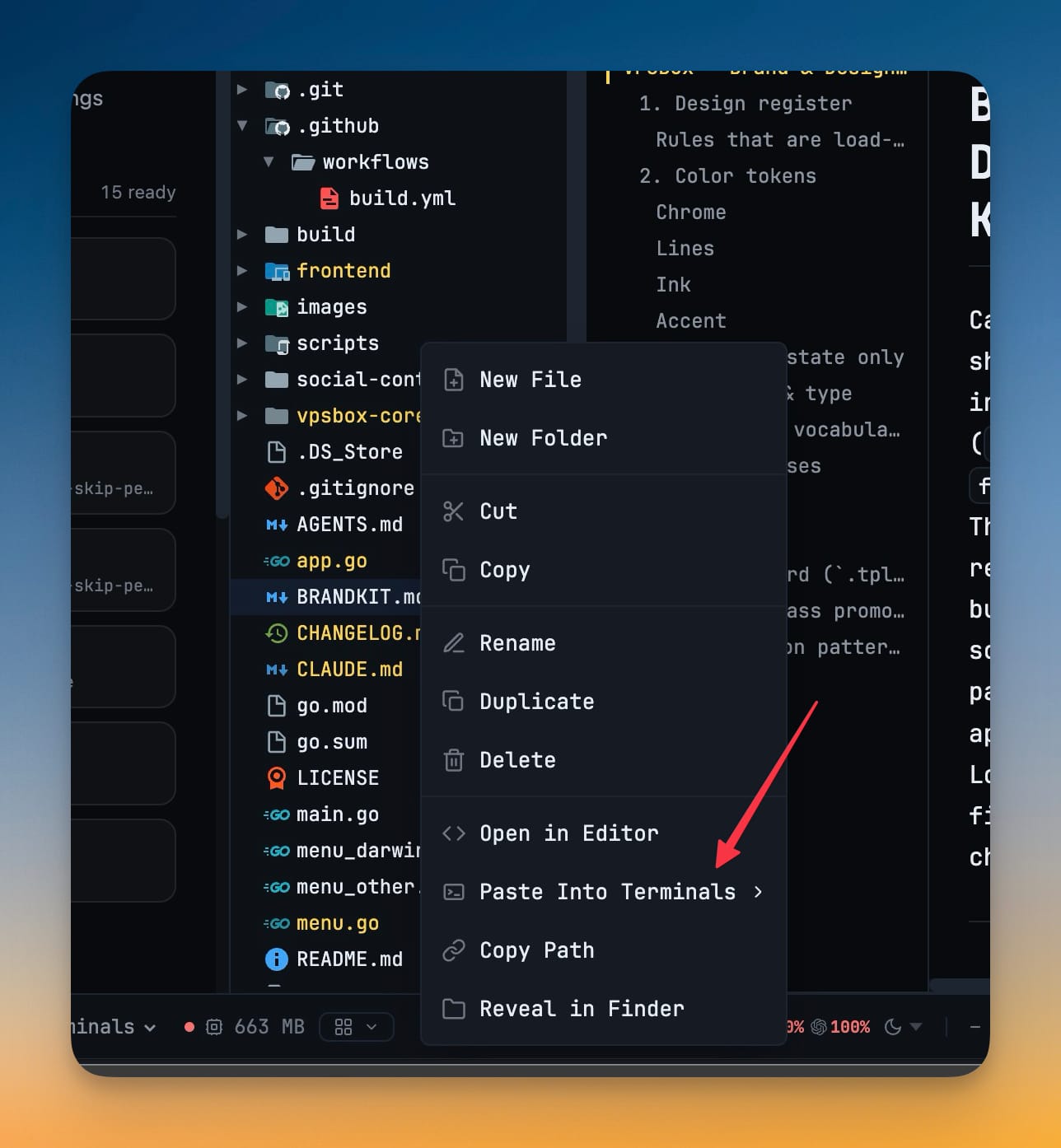
Right-click any file or folder in the explorer and Paste Into Terminals drops its path straight into a running terminal. The submenu lists every open terminal grouped by project — the one you are in first — each row carrying its agent's brand mark.
Why You Need This
How this feature boosts your daily productivity
Telling an agent about a file is a path-shaped errand: find it in the explorer, copy the path, click into the right terminal, paste. Every step is trivial and the whole sequence is friction you pay several times an hour, with a real failure mode at the end — pasting into the terminal next to the one you meant. Putting the terminals in the menu collapses the errand into one gesture and makes the target explicit, since you pick the destination by name and brand mark rather than by clicking a pane and trusting you clicked the right one. Picking a target also does the follow-through: it switches project if the terminal lives in another one, expands a collapsed terminal pane, and focuses the terminal, so the path lands where you are looking instead of in a pane you still have to go find. The list is snapshotted once per expand on purpose — a terminal appearing mid-menu would shift the row under your cursor, which is exactly how a path gets sent to the wrong agent.
How It Works
Get started in 4 simple steps
Right-click a file or folder
In the file explorer, the context menu now carries Paste Into Terminals between Open in Editor and Copy Path.
Expand the submenu
It lists every open terminal grouped under its project, with the project you are in floated to the top. It loads on first expand, so the file tree stays fast.
Pick by name and brand mark
AI terminals show their agent’s logo tinted with the terminal’s accent colour; plain shells show a terminal glyph — the same read the sidebar gives you.
Watch it land
The path drops into that terminal, 1DevTool switches project if it lives in another one, expands a collapsed terminal pane, and focuses the terminal.
Without 1DevTool
The manual way vs. the 1DevTool way
The Hard Way
The 1DevTool Way
Key Capabilities
Everything included with Paste Into Terminals
Why It Matters
The productivity impact of having project management built into your workspace
The Path Errand Collapses
Find, copy, click the right pane, paste becomes right-click and pick — several times an hour, every hour.
You Pick The Agent By Name
Choosing from a labelled list removes the failure where the path lands in the terminal next to the one you meant.
Cross-Project Sends Just Work
The app switches project, opens a collapsed terminal pane and focuses the terminal, so nothing is left for you to go and find.
The Menu Cannot Shift Under You
Targets are snapshotted once per expand, so a terminal appearing mid-menu never moves the row beneath your cursor.
More in Project Management
Other features in this category you might find useful
Multi-Project Workspace
Work on multiple projects simultaneously with instant switching. Entire workspace state is preserved per project.
Smart File Explorer
Real-time file tree with type icons, .gitignore filtering, search, and right-click context menus.
Per-Project Code Intelligence
Spawn real typescript-language-server, gopls, pyright, rust-analyzer, clangd, solargraph, intelephense, or sourcekit-lsp for the projects you opt into — with project-aware errors and zero false positives.
Color-Coded Projects
Assign accent colors to each project for instant visual identification across your workspace.
Ready to boost your workflow?
Download 1DevTool for free and experience Paste Into Terminals along with 345 other features — all in one app.